Clean hidden spaces and tabs in times

Turn clock text with nonbreaking spaces or tabs, like 6:45 PM from an export, into a real time.
What you'll make
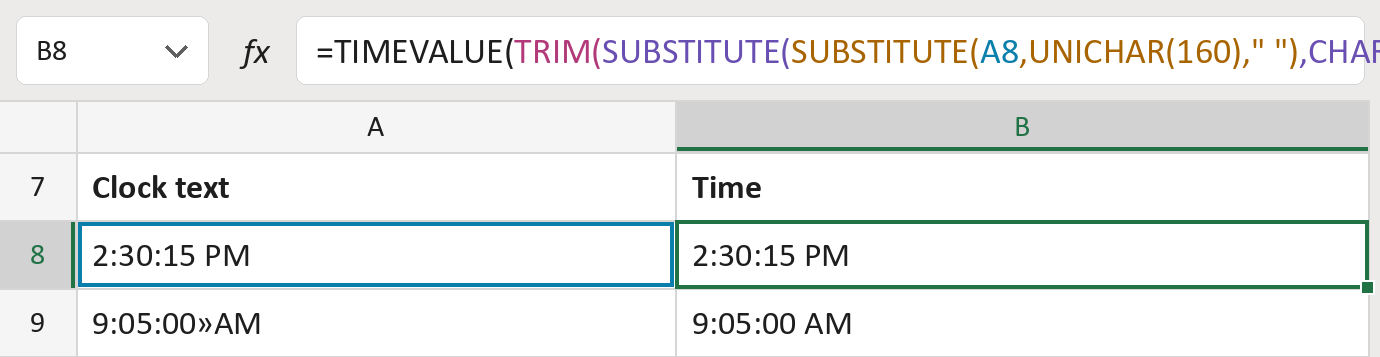
The formula
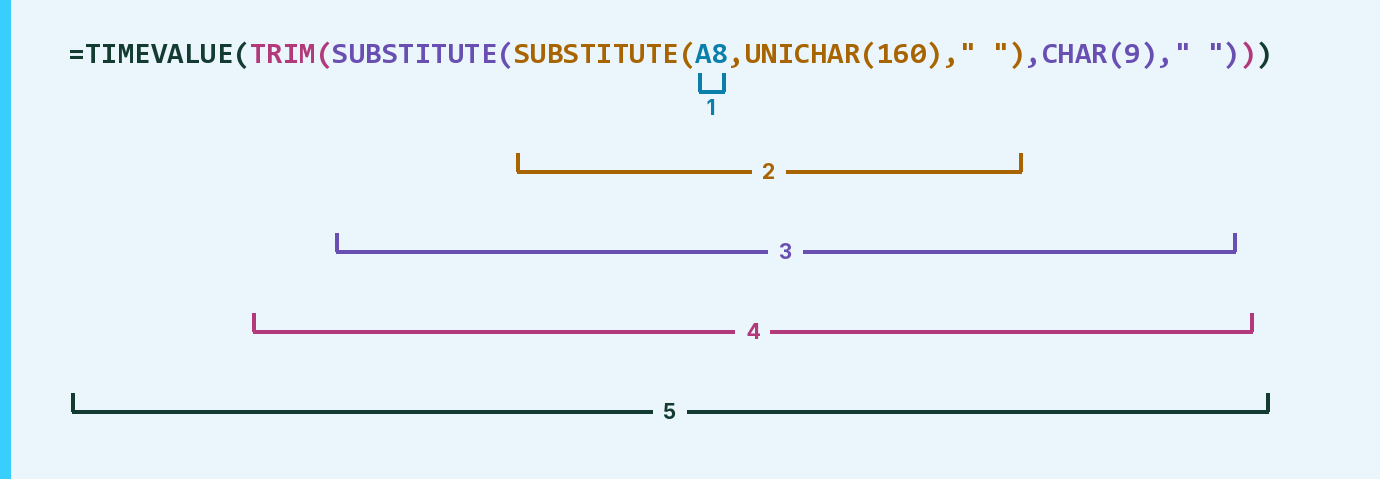
| Number | Part | What it does | Result so far |
|---|---|---|---|
| 1 | A8 | The clock text. » marks a tab. | "2:30:15 PM" |
| 2 | SUBSTITUTE( … 160 … ) | Swaps each nonbreaking space for an ordinary one. | "2:30:15 PM" |
| 3 | SUBSTITUTE( … 9 … ) | Swaps each tab for an ordinary space. | "2:30:15 PM" |
| 4 | TRIM( … ) | Removes extra spaces at the ends and between. | "2:30:15 PM" |
| 5 | TIMEVALUE( … ) | Turns the text into a real time. | 2:30:15 PM |
Each bracket wraps the one above it, so Excel works from the inside out. A nonbreaking space looks like a space.
=TIMEVALUE(TRIM(SUBSTITUTE(SUBSTITUTE(A8,UNICHAR(160)," "),CHAR(9)," ")))How to use it
Yellow bar at the top? Click Enable Editing.
- See it work. The Example tab shows 20 made-up examples with the formula already in.
- Use your own times. Paste clock text like 6:45 PM into the green column of the Template tab. The times fill in by themselves.
- Move them into your letter. Copy the results. Then use Paste Special and choose Values.
Before you send
This fixes nonbreaking spaces and tabs only. If a row turns amber, it may hide a different odd character.
Microsoft's help: SUBSTITUTE function