Convert a date enclosed in hash marks

Turn #4-Nov-2026# from an export into a real date: November 4, 2026.
What you'll make
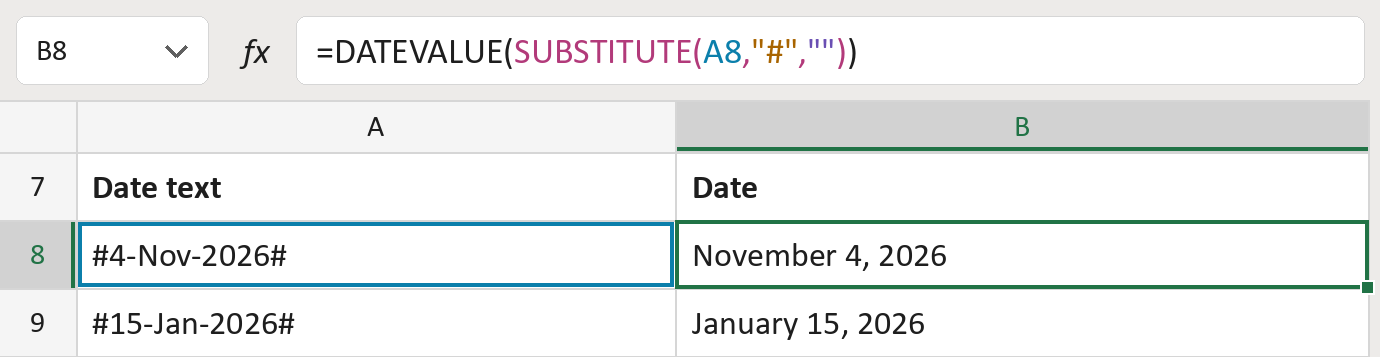
The formula
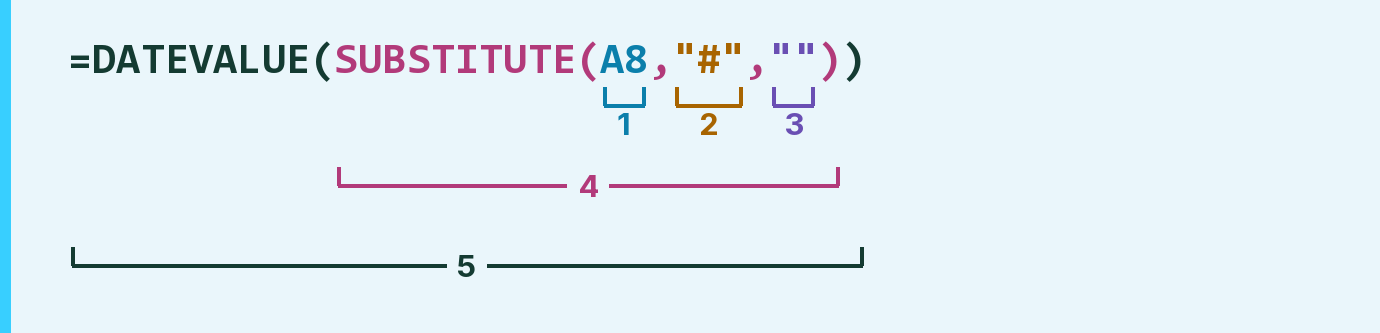
| Number | Part | What it does | For row 8 |
|---|---|---|---|
| 1 | A8 | The date text, with a # at each end. | "#4-Nov-2026#" |
| 2 | "#" | The hash mark to take out. | "#" |
| 3 | "" | Nothing, so each # is removed. | "" |
| 4 | SUBSTITUTE( … ) | Removes every # from the text. | "4-Nov-2026" |
| 5 | DATEVALUE( … ) | Reads the text and turns it into a real date. | November 4, 2026 |
It works from the inside out: SUBSTITUTE removes the # marks, then DATEVALUE reads the date.
=DATEVALUE(SUBSTITUTE(A8,"#",""))How to use it
Yellow bar at the top? Click Enable Editing.
- See it work. The Example tab shows 20 made-up examples with the formula already in.
- Use your own dates. Paste date text like #4-Nov-2026# into the green column of the Template tab. The dates fill in by themselves.
- Move them into your letter. Copy the results. Then use Paste Special and choose Values.
Before you send
Excel reads dates using your computer's settings. Month names are safe, but numbers-only dates like #04/11/2026# can swap day and month.
Microsoft's help: DATEVALUE function
OTHER ROUTES YOU MIGHT LIKE
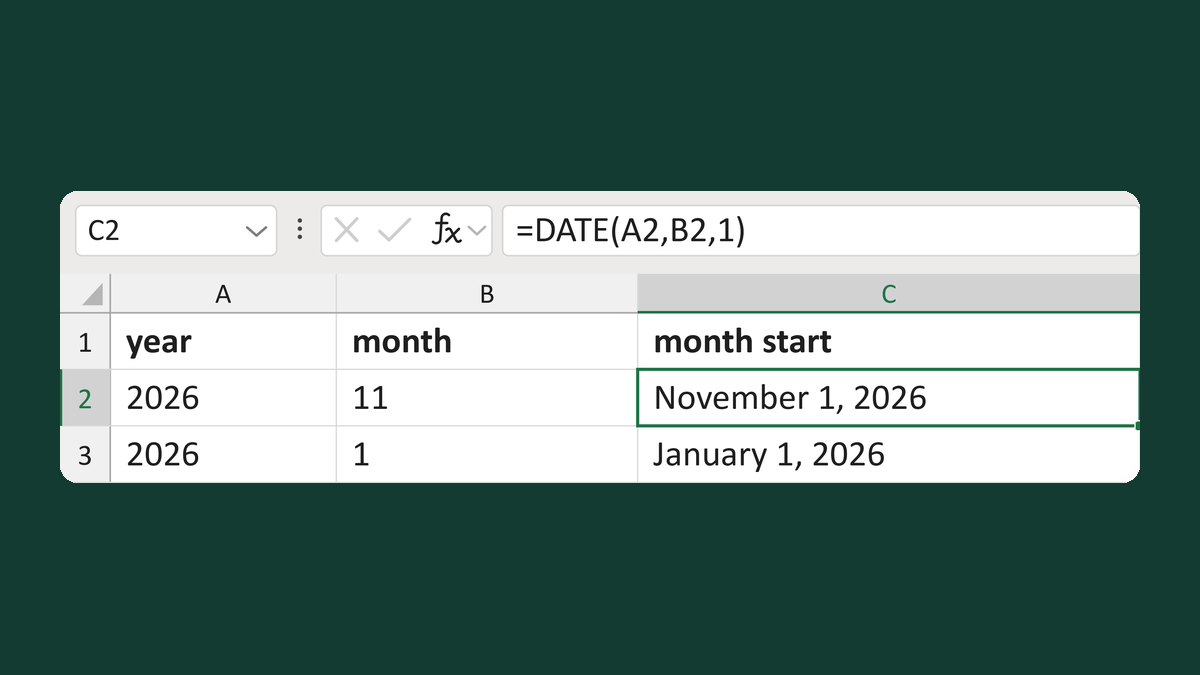
Build a month start from year and month
2026 + 11 → November 1, 2026
Get the template →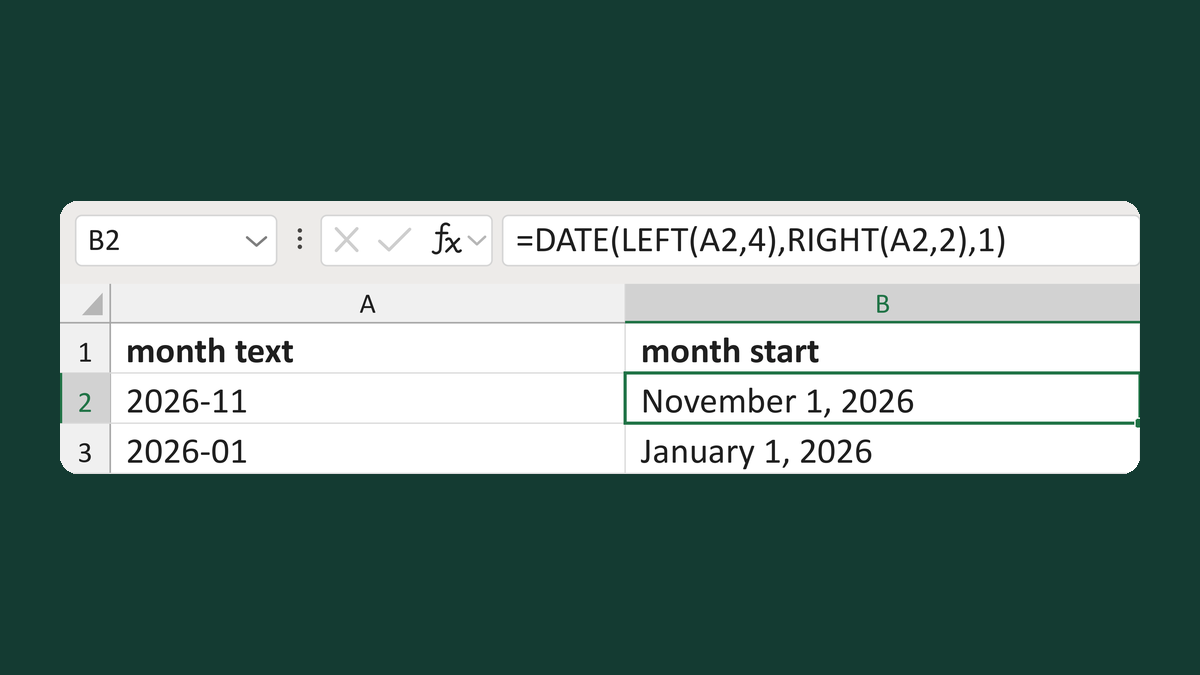
Convert yyyy-mm text to a month start
2026-11 → November 1, 2026
Get the template →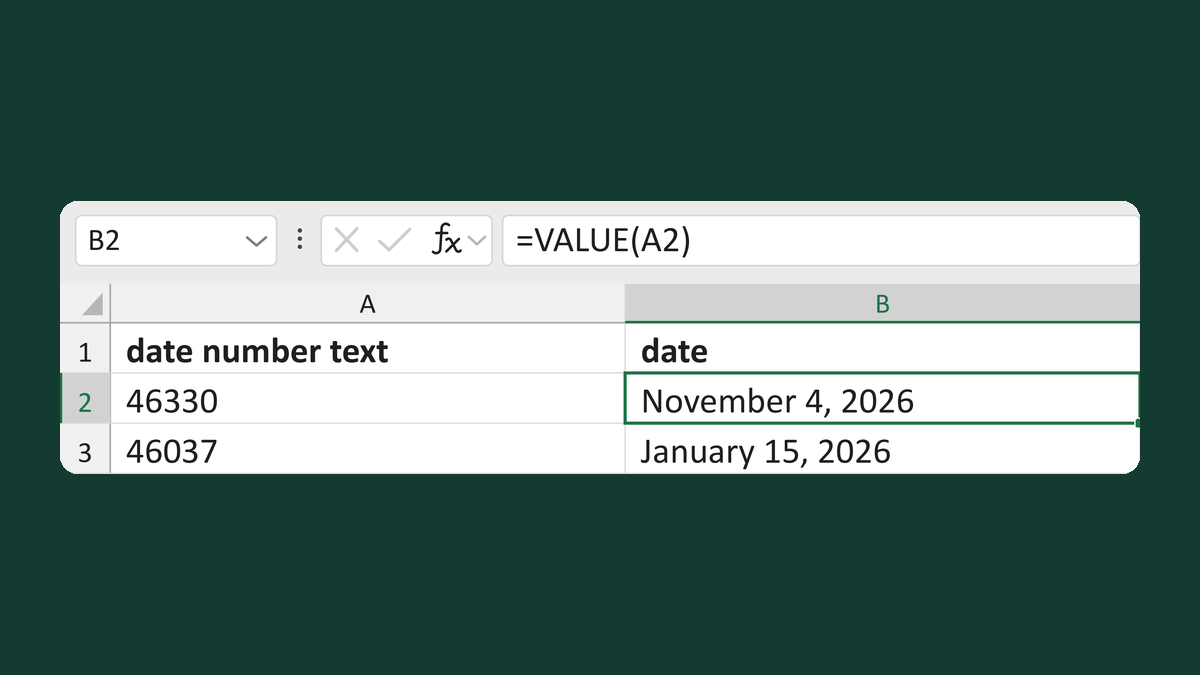
Turn a date number in text into a date
Text 46330 → November 4, 2026
Get the template →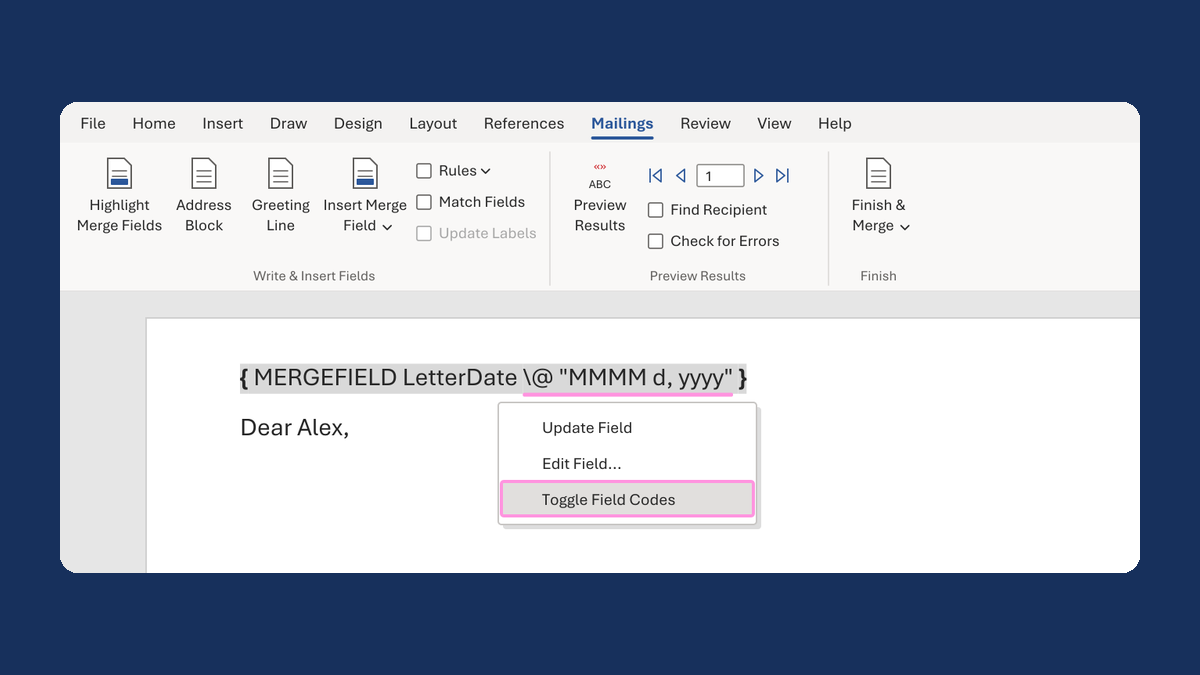
Show a letter date as November 5, 2026
11/5/2026 → November 5, 2026
Take this route →