Convert a date followed by a note

Turn the text 4-Nov-2026 (verified) into a real date: November 4, 2026.
Download Excel templateMicrosoft 365
What you'll make
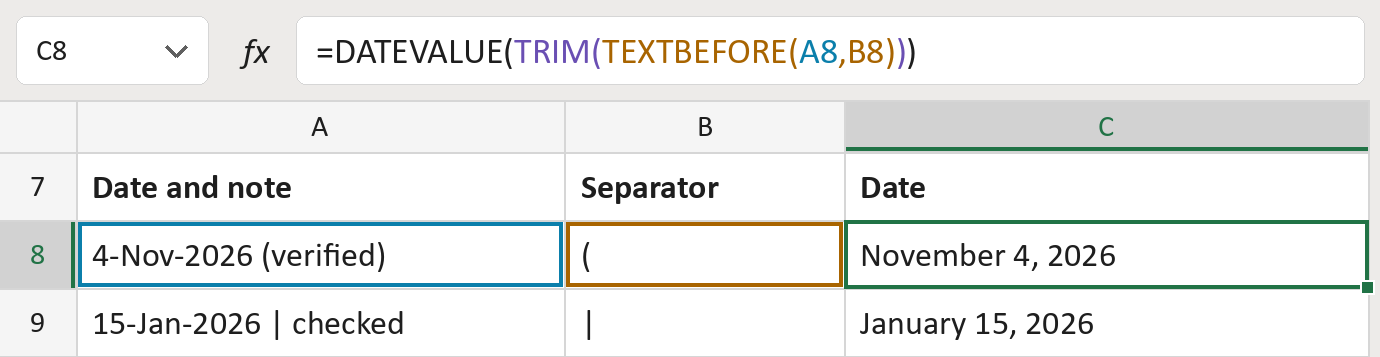
The formula
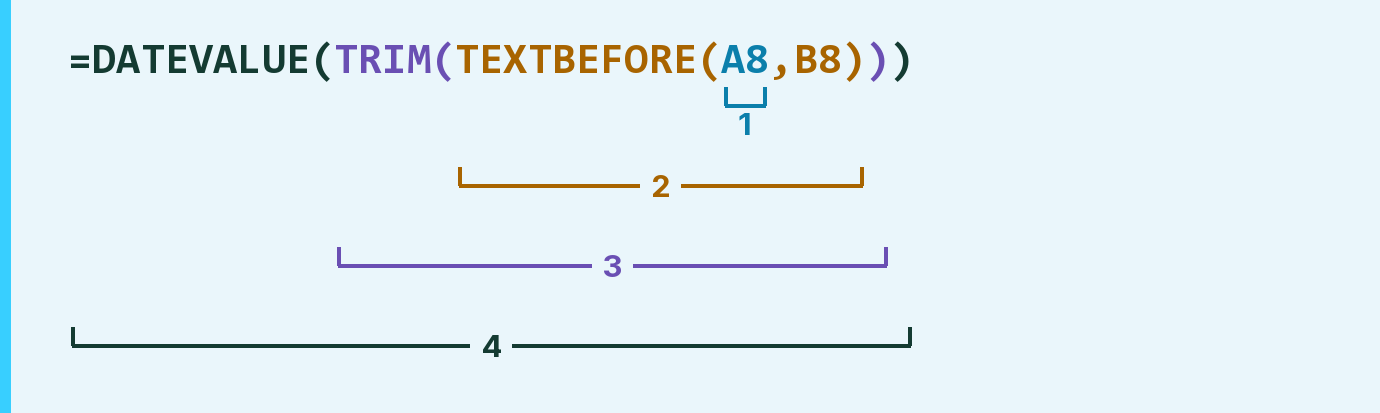
| Number | Part | What it does | Result so far |
|---|---|---|---|
| 1 | A8 | The date and its note, written as text. | "4-Nov-2026 (verified)" |
| 2 | TEXTBEFORE( … ,B8) | Keeps what comes before the separator in B8. | "4-Nov-2026 " |
| 3 | TRIM( … ) | Removes the spaces at the ends. | "4-Nov-2026" |
| 4 | DATEVALUE( … ) | Reads the text and turns it into a real date. | November 4, 2026 |
Each bracket wraps the one above it, so Excel works from the inside out.
=DATEVALUE(TRIM(TEXTBEFORE(A8,B8)))How to use it
Yellow bar at the top? Click Enable Editing.
- See it work. The Example tab shows 20 made-up examples with the formula already in.
- Use your own dates. Paste each date and note into column A of the Template tab and its separator into column B. The dates fill in by themselves.
- Move them into your letter. Copy the results. Then use Paste Special and choose Values.
Before you send
Pick a separator that never appears inside the date itself. A hyphen would cut 4-Nov-2026 short.
Microsoft's help: TEXTBEFORE function
OTHER ROUTES YOU MIGHT LIKE
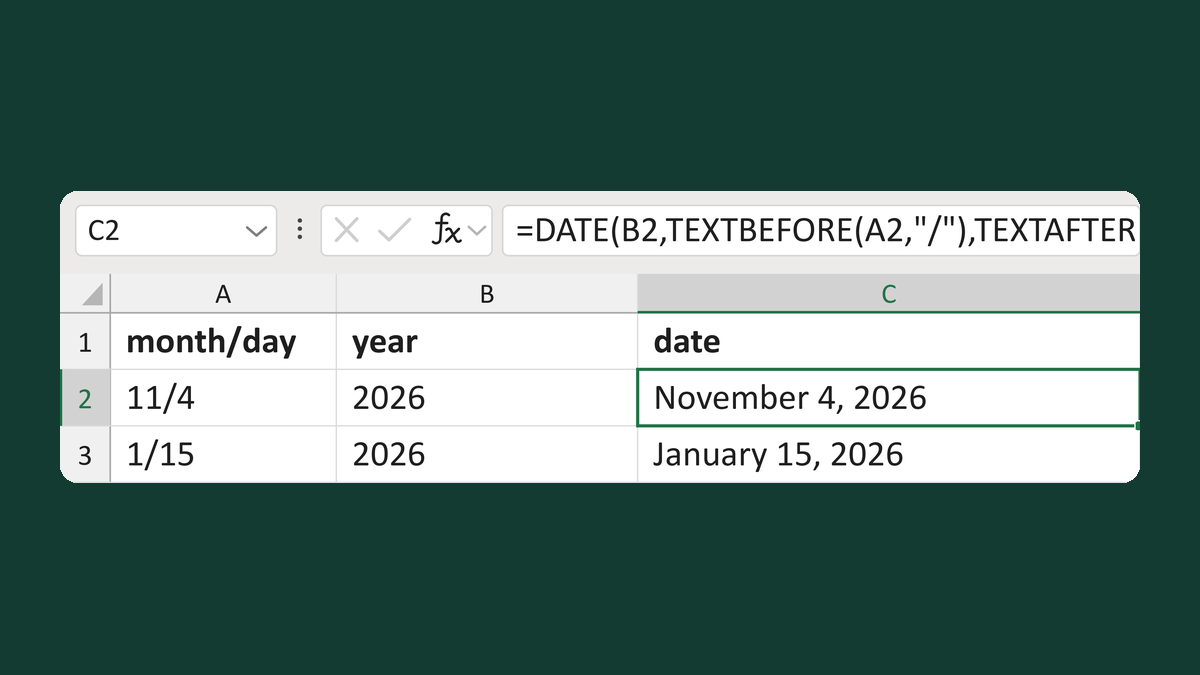
Build a date from month/day and a year
11/4 + 2026 → November 4, 2026
Get the template →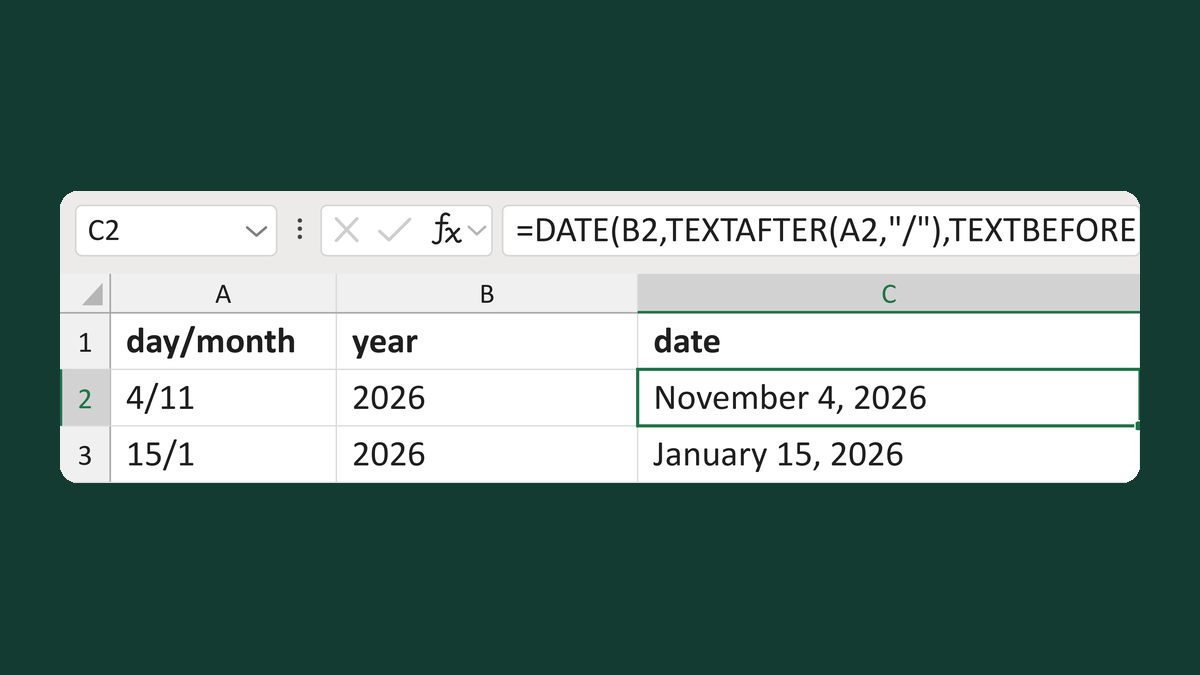
Build a date from day/month and a year
4/11 + 2026 → November 4, 2026
Get the template →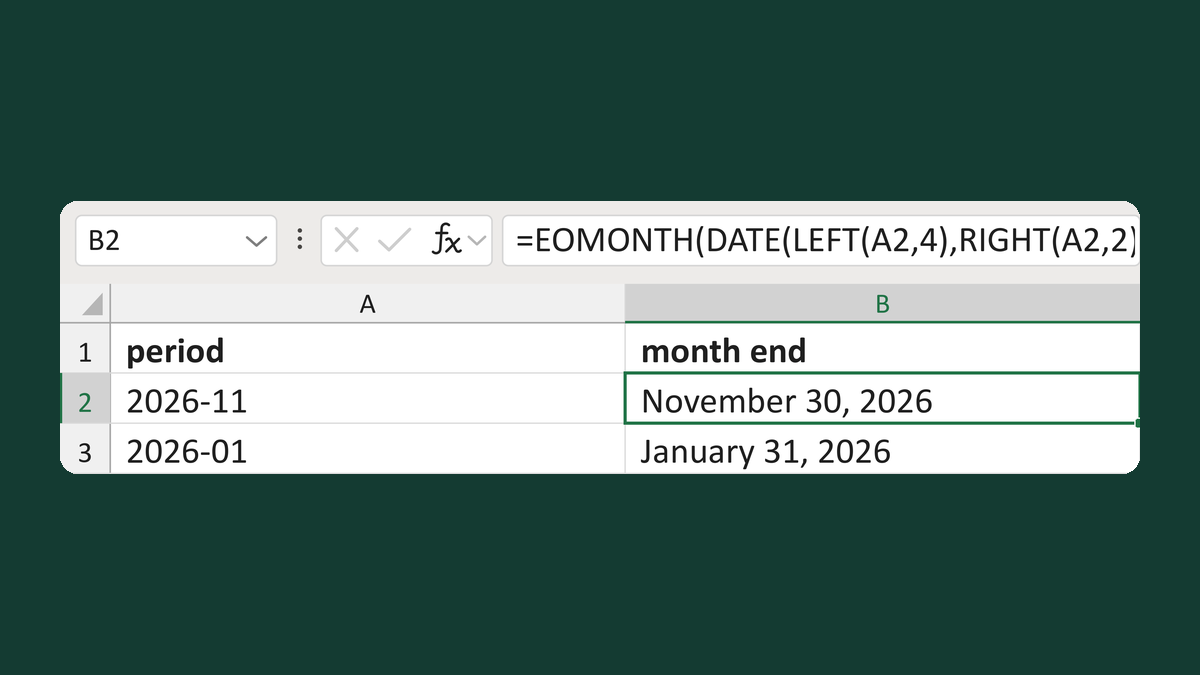
Convert a yyyy-mm period to month end
2024-02 → February 29, 2024
Get the template →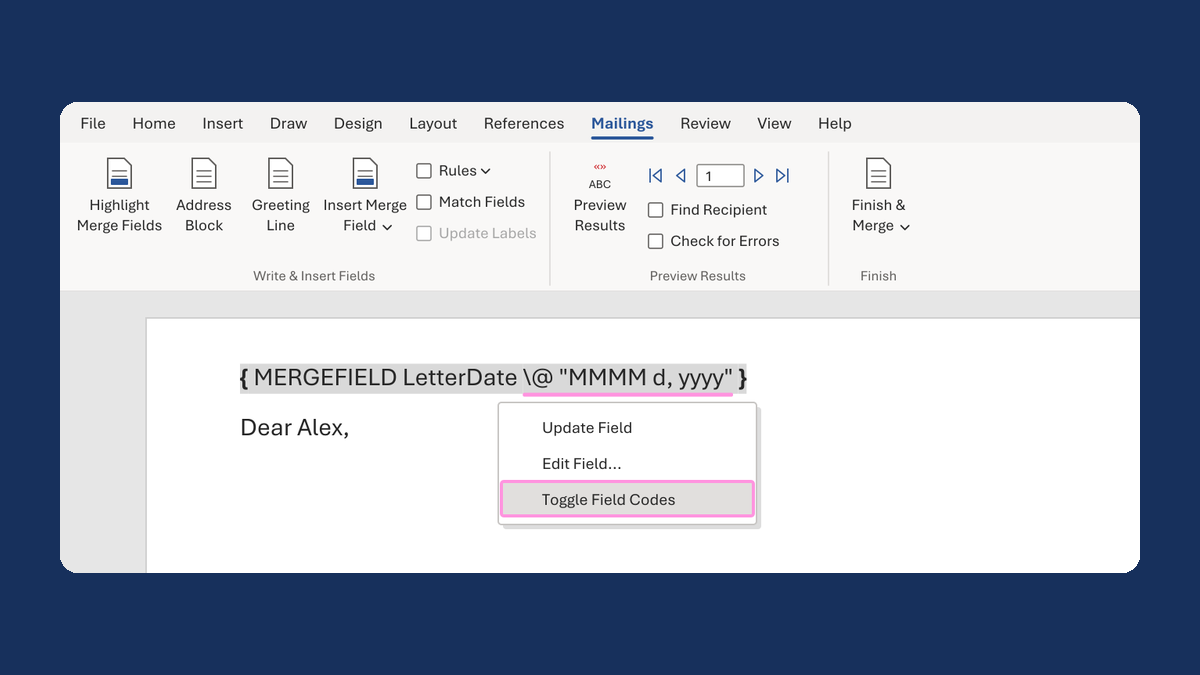
Show a letter date as November 5, 2026
11/5/2026 → November 5, 2026
Take this route →