Convert an email date to UTC

Turn Wed, 04-Nov-2026 14:30:15 +0530 into UTC: November 4, 2026 9:00:15 AM.
What you'll make
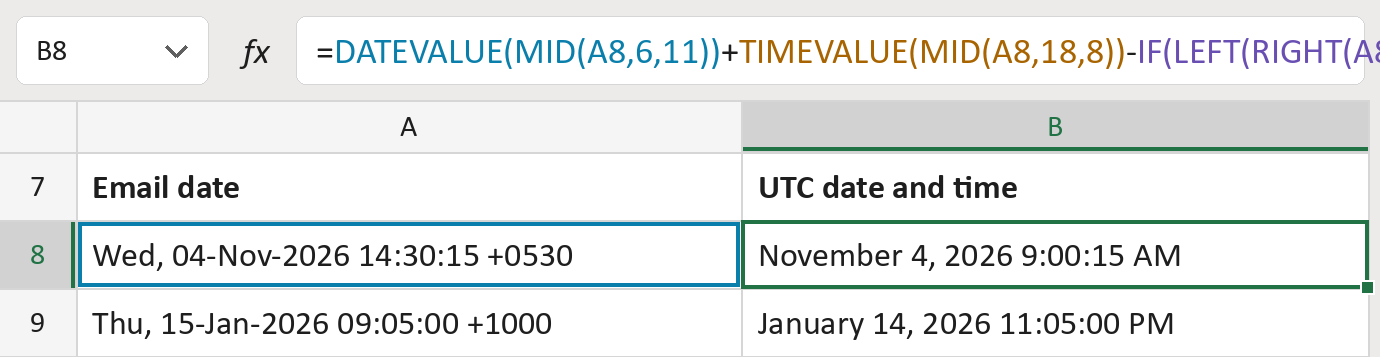
The formula
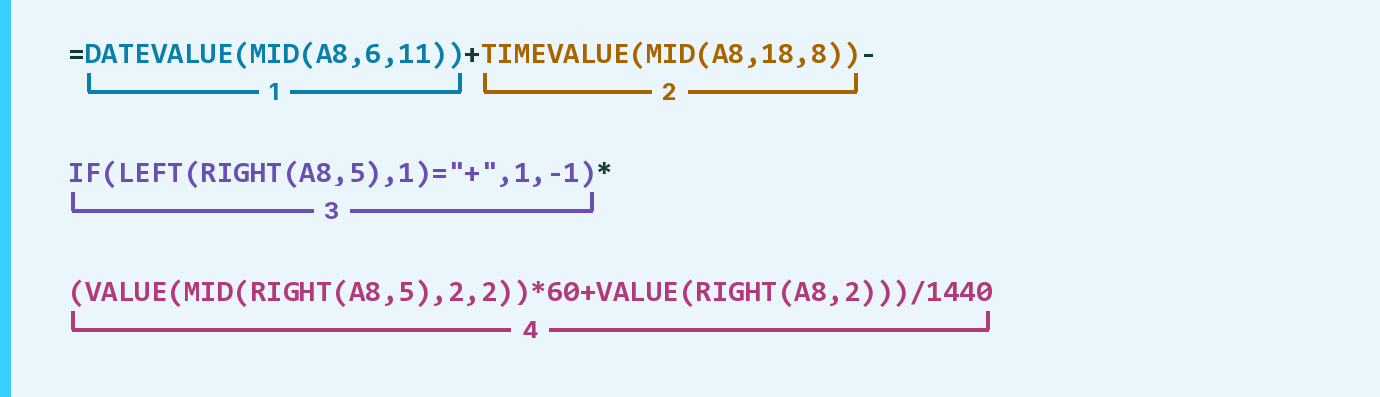
| Number | Part | What it does | Result so far |
|---|---|---|---|
| 1 | DATEVALUE(MID( … )) | Reads 11 characters from the 6th as a date. | November 4, 2026 |
| 2 | TIMEVALUE(MID( … )) | Adds the clock time from the 18th character. | November 4, 2026 2:30:15 PM |
| 3 | IF( … ) | Gives 1 for a plus sign, -1 for minus. | 1 |
| 4 | ( … )/1440 | Turns the offset into part of a day, then takes it away. | November 4, 2026 9:00:15 AM |
A day has 1,440 minutes. A plus offset is ahead of UTC, so it comes off; a minus offset is added.
=DATEVALUE(MID(A8,6,11))+TIMEVALUE(MID(A8,18,8))-IF(LEFT(RIGHT(A8,5),1)="+",1,-1)*(VALUE(MID(RIGHT(A8,5),2,2))*60+VALUE(RIGHT(A8,2)))/1440How to use it
Yellow bar at the top? Click Enable Editing.
- See it work. The Example tab shows 20 made-up examples with the formula already in.
- Use your own email dates. Paste dates like Wed, 04-Nov-2026 14:30:15 +0530 into the green column of the Template tab. The UTC dates and times fill in by themselves.
- Move them into your letter. Copy the results. Then use Paste Special and choose Values.
Before you send
The results are UTC, not local time, and the offset isn't kept. Keep the original dates beside them.
Microsoft's help: DATEVALUE function
OTHER ROUTES YOU MIGHT LIKE
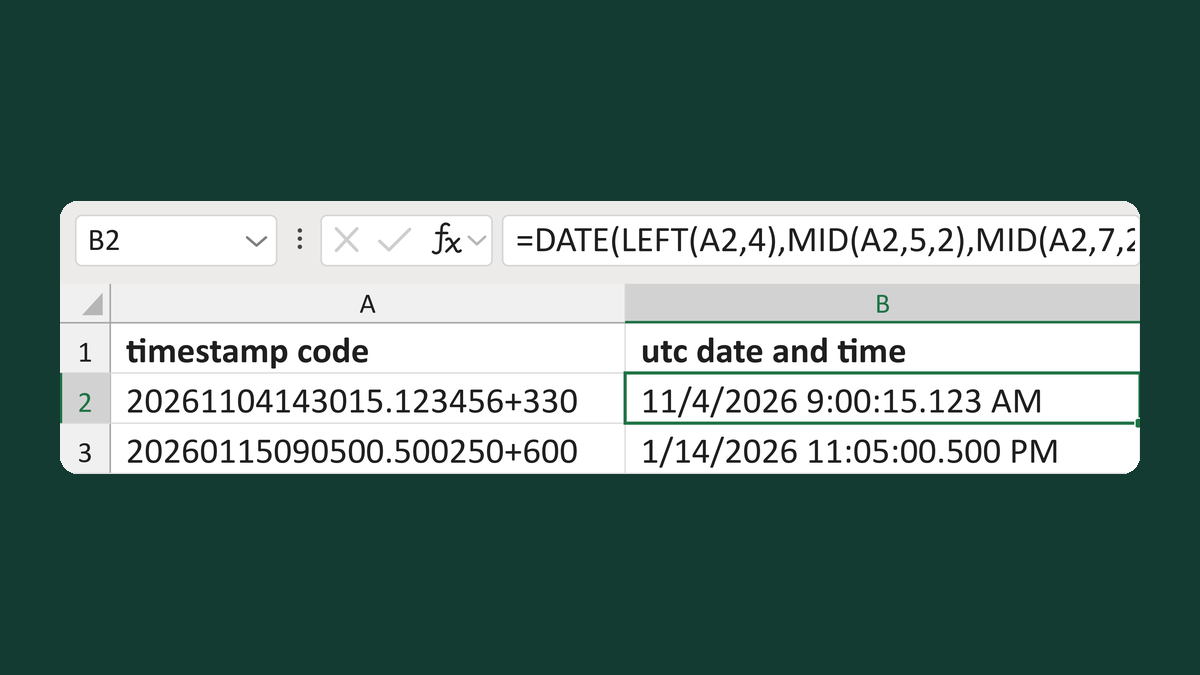
Read minute-offset timestamps as UTC
20261104143015.123456+330 → 11/4/2026 9:00:15.123 AM
Get the template →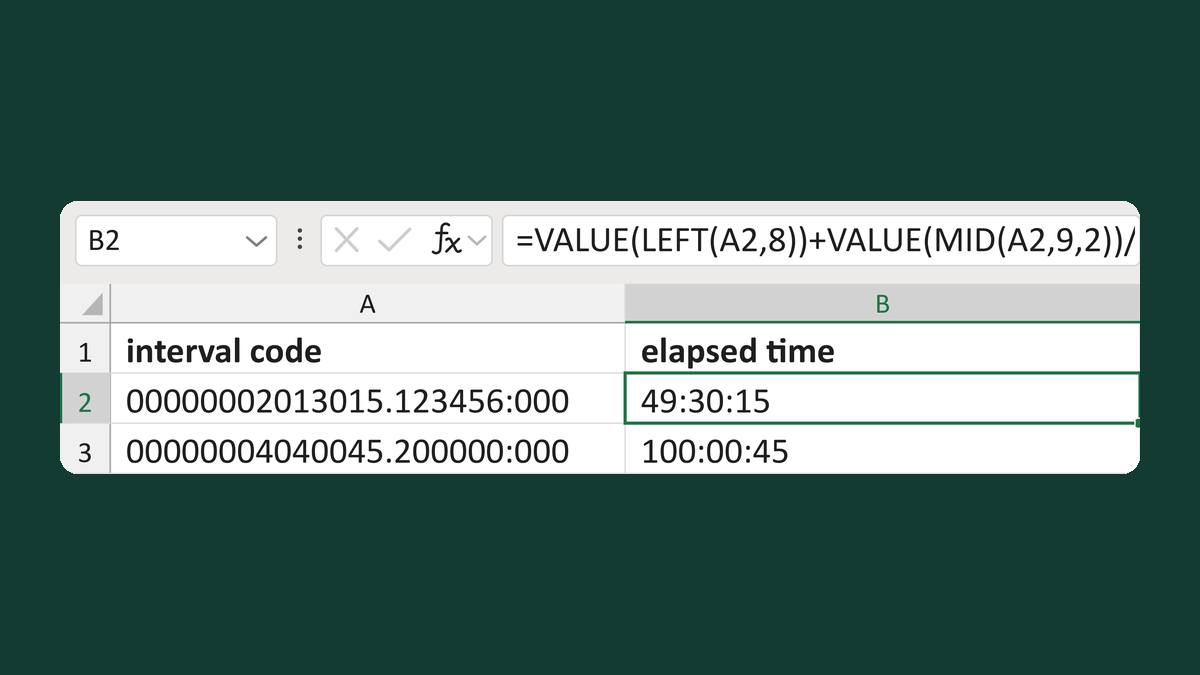
Read interval codes as elapsed time
00000002013015.123456:000 → 49:30:15, not a date
Get the template →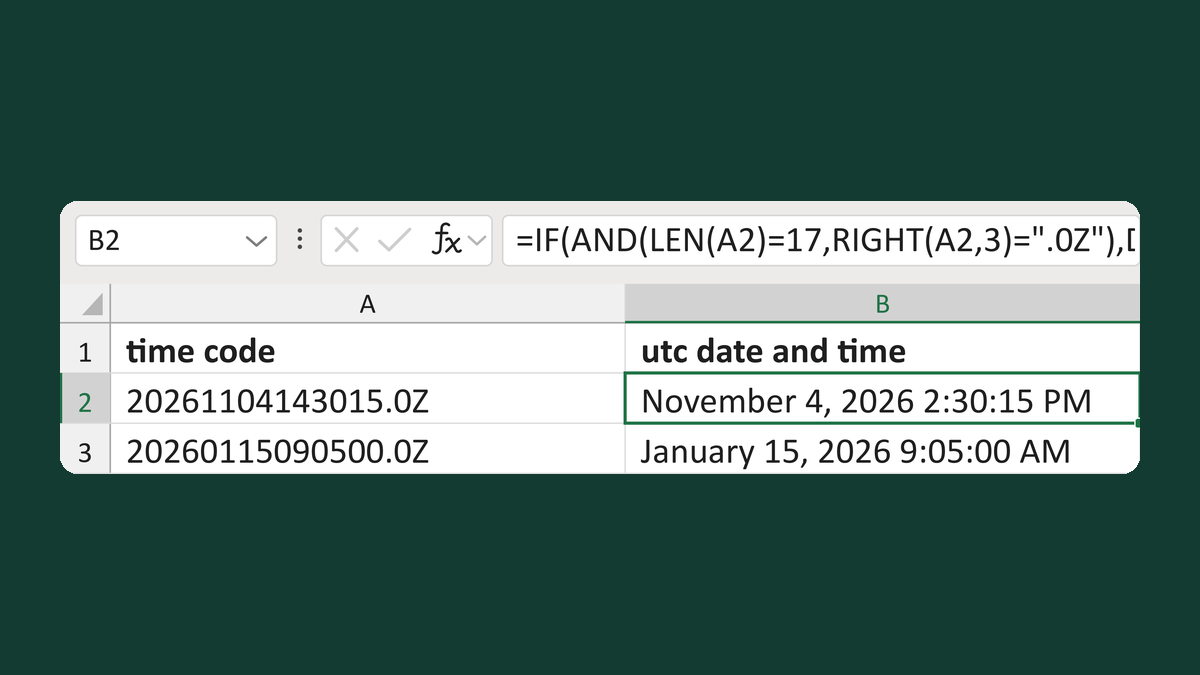
Read 20261104143015.0Z timestamps
20261104143015.0Z → November 4, 2026 2:30:15 PM
Get the template →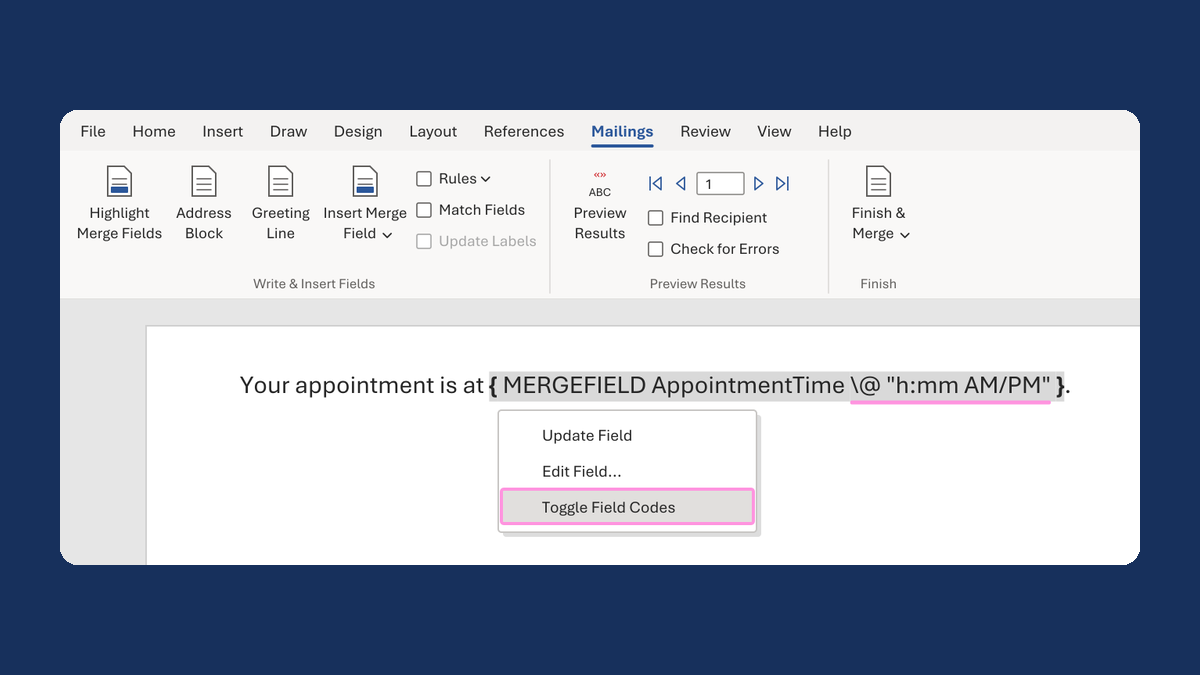
Show an appointment time as 1:05 PM
13:05:00 → 1:05 PM
Take this route →