Format a display name and email pair

Turn Ava Reed and ava@example.com into Ava Reed <ava@example.com>.
What you'll make
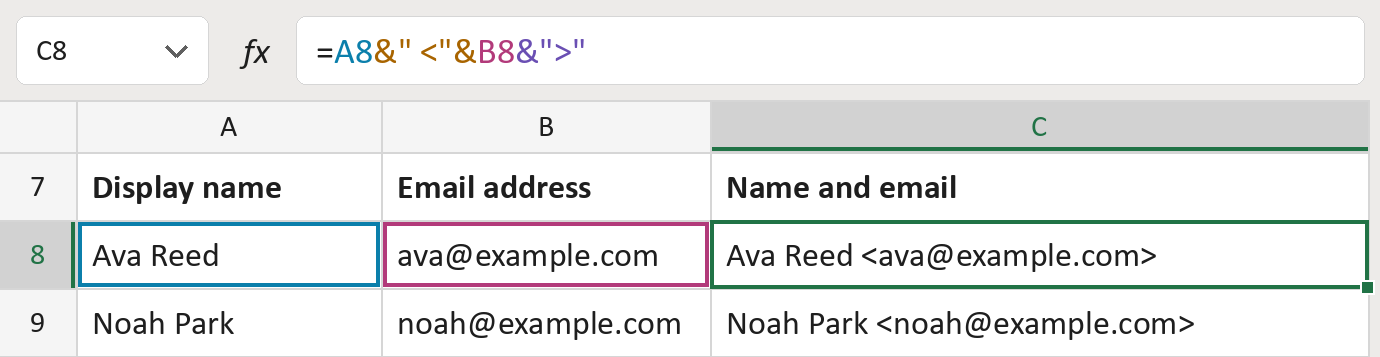
The formula

| Number | Part | What it does | Result so far |
|---|---|---|---|
| 1 | A8 | The display name. | "Ava Reed" |
| 2 | &" <"& | Adds a space and the < sign. | "Ava Reed <" |
| 3 | B8 | Adds the email address. | "Ava Reed <ava@…" |
| 4 | &">" | Adds the > sign at the end. | "Ava Reed <…>" |
Read it left to right. Each & joins the next piece on. The addresses here are made-up.
=A8&" <"&B8&">"How to use it
Yellow bar at the top? Click Enable Editing.
- See it work. The Example tab shows 20 made-up examples with the formula already in.
- Use your own list. Paste display names into column A and email addresses into column B of the Template tab.
- Move them into your letter. Copy the results. Then use Paste Special and choose Values.
Before you send
Names with commas, quote marks or < > signs need a look first. This simple pattern doesn't handle them.
Microsoft's help: Combine text from two or more cells
OTHER ROUTES YOU MIGHT LIKE
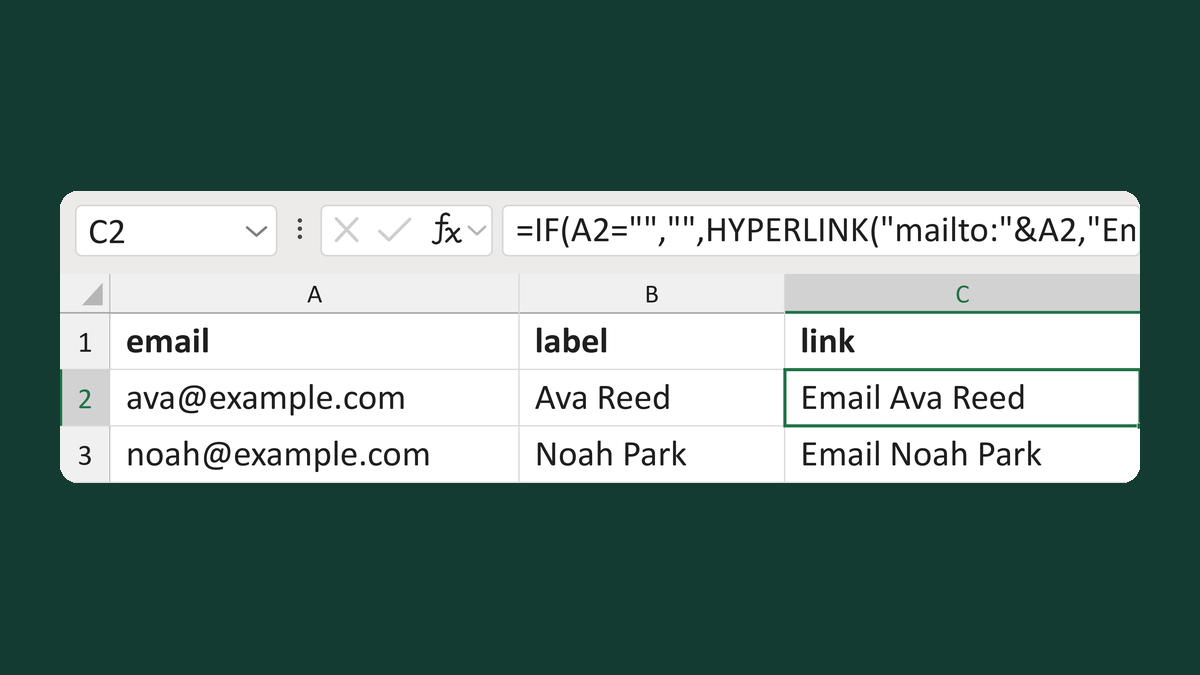
Make a clickable email link
[email protected] + Ava Reed → Email Ava Reed (a link)
Get the template →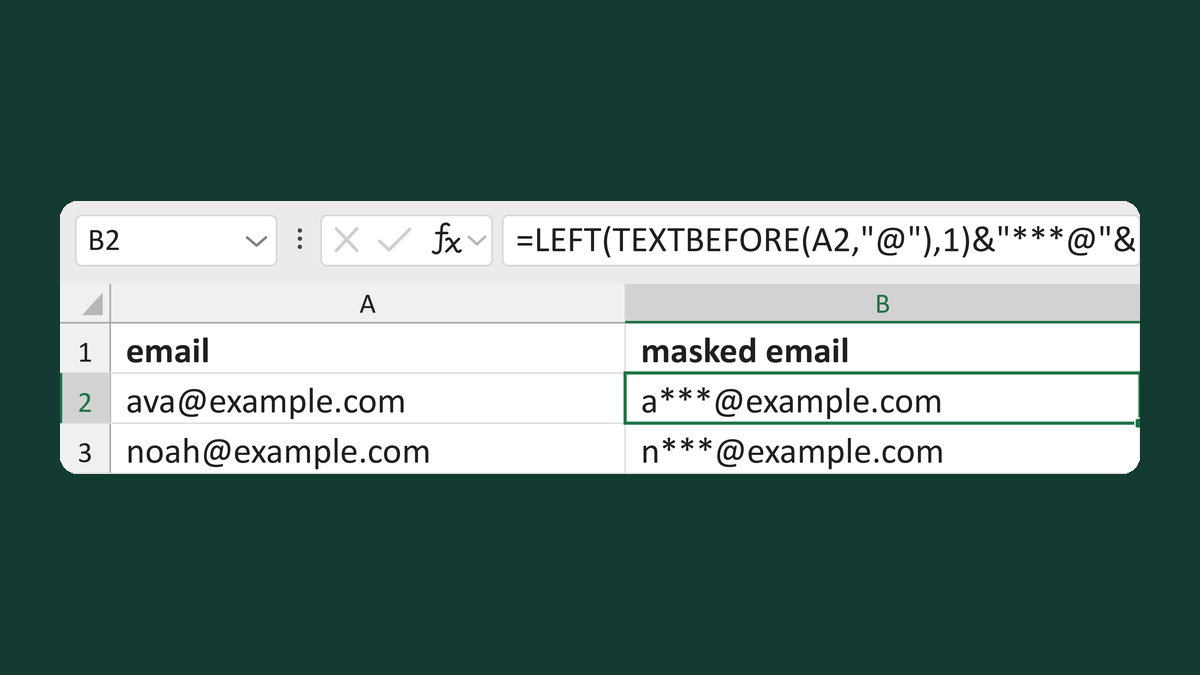
Mask an email but keep the domain
[email protected] → a***@example.com
Get the template →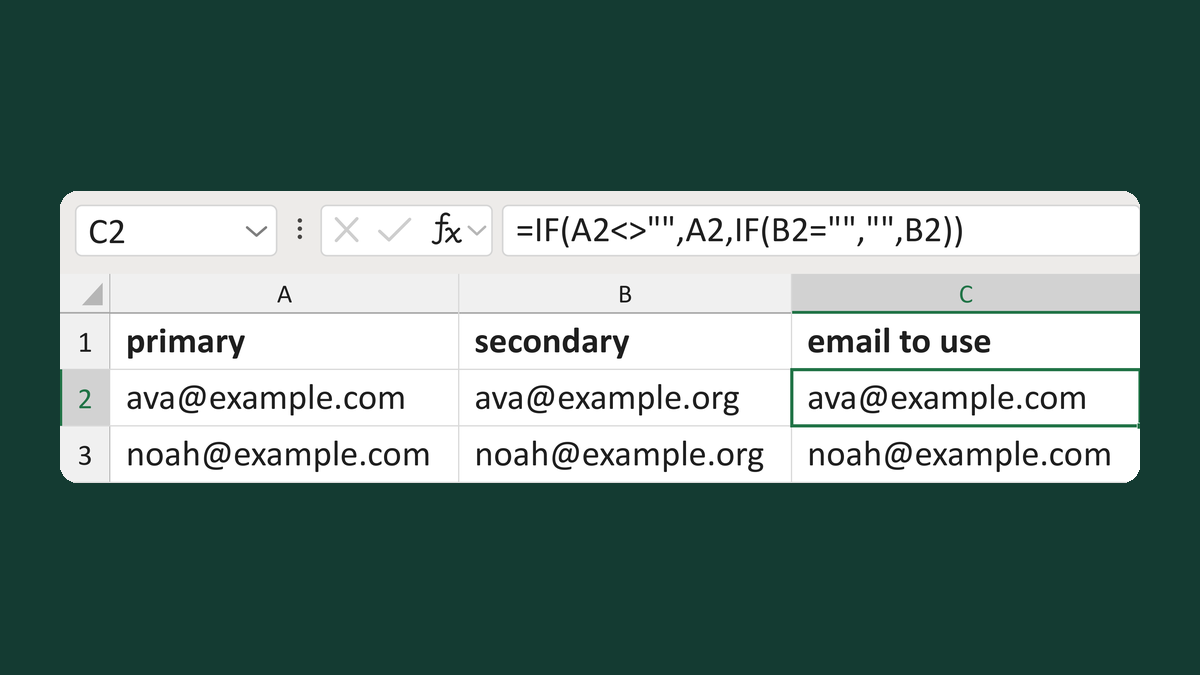
Use a secondary email if primary is blank
[email protected] or [email protected] → [email protected]
Get the template →
Check each email went to the right address, once
Your list of 2 → 2 sent copies, each to the right address
Take this route →