Pick the Mobile or Office phone

Use the phone each person prefers, Mobile or Office. A missing one is flagged.
What you'll make
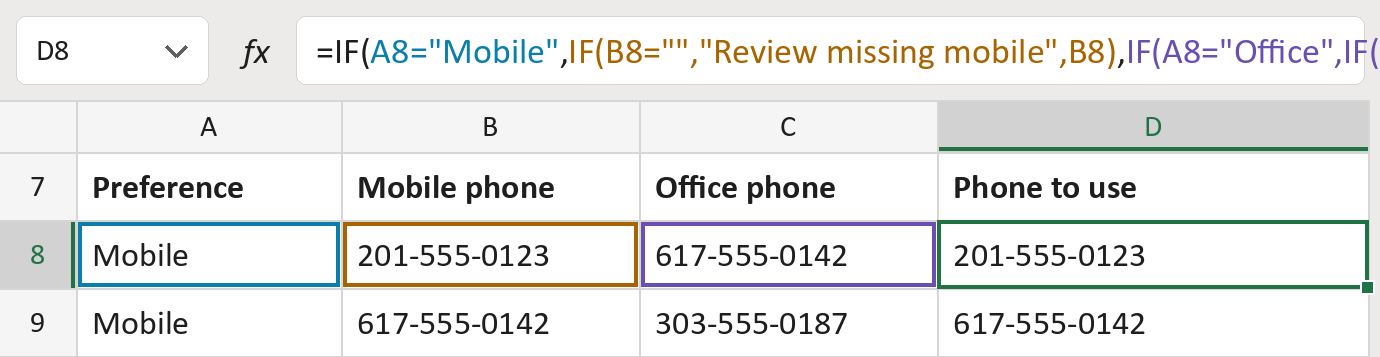
The formula
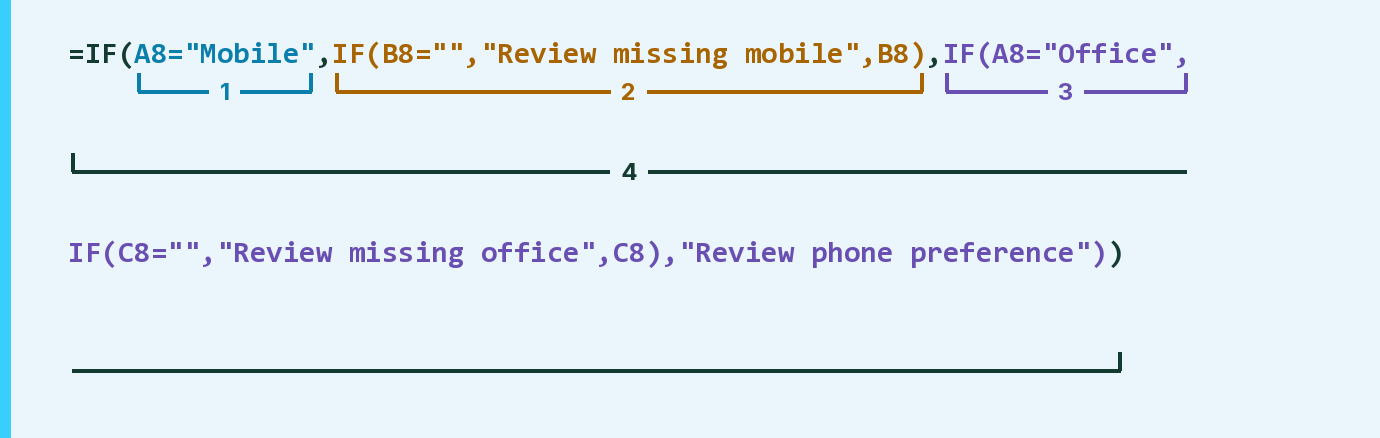
| Number | Part | What it does | Result so far |
|---|---|---|---|
| 1 | A8="Mobile" | Checks whether the person prefers Mobile. | Yes |
| 2 | IF(B8="", … ,B8) | The mobile phone, or a Review note if it's empty. | "201-555-0123" |
| 3 | IF(A8="Office", … ) | Else the office phone, or a Review note. | Not used for row 8 |
| 4 | IF( … ) | Uses part 2 if part 1 says yes, else part 3. | "201-555-0123" |
Read it left to right. Any other preference word gets a Review note, never a guess. Capitals don't matter. The numbers here are made-up.
=IF(A8="Mobile",IF(B8="","Review missing mobile",B8),IF(A8="Office",IF(C8="","Review missing office",C8),"Review phone preference"))How to use it
Yellow bar at the top? Click Enable Editing.
- See it work. The Example tab shows 20 made-up examples with the formula already in.
- Use your own numbers. Paste each preference, Mobile or Office, and both phones into the green columns of the Template tab. The phone to use fills in by itself.
- Move them into your letter. Copy the results. Then use Paste Special and choose Values.
Before you send
Spell the preference exactly Mobile or Office. Cell, Work or a stray space gets a Review note.
Microsoft's help: IF function
OTHER ROUTES YOU MIGHT LIKE
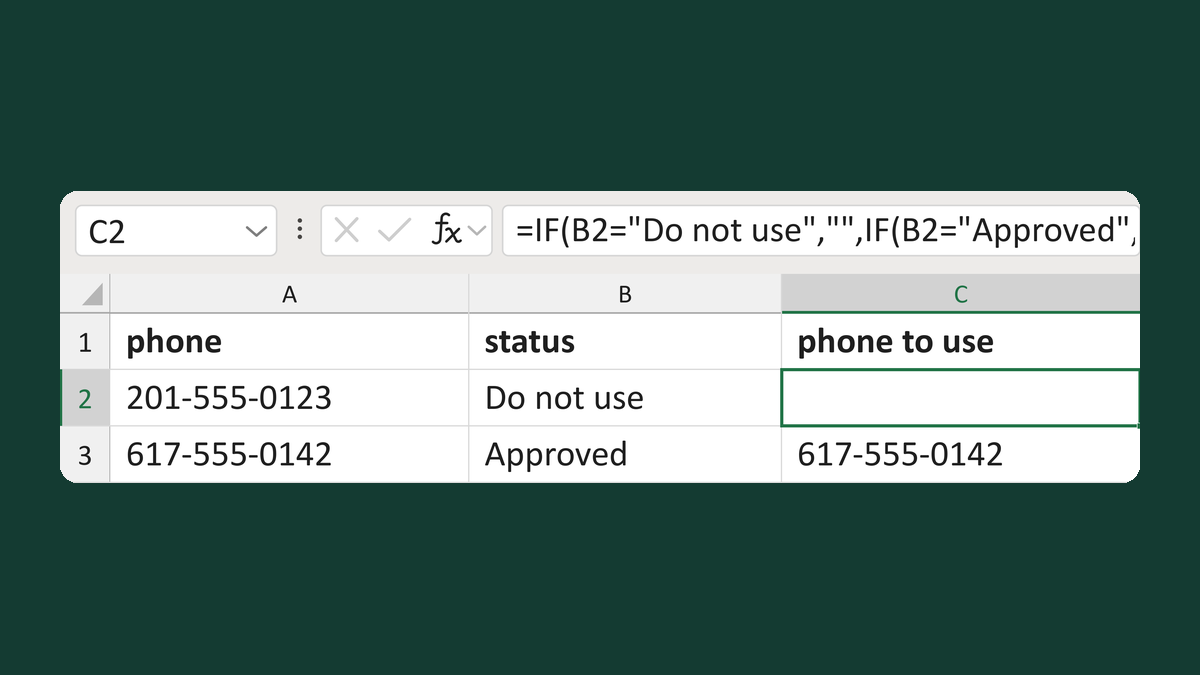
Suppress phones marked Do not use
201-555-0123 + Do not use → blank
Get the template →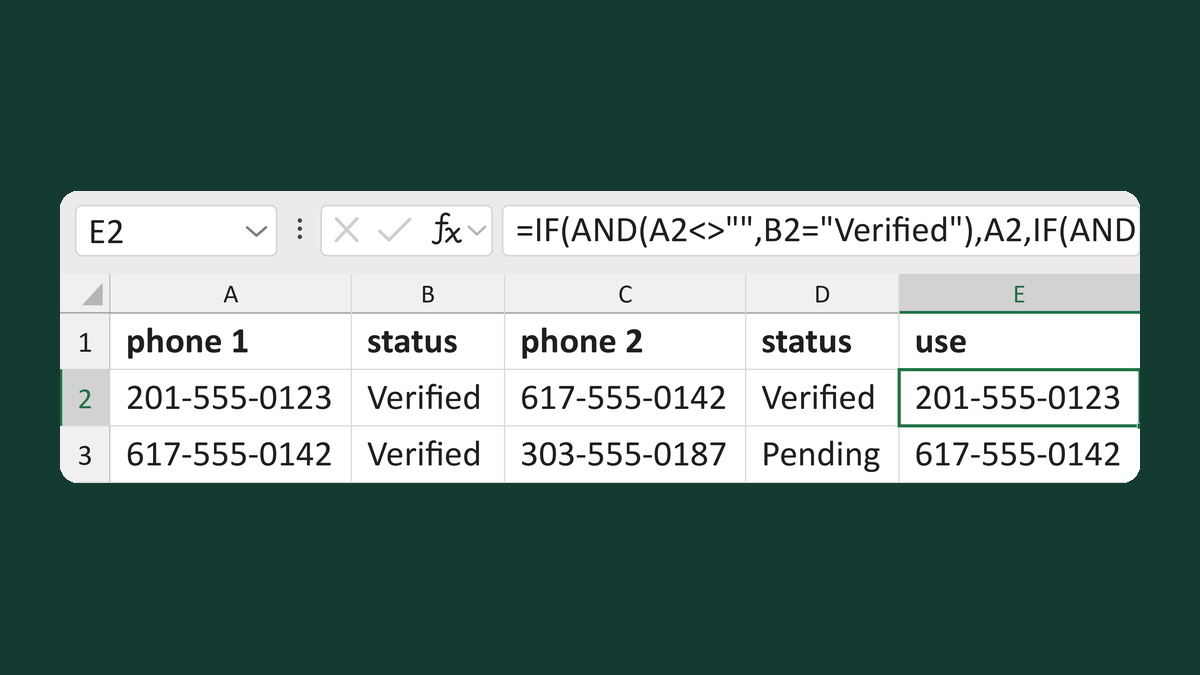
Use a verified primary or backup phone
201-555-0123 Verified + backup → 201-555-0123
Get the template →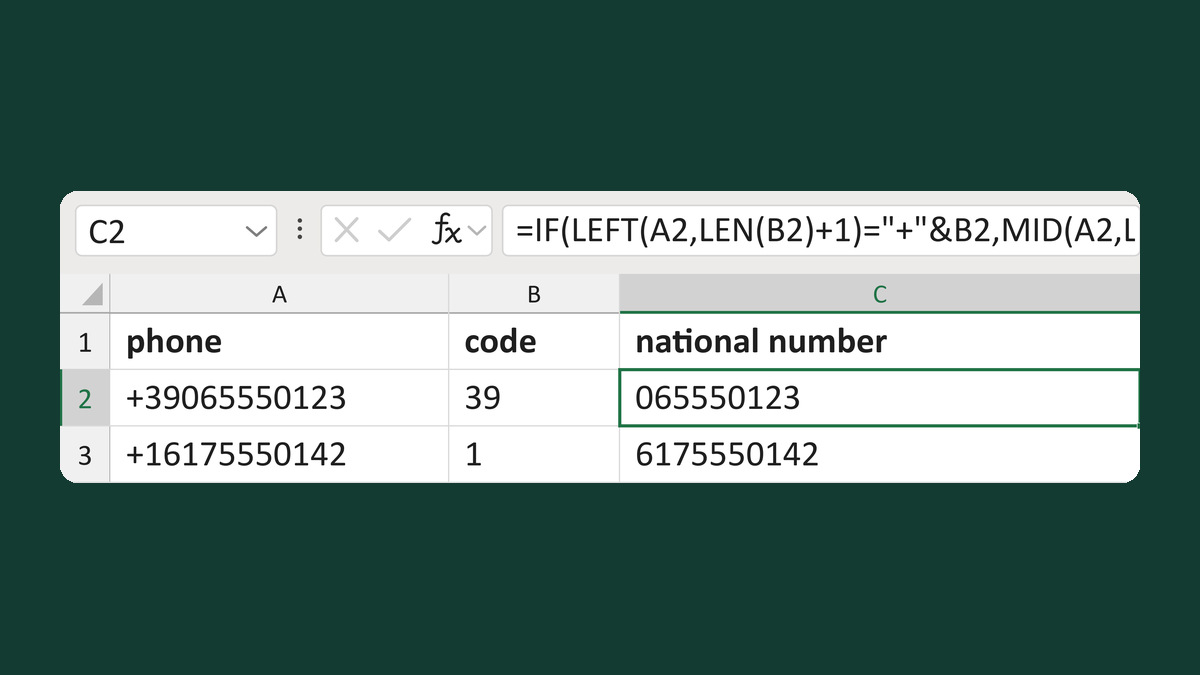
Read national digits after a calling code
+39065550123, code 39 → 065550123
Get the template →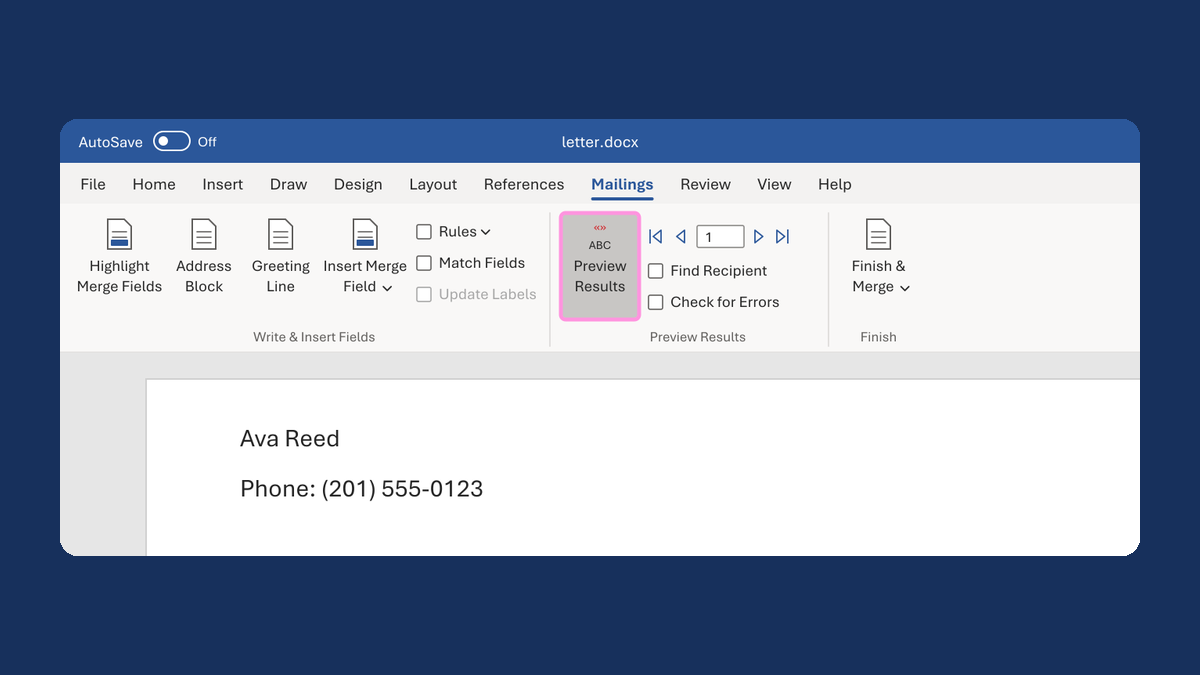
Hide "Phone:" when there's no phone number
(blank) → no "Phone:" line
Take this route →