Preferred first name when available

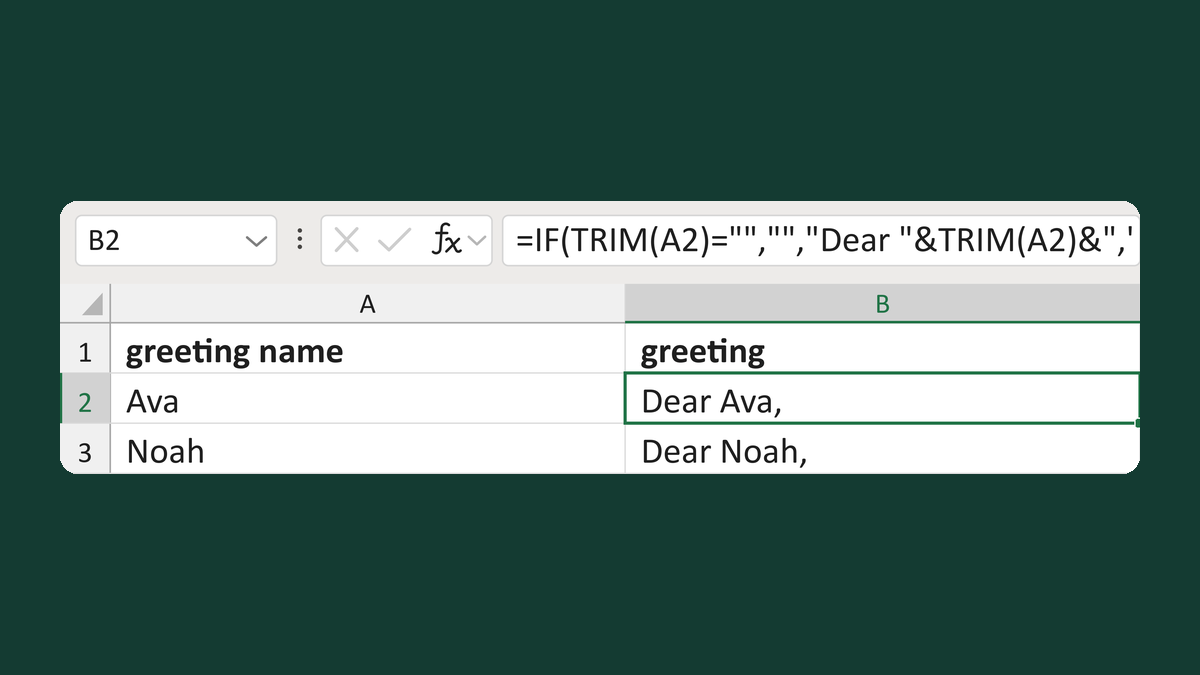
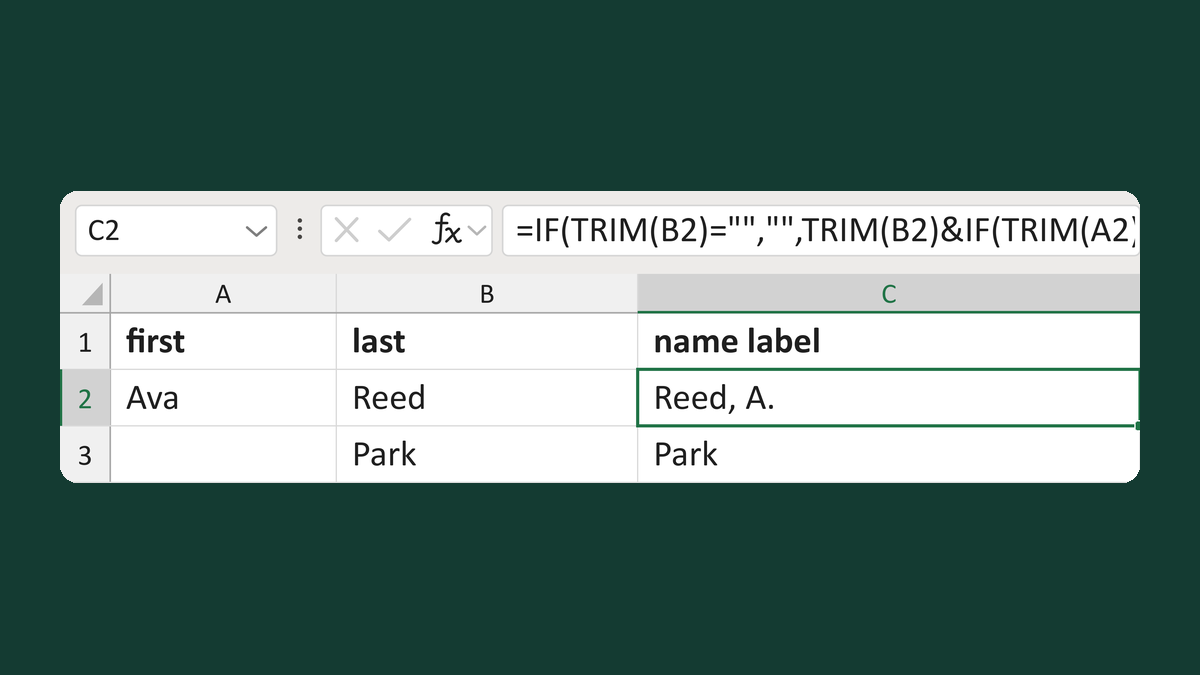
Turn Ava, Avie and Reed into Avie Reed for friendly letters and name tags.
What you'll make
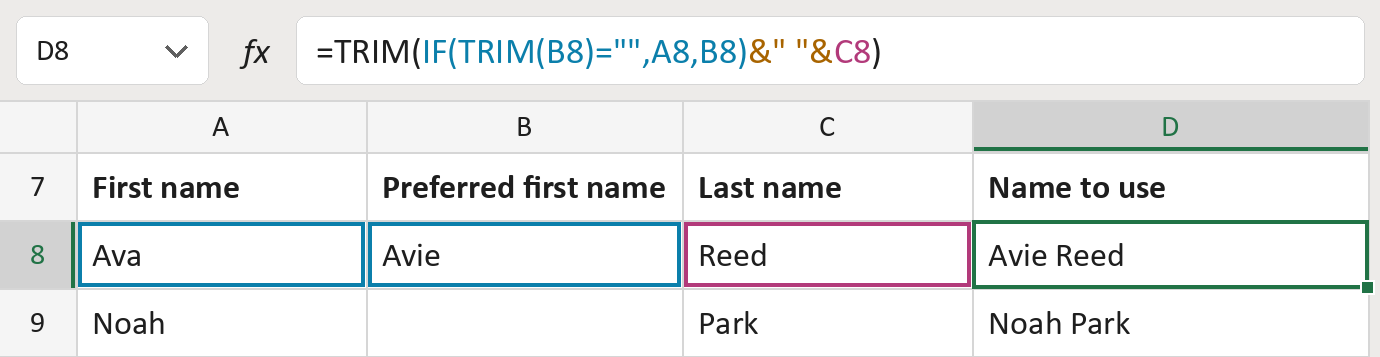
The formula

| Number | Part | What it does | Result so far |
|---|---|---|---|
| 1 | IF(TRIM(B8)…) | Uses the preferred name, or the first name if empty. | "Avie" |
| 2 | &" "& | Adds a space. | "Avie " |
| 3 | C8 | Adds the last name. | "Avie Reed" |
| 4 | TRIM( … ) | Removes extra spaces. | "Avie Reed" |
Read it left to right. A preferred name with only spaces counts as empty.
=TRIM(IF(TRIM(B8)="",A8,B8)&" "&C8)How to use it
Yellow bar at the top? Click Enable Editing.
- See it work. The Example tab shows 20 made-up names with the formula already in.
- Use your own names. Paste first, preferred and last names into the green columns of the Template tab. Leave the preferred name empty when there isn't one.
- Move them into your letter. Copy the results. Then use Paste Special and choose Values.
Before you send
It never makes up a nickname. Fill in preferred names only for people who asked to be called that.
Route: Get names ready for the letter
Microsoft's help: IF function