Read amount text 00000123M as -12.34

Turn the last character into a digit and a sign, with two decimal places.
Download Excel templateMicrosoft 365
What you'll make
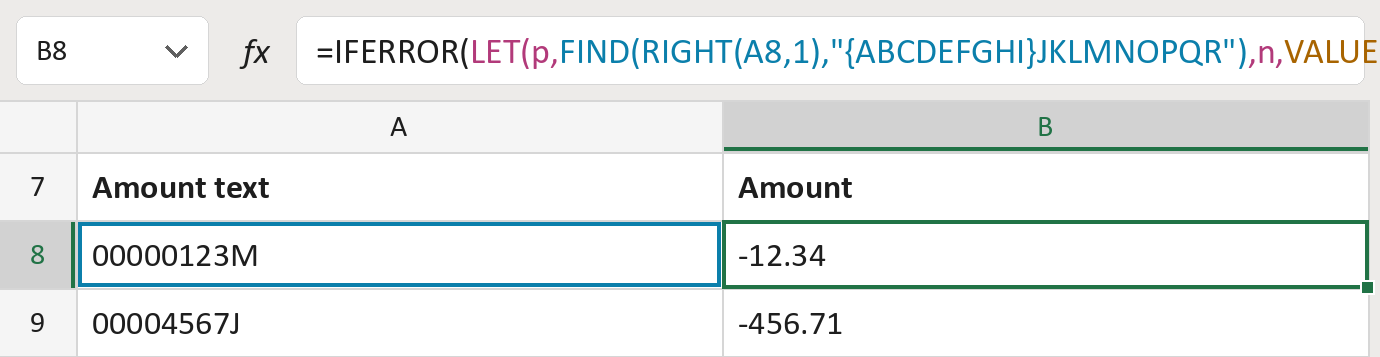
The formula
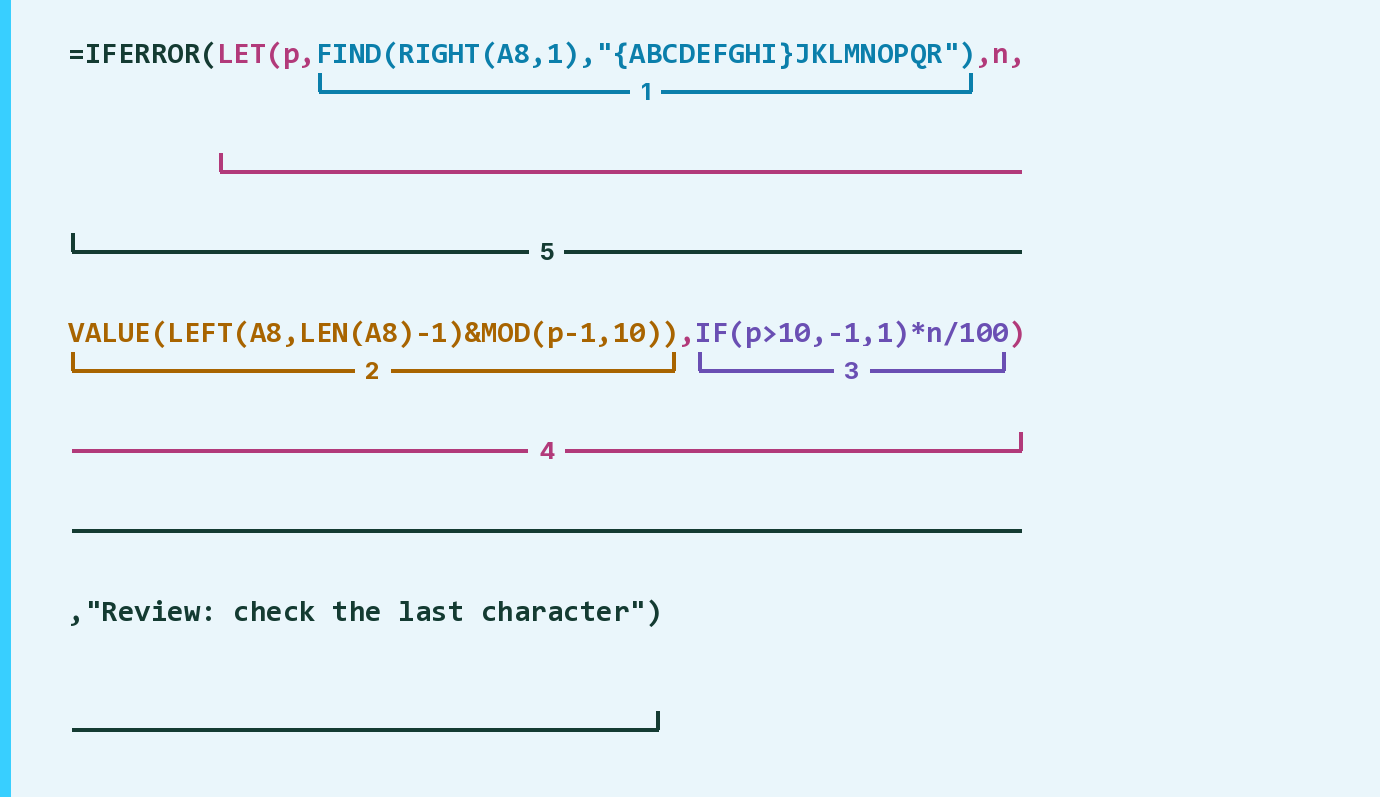
| Number | Part | What it does | Result so far |
|---|---|---|---|
| 1 | FIND(RIGHT(A8,1),"{ABCDEFGHI}JKLMNOPQR") | Finds the last character in the letter list. LET calls this p. | 15 |
| 2 | VALUE(LEFT(A8,LEN(A8)-1)&MOD(p-1,10)) | Swaps the last character for its digit. LET calls this n. | 1234 |
| 3 | IF(p>10,-1,1)*n/100 | Makes } and J to R minus, then adds the cents. | -12.34 |
| 4 | LET( … ) | Works out p and n once, then uses them. | -12.34 |
| 5 | IFERROR( … ,"Review: check the last character") | Shows Review when the last character isn't in the list. | -12.34 |
Excel works from the inside out. { and A to I mean plus; } and J to R mean minus.
=IFERROR(LET(p,FIND(RIGHT(A8,1),"{ABCDEFGHI}JKLMNOPQR"),n,VALUE(LEFT(A8,LEN(A8)-1)&MOD(p-1,10)),IF(p>10,-1,1)*n/100),"Review: check the last character")How to use it
Yellow bar at the top? Click Enable Editing.
- See it work. The Example tab shows 20 made-up examples with the formula already in.
- Use your own amounts. Paste amount text into the green column of the Template tab. The amounts fill in by themselves.
- Move them into your letter. Copy the results. Then use Paste Special and choose Values.
Before you send
This uses one common letter list. Check that your source uses the same letters before you send amounts.
Microsoft's help: Fix a #VALUE! error in FIND and SEARCH
OTHER ROUTES YOU MIGHT LIKE
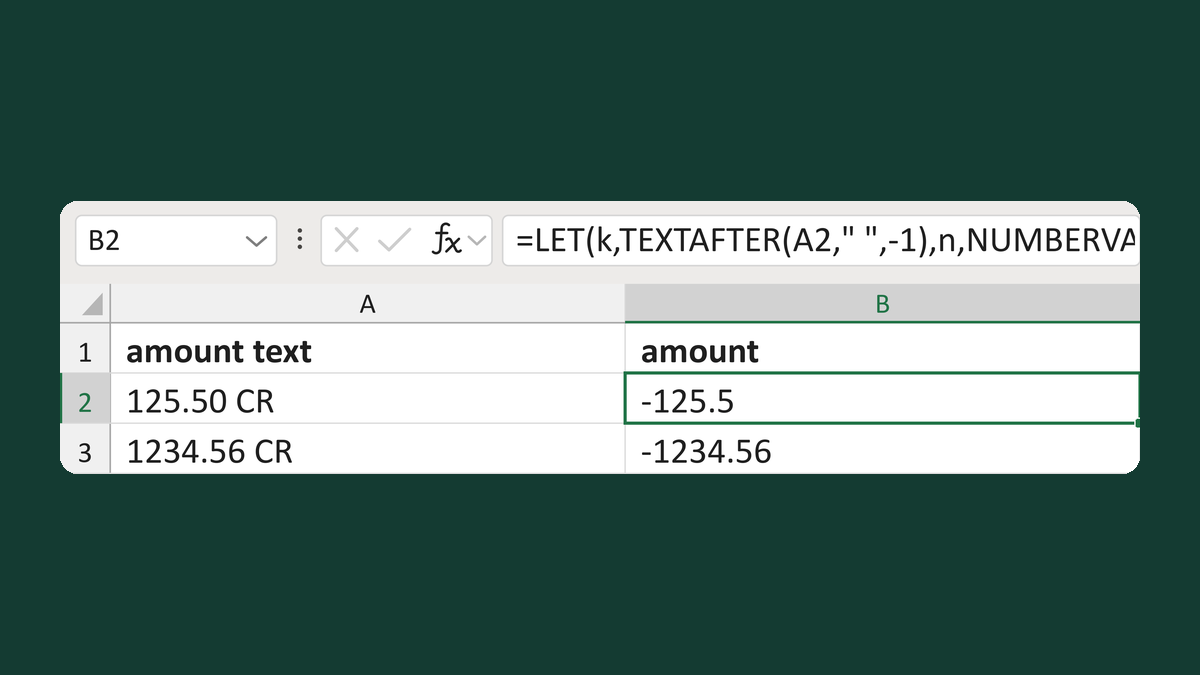
Read CR as negative and DR as positive
125.50 CR → -125.5
Get the template →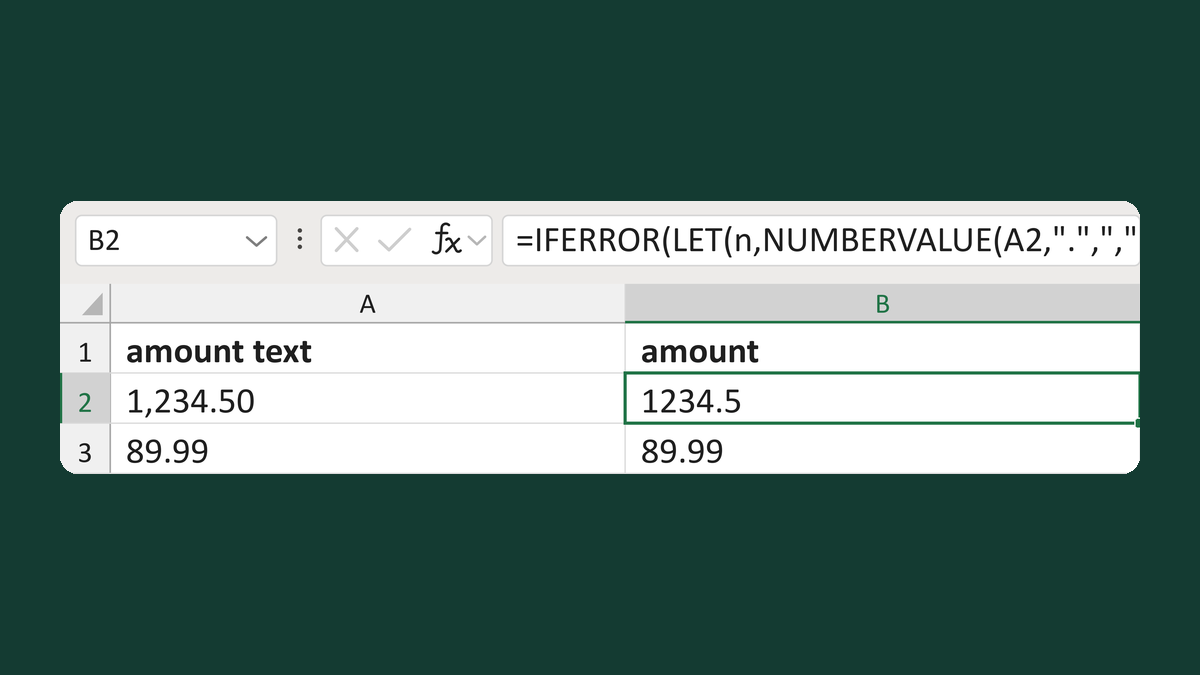
Read exact 1,234.50 amount text
1,234.50 → 1234.5; 1,23.00 → Review amount pattern
Get the template →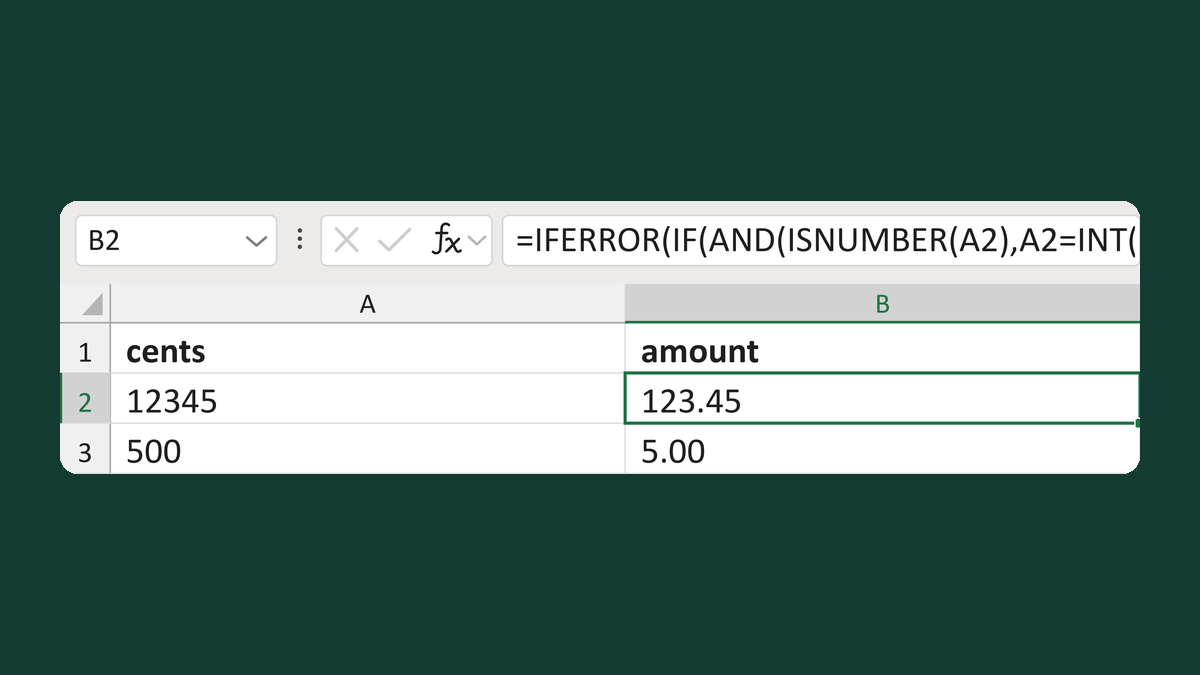
Turn cents into amounts, flag part cents
12345 cents → 123.45
Get the template →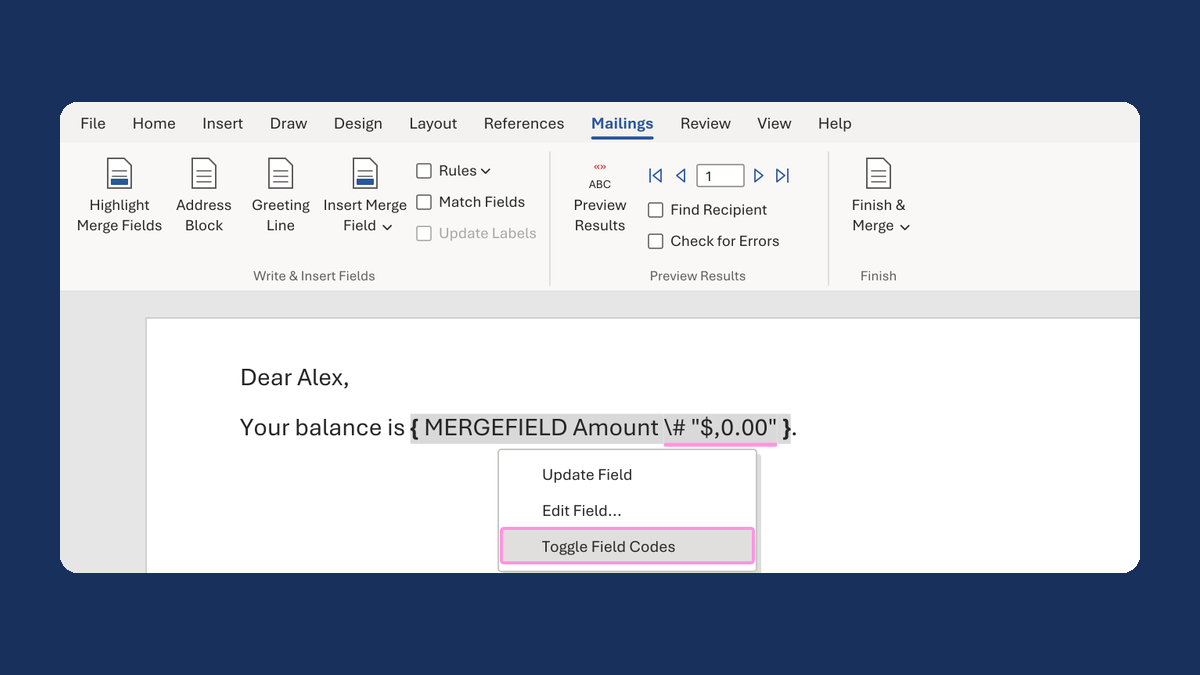
Show $1,234.50 instead of 1234.5 in a mail merge
1234.5 → $1,234.50
Take this route →