Read elapsed hours text like 49,5

Turn hours written with a decimal comma, like 49,5, into the duration 49:30.
What you'll make
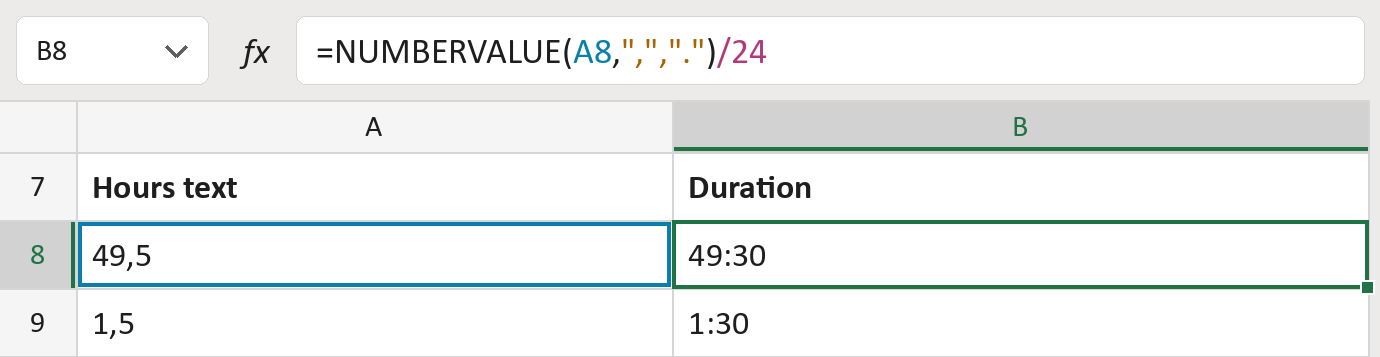
The formula

| Number | Part | What it does | Result so far |
|---|---|---|---|
| 1 | A8 | The hours, written with a decimal comma. | "49,5" |
| 2 | ",","." | Comma marks decimals; a period groups thousands. | ",", "." |
| 3 | NUMBERVALUE( … ) | Reads the text as a number. | 49.5 |
| 4 | /24 | Divides by 24, because Excel counts time in days. | 49:30 |
The result column shows hours and minutes, so 49,5 shows as 49:30, not 1:30.
=NUMBERVALUE(A8,",",".")/24How to use it
Yellow bar at the top? Click Enable Editing.
- See it work. The Example tab shows 20 made-up examples with the formula already in.
- Use your own hours. Paste hours like 49,5 into the green column of the Template tab. The durations fill in by themselves.
- Move them into your letter. Copy the results. Then use Paste Special and choose Values.
Before you send
Check that your export uses a comma for decimals. If it uses a period, 1.5 reads as 15 hours.
Microsoft's help: NUMBERVALUE function
OTHER ROUTES YOU MIGHT LIKE
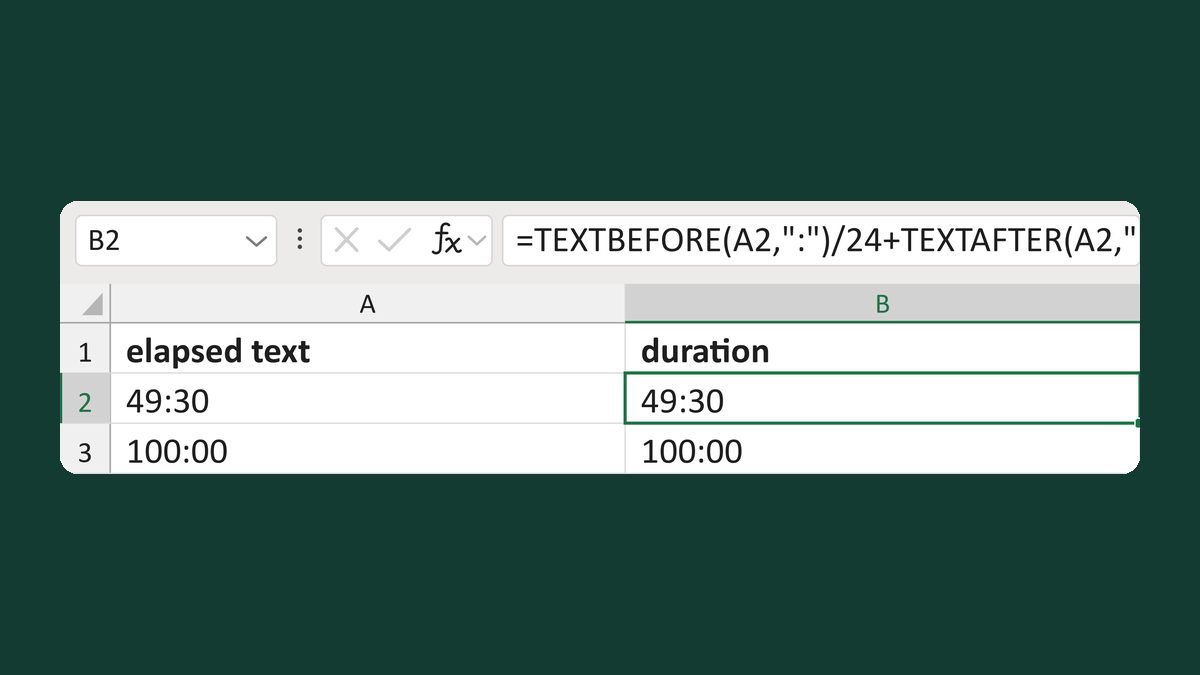
Read elapsed time text like 49:30
49:30 as text → 49:30, not 1:30
Get the template →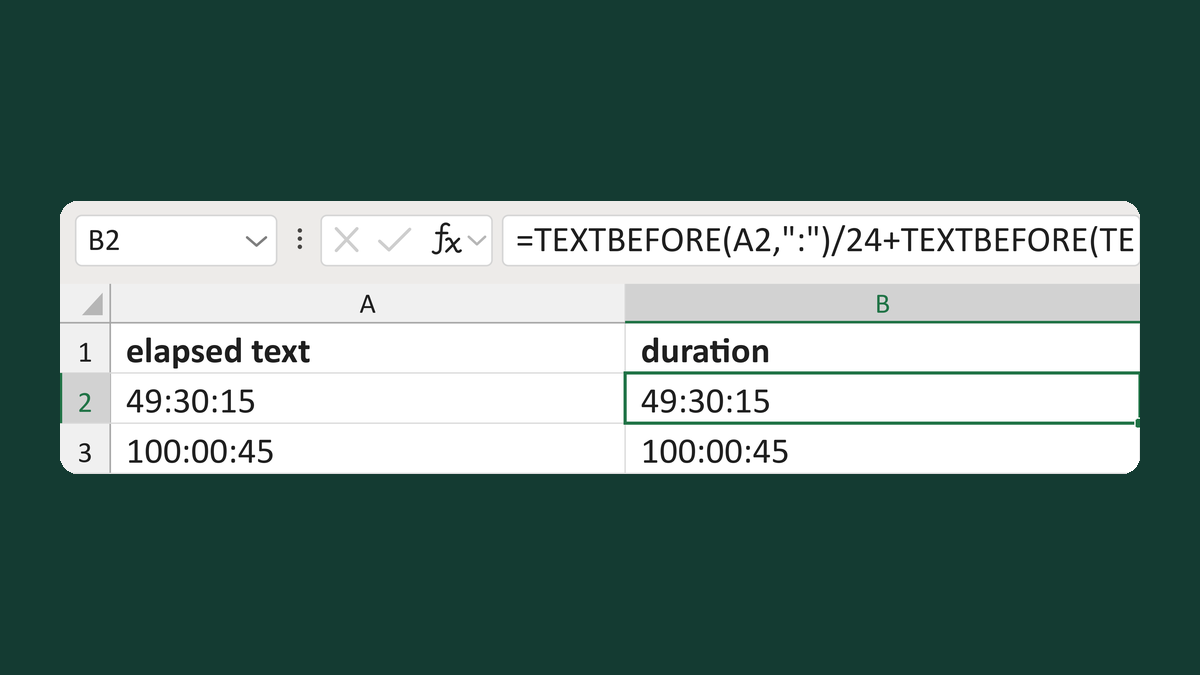
Read elapsed time text like 49:30:15
49:30:15 as text → 49:30:15, not 1:30:15
Get the template →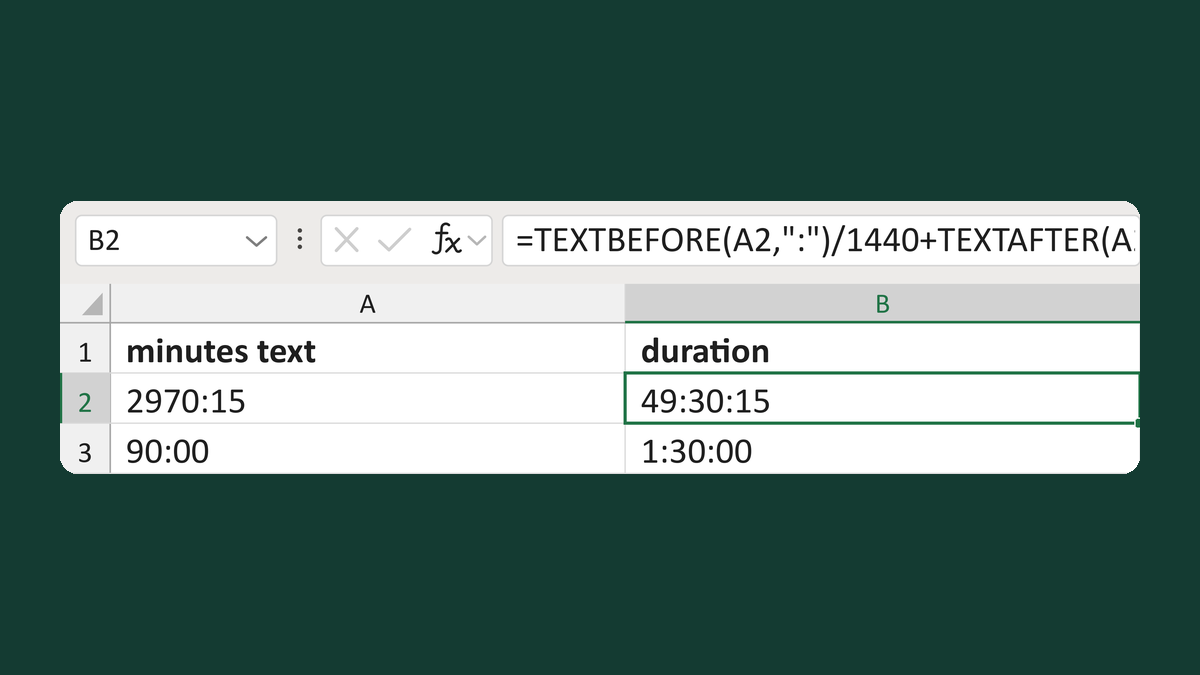
Read minutes:seconds text like 2970:15
2970:15 (minutes:seconds) as text → 49:30:15
Get the template →
Show an appointment time as 1:05 PM
13:05:00 → 1:05 PM
Take this route →