Remove double quotes around a name

Turn "Ava Reed" into Ava Reed so names print without quote marks.
What you'll make
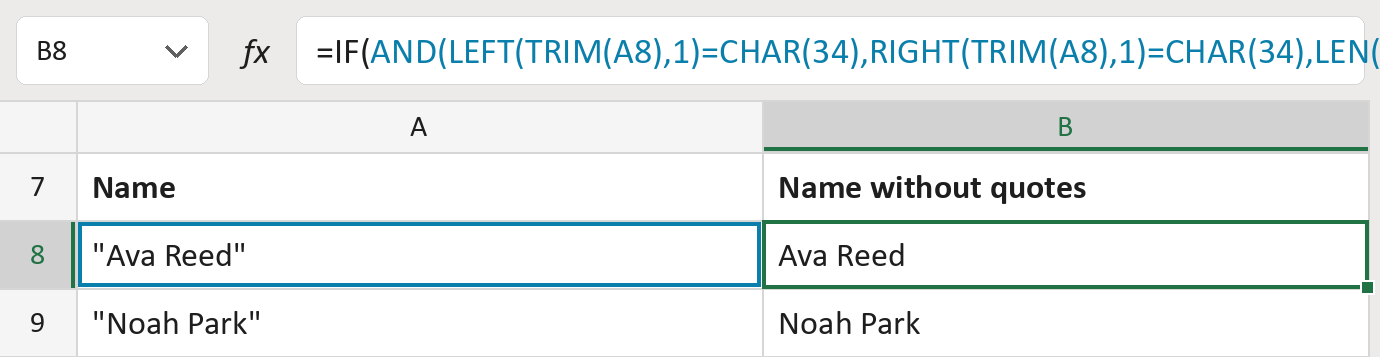
The formula
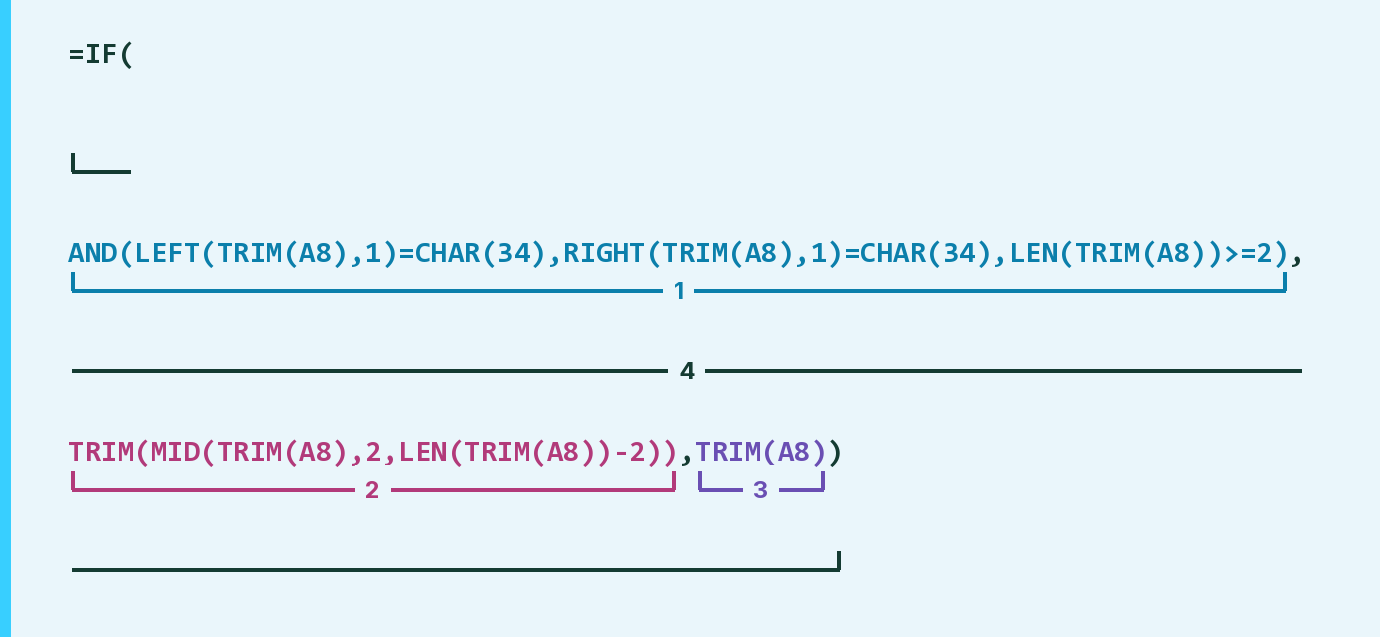
| Number | Part | What it does | Result so far |
|---|---|---|---|
| 1 | AND( … ) | True when the name starts and ends with a straight ". | TRUE |
| 2 | TRIM(MID(TRIM(A8),2,LEN(TRIM(A8))-2)) | Drops the first and last character. | "Ava Reed" |
| 3 | TRIM(A8) | The name as it is, when the quotes don't match. | Not used for row 8 |
| 4 | IF( … ) | Removes the quotes only when part 1 is true. | "Ava Reed" |
Read it left to right. CHAR(34) is the straight " mark. Only one pair at the very ends comes off.
=IF(AND(LEFT(TRIM(A8),1)=CHAR(34),RIGHT(TRIM(A8),1)=CHAR(34),LEN(TRIM(A8))>=2),TRIM(MID(TRIM(A8),2,LEN(TRIM(A8))-2)),TRIM(A8))How to use it
Yellow bar at the top? Click Enable Editing.
- See it work. The Example tab shows 20 made-up names with the formula already in.
- Use your own names. Paste names into the green column of the Template tab. Names without quotes fill in by themselves.
- Move them into your letter. Copy the results. Then use Paste Special and choose Values.
Before you send
A quote on one side only, quotes inside a name, and curly quotes like “ ” all stay. Check those rows.
Route: Get names ready for the letter
Microsoft's help: MID function