Remove spaces from an email address

Turn ava @ example.com into ava@example.com when an export added spaces.
What you'll make
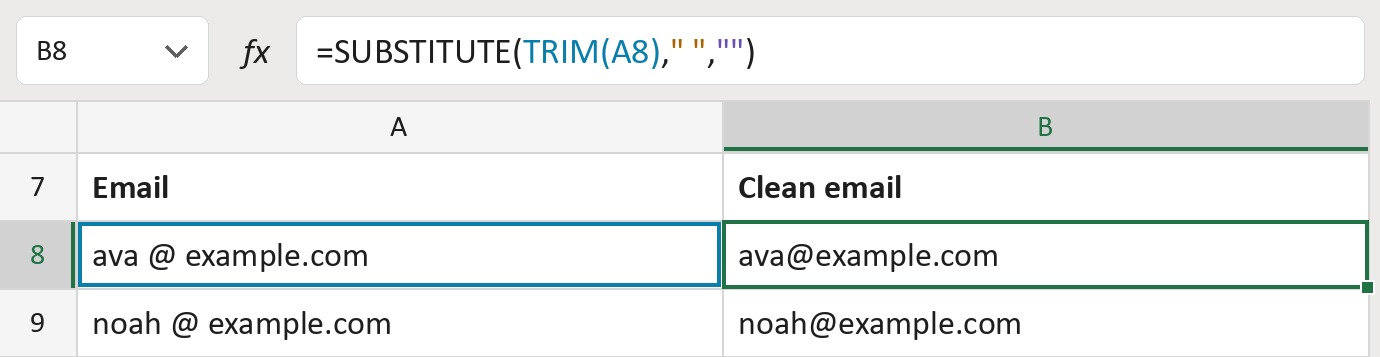
The formula

| Number | Part | What it does | Result so far |
|---|---|---|---|
| 1 | TRIM(A8) | The email, with spaces at the ends removed. | "ava @ example.com" |
| 2 | " " | The character to remove: a space. | " " |
| 3 | "" | What goes in its place: nothing. | "" |
| 4 | SUBSTITUTE( … ) | Removes every space left in the cell. | "ava@example.com" |
Letters, dots and hyphens stay as they are. The addresses here are made-up.
=SUBSTITUTE(TRIM(A8)," ","")How to use it
Yellow bar at the top? Click Enable Editing.
- See it work. The Example tab shows 20 made-up examples with the formula already in.
- Use your own emails. Paste email addresses into the green column of the Template tab. The clean emails fill in by themselves.
- Move them into your letter. Copy the results. Then use Paste Special and choose Values.
Before you send
Every space goes. Use it only when you know the spaces came from the export, not on other text.
Microsoft's help: SUBSTITUTE function
OTHER ROUTES YOU MIGHT LIKE
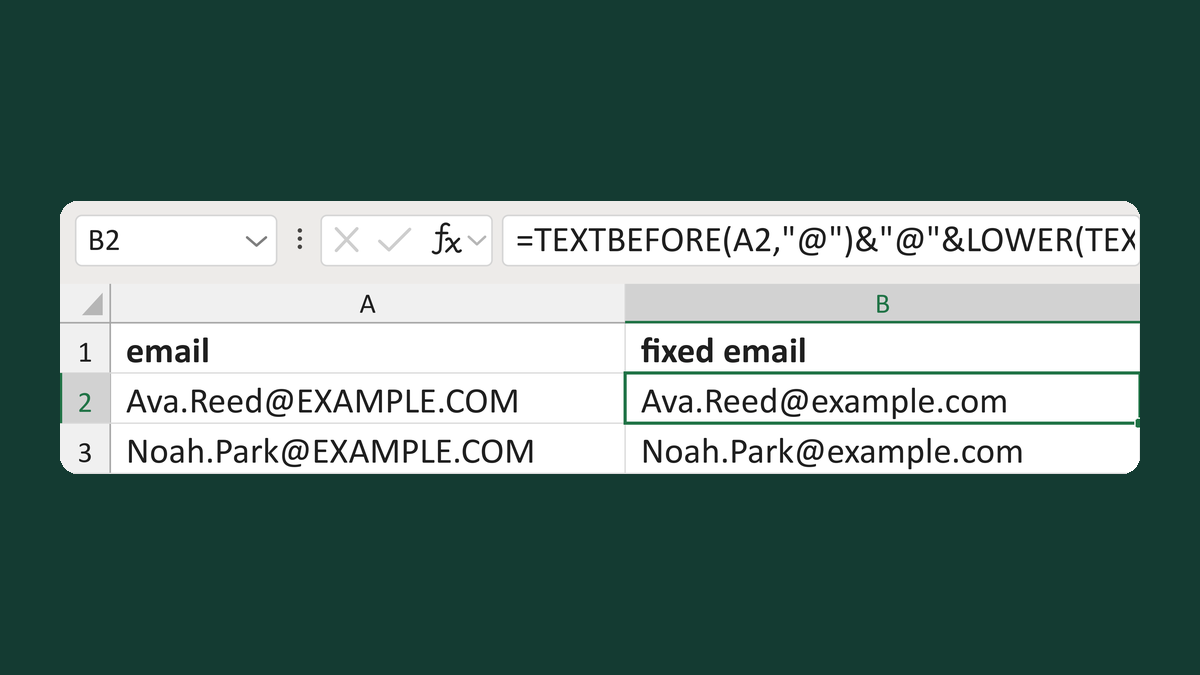
Lowercase only the email domain
[email protected] → [email protected]
Get the template →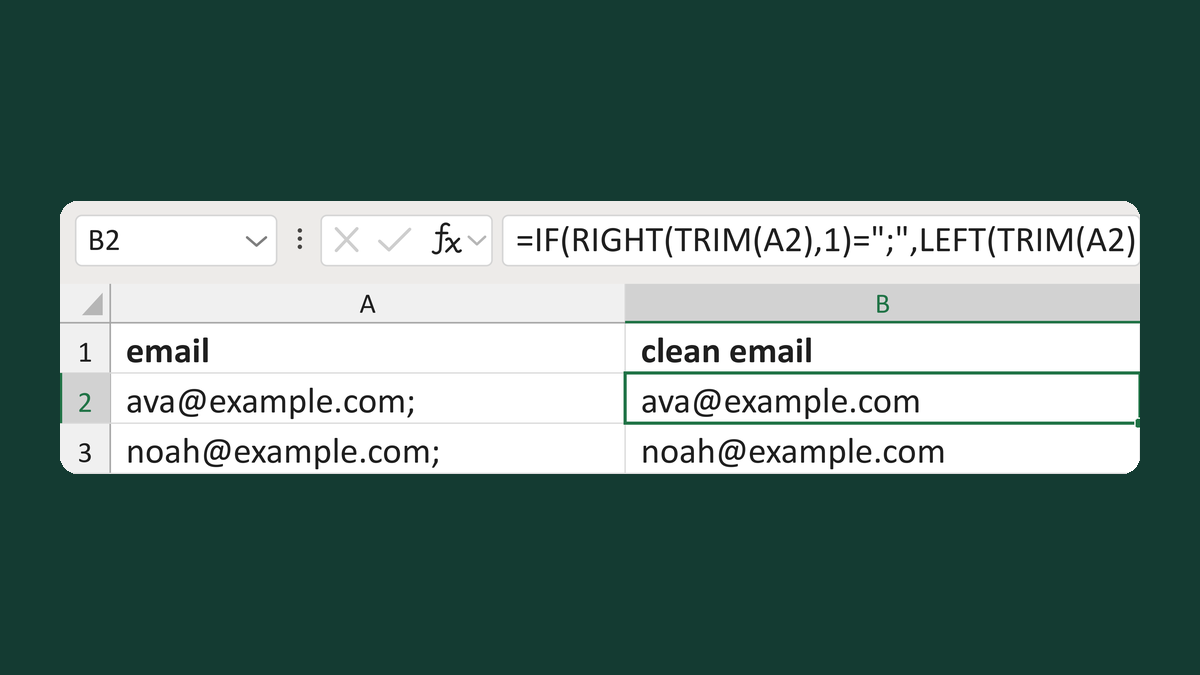
Remove an end semicolon from an email
[email protected]; → [email protected]
Get the template →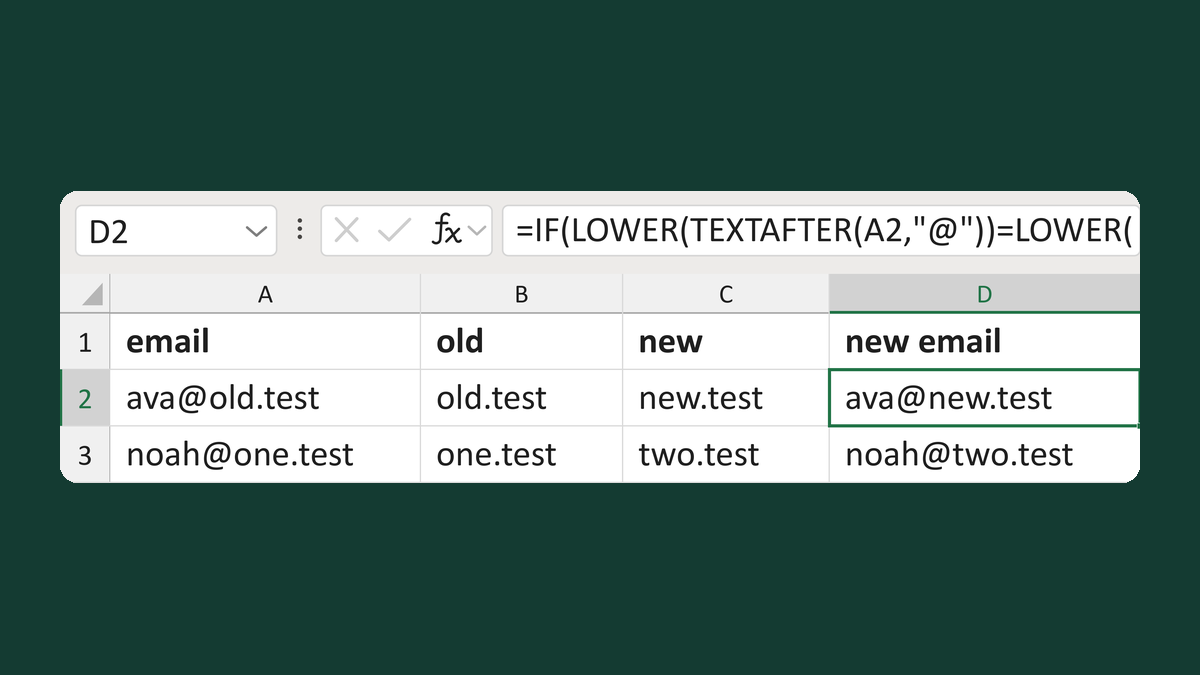
Swap an old email domain for a new one
[email protected] → [email protected]
Get the template →
Check each email went to the right address, once
Your list of 2 → 2 sent copies, each to the right address
Take this route →