Write a date range without repeats

Turn two dates into November 4, 2026 – November 6, 2026. The same date twice shows once.
What you'll make
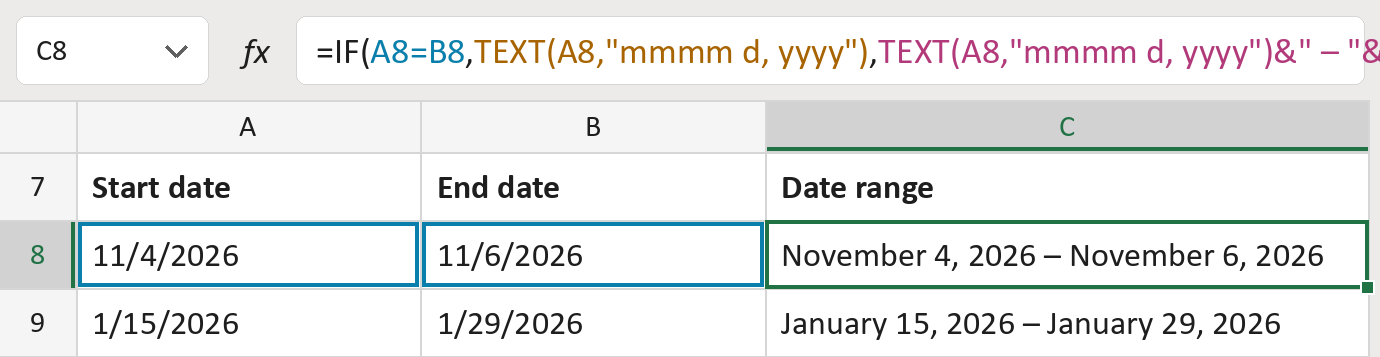
The formula

| Number | Part | What it does | Result so far |
|---|---|---|---|
| 1 | A8=B8 | Checks if the start and end dates are the same. | No |
| 2 | TEXT(A8,"mmmm d, yyyy") | Writes the one date, used when they match. | Not used for row 8 |
| 3 | TEXT(A8,"mmmm d, yyyy")&" – " | Writes the start date, then a dash. | "November 4, 2026 – " |
| 4 | TEXT(B8,"mmmm d, yyyy") | Writes the end date. | "November 6, 2026" |
| 5 | IF( … ) | Uses part 2 if part 1 says yes, otherwise parts 3 and 4. | "November 4, 2026 – …" |
Read it left to right. The dash between the dates is inside part 3.
=IF(A8=B8,TEXT(A8,"mmmm d, yyyy"),TEXT(A8,"mmmm d, yyyy")&" – "&TEXT(B8,"mmmm d, yyyy"))How to use it
Yellow bar at the top? Click Enable Editing.
- See it work. The Example tab shows 20 made-up examples with the formula already in.
- Use your own dates. Paste start dates and end dates into the green columns of the Template tab. The date ranges fill in by themselves.
- Move them into your letter. Copy the results. Then use Paste Special and choose Values.
Before you send
Put the earlier date in Start date. The formula doesn't check the order.
Microsoft's help: TEXT function
OTHER ROUTES YOU MIGHT LIKE
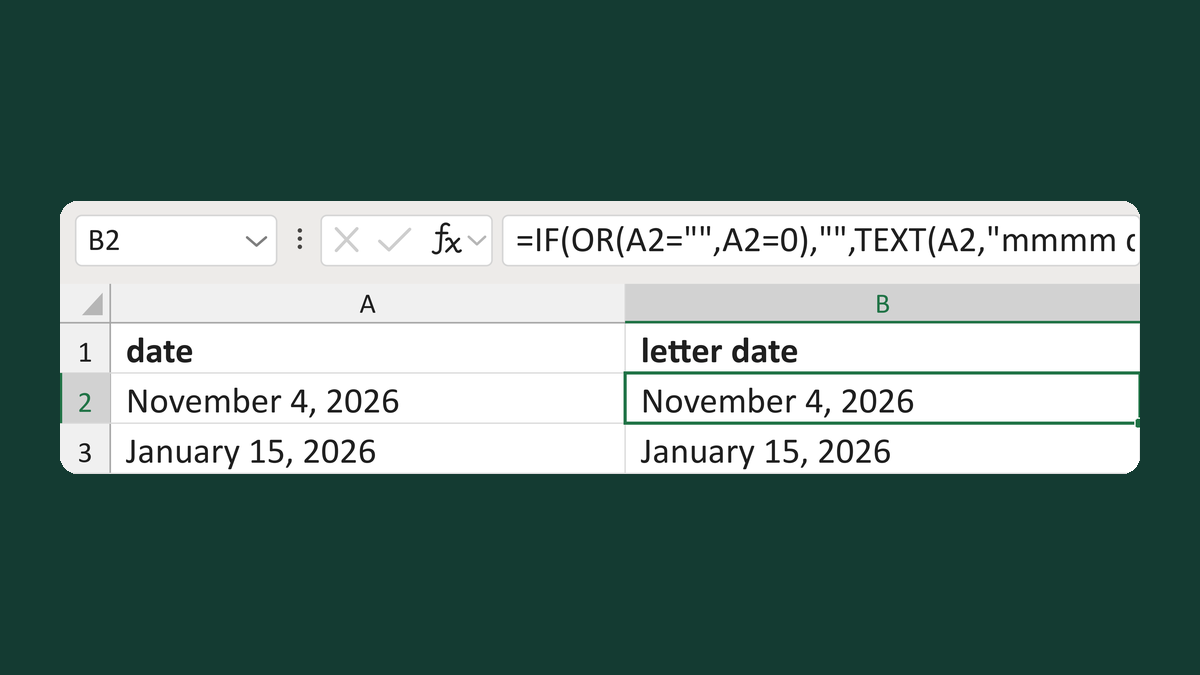
Write a full US-style date for a letter
November 4, 2026 → November 4, 2026 as text, 0 → blank
Get the template →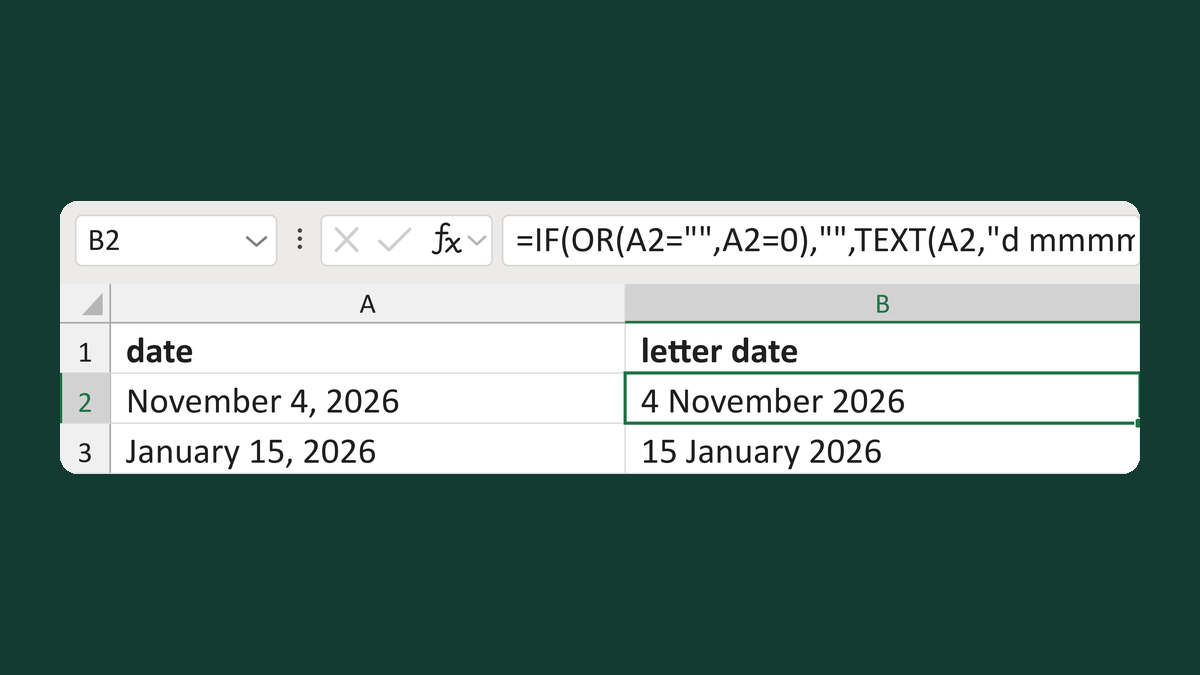
Write a full day-first date for a letter
November 4, 2026 → 4 November 2026, 0 → blank
Get the template →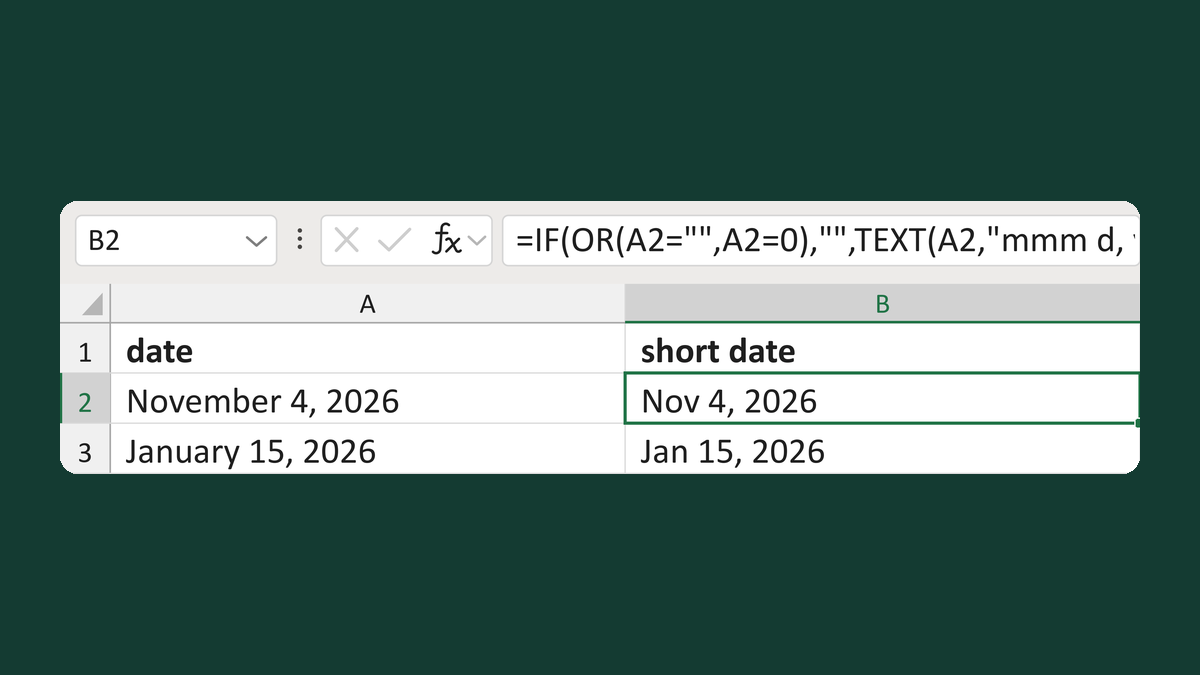
Write a date with a short month name
November 4, 2026 → Nov 4, 2026
Get the template →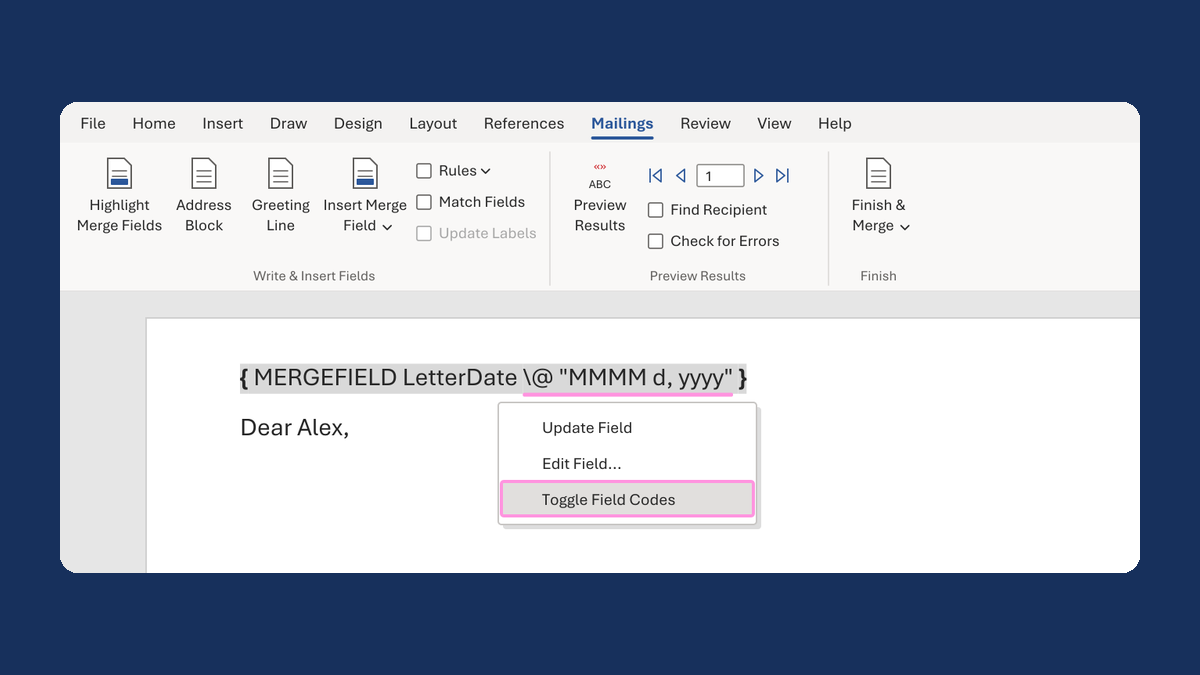
Show a letter date as November 5, 2026
11/5/2026 → November 5, 2026
Take this route →