Write a dollar range with both endpoints

Turn 100 and 250 into $100.00–$250.00 for one letter field.
What you'll make
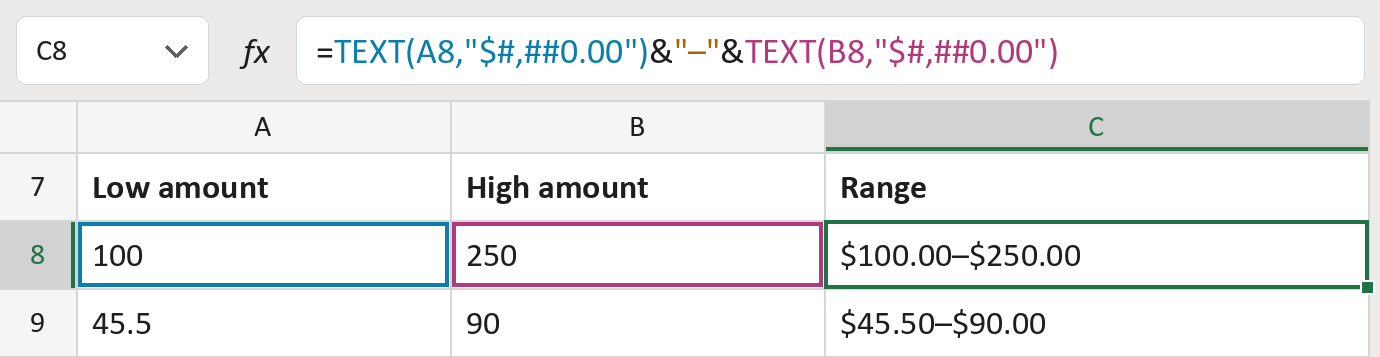
The formula

| Number | Part | What it does | Result so far |
|---|---|---|---|
| 1 | TEXT(A8,"$#,##0.00") | Writes the low amount with $, commas and cents. | "$100.00" |
| 2 | "–" | Adds a dash between the two amounts. | "$100.00–" |
| 3 | TEXT(B8,"$#,##0.00") | Writes the high amount the same way. | "$100.00–$250.00" |
The & signs join the three parts in order. The amounts in the cells don't change. The amounts are made-up.
=TEXT(A8,"$#,##0.00")&"–"&TEXT(B8,"$#,##0.00")How to use it
Yellow bar at the top? Click Enable Editing.
- See it work. The Example tab shows 20 made-up examples with the formula already in.
- Use your own amounts. Paste low amounts into column A and high amounts into column B of the Template tab.
- Move them into your letter. Copy the results. Then use Paste Special and choose Values.
Before you send
Put the lower amount in column A. The formula doesn't swap them for you.
Microsoft's help: TEXT function
OTHER ROUTES YOU MIGHT LIKE
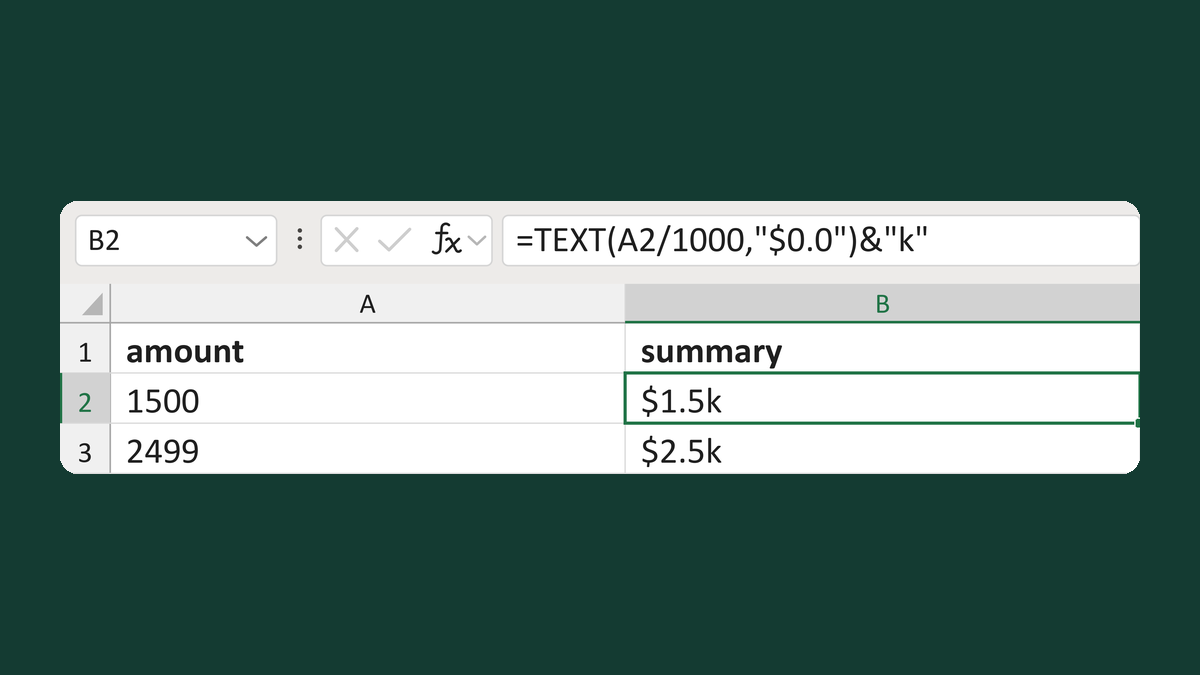
Write dollar thousands like $1.5k
1500 → $1.5k
Get the template →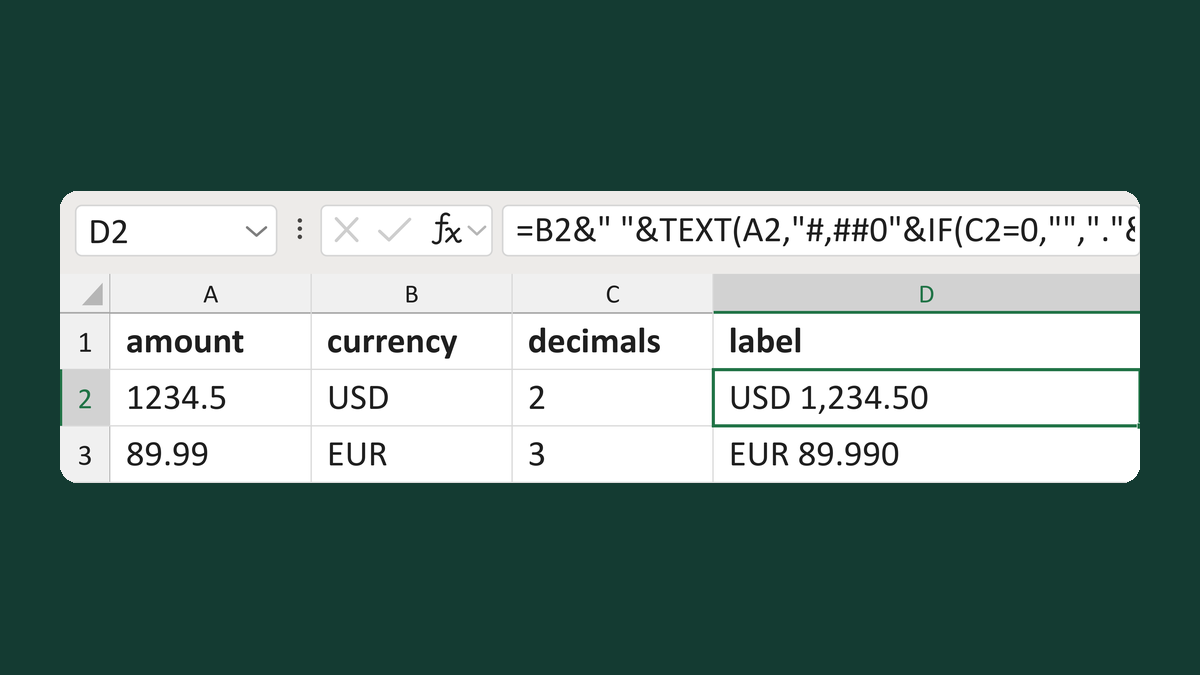
Label an amount with its currency
1234.5, USD, 2 decimals → USD 1,234.50
Get the template →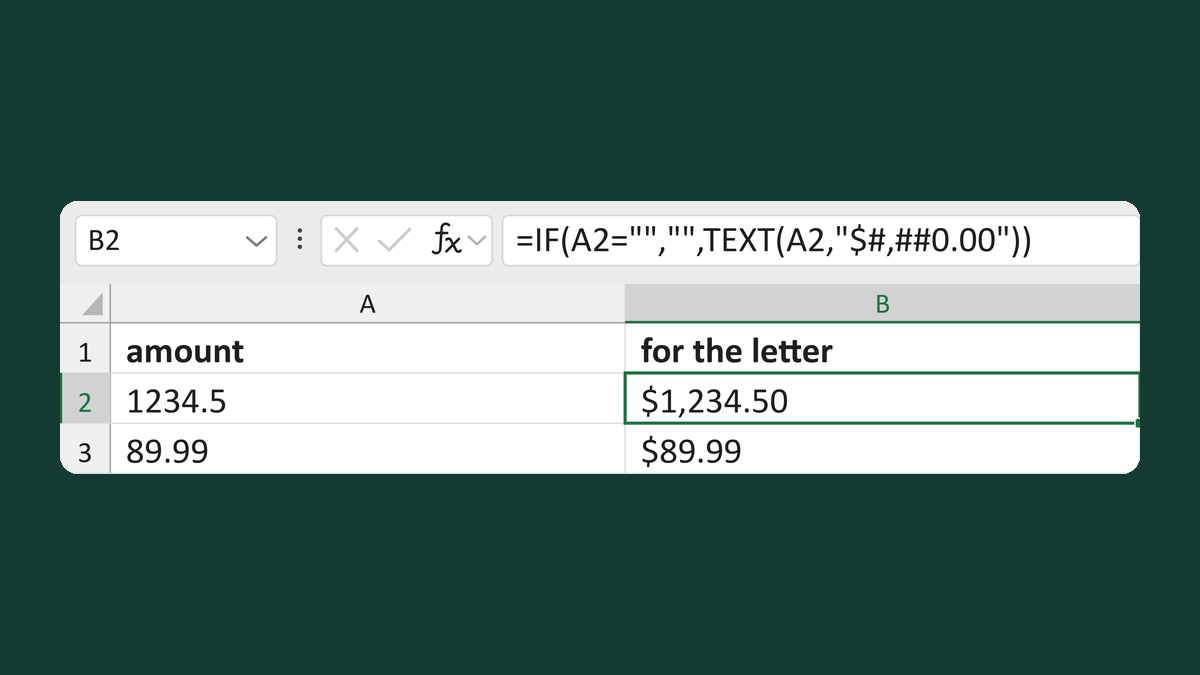
Write dollar amounts, keeping blanks
1234.5 → $1,234.50
Get the template →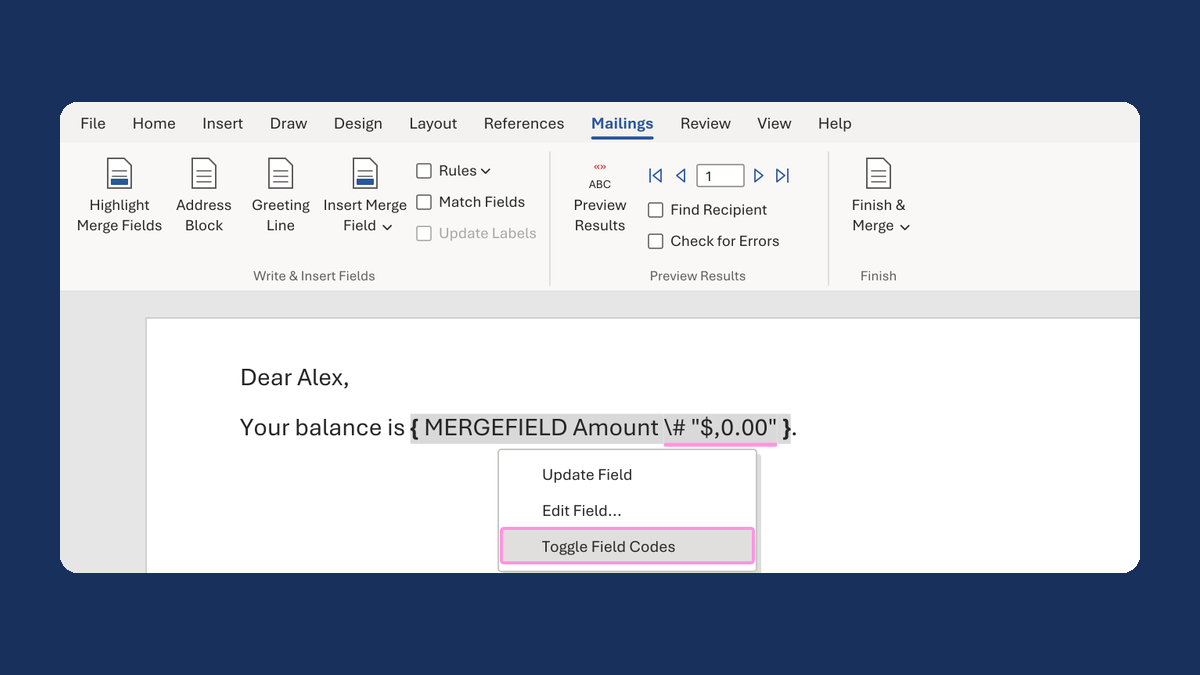
Show $1,234.50 instead of 1234.5 in a mail merge
1234.5 → $1,234.50
Take this route →