Put the street back in an Address Block

Make5 minutes
The problem
Your letters show the name and city, but no street line.

Why it happens
Address Block looks for columns with names it knows. In our test it matched Province and Postcode on its own, but not Street. So the street line was left out.
Fix it
-
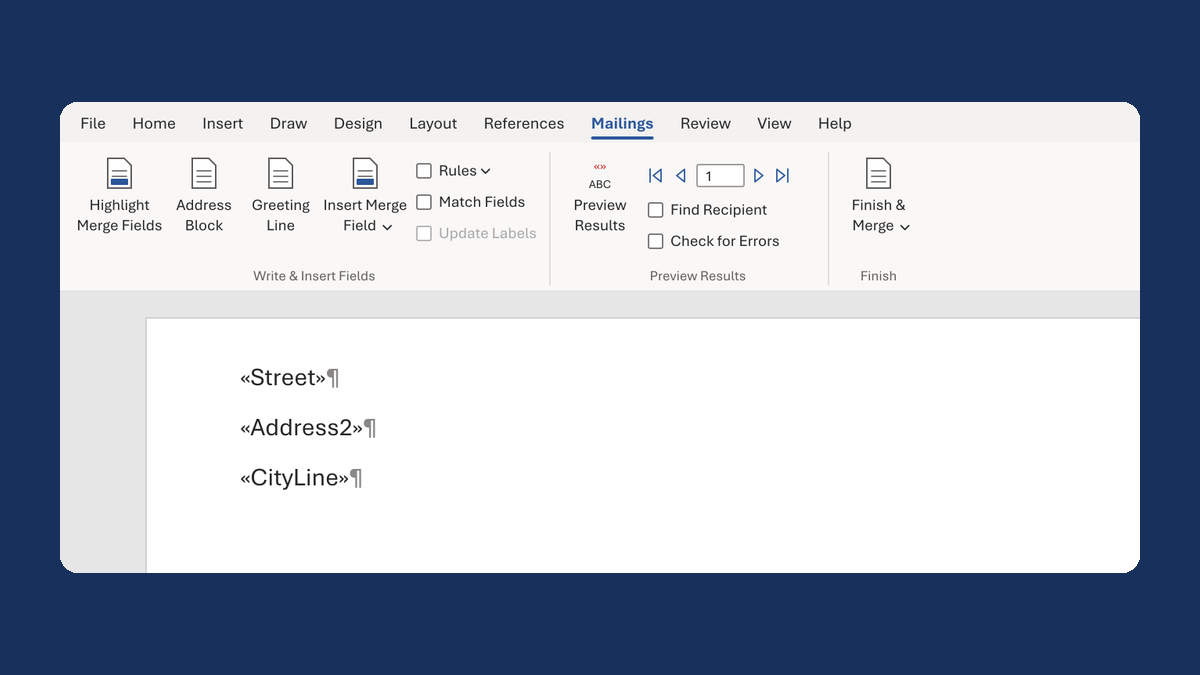
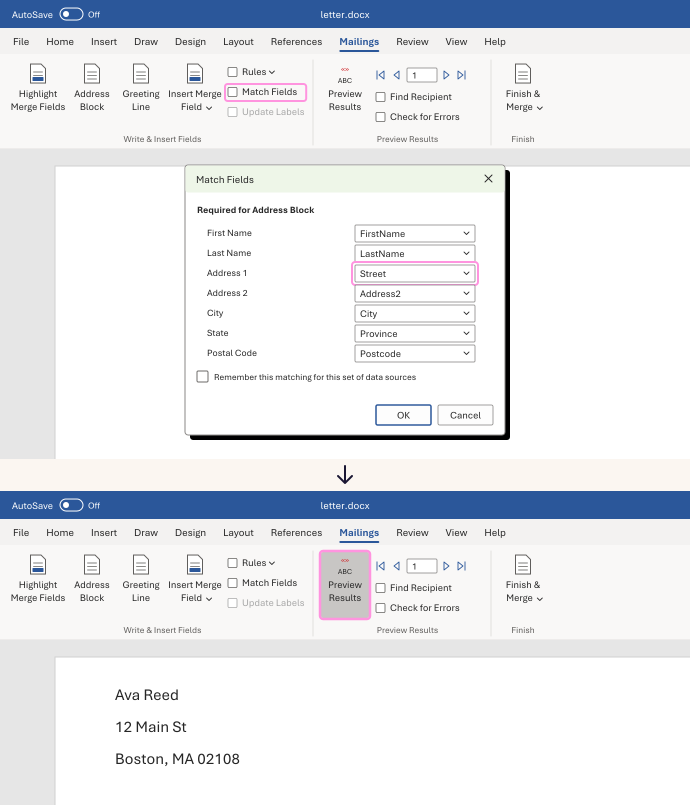
On the Mailings tab, click Address Block. In the box that opens, click Match Fields....
-
Find Address 1. If it says (not matched), choose your street column, like Street.
-
Check the other rows too, like State and Postal Code.
-
Click OK twice. Click Preview Results and check a few people, including one with a long address.
In our test, matching Address 1 to Street brought the street line back.
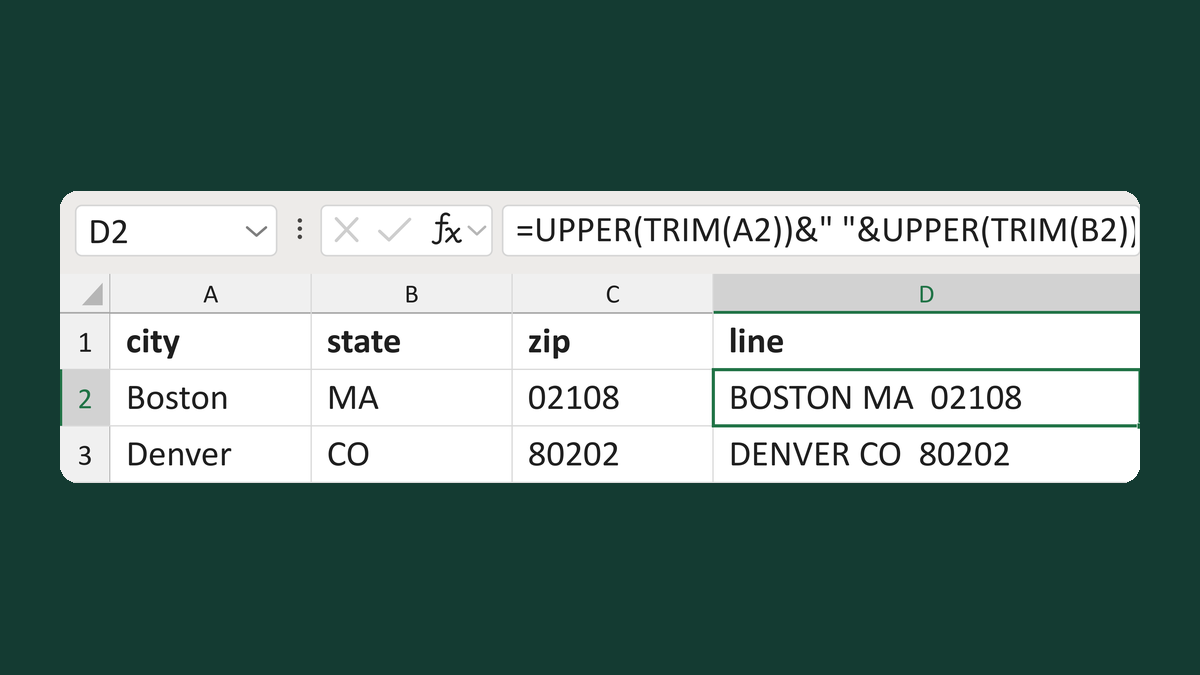
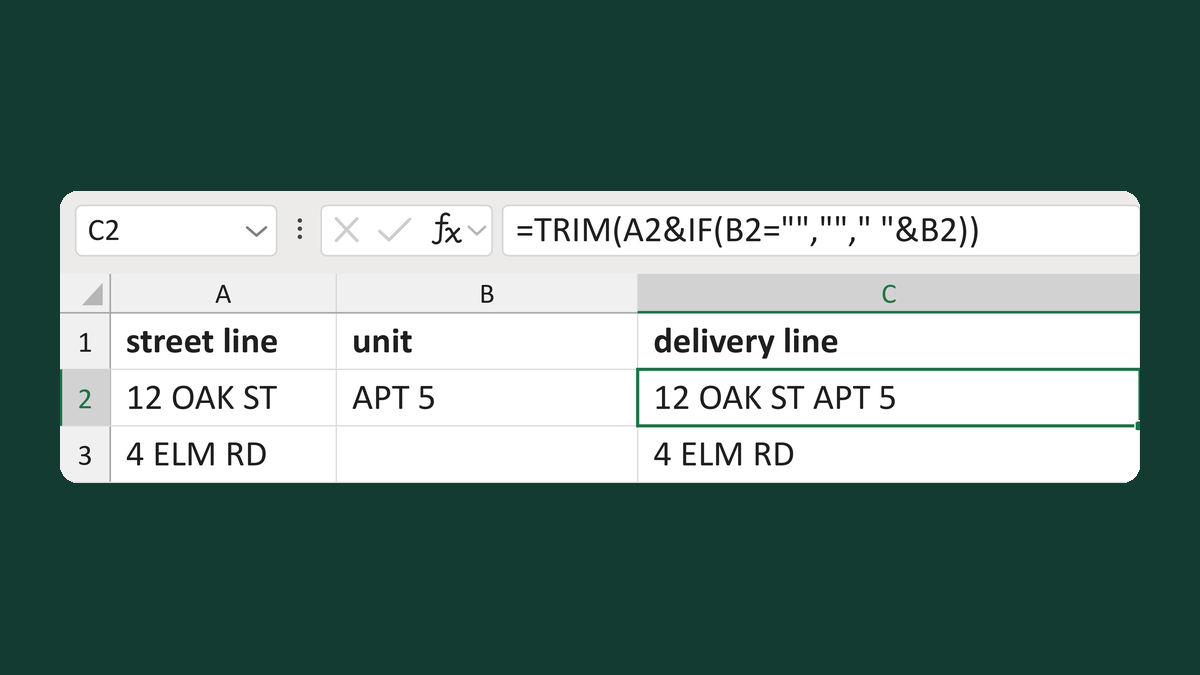
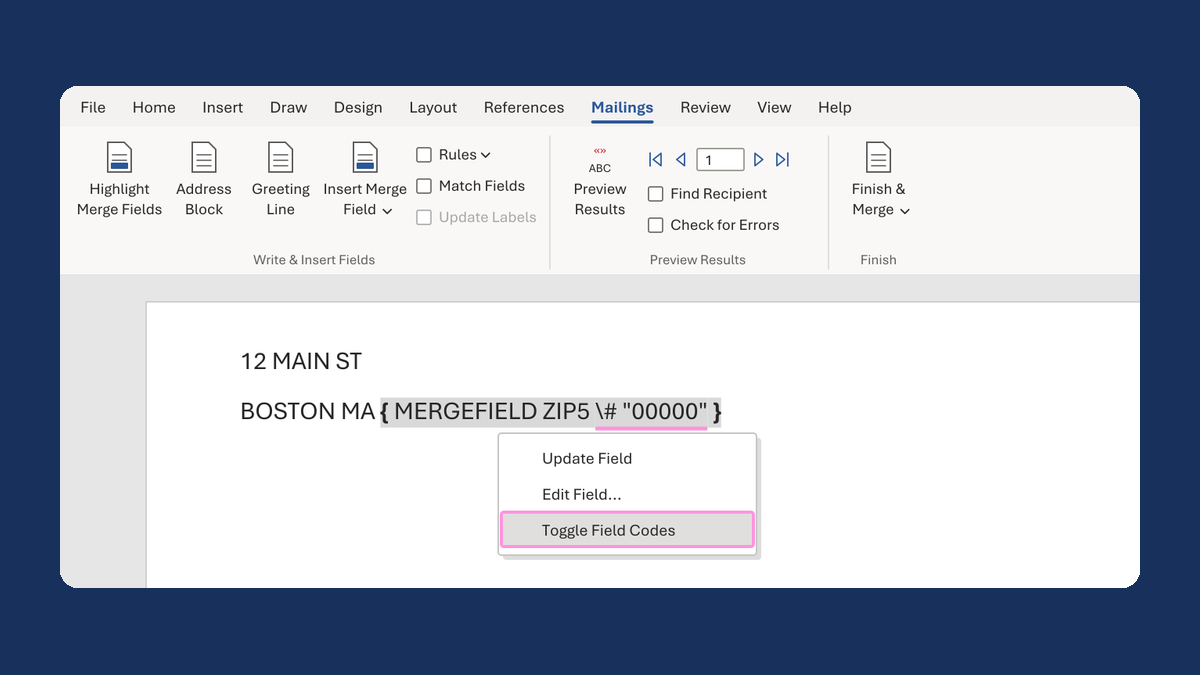
Build the address lines in your list instead, then merge them as plain fields. Try Build a U.S. city-state-ZIP line or Keep a unit on the street delivery line.
Watch for
On labels, the address lines can spread apart and get cut off. Select the label text and open Paragraph on the Home tab. Set Before and After to 0 pt and Line spacing to Single. Then, on the Mailings tab, click Update Labels.