Add a retired label to a credential

Turn RN with the status Retired into RN (retired). Active stays as it is.
What you'll make
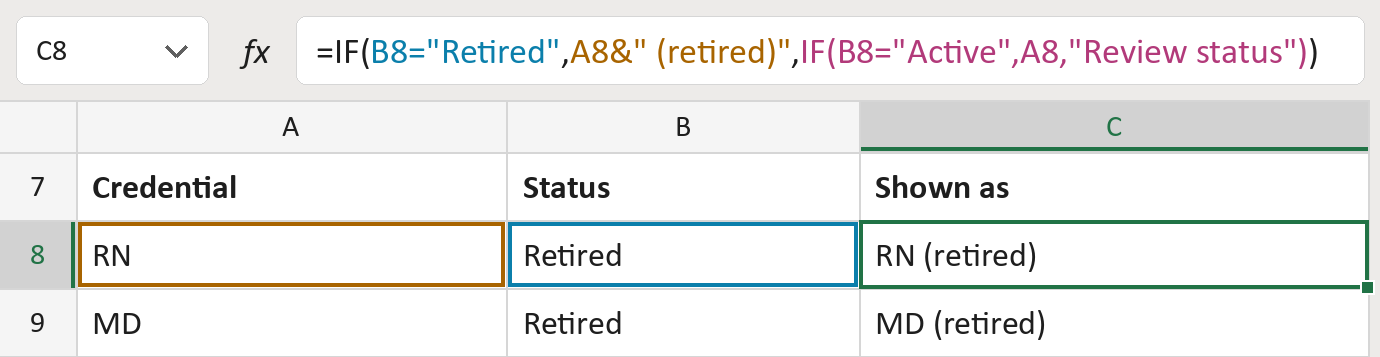
The formula

| Number | Part | What it does | Result so far |
|---|---|---|---|
| 1 | B8="Retired" | Checks if the status is Retired. | TRUE |
| 2 | A8&" (retired)" | Adds (retired) after the credential. | "RN (retired)" |
| 3 | IF(B8="Active", … ) | Keeps Active credentials as they are, flags the rest. | Not used for row 8 |
| 4 | IF( … ) | Gives part 2 for Retired, otherwise part 3. | "RN (retired)" |
Read it left to right. Capitals in the status don't matter.
=IF(B8="Retired",A8&" (retired)",IF(B8="Active",A8,"Review status"))How to use it
Yellow bar at the top? Click Enable Editing.
- See it work. The Example tab shows 20 made-up examples with the formula already in.
- Use your own credentials. Paste credentials and their statuses into the green columns of the Template tab. The results fill in by themselves.
- Move them into your letter. Copy the results. Then use Paste Special and choose Values.
Before you send
Check that your rules allow a retired credential in this letter before you send it.
Microsoft's help: IF function
OTHER ROUTES YOU MIGHT LIKE
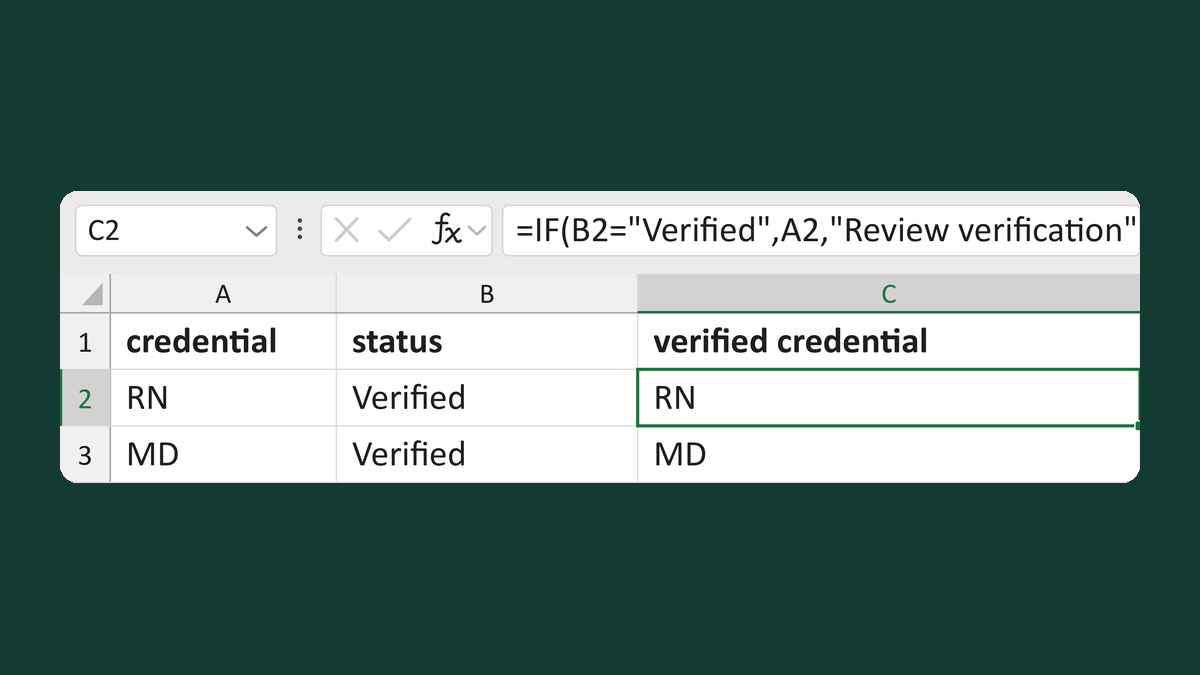
Show a credential only when verified
RN + Verified → RN
Get the template →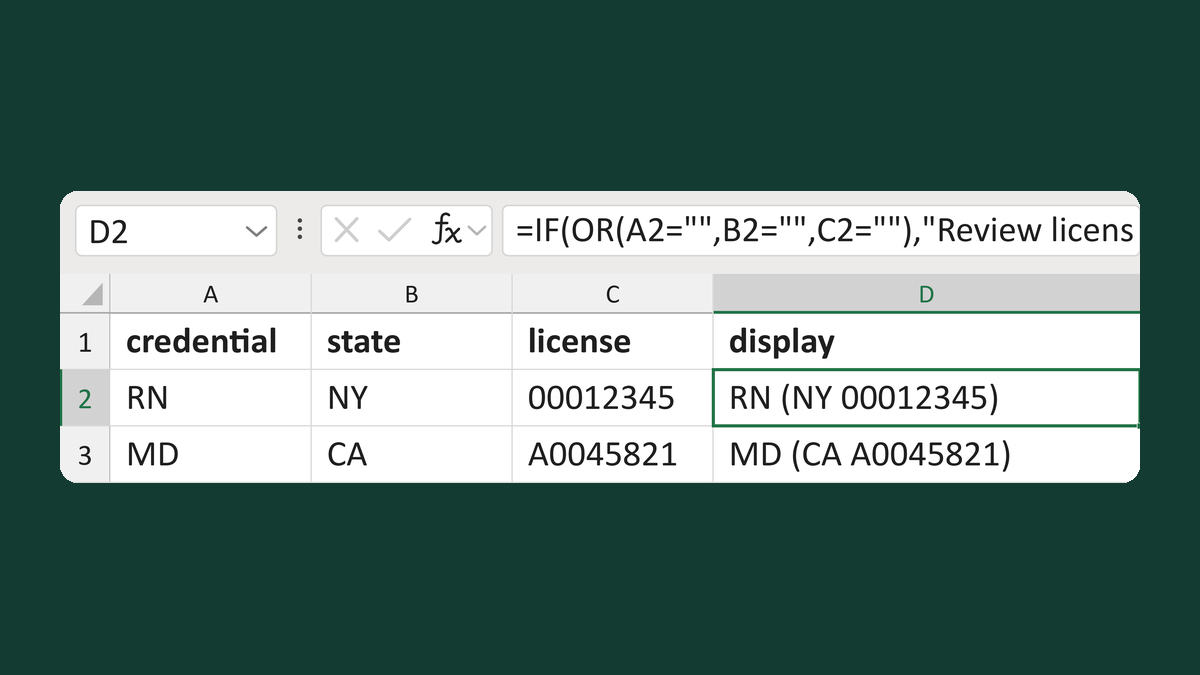
Build a credential and license display
RN + NY + 00012345 → RN (NY 00012345)
Get the template →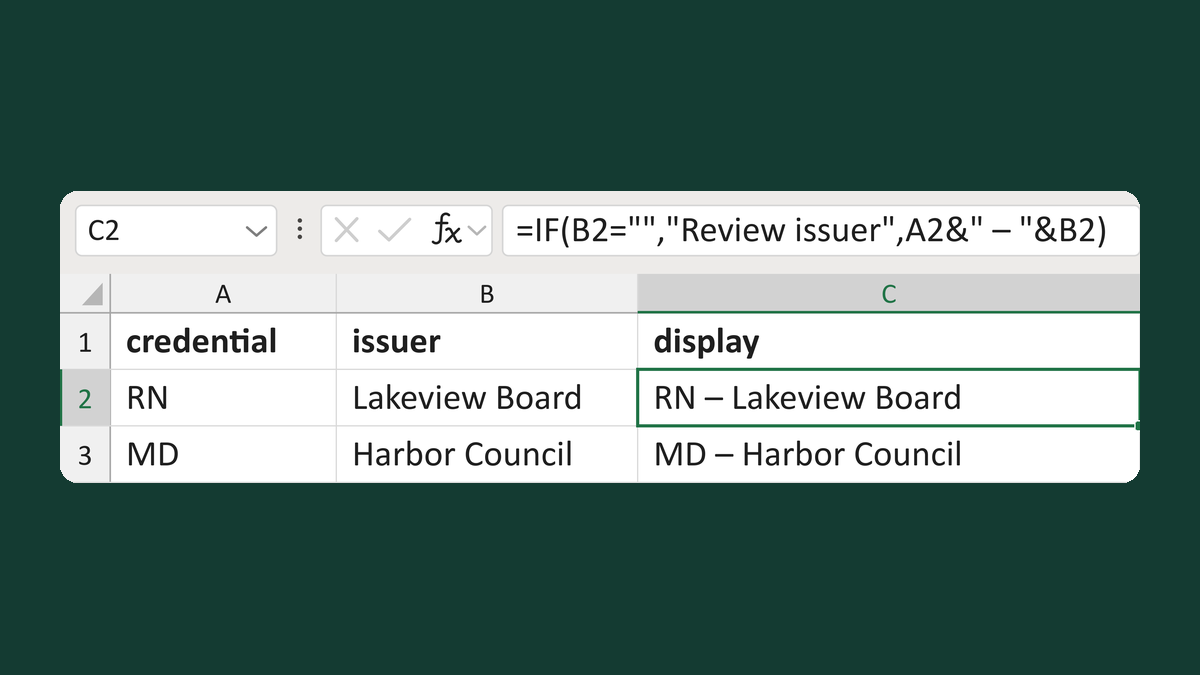
Show a credential with its issuer
RN + Lakeview Board → RN – Lakeview Board
Get the template →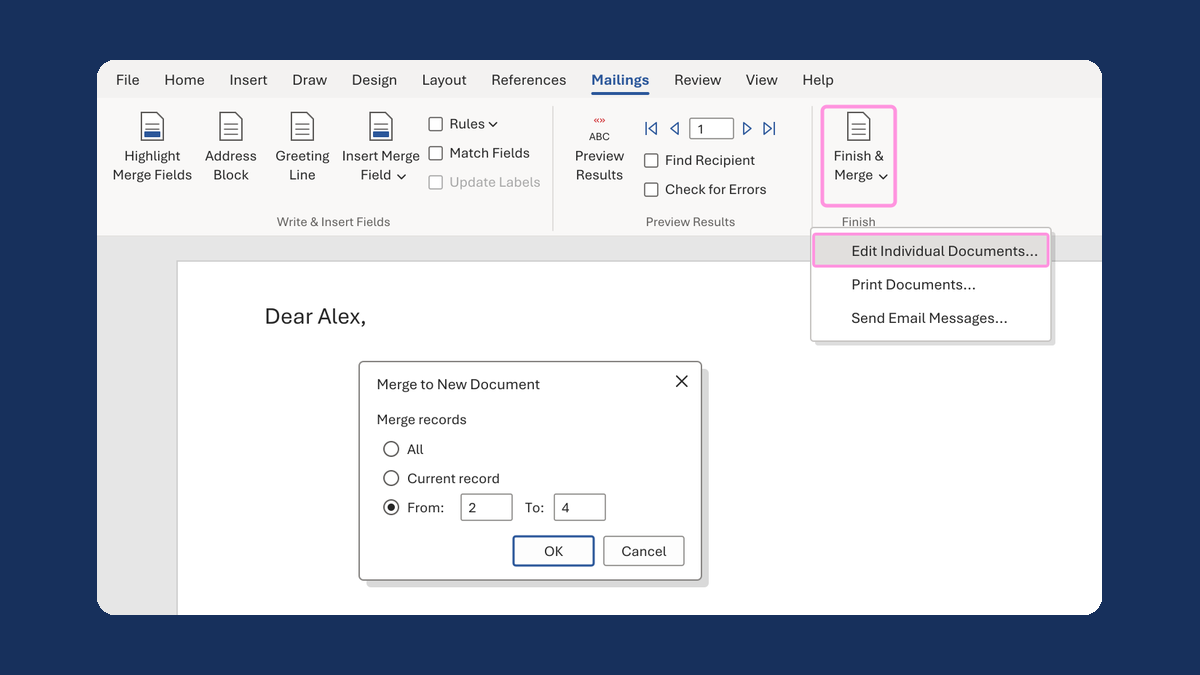
Merge a few test letters before the whole mailing
Whole mailing → records 2 to 4 only
Take this route →