Add several credentials after a name

Turn Ava Reed, CPA and MBA into Ava Reed, CPA, MBA for letters and badges.
Download Excel templateMicrosoft 365
What you'll make
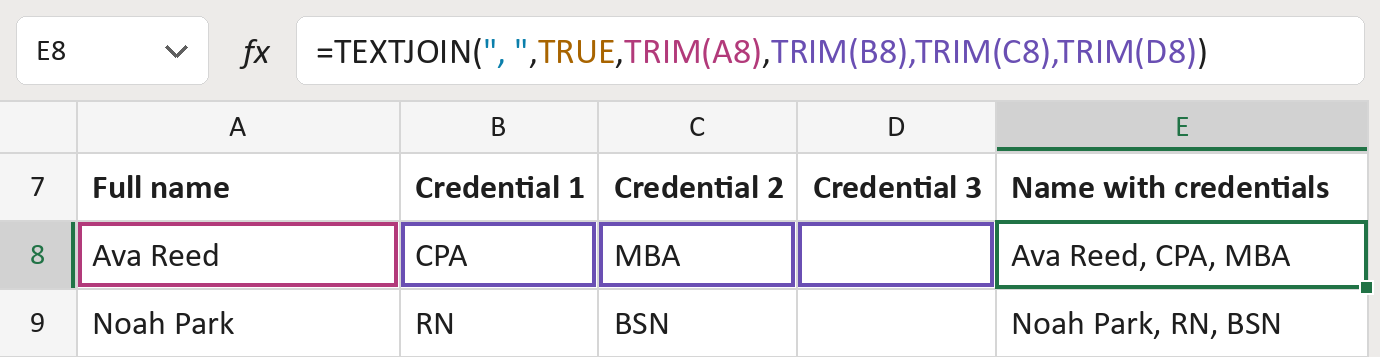
The formula

| Number | Part | What it does | Result so far |
|---|---|---|---|
| 1 | ", " | Puts a comma and a space between the pieces. | ", " |
| 2 | TRUE | Skips empty cells, like Ava's third credential. | Skips D8 |
| 3 | TRIM(A8) | The name, without stray spaces. | "Ava Reed" |
| 4 | TRIM(B8),… | The three credentials, without stray spaces. | CPA | MBA | |
| 5 | TEXTJOIN( … ) | Joins them into one line. | "Ava Reed, CPA, MBA" |
Empty credential cells add no extra commas.
=TEXTJOIN(", ",TRUE,TRIM(A8),TRIM(B8),TRIM(C8),TRIM(D8))How to use it
Yellow bar at the top? Click Enable Editing.
- See it work. The Example tab shows 20 made-up names with the formula already in.
- Use your own names. Paste full names into the first green column of the Template tab and credentials into the next three. Leave unused ones empty.
- Move them into your letter. Copy the results. Then use Paste Special and choose Values.
Before you send
Credentials appear in column order. Put them in the order each person prefers, and check the spelling.
Route: Get names ready for the letter
Microsoft's help: TEXTJOIN function
OTHER ROUTES YOU MIGHT LIKE
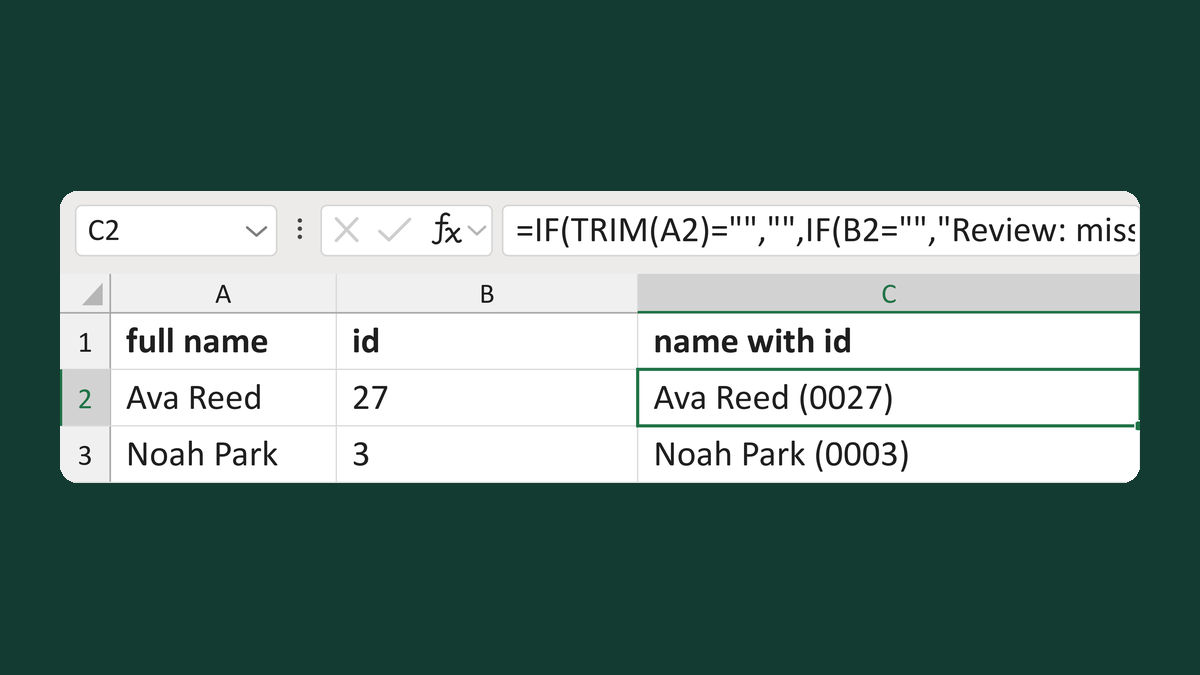
Add a short ID to tell names apart
Ava Reed + 27 → Ava Reed (0027)
Get the template →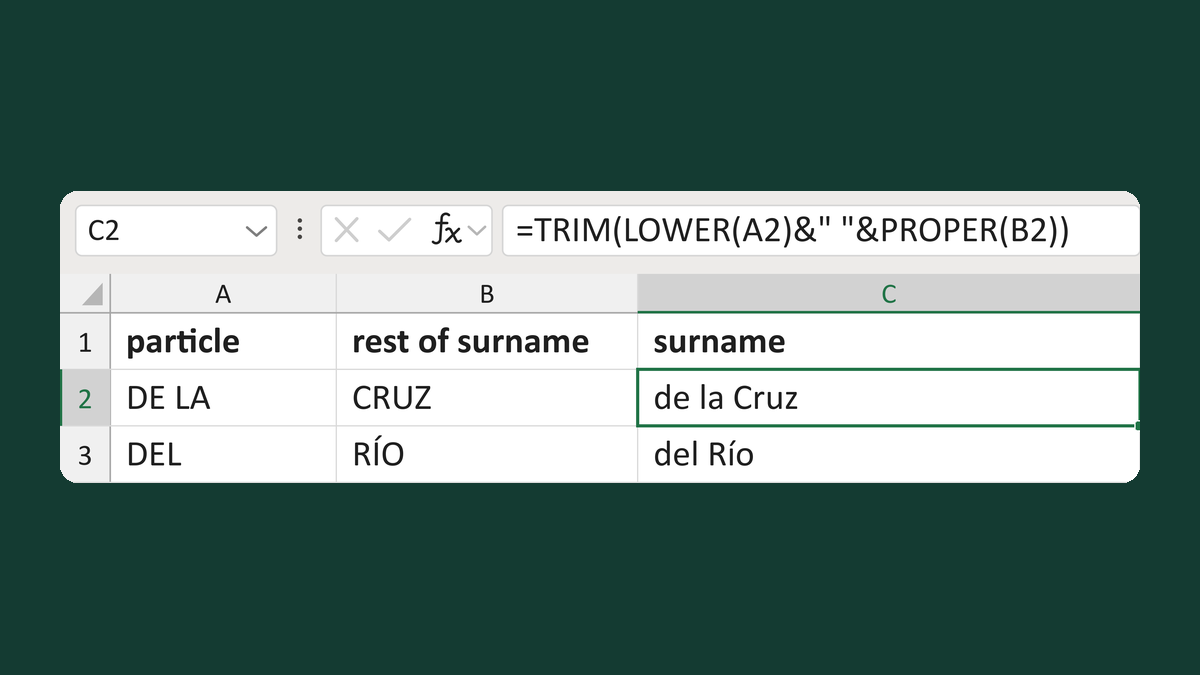
Keep a surname particle lowercase
DE LA + CRUZ → de la Cruz
Get the template →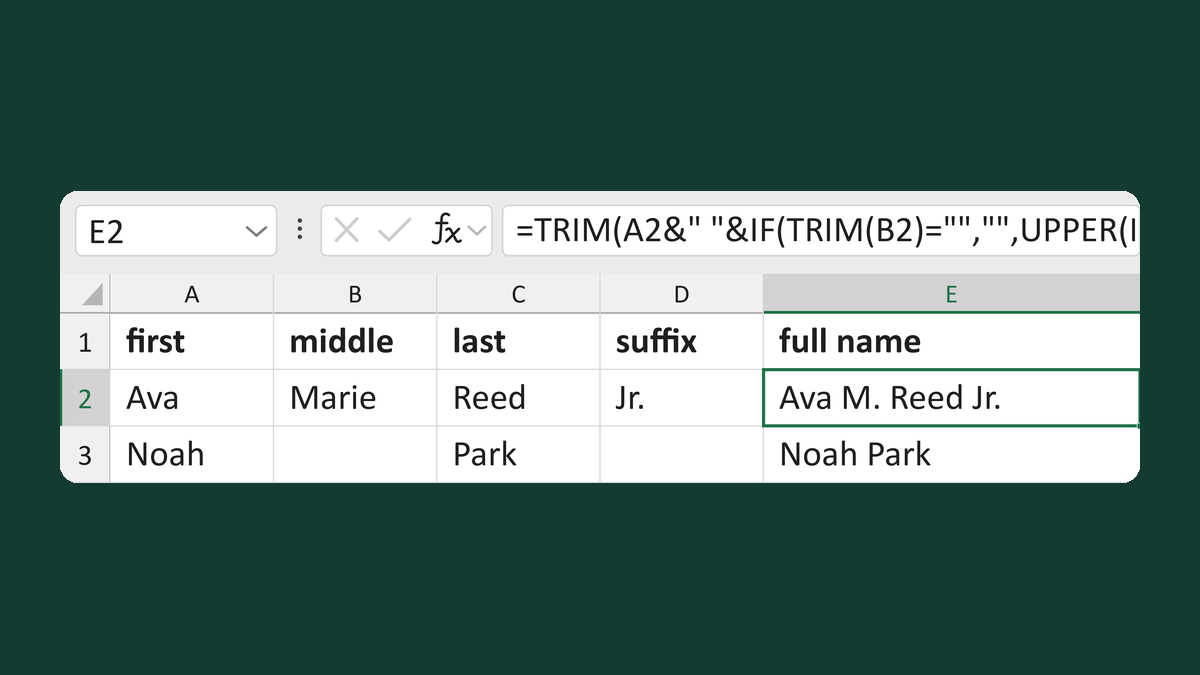
Combine a middle initial and a suffix
Ava + Marie + Reed + Jr. → Ava M. Reed Jr.
Get the template →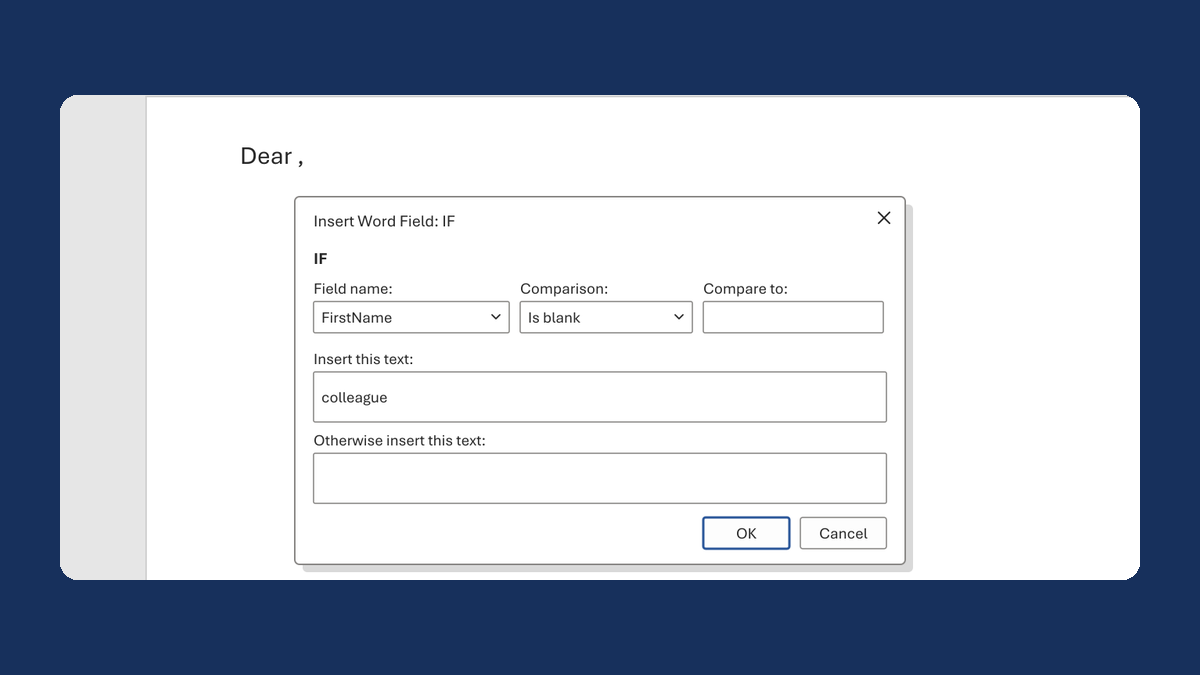
Fix "Dear ," when a first name is blank
(blank) → Dear colleague,
Take this route →