Add the patient response to the status

Booked doesn't mean the patient accepted. Keep both side by side.
What you'll make
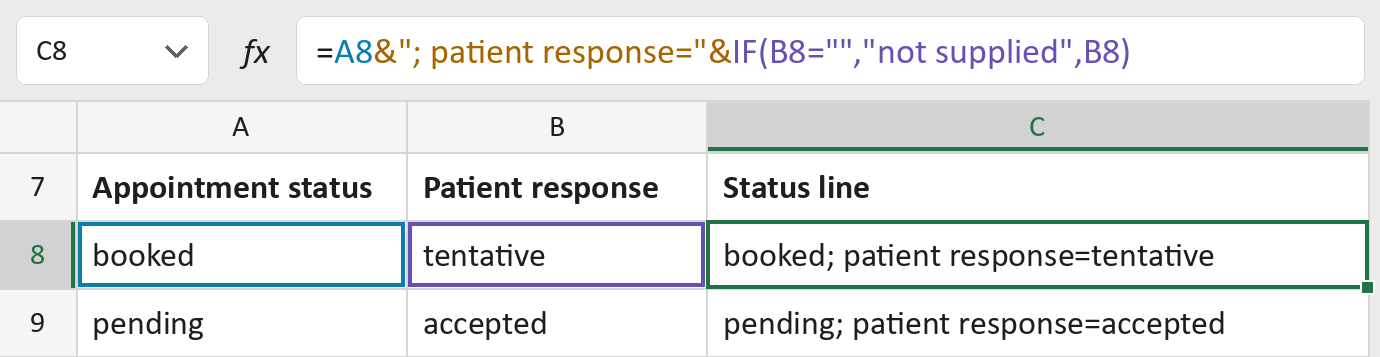
The formula

| Number | Part | What it does | Result so far |
|---|---|---|---|
| 1 | A8 | The overall appointment status. | "booked" |
| 2 | &"; patient response="& | Adds the words before the response. | "booked; patient …" |
| 3 | IF(B8="","not supplied",B8) | Adds the response, or not supplied if empty. | "booked; … =tentative" |
Read it left to right. Each & joins the next piece on. Nothing is guessed from the status.
=A8&"; patient response="&IF(B8="","not supplied",B8)How to use it
Yellow bar at the top? Click Enable Editing.
- See it work. The Example tab shows 20 made-up examples with the formula already in.
- Use your own list. Paste each appointment status and the patient's own response into the green columns of the Template tab.
- Move them into your letter. Copy the results. Then use Paste Special and choose Values.
Before you send
Take the response from the patient's own participant row, not the first one listed.
Microsoft's help: IF function
OTHER ROUTES YOU MIGHT LIKE
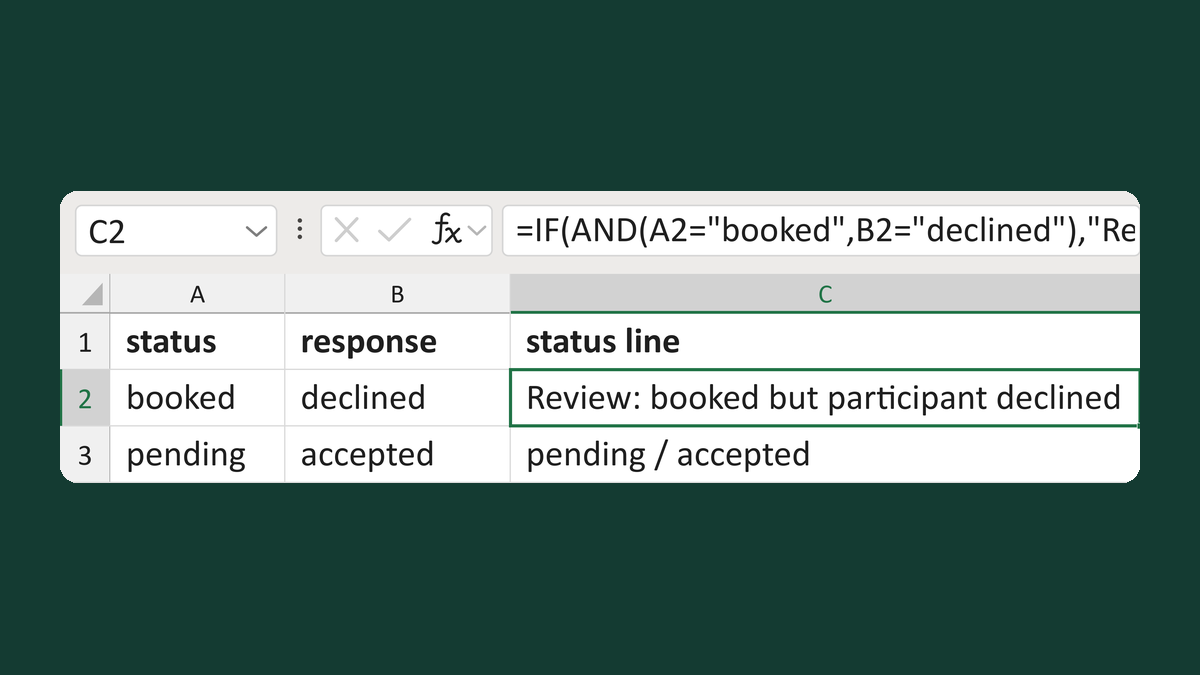
Flag a decline on a booked appointment
booked + declined → Review: booked but participant declined
Get the template →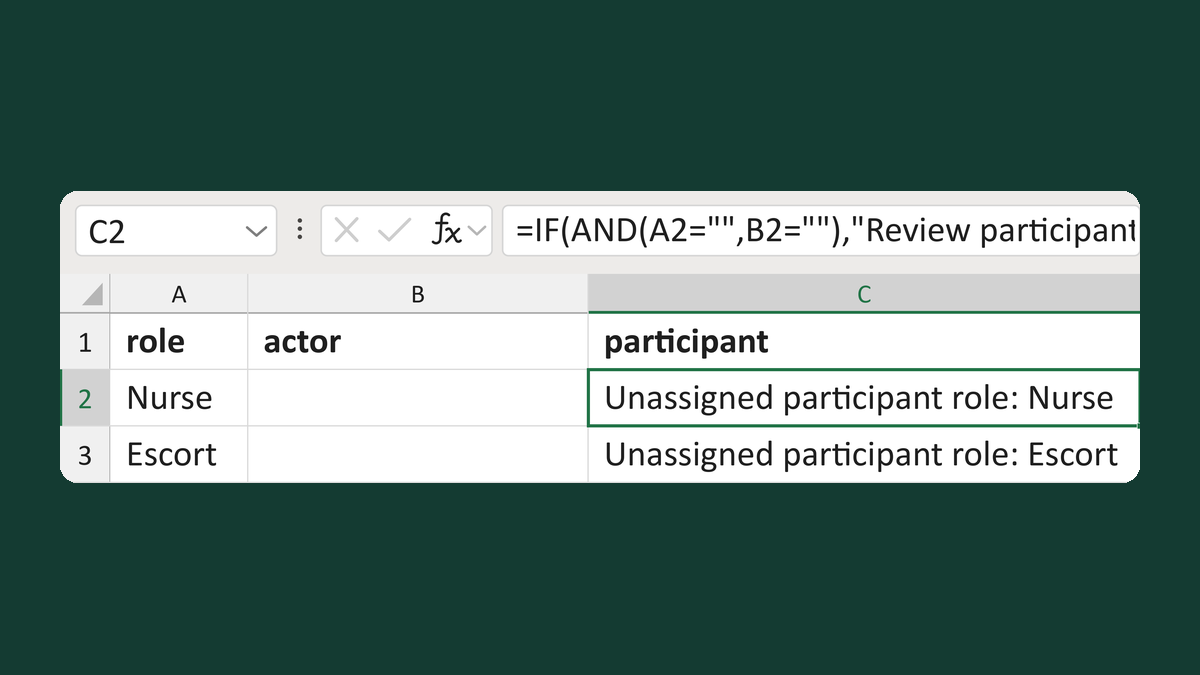
Show unassigned participant roles
Nurse, no actor → Unassigned participant role: Nurse
Get the template →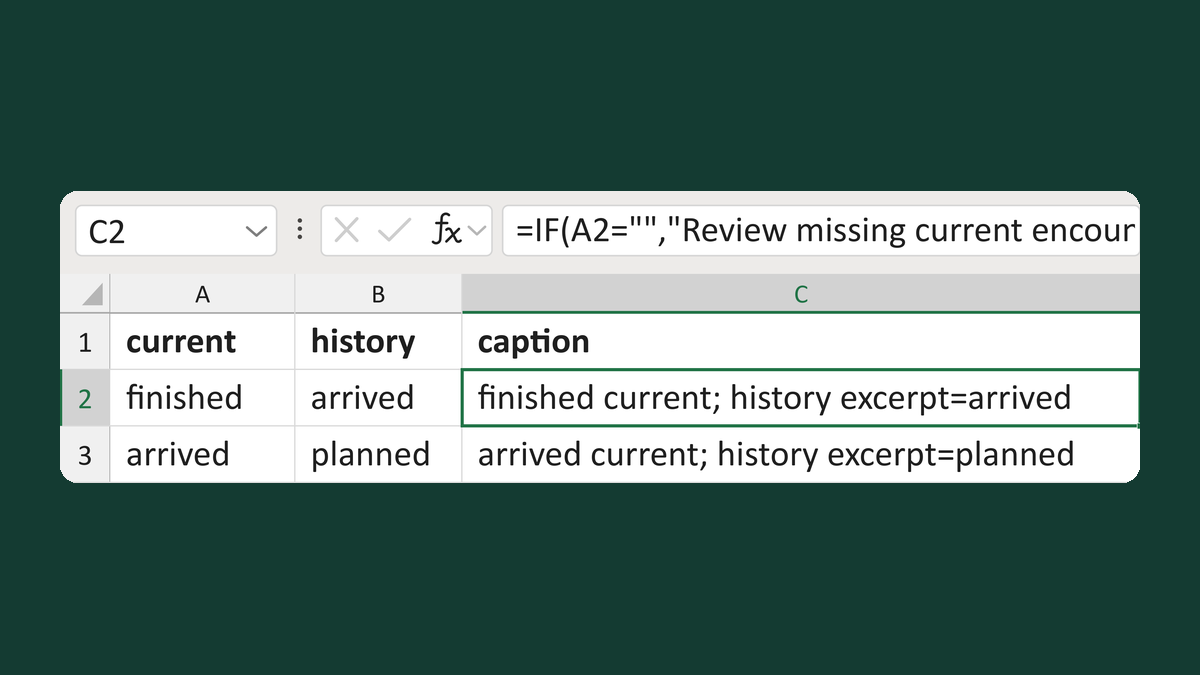
Put current encounter status first
finished + arrived → finished current; history excerpt=arrived
Get the template →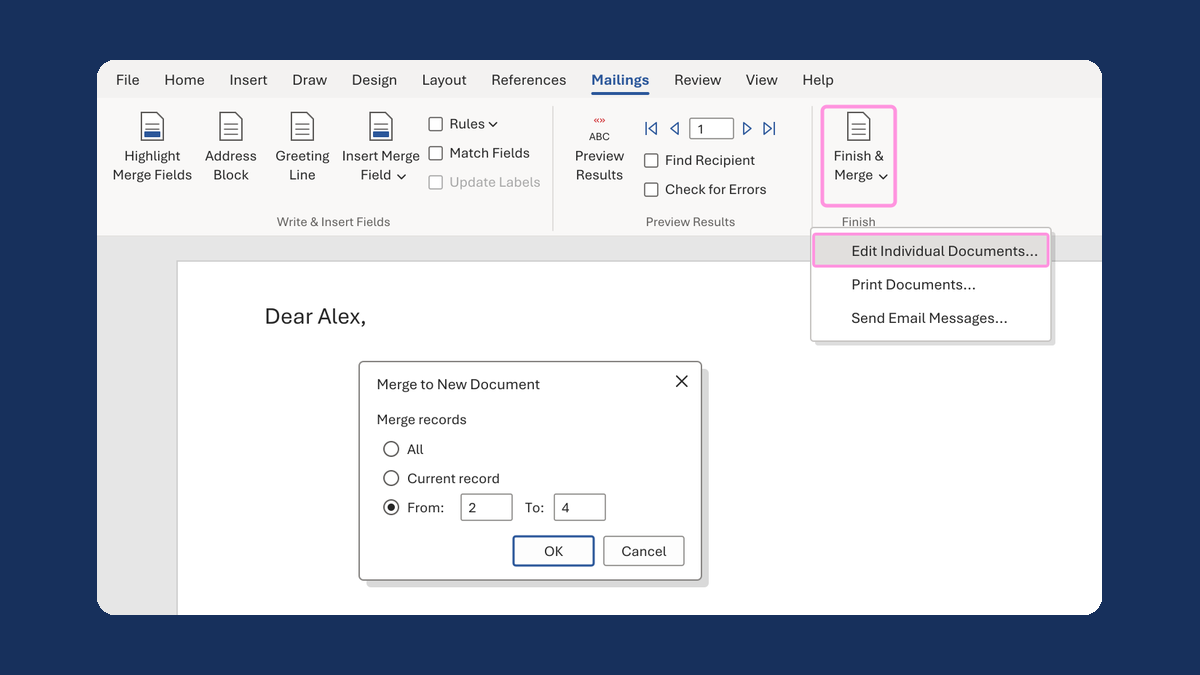
Merge a few test letters before the whole mailing
Whole mailing → records 2 to 4 only
Take this route →