Show unassigned participant roles

A Nurse role with no person yet stays on the list as an unassigned role.
What you'll make
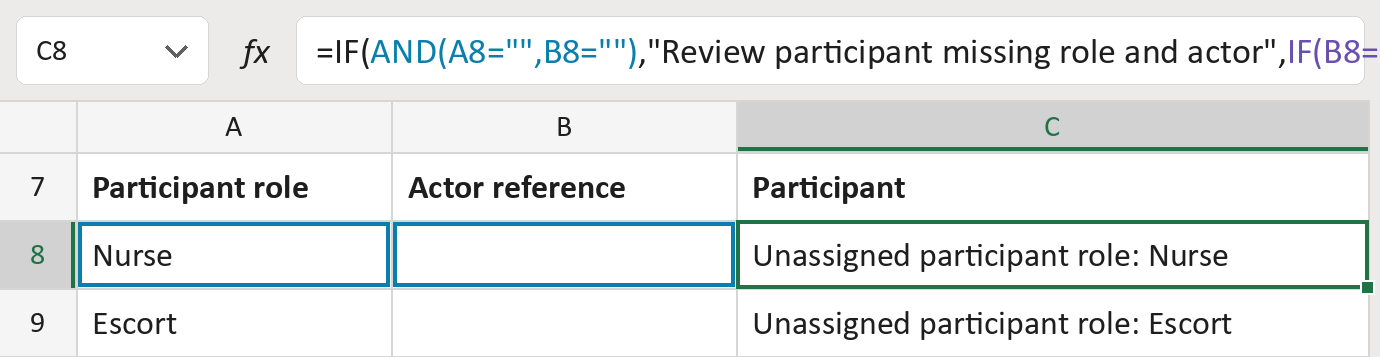
The formula
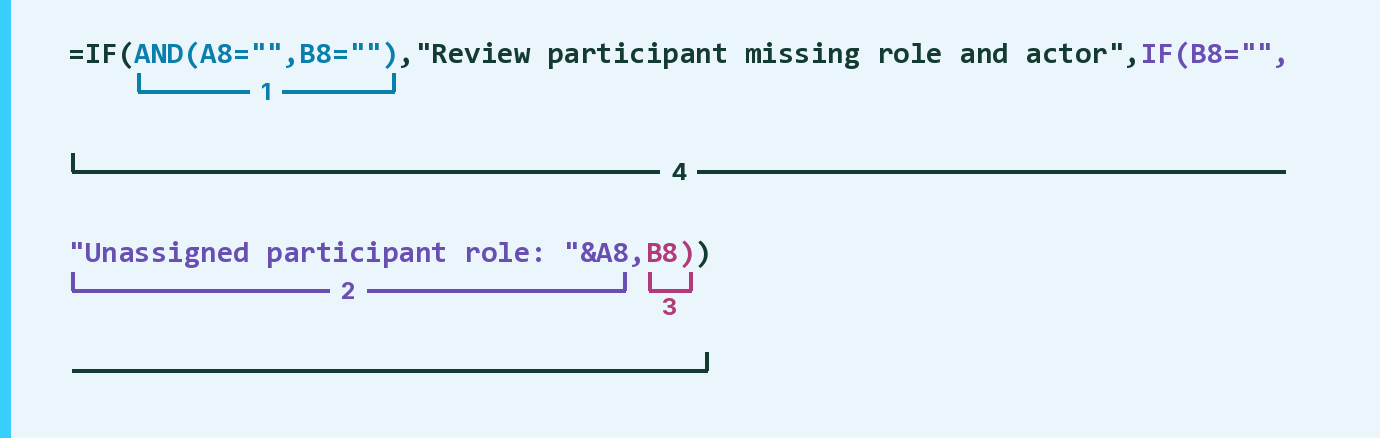
| Number | Part | What it does | Result so far |
|---|---|---|---|
| 1 | AND(A8="",B8="") | Checks whether both cells are empty. | FALSE |
| 2 | "Unassigned … "&A8 | With no person, labels the role as unassigned. | "Unassigned … Nurse" |
| 3 | B8 | With a person, uses that person's reference. | Not used for row 8 |
| 4 | IF( … ) | Picks the review note, the label or the person. | "Unassigned … Nurse" |
Both cells empty says Review participant missing role and actor. In the Template that row stays blank.
=IF(AND(A8="",B8=""),"Review participant missing role and actor",IF(B8="","Unassigned participant role: "&A8,B8))How to use it
Yellow bar at the top? Click Enable Editing.
- See it work. The Example tab shows 20 made-up examples with the formula already in.
- Use your own participants. Paste each participant's role and actor reference into the green columns of the Template tab. Leave the actor empty when nobody is assigned yet.
- Move them into your letter. Copy the results. Then use Paste Special and choose Values.
Before you send
A role with nobody assigned is kept on purpose. Assign the person in your scheduling system, not here.
Microsoft's help: Using IF with AND, OR and NOT
OTHER ROUTES YOU MIGHT LIKE
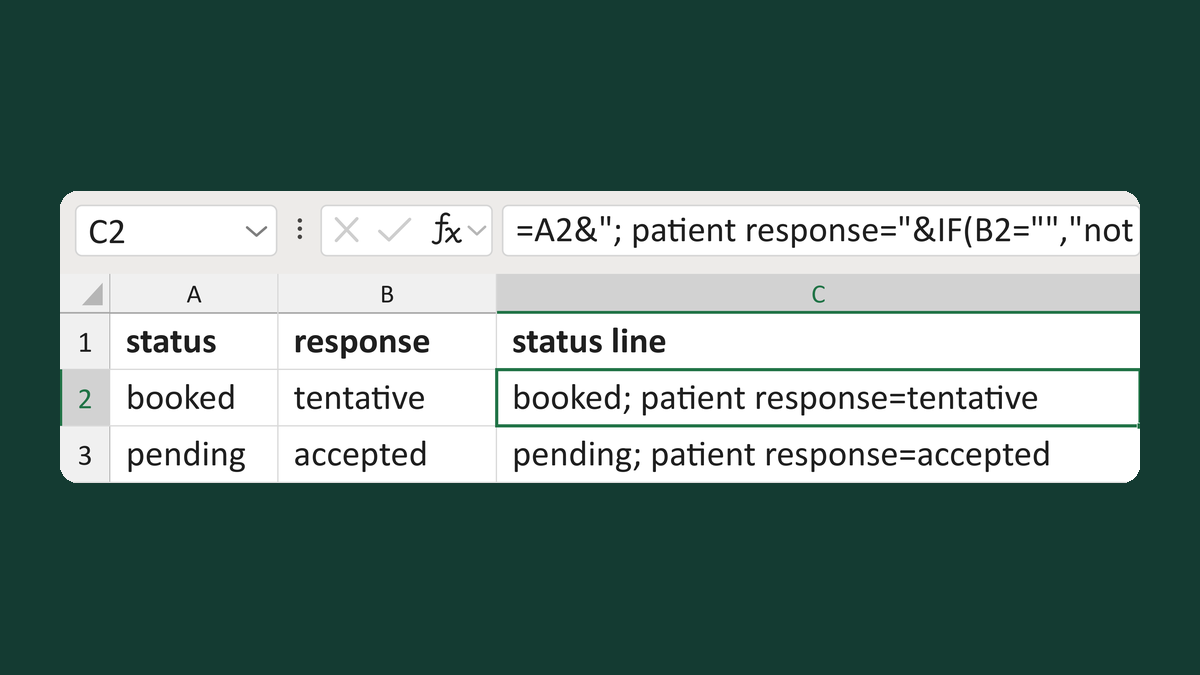
Add the patient response to the status
booked + tentative → booked; patient response=tentative
Get the template →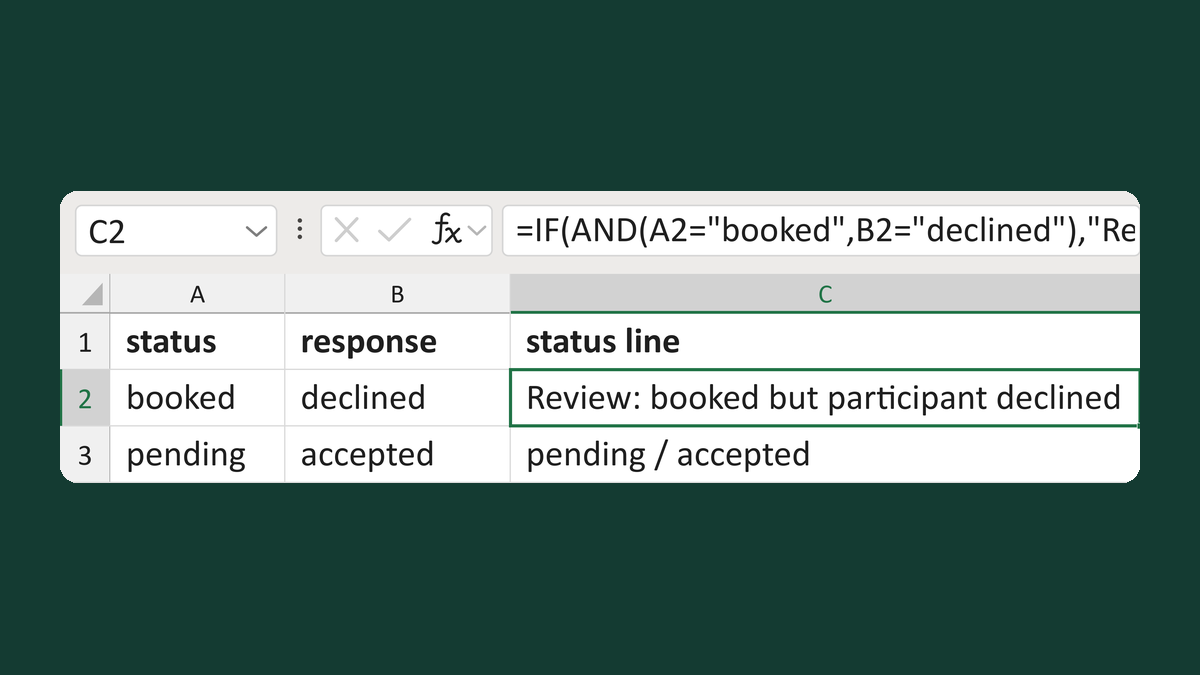
Flag a decline on a booked appointment
booked + declined → Review: booked but participant declined
Get the template →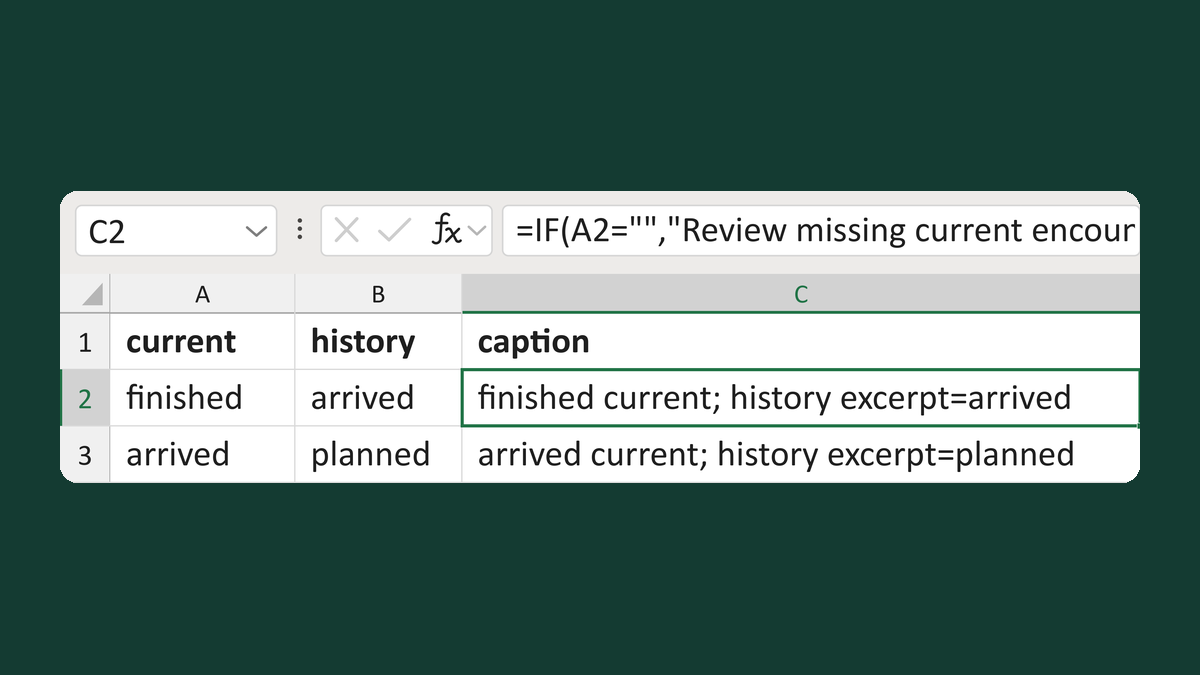
Put current encounter status first
finished + arrived → finished current; history excerpt=arrived
Get the template →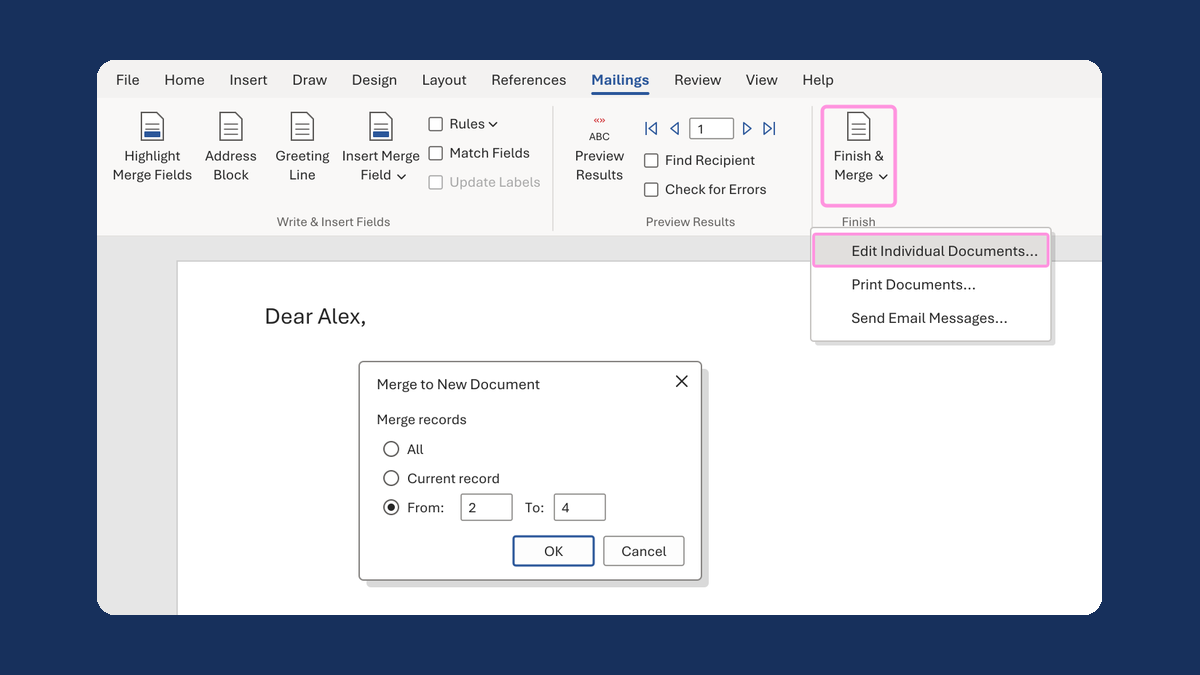
Merge a few test letters before the whole mailing
Whole mailing → records 2 to 4 only
Take this route →