Choose a person or organization label

Turn Person, Ava Reed and Acme Co. into Ava Reed, using the name each contact needs.
What you'll make
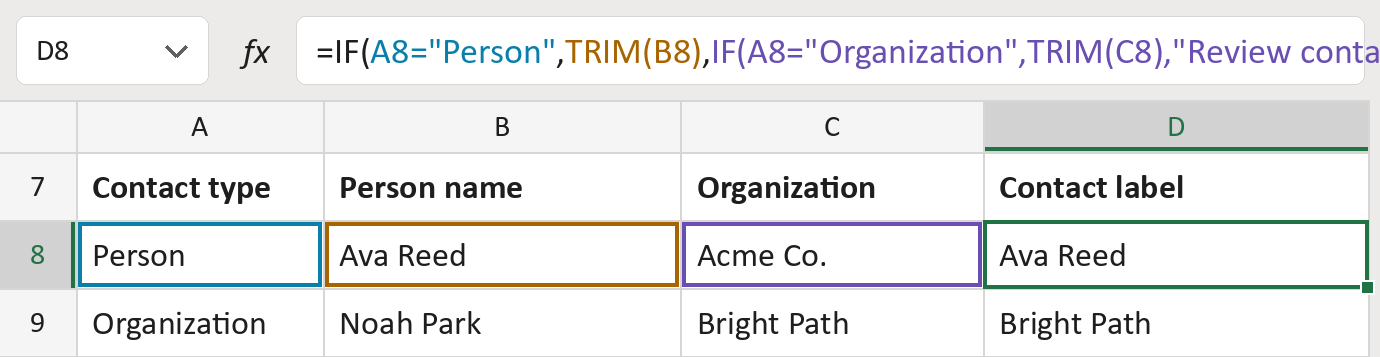
The formula
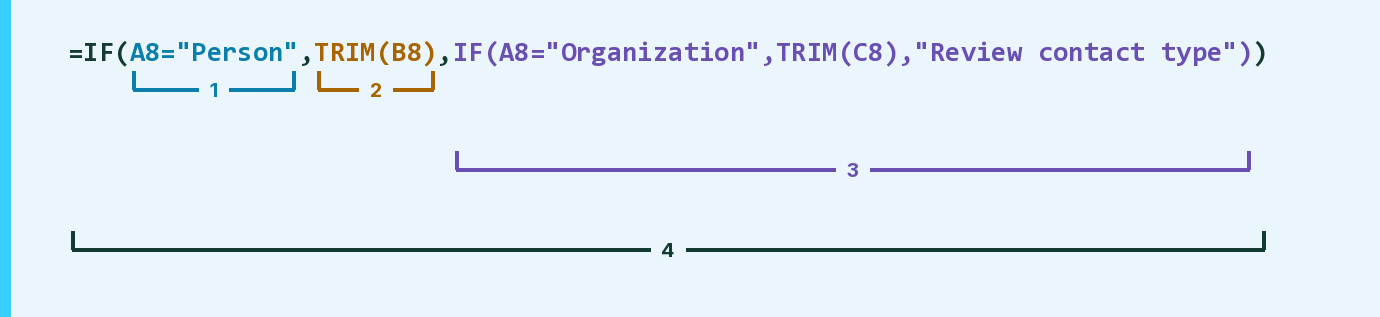
| Number | Part | What it does | Result so far |
|---|---|---|---|
| 1 | A8="Person" | Checks whether the type is Person. | Yes, Person |
| 2 | TRIM(B8) | Uses the person's name, without stray spaces. | "Ava Reed" |
| 3 | IF(A8="Organization", … ) | Otherwise uses the organization, or asks for a review. | Not used for row 8 |
| 4 | IF( … ) | Picks the right name for each row. | "Ava Reed" |
Read it left to right. Capitals don't matter, so person works the same as Person.
=IF(A8="Person",TRIM(B8),IF(A8="Organization",TRIM(C8),"Review contact type"))How to use it
Yellow bar at the top? Click Enable Editing.
- See it work. The Example tab shows 20 made-up names with the formula already in.
- Use your own names. Type Person or Organization in the first green column of the Template tab, then paste names and organizations. Labels fill in by themselves.
- Move them into your letter. Copy the results. Then use Paste Special and choose Values.
Before you send
A Person row with no person name comes out blank. Check each row has the name its type needs.
Route: Get names ready for the letter
Microsoft's help: IF function
OTHER ROUTES YOU MIGHT LIKE
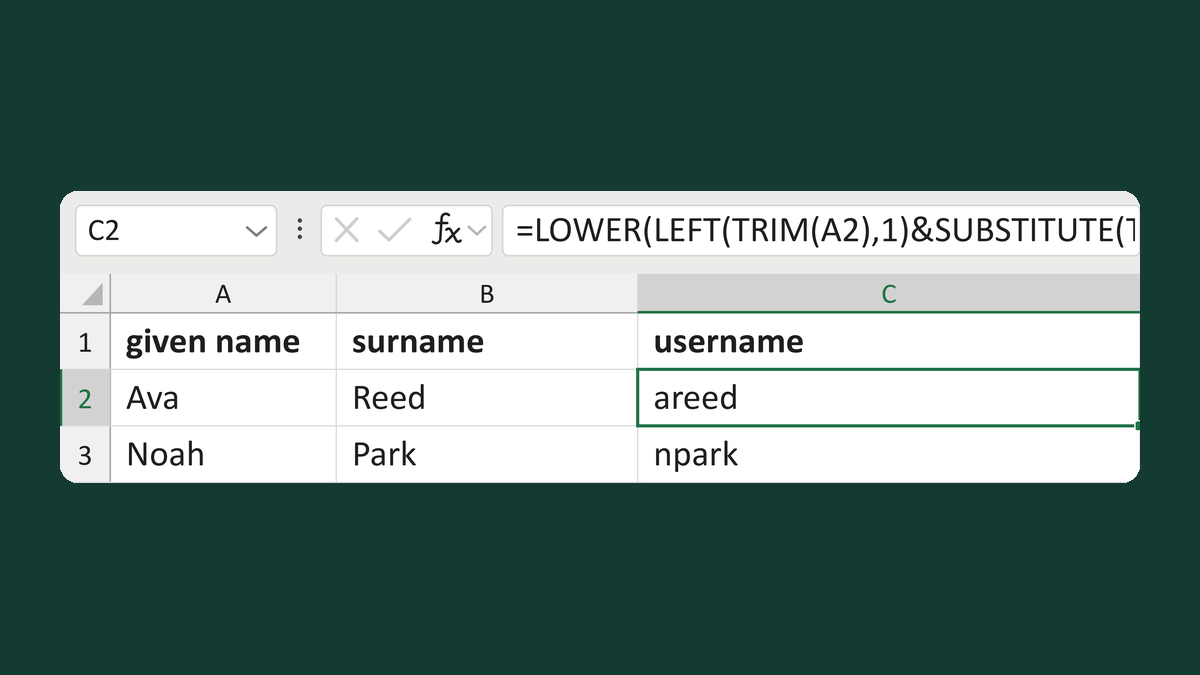
Make an initial-and-surname username
Ava + Reed → areed
Get the template →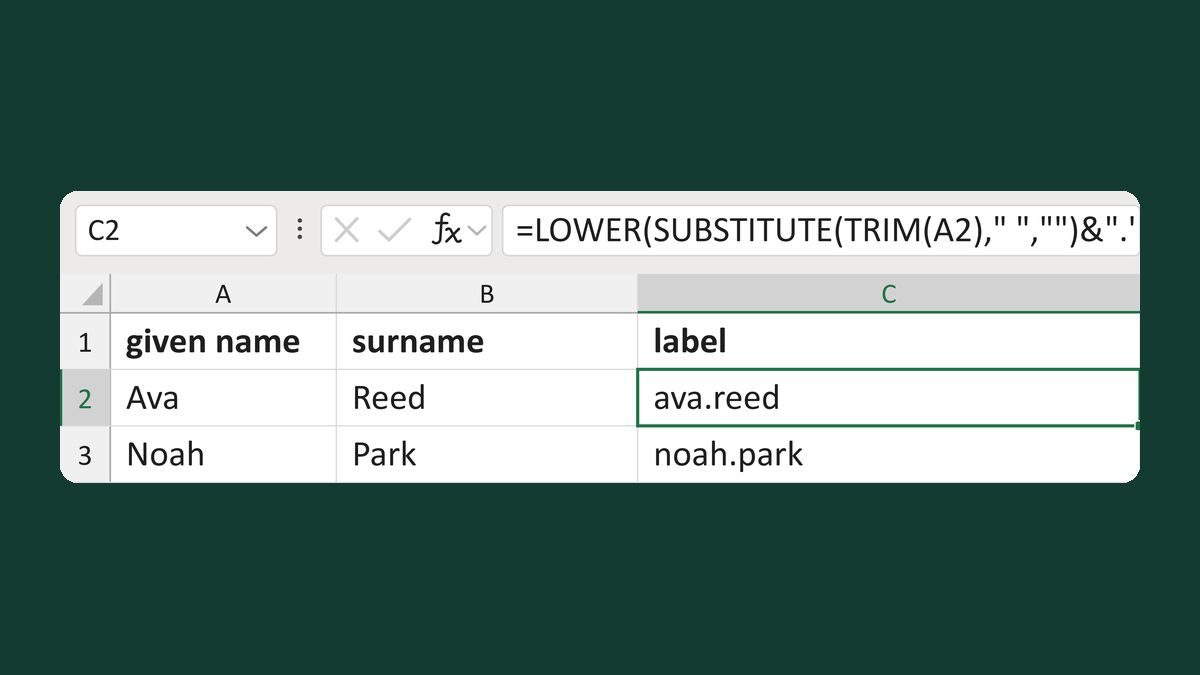
Make a suggested first.last name label
Ava + Reed → ava.reed
Get the template →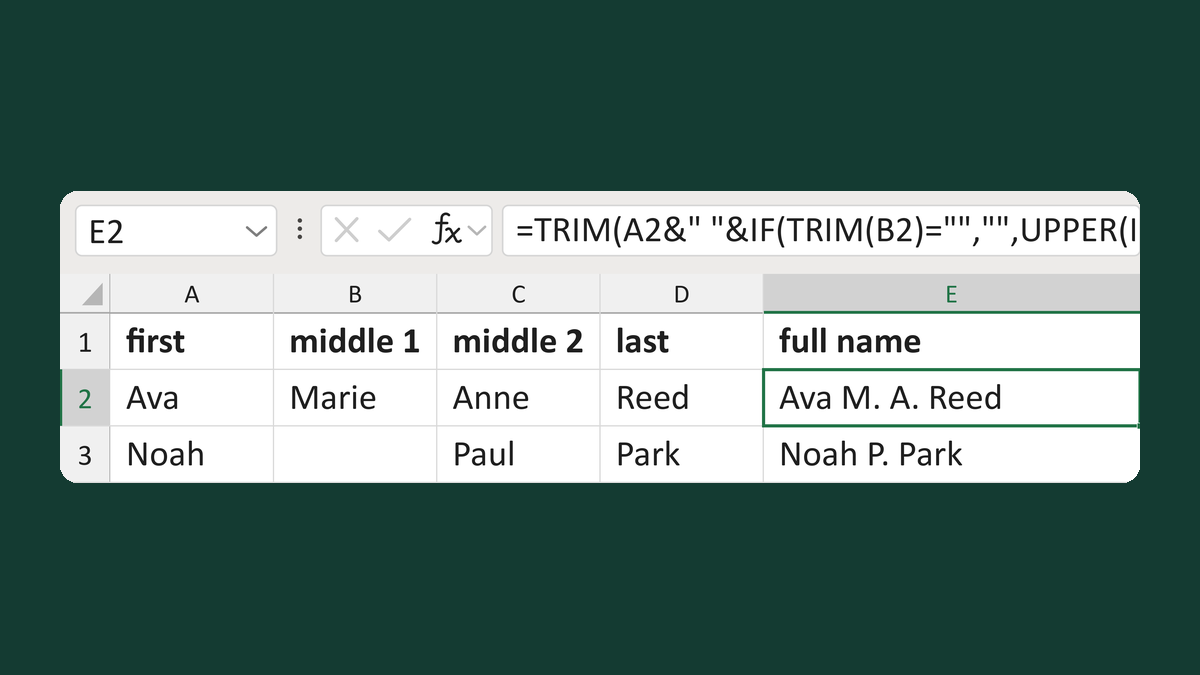
Combine two middle names as initials
Ava + Marie + Anne + Reed → Ava M. A. Reed
Get the template →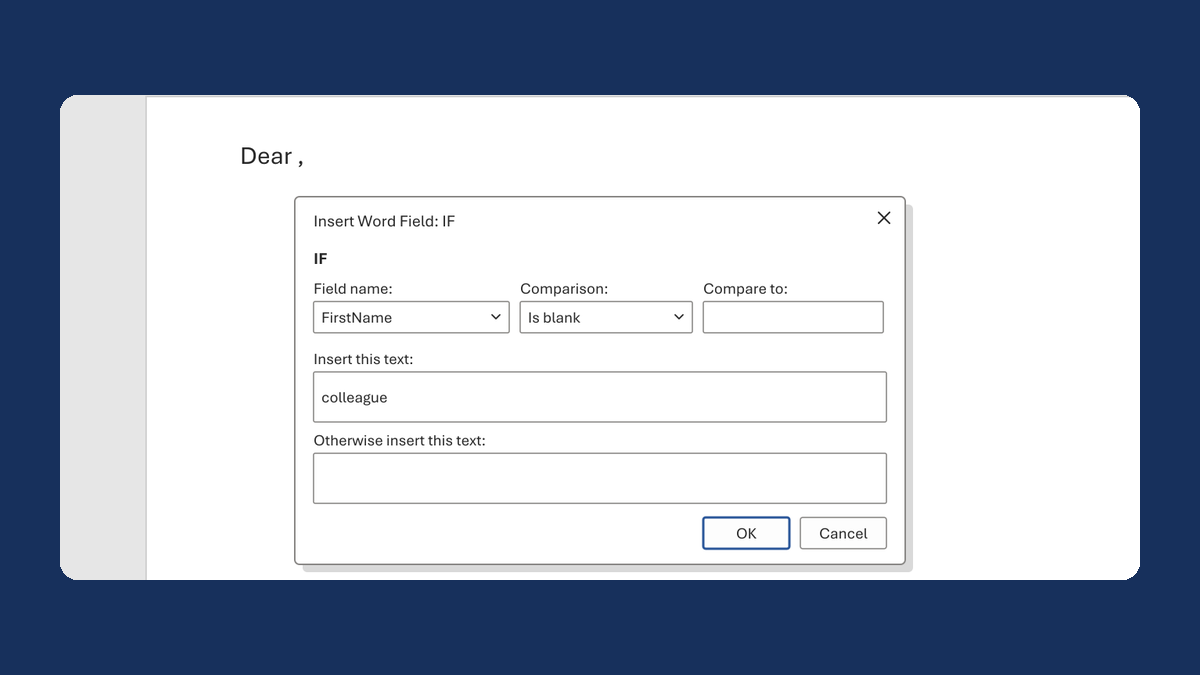
Fix "Dear ," when a first name is blank
(blank) → Dear colleague,
Take this route →