Count visits left without hiding overuse

Turn 20 allowed and 6 used into 14 visits left. Overuse shows Review, not 0.
What you'll make
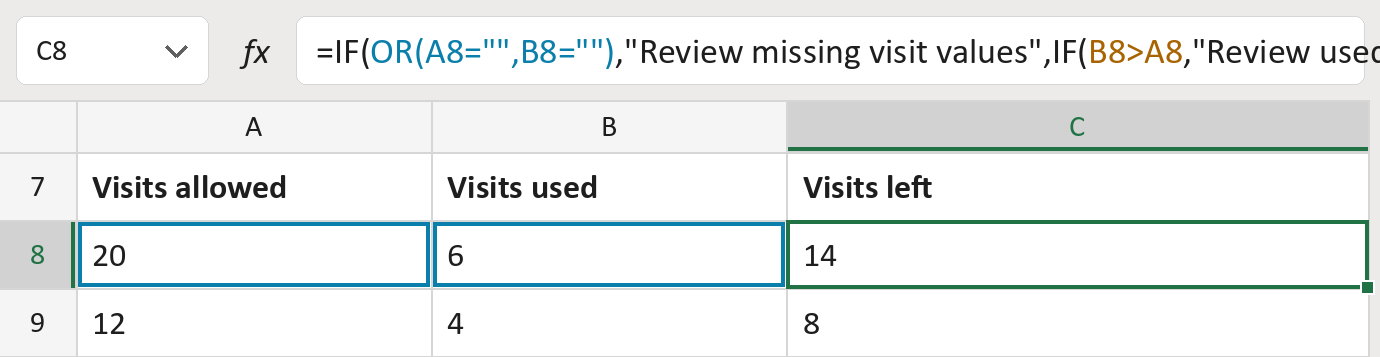
The formula
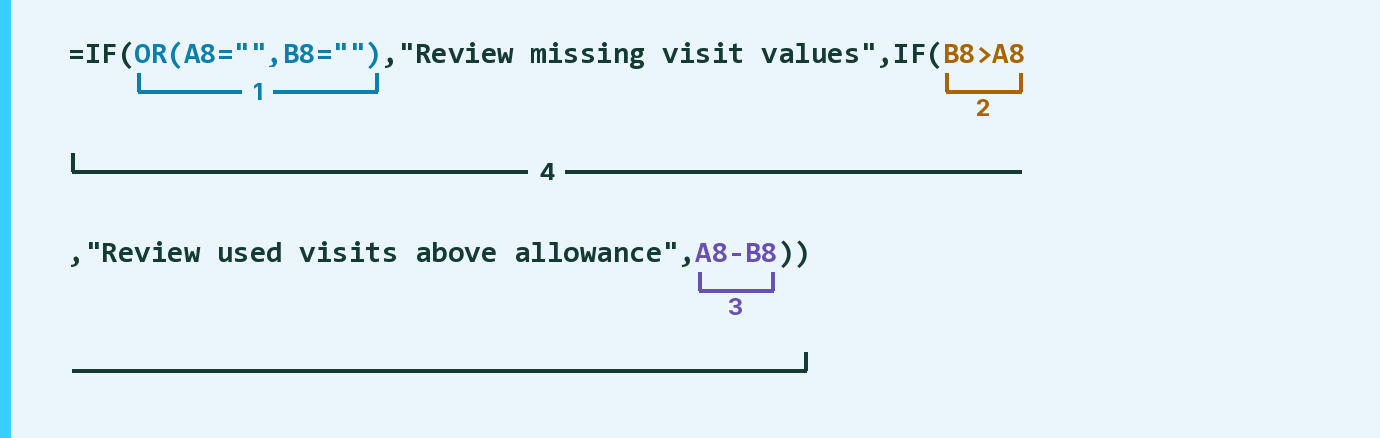
| Number | Part | What it does | Result so far |
|---|---|---|---|
| 1 | OR(A8="",B8="") | Checks if either count is empty. | No |
| 2 | B8>A8 | Checks if more visits were used than allowed. | No, 6 is not more than 20 |
| 3 | A8-B8 | Visits allowed minus visits used. | 14 |
| 4 | IF( … ) | Flags part 1 or 2, else shows part 3. | 14 |
A Review message shows when part 1 or part 2 says yes. Otherwise the row shows the visits left.
=IF(OR(A8="",B8=""),"Review missing visit values",IF(B8>A8,"Review used visits above allowance",A8-B8))How to use it
Yellow bar at the top? Click Enable Editing.
- See it work. The Example tab shows 20 made-up examples with the formula already in.
- Use your own counts. Paste visits allowed and visits used, as whole numbers, into the green columns of the Template tab. The visits left fill in by themselves.
- Move them into your letter. Copy the results. Then use Paste Special and choose Values.
Before you send
Put counts side by side only when they are for the same benefit, network and period. The counts here are made-up.
Microsoft's help: IF function
OTHER ROUTES YOU MIGHT LIKE
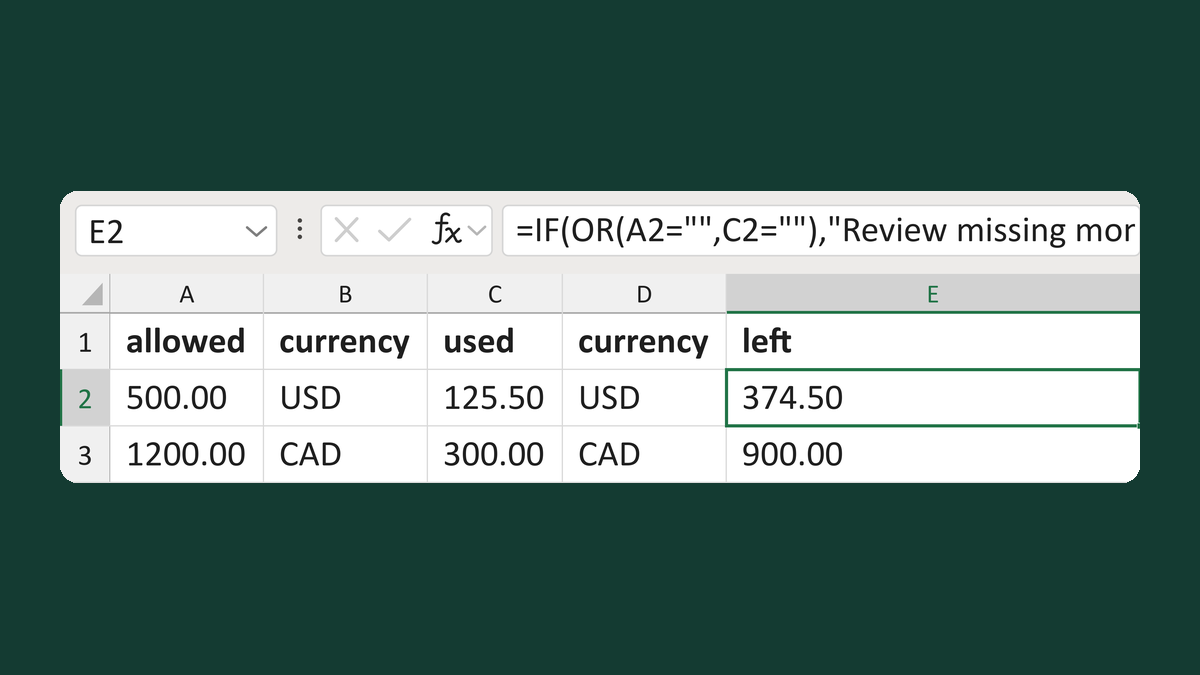
Find benefit money left in one currency
500.00 USD allowed, 125.50 USD used → 374.50 left
Get the template →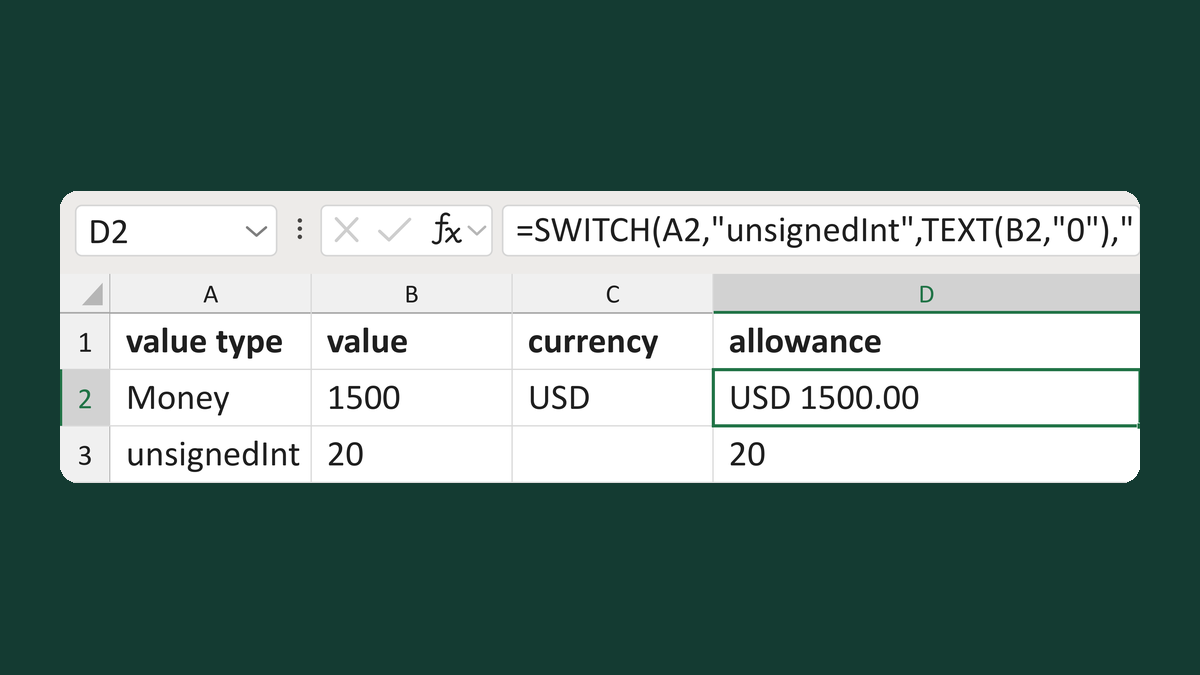
Show a count, money or text allowance
Money, 1500, USD → USD 1500.00
Get the template →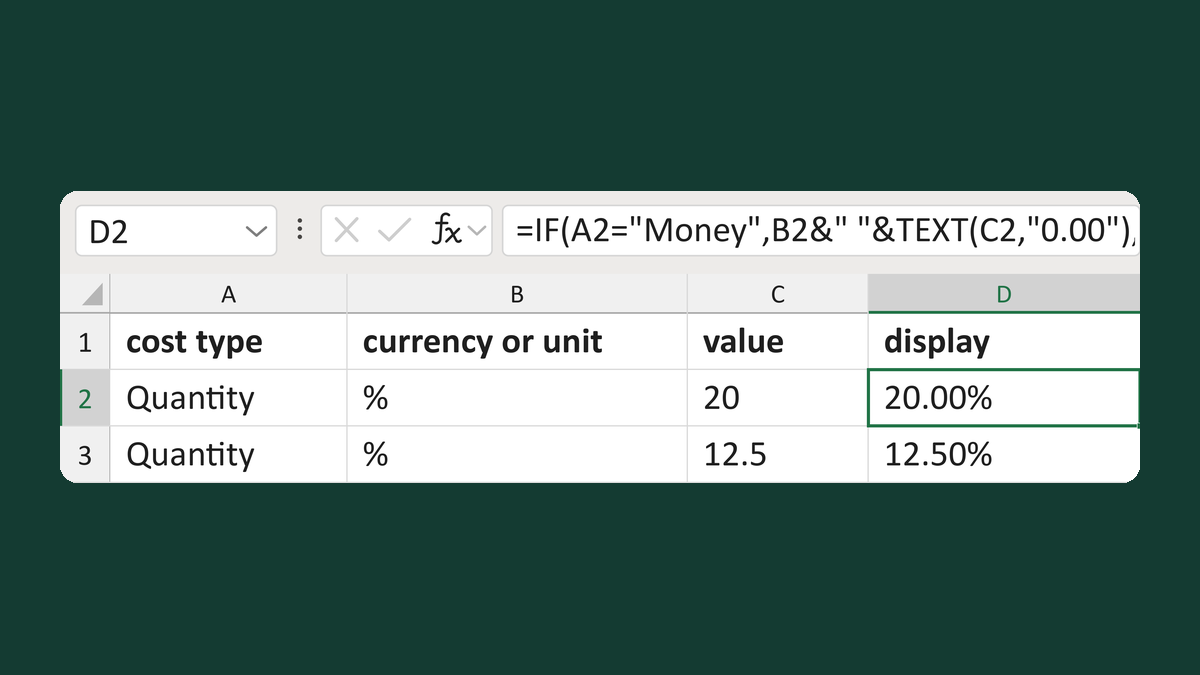
Show a cost as money or percent points
Quantity, %, 20 → 20.00%
Get the template →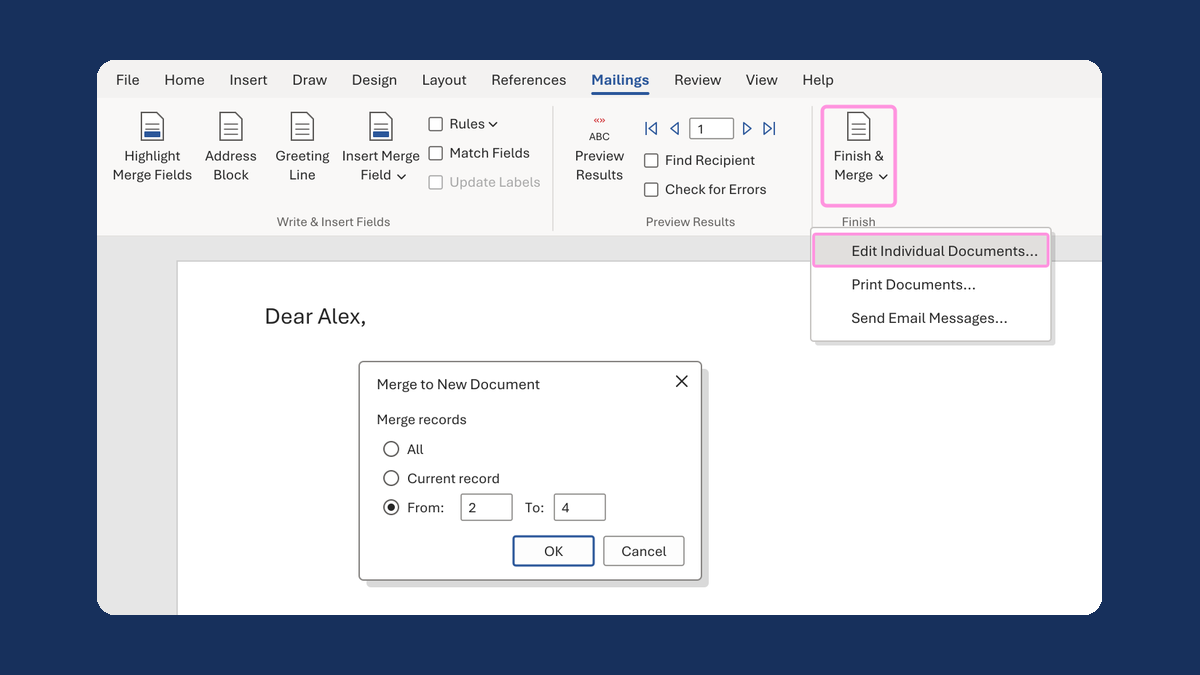
Merge a few test letters before the whole mailing
Whole mailing → records 2 to 4 only
Take this route →