Label locations by encounter status

A reserved Bed 4A is labeled Reserved location, not read as where the patient is.
Download Excel templateMicrosoft 365
What you'll make
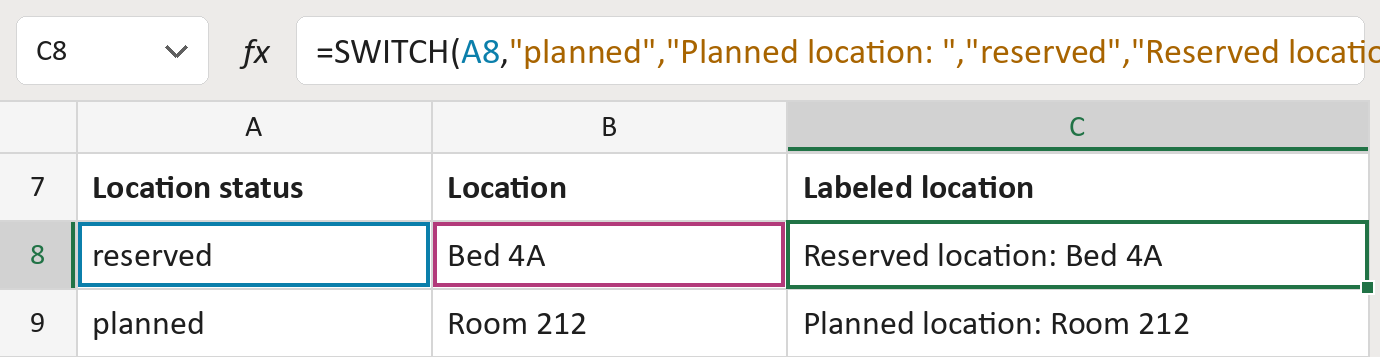
The formula
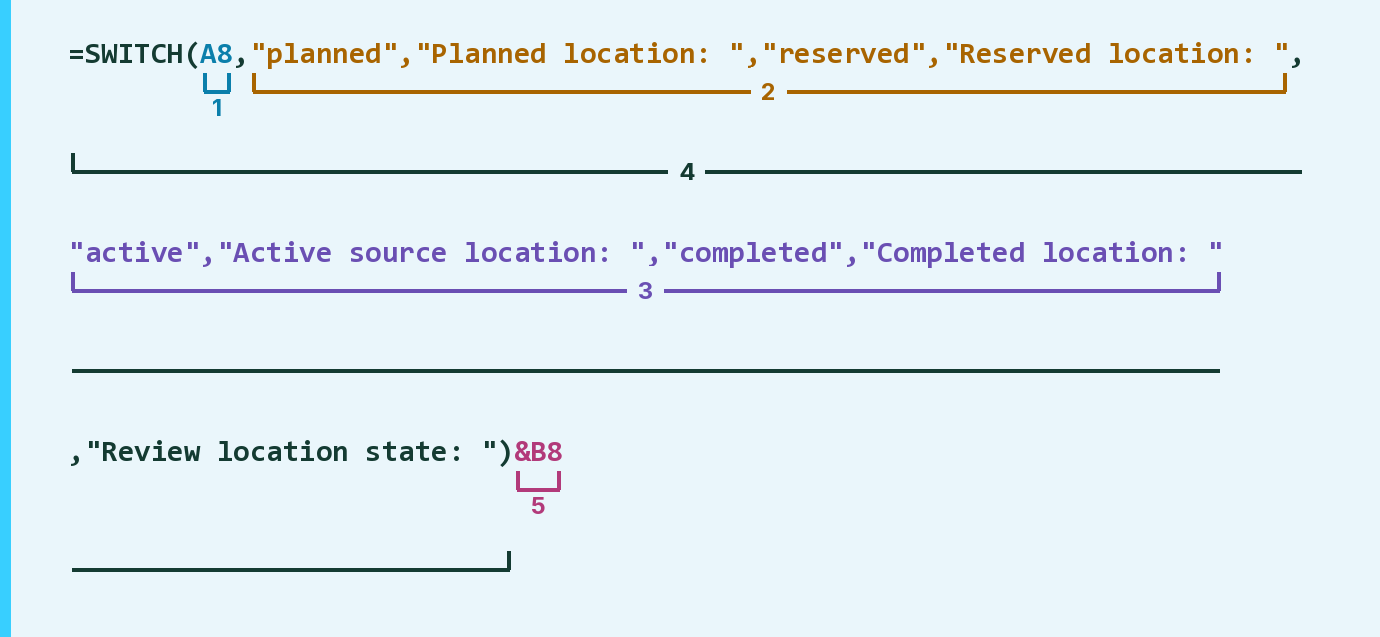
| Number | Part | What it does | Result so far |
|---|---|---|---|
| 1 | A8 | Reads the location status for this row. | "reserved" |
| 2 | "planned", … "reserved", … | Planned or reserved: labels it as not yet in use. | "Reserved location: " |
| 3 | "active", … "completed", … | Active or completed: labels it as in use or past. | Not used for row 8 |
| 4 | SWITCH( … ) | Picks the label that matches the status. | "Reserved location: " |
| 5 | &B8 | Adds the location after the label. | "Reserved … Bed 4A" |
Read it left to right. Any other status gets the label Review location state.
=SWITCH(A8,"planned","Planned location: ","reserved","Reserved location: ","active","Active source location: ","completed","Completed location: ","Review location state: ")&B8How to use it
Yellow bar at the top? Click Enable Editing.
- See it work. The Example tab shows 20 made-up examples with the formula already in.
- Use your own locations. Paste each location's status (planned, reserved, active or completed) and the location into the green columns of the Template tab. The labels fill in by themselves.
- Move them into your letter. Copy the results. Then use Paste Special and choose Values.
Before you send
Use the status of this location on this visit, not the status of the visit or the room overall.
Microsoft's help: SWITCH function
OTHER ROUTES YOU MIGHT LIKE
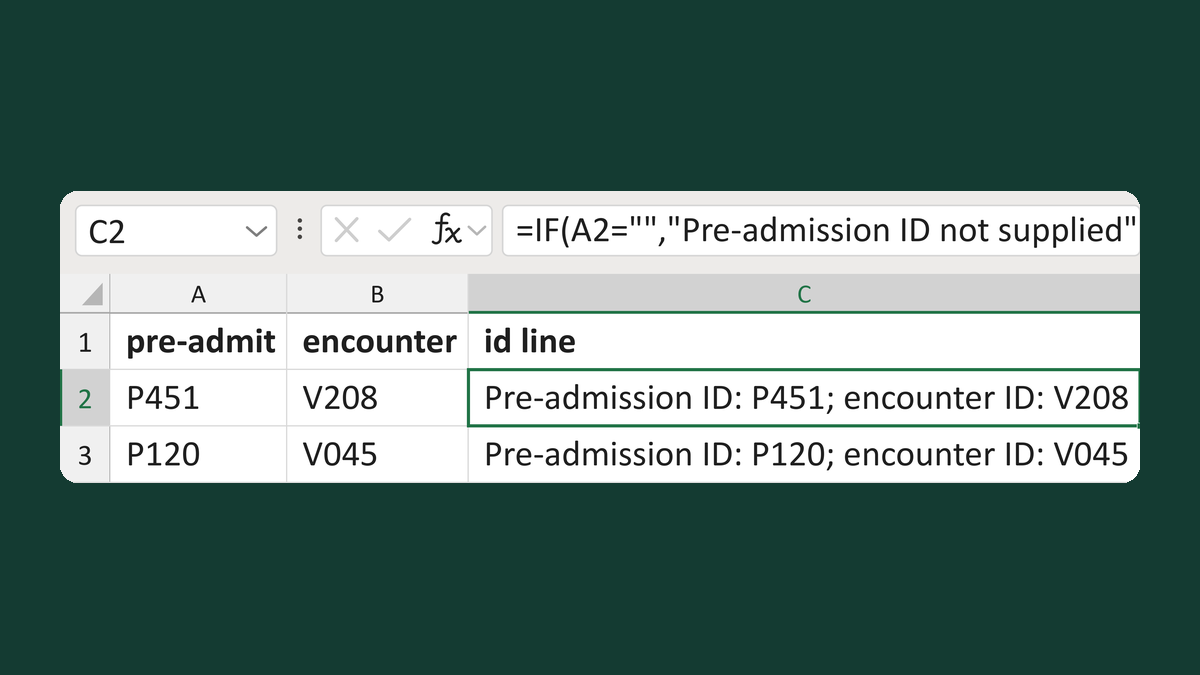
Label pre-admission and encounter IDs
P451 + V208 → Pre-admission ID: P451; encounter ID: V208
Get the template →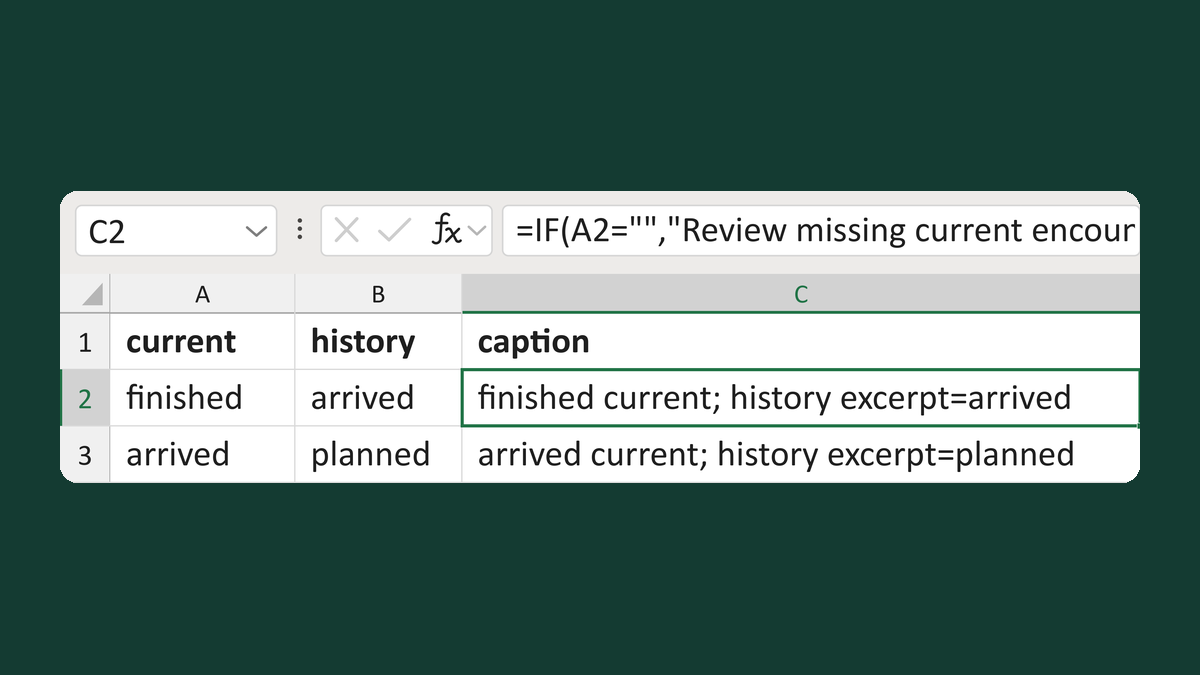
Put current encounter status first
finished + arrived → finished current; history excerpt=arrived
Get the template →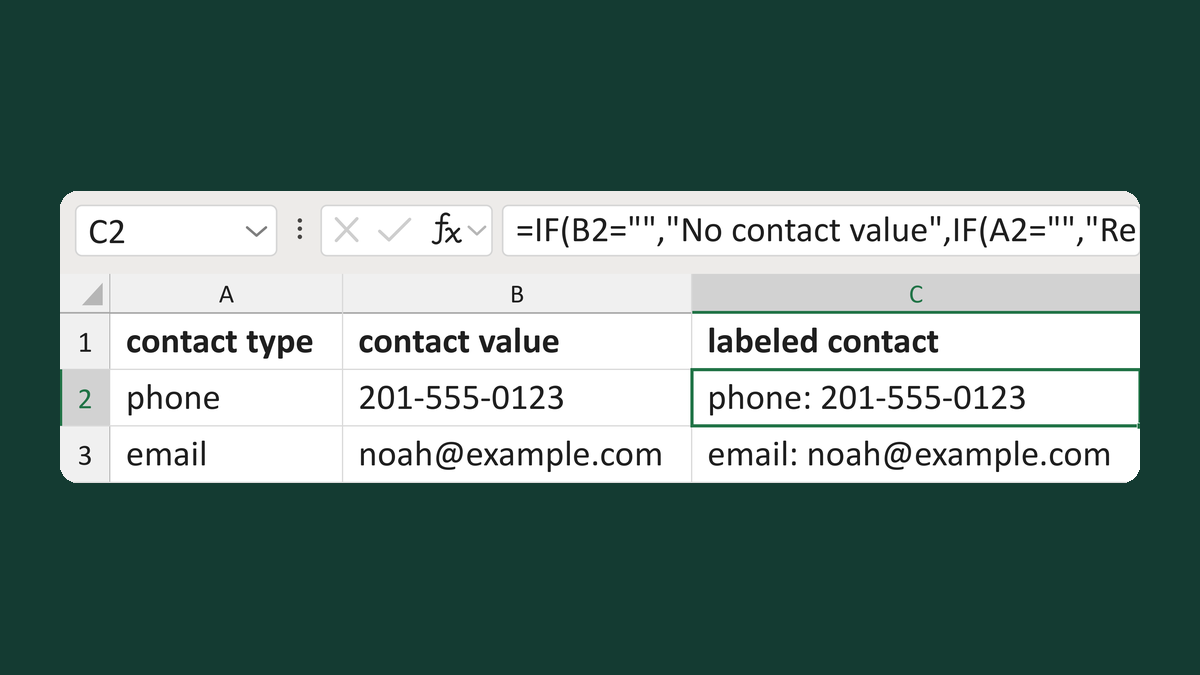
Label a contact value with its type
phone + 201-555-0123 → phone: 201-555-0123
Get the template →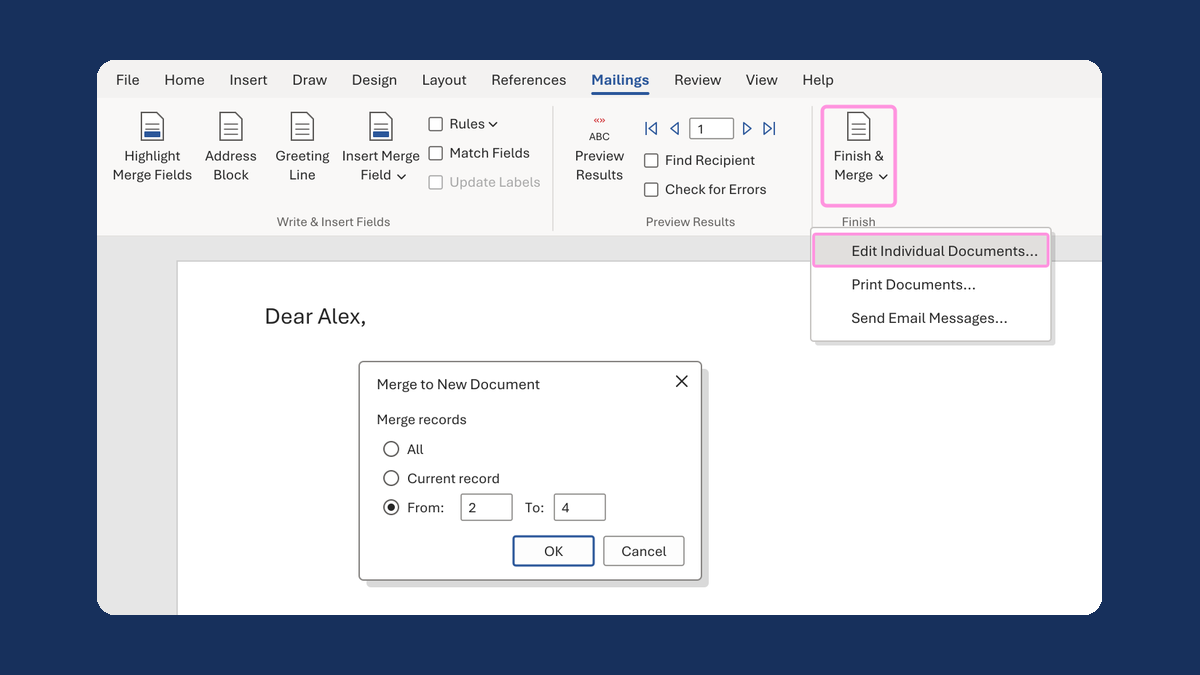
Merge a few test letters before the whole mailing
Whole mailing → records 2 to 4 only
Take this route →