Label the assigned task owner

Show who owns each task, never the requester or the patient it's for.
What you'll make
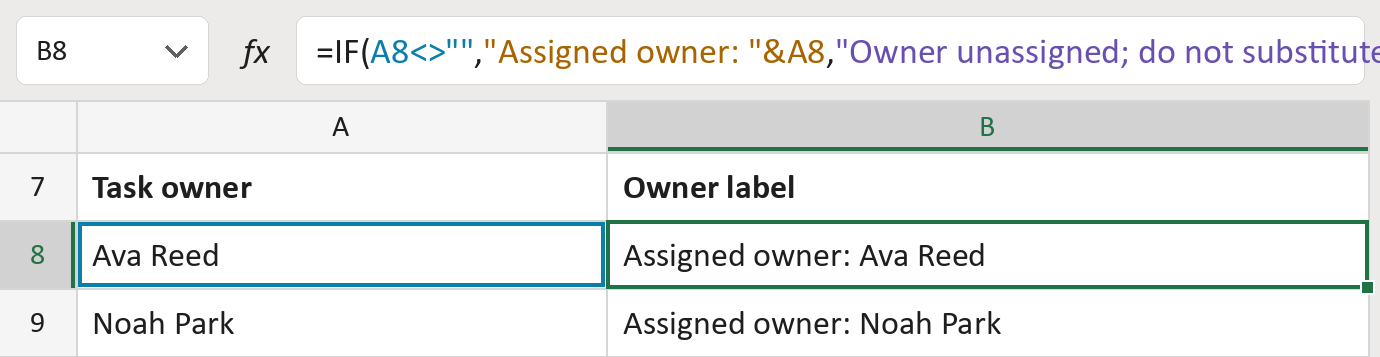
The formula
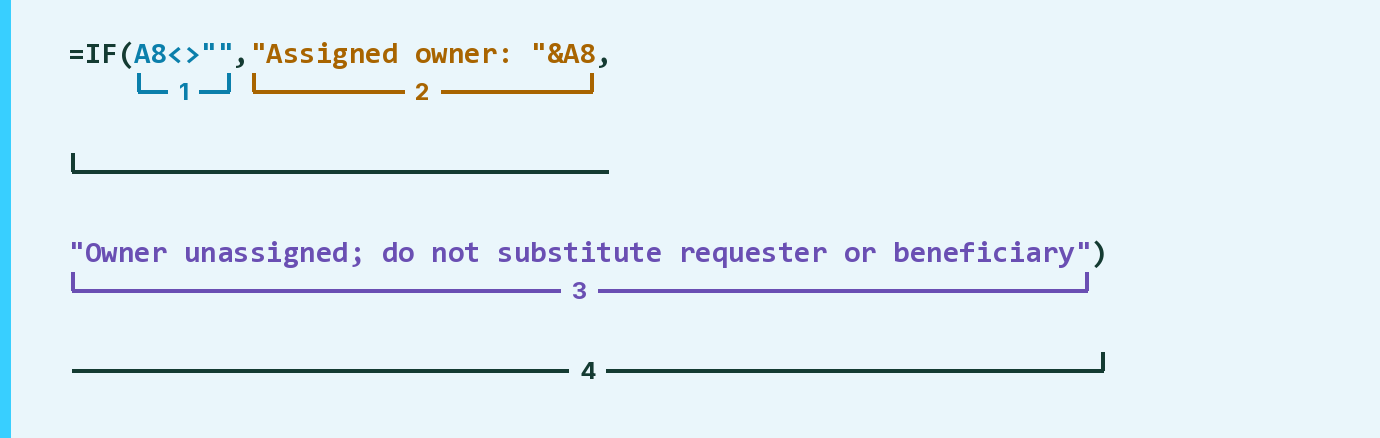
| Number | Part | What it does | Result so far |
|---|---|---|---|
| 1 | A8<>"" | Checks if the task has an owner. | TRUE |
| 2 | "Assigned owner: "&A8 | Puts the label in front of the owner. | "… owner: Ava Reed" |
| 3 | "Owner unassigned; …" | Says no owner is set yet. | Not used for row 8 |
| 4 | IF( … ) | Uses part 2 when there's an owner, else part 3. | "… owner: Ava Reed" |
Read it left to right. The Template stays blank until you paste an owner.
=IF(A8<>"","Assigned owner: "&A8,"Owner unassigned; do not substitute requester or beneficiary")How to use it
Yellow bar at the top? Click Enable Editing.
- See it work. The Example tab shows 20 made-up examples with the formula already in.
- Use your own list. Paste each task's owner into the green column of the Template tab.
- Move them into your letter. Copy the results. Then use Paste Special and choose Values.
Before you send
Leave the owner blank when none is set. Don't fill it with the requester or the patient.
Microsoft's help: IF function
OTHER ROUTES YOU MIGHT LIKE
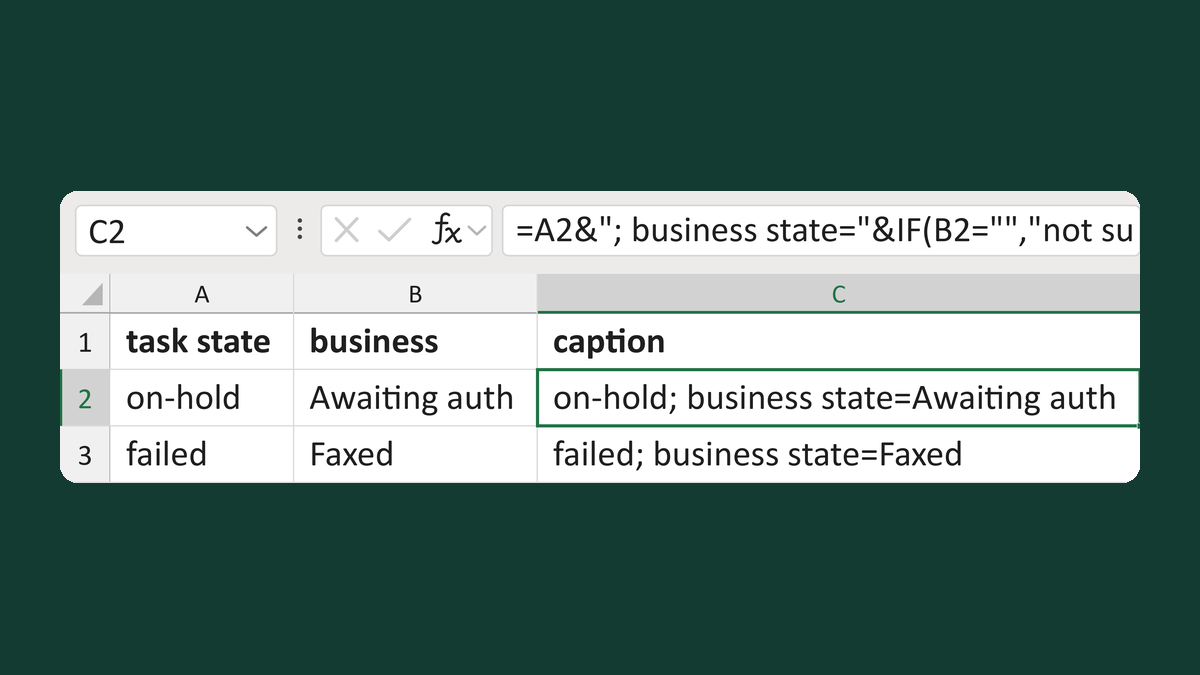
Keep task status beside business state
on-hold + Awaiting auth → on-hold; business state=Awaiting auth
Get the template →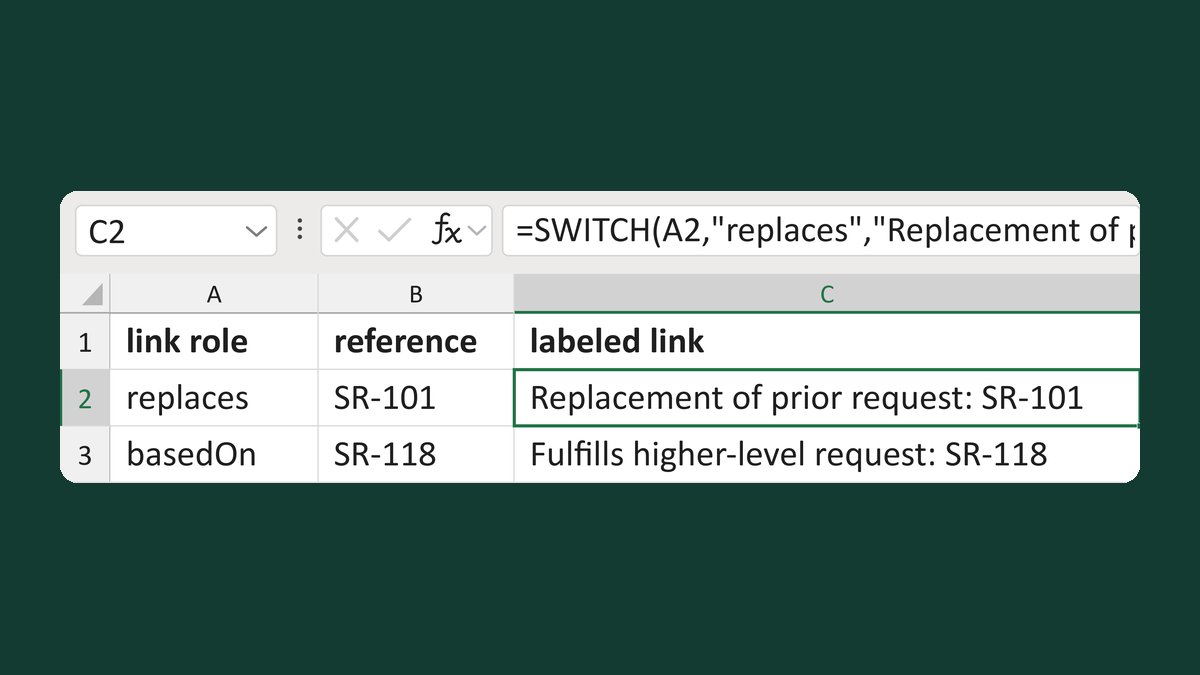
Label referral request links by role
replaces, SR-101 → Replacement of prior request: SR-101
Get the template →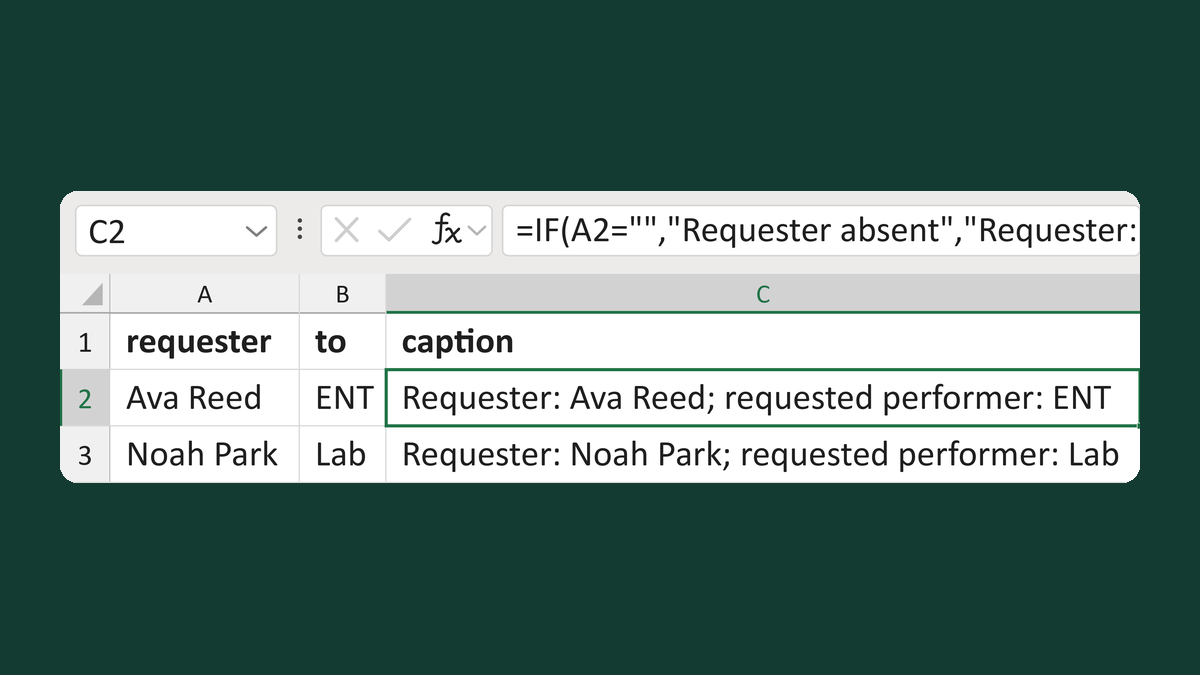
Keep requester and performer apart
Ava Reed + ENT → Requester: Ava Reed; requested performer: ENT
Get the template →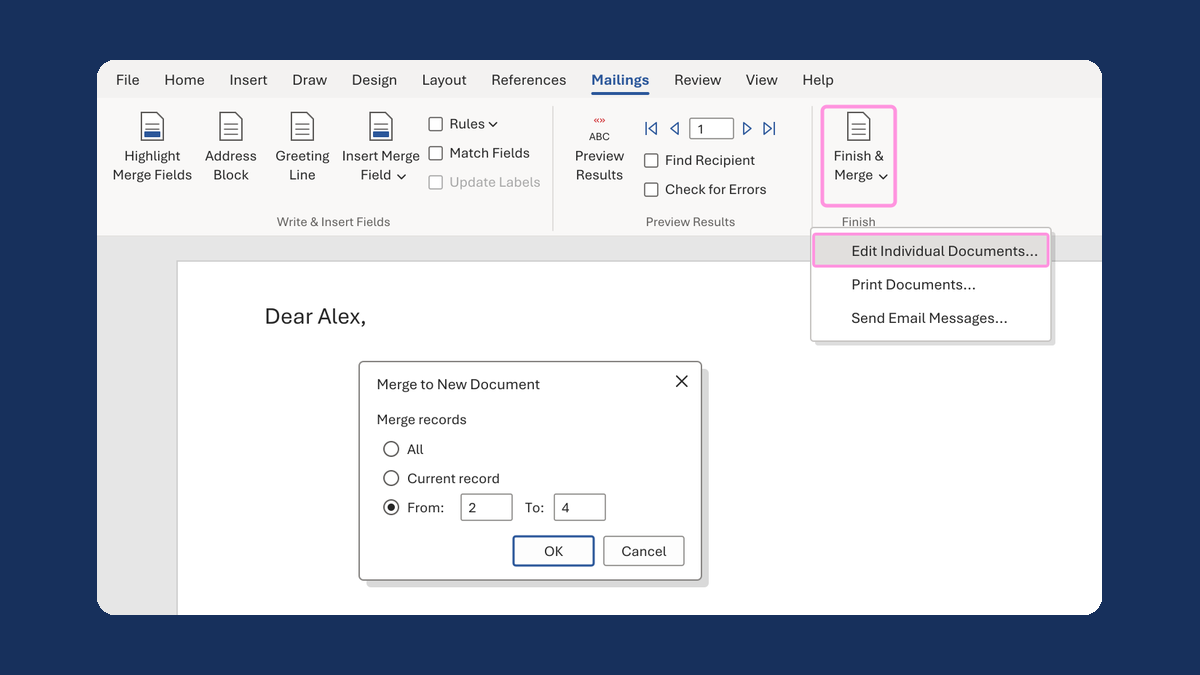
Merge a few test letters before the whole mailing
Whole mailing → records 2 to 4 only
Take this route →