Make a consistent name key

Turn Ava and Reed into reed|ava, so the same name always gives the same key.
What you'll make
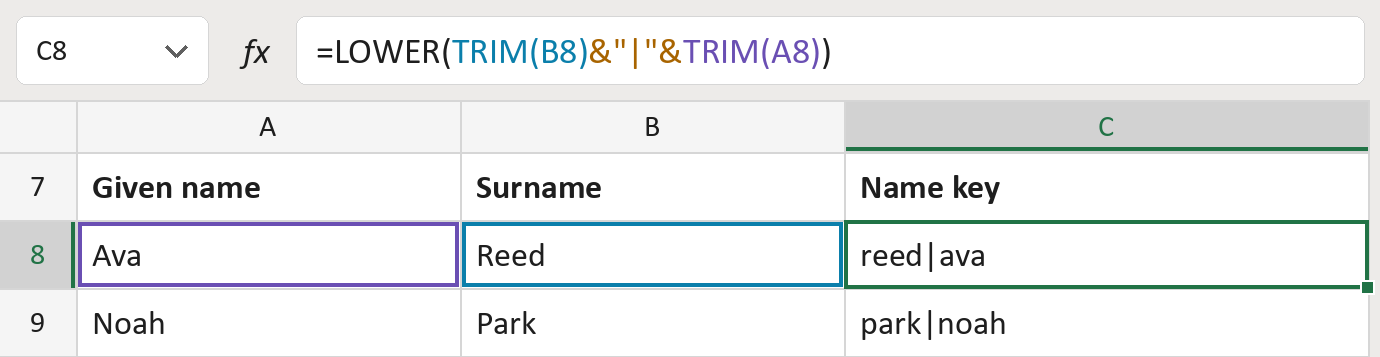
The formula

| Number | Part | What it does | Result so far |
|---|---|---|---|
| 1 | TRIM(B8) | The surname, without stray spaces. | "Reed" |
| 2 | &"|"& | Adds a | mark to keep the two names apart. | "Reed|" |
| 3 | TRIM(A8) | Adds the given name, without stray spaces. | "Reed|Ava" |
| 4 | LOWER( … ) | Makes every letter small, so capitals never matter. | "reed|ava" |
Read it left to right. The surname comes first, then the given name.
=LOWER(TRIM(B8)&"|"&TRIM(A8))How to use it
Yellow bar at the top? Click Enable Editing.
- See it work. The Example tab shows 20 made-up names with the formula already in.
- Use your own names. Paste each given name into column A and each surname into column B of the Template tab.
- Move them into your letter. Copy the results. Then use Paste Special and choose Values.
Before you send
Two rows with the same key may still be two different people. Check before you merge them.
Route: Get names ready for the letter
Microsoft's help: LOWER function
OTHER ROUTES YOU MIGHT LIKE
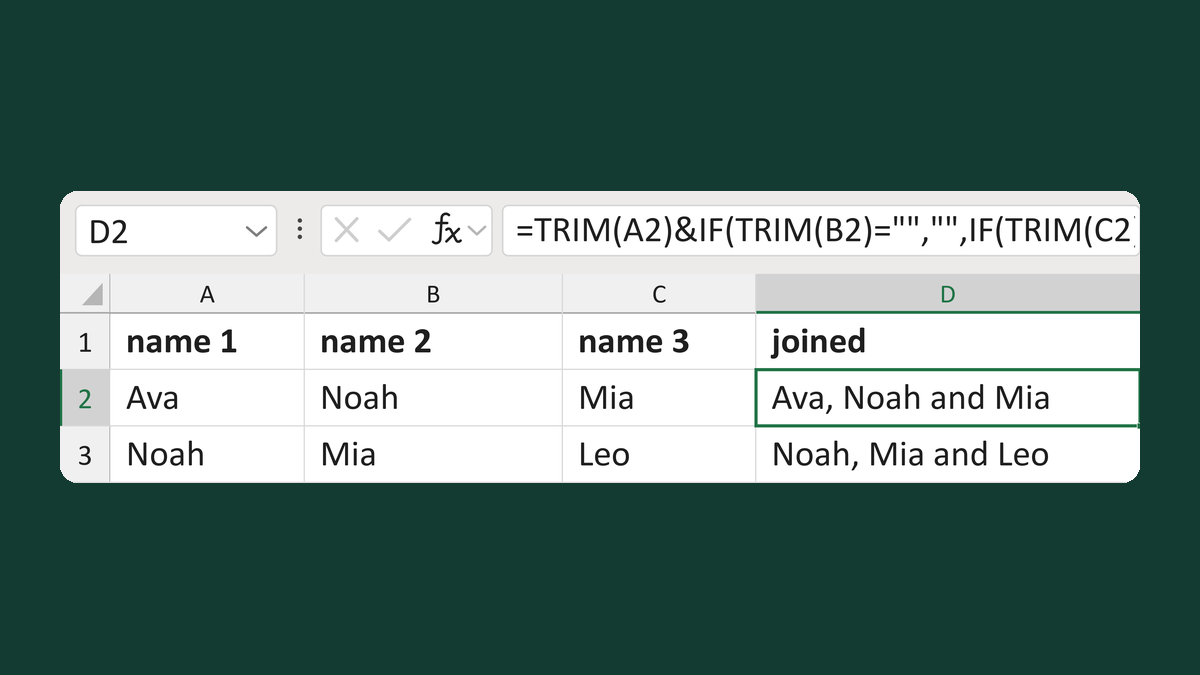
Join up to three names with a final and
Ava + Noah + Mia → Ava, Noah and Mia
Get the template →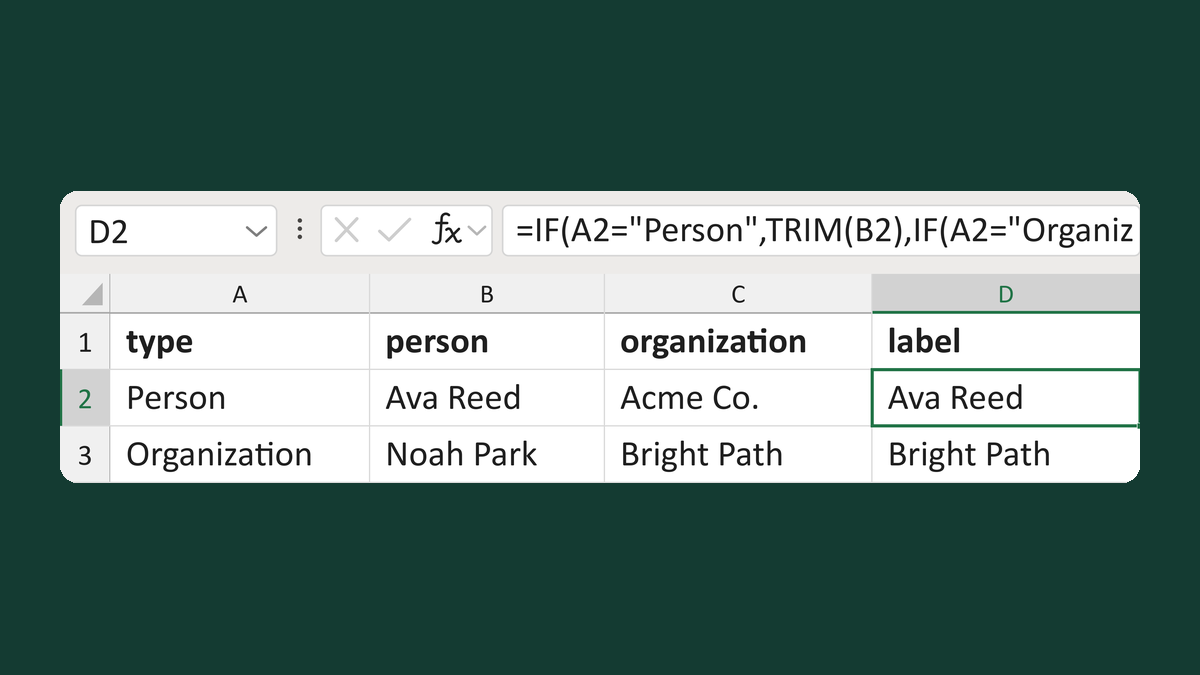
Choose a person or organization label
Person + Ava Reed + Acme → Ava Reed
Get the template →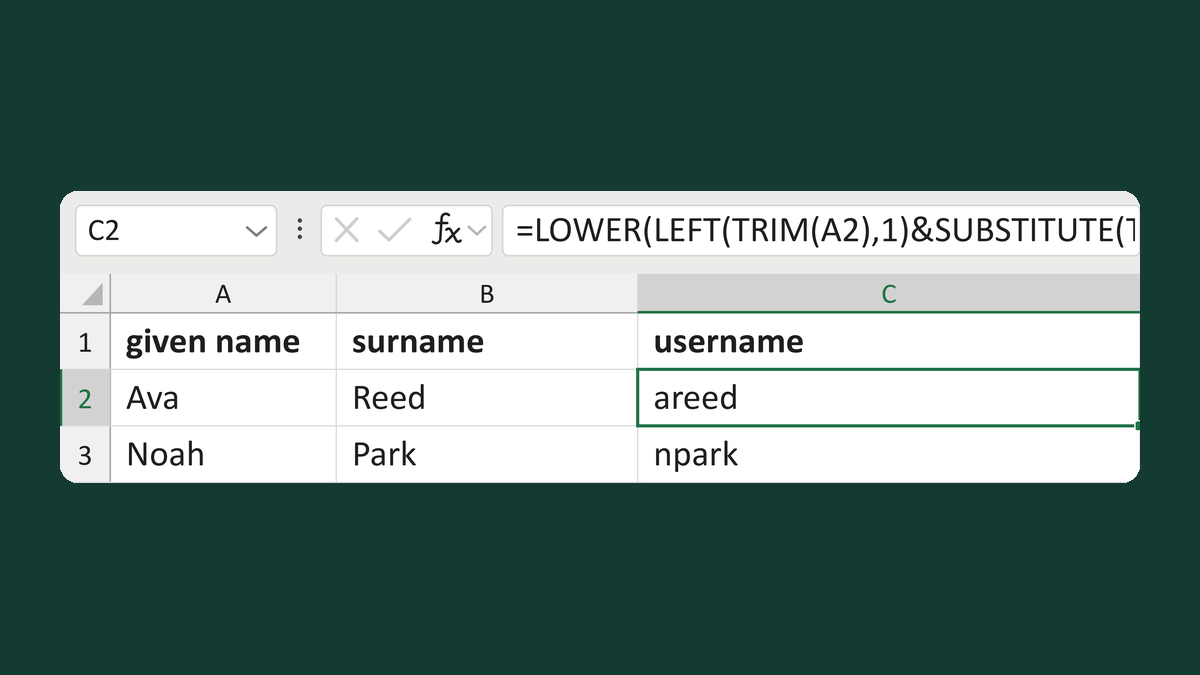
Make an initial-and-surname username
Ava + Reed → areed
Get the template →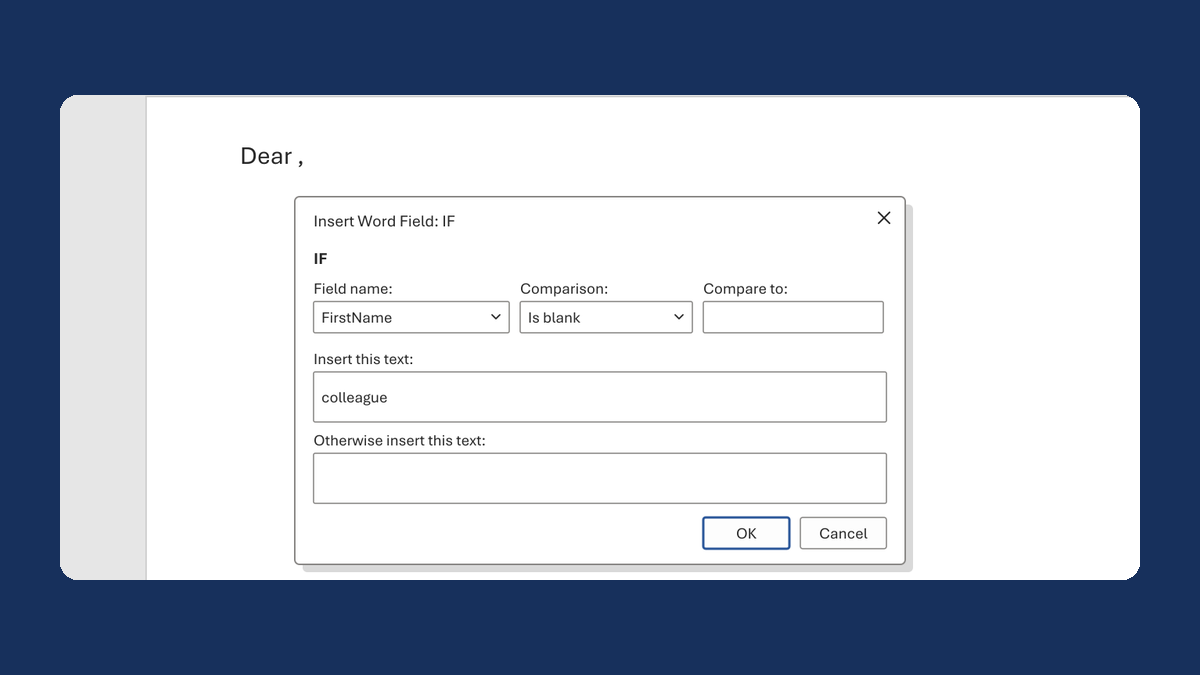
Fix "Dear ," when a first name is blank
(blank) → Dear colleague,
Take this route →