Read a date between two markers

Pull the date out of <dob>2026-11-04</dob> as a real date: November 4, 2026.
Download Excel templateMicrosoft 365
What you'll make
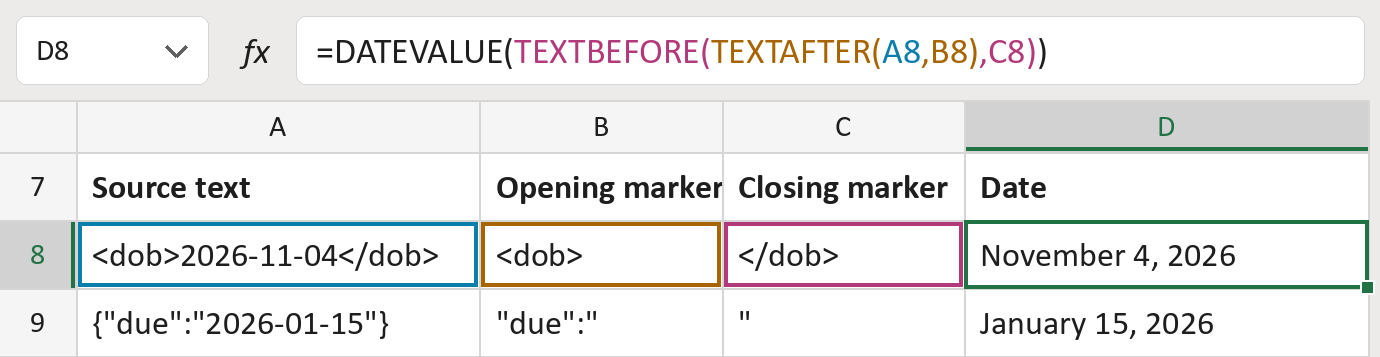
The formula
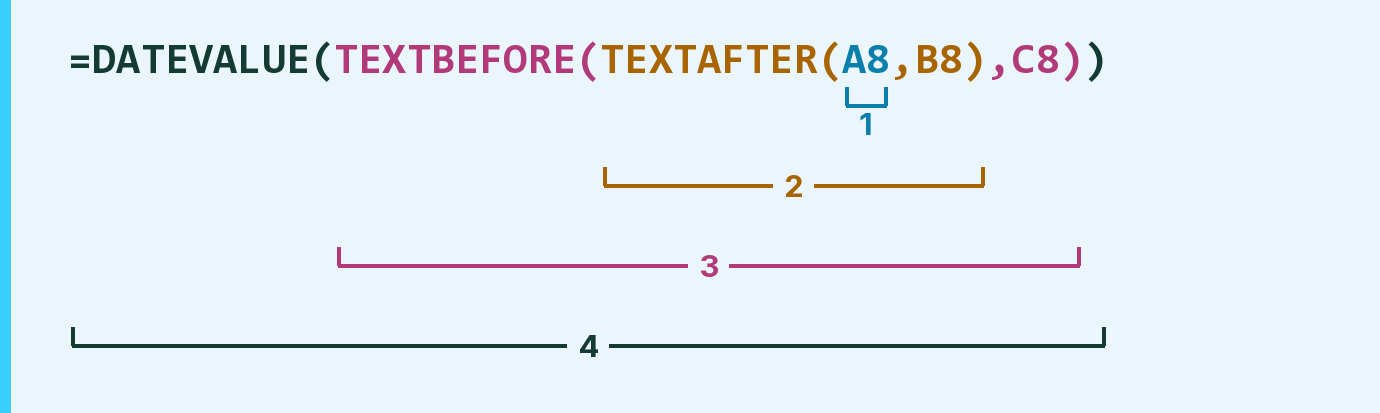
| Number | Part | What it does | Result so far |
|---|---|---|---|
| 1 | A8 | The exported text that holds the date. | "<dob>2026-11-04</dob>" |
| 2 | TEXTAFTER( … ,B8) | Keeps what comes after the opening marker. | "2026-11-04</dob>" |
| 3 | TEXTBEFORE( … ,C8) | Keeps what comes before the closing marker. | "2026-11-04" |
| 4 | DATEVALUE( … ) | Reads the text and turns it into a real date. | November 4, 2026 |
Each bracket wraps the one above it, so Excel works from the inside out.
=DATEVALUE(TEXTBEFORE(TEXTAFTER(A8,B8),C8))How to use it
Yellow bar at the top? Click Enable Editing.
- See it work. The Example tab shows 20 made-up examples with the formula already in.
- Use your own dates. Paste the text into column A of the Template tab and its two markers into columns B and C. The dates fill in by themselves.
- Move them into your letter. Copy the results. Then use Paste Special and choose Values.
Before you send
Markers must match the text exactly, capitals and spaces included. If the field appears twice, only the first one is read.
Microsoft's help: TEXTAFTER function
OTHER ROUTES YOU MIGHT LIKE
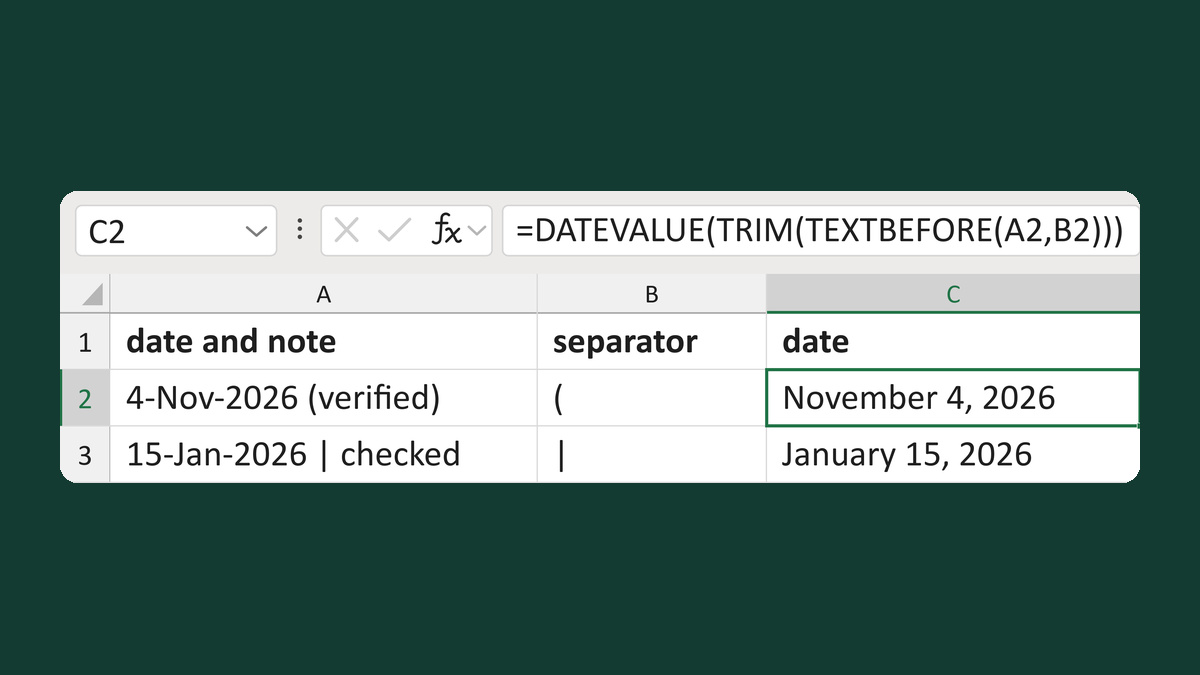
Convert a date followed by a note
4-Nov-2026 (verified) → November 4, 2026
Get the template →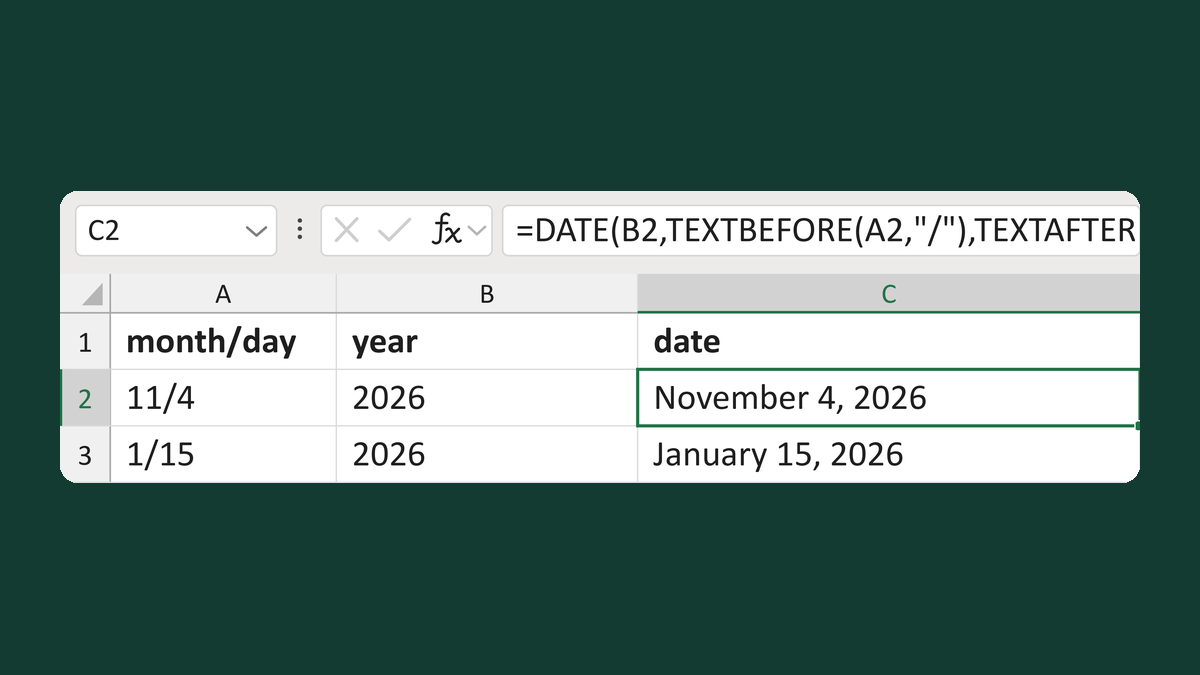
Build a date from month/day and a year
11/4 + 2026 → November 4, 2026
Get the template →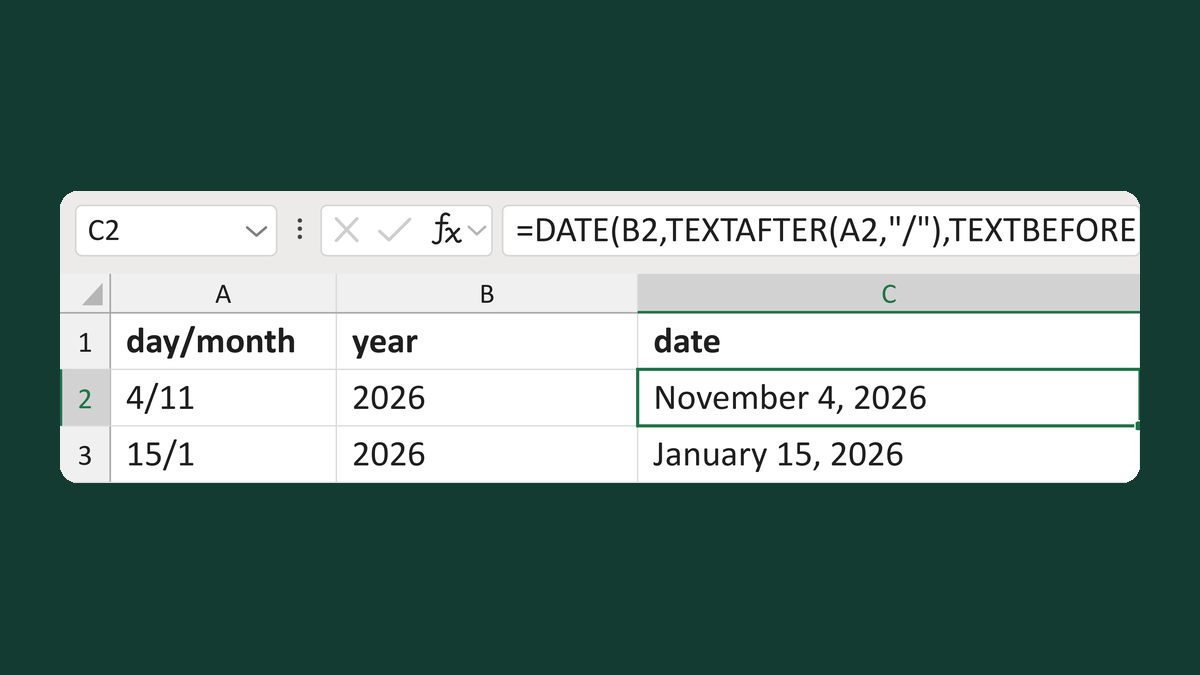
Build a date from day/month and a year
4/11 + 2026 → November 4, 2026
Get the template →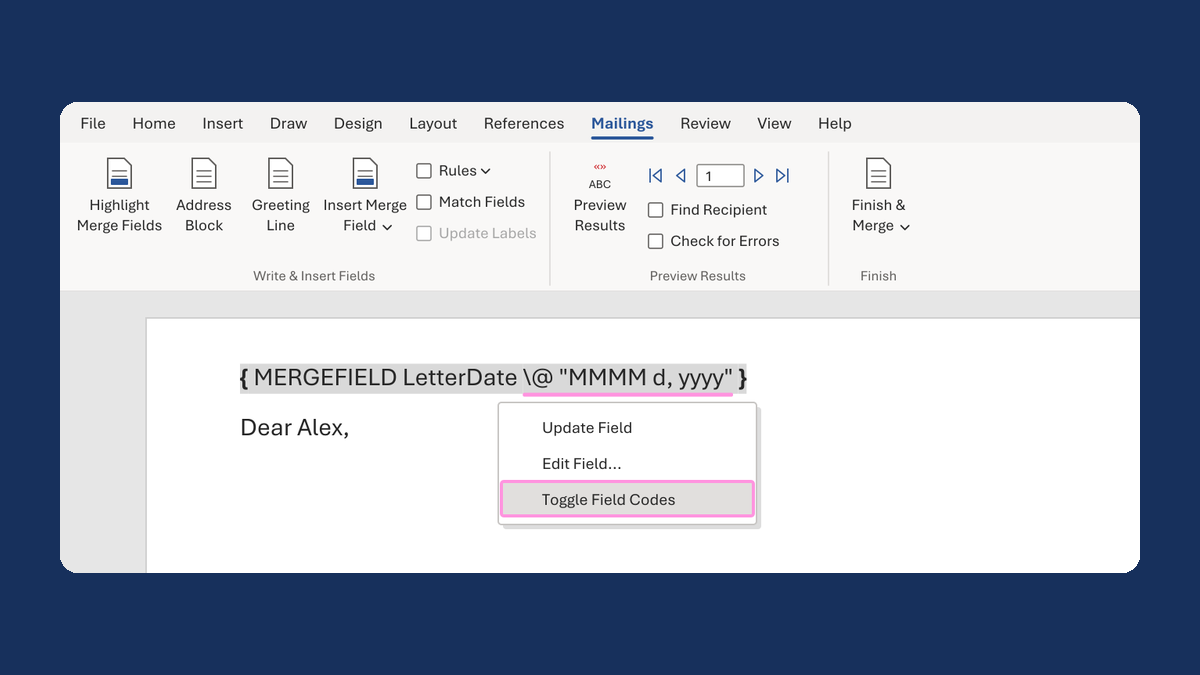
Show a letter date as November 5, 2026
11/5/2026 → November 5, 2026
Take this route →