Read an address from Name <address>

Turn Ava Reed <ava@example.com> into ava@example.com for mailing lists.
Download Excel templateMicrosoft 365
What you'll make
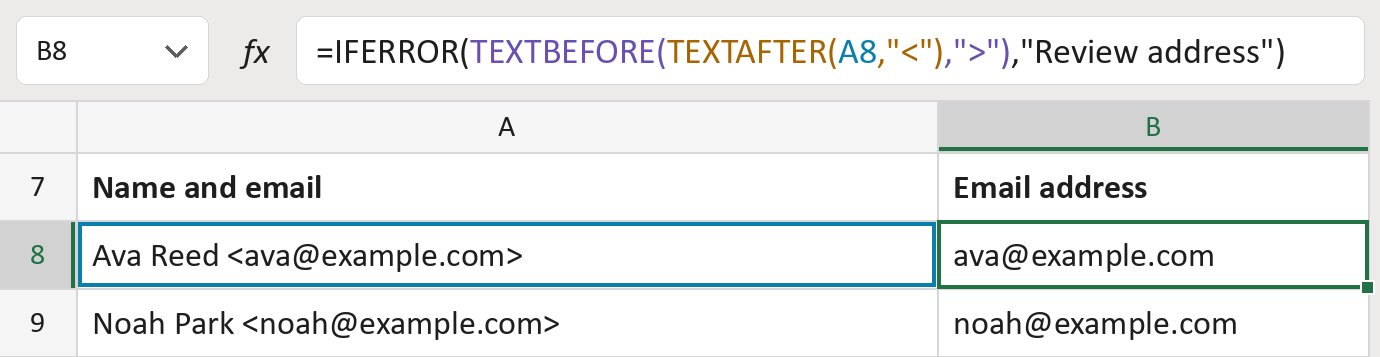
The formula
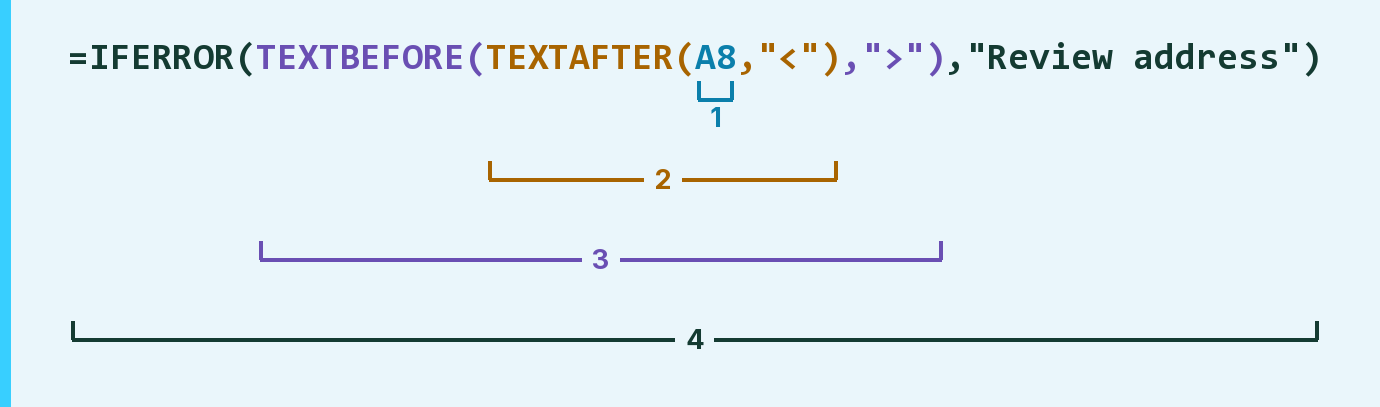
| Number | Part | What it does | Result so far |
|---|---|---|---|
| 1 | A8 | The name and email field. | "Ava Reed <…>" |
| 2 | TEXTAFTER( … ,"<") | Keeps the text after the < sign. | "ava@example.com>" |
| 3 | TEXTBEFORE( … ,">") | Keeps the text before the > sign. | "ava@example.com" |
| 4 | IFERROR( … ,"Review address") | Shows Review address when < or > is missing. | "ava@example.com" |
Each bracket wraps the one before it, so Excel works from the inside out.
=IFERROR(TEXTBEFORE(TEXTAFTER(A8,"<"),">"),"Review address")How to use it
Yellow bar at the top? Click Enable Editing.
- See it work. The Example tab shows 20 made-up examples with the formula already in.
- Use your own list. Paste name and email fields into the green column of the Template tab. The addresses fill in by themselves.
- Move them into your letter. Copy the results. Then use Paste Special and choose Values.
Before you send
This copies the text between < and > without checking it is a working address. Fields with two addresses need a look.
Microsoft's help: TEXTAFTER function
OTHER ROUTES YOU MIGHT LIKE
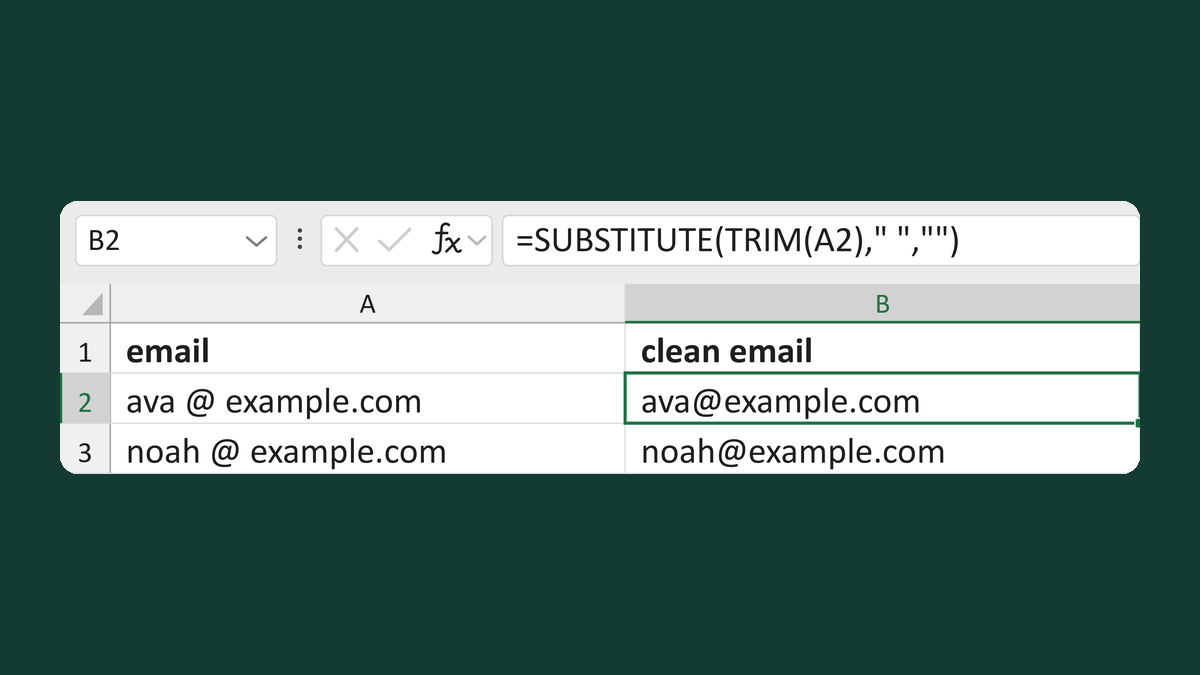
Remove spaces from an email address
ava @ example.com → [email protected]
Get the template →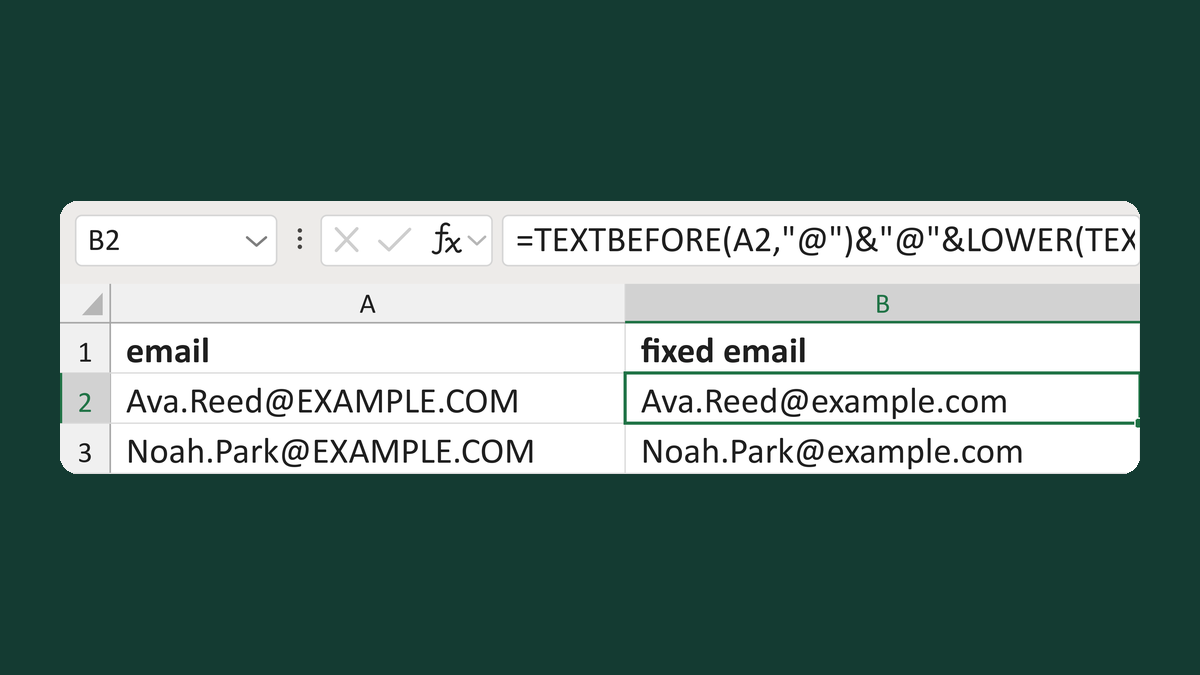
Lowercase only the email domain
[email protected] → [email protected]
Get the template →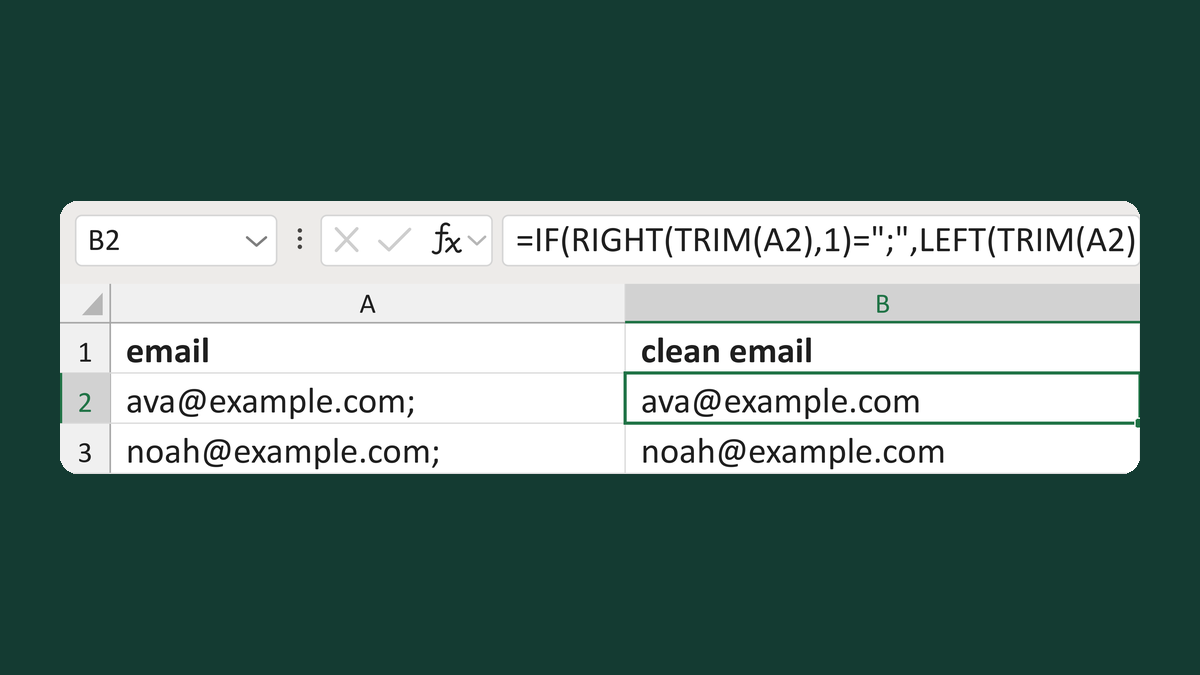
Remove an end semicolon from an email
[email protected]; → [email protected]
Get the template →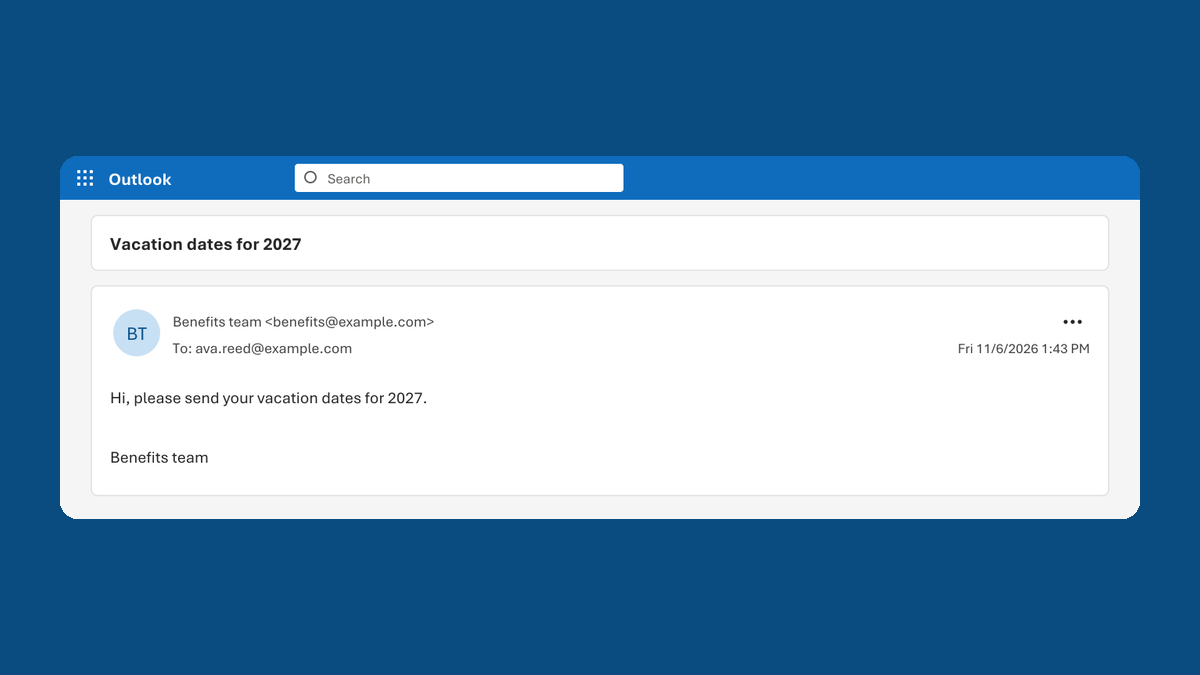
Check each email went to the right address, once
Your list of 2 → 2 sent copies, each to the right address
Take this route →