Remove a known note from names

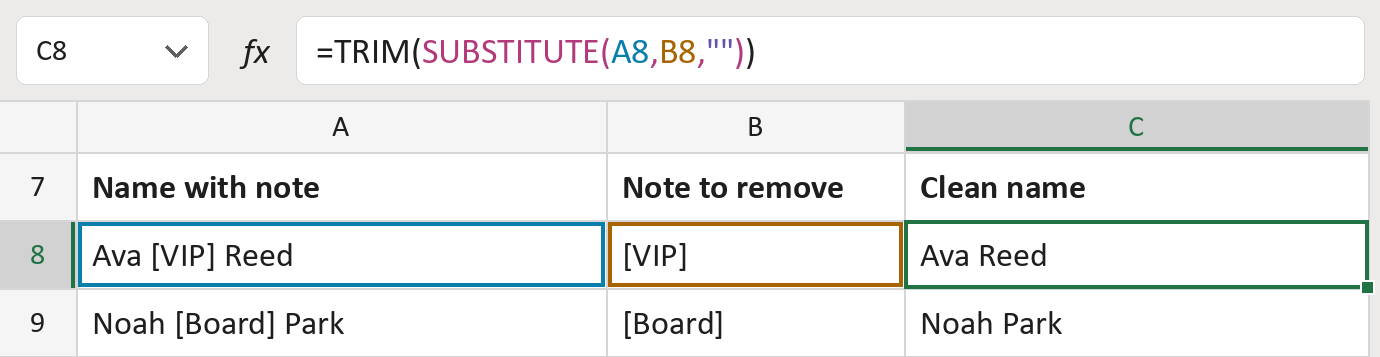
Turn Ava [VIP] Reed into Ava Reed, with the note you choose in column B.
What you'll make
The formula
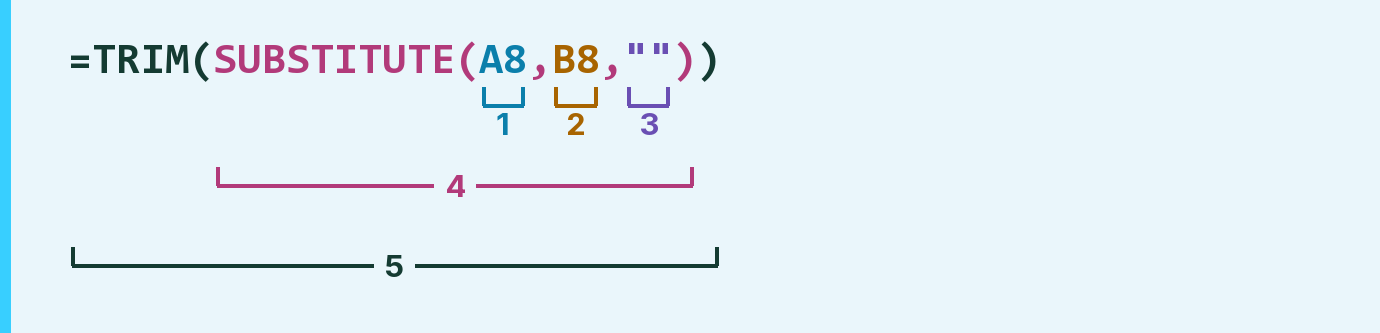
| Number | Part | What it does | Result so far |
|---|---|---|---|
| 1 | A8 | The name with the note inside it. | "Ava [VIP] Reed" |
| 2 | B8 | The exact note to take out. | "[VIP]" |
| 3 | "" | Nothing, so the note is removed. | "" |
| 4 | SUBSTITUTE( … ) | Removes every copy of the note. | "Ava Reed" |
| 5 | TRIM( … ) | Removes the extra space the note left. | "Ava Reed" |
SUBSTITUTE works first, then TRIM tidies up the spaces around where the note was.
=TRIM(SUBSTITUTE(A8,B8,""))How to use it
Yellow bar at the top? Click Enable Editing.
- See it work. The Example tab shows 20 made-up names with the formula already in.
- Use your own names. Paste names into column A of the Template tab and the note to remove into column B. Clean names fill in by themselves.
- Move them into your letter. Copy the results. Then use Paste Special and choose Values.
Before you send
The note must match exactly, capitals included. Check any row where the note is still there.
Route: Get names ready for the letter
Microsoft's help: SUBSTITUTE function
OTHER ROUTES YOU MIGHT LIKE
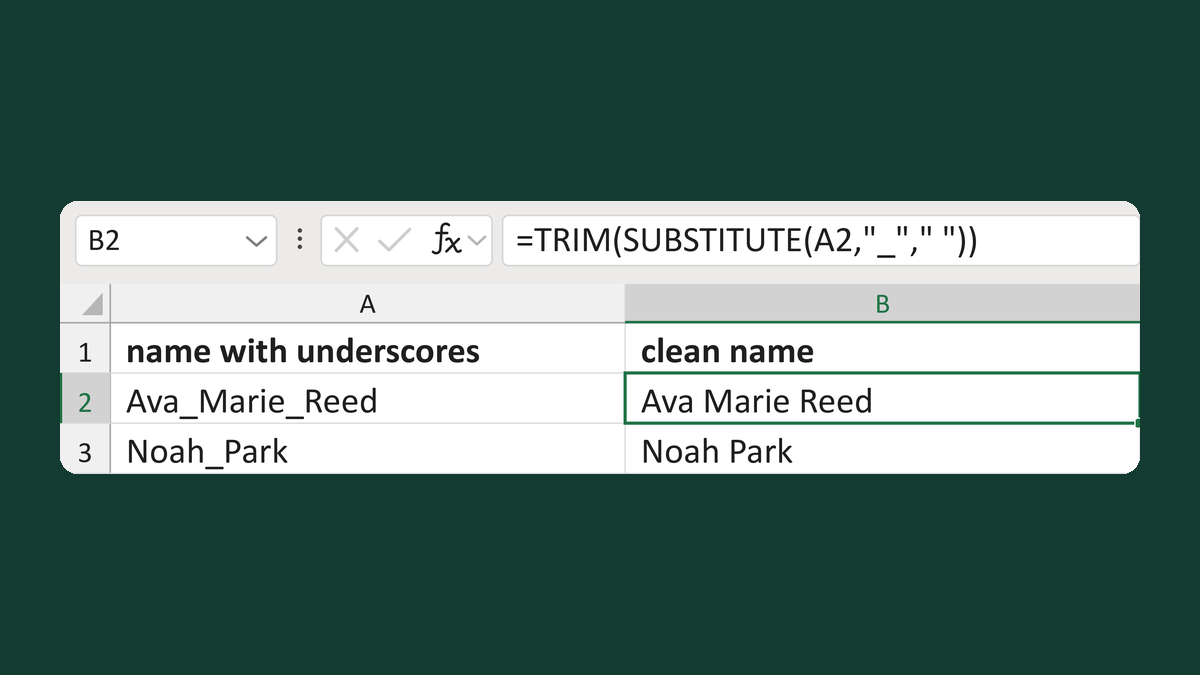
Replace underscores in names
Ava_Marie_Reed → Ava Marie Reed
Get the template →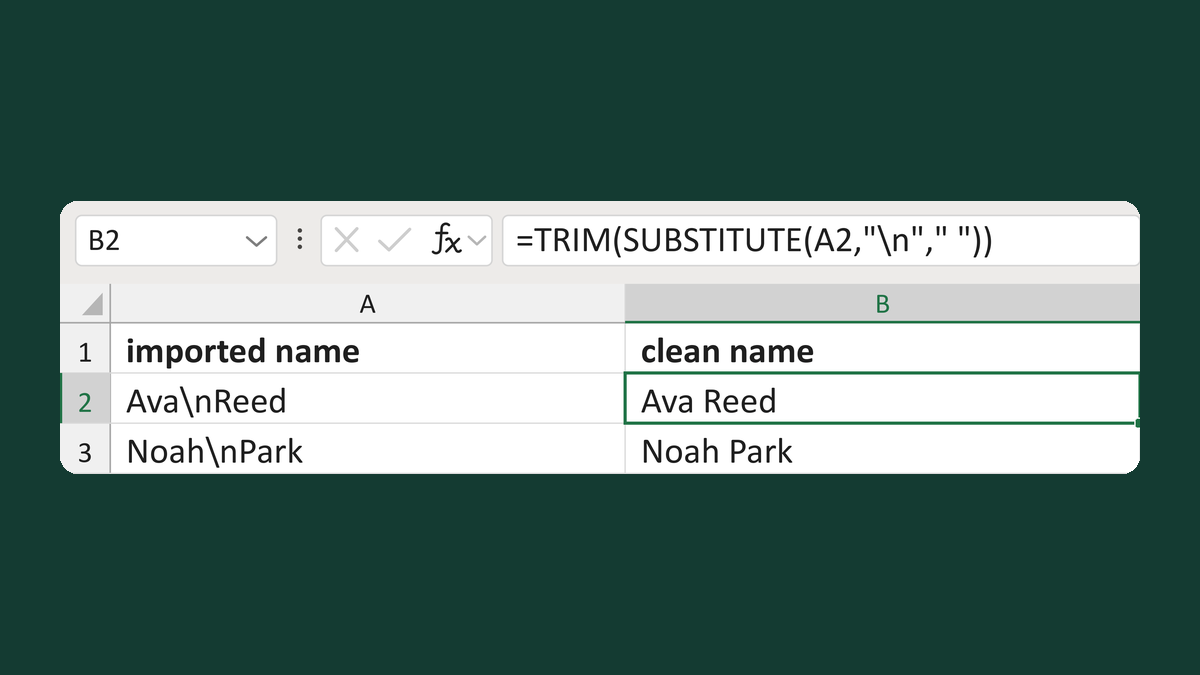
Replace typed backslash-n in names
Ava\nReed → Ava Reed
Get the template →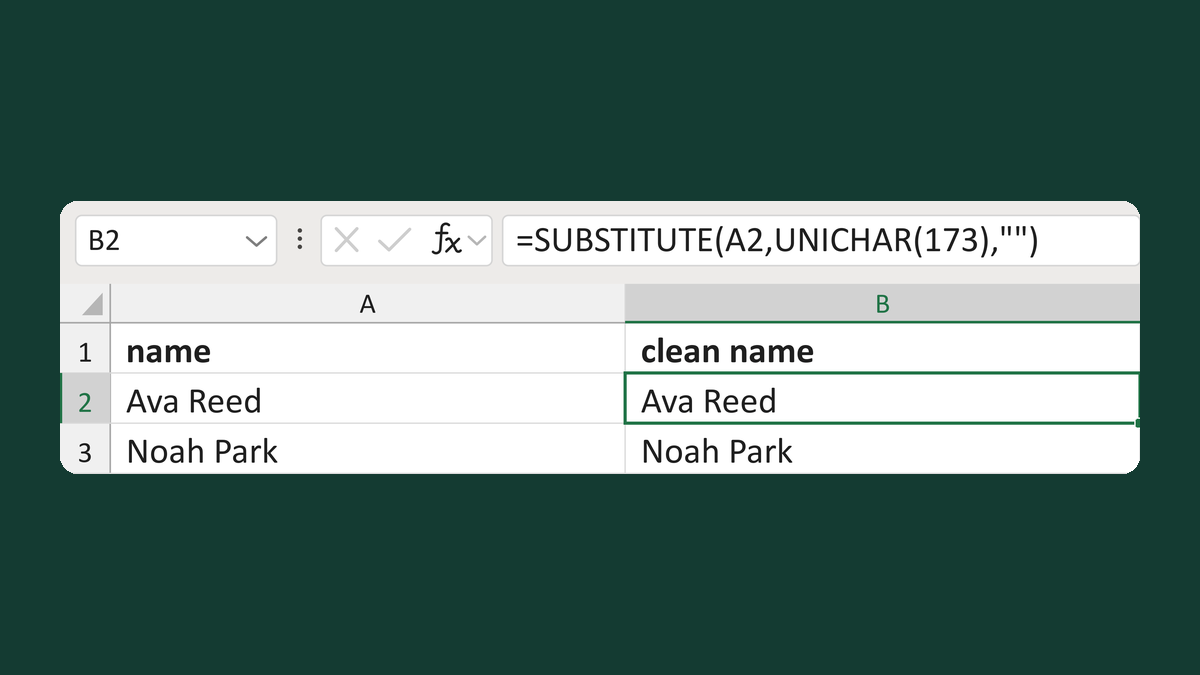
Remove soft hyphens from names
Re[soft hyphen]ed → Reed
Get the template →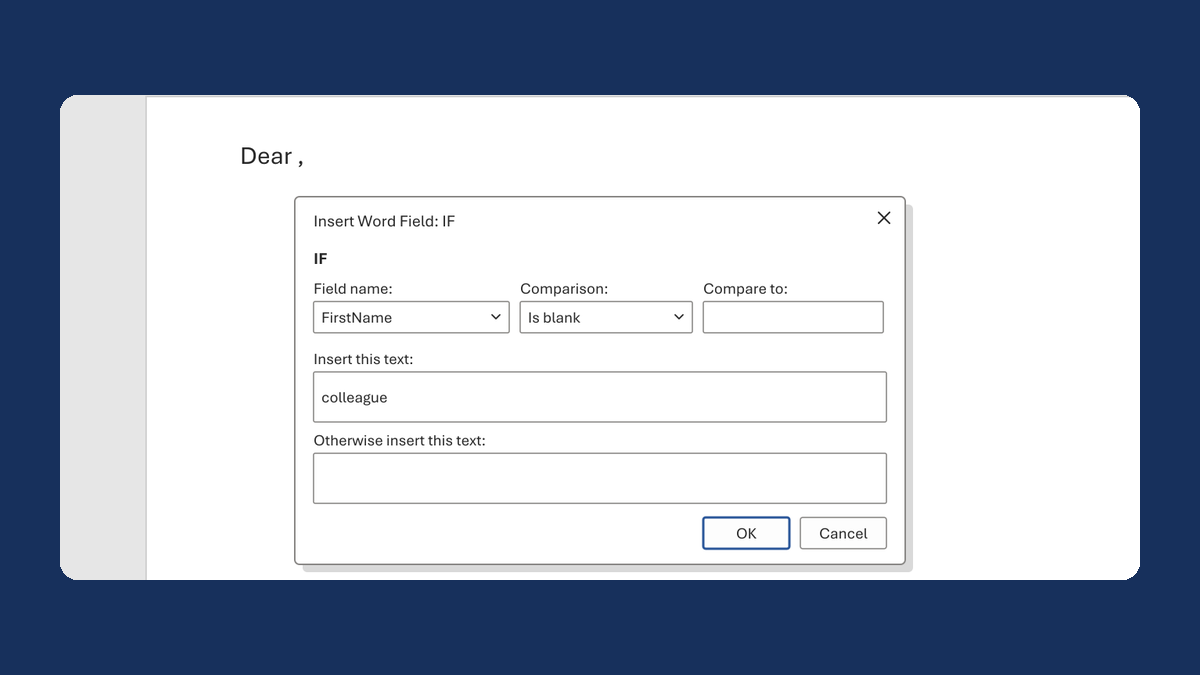
Fix "Dear ," when a first name is blank
(blank) → Dear colleague,
Take this route →