Show PGY and program year separately

A fellow can be PGY-5 but in program year 2. Keep both on the roster.
What you'll make
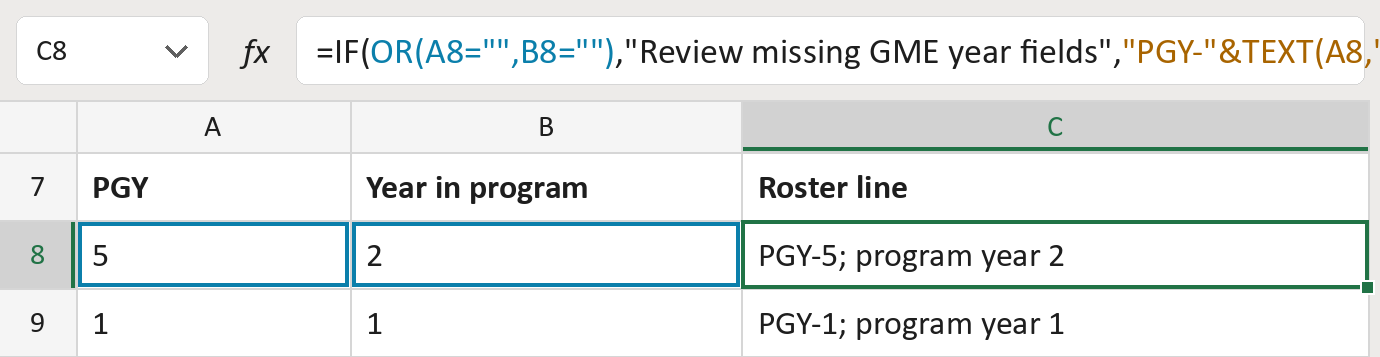
The formula
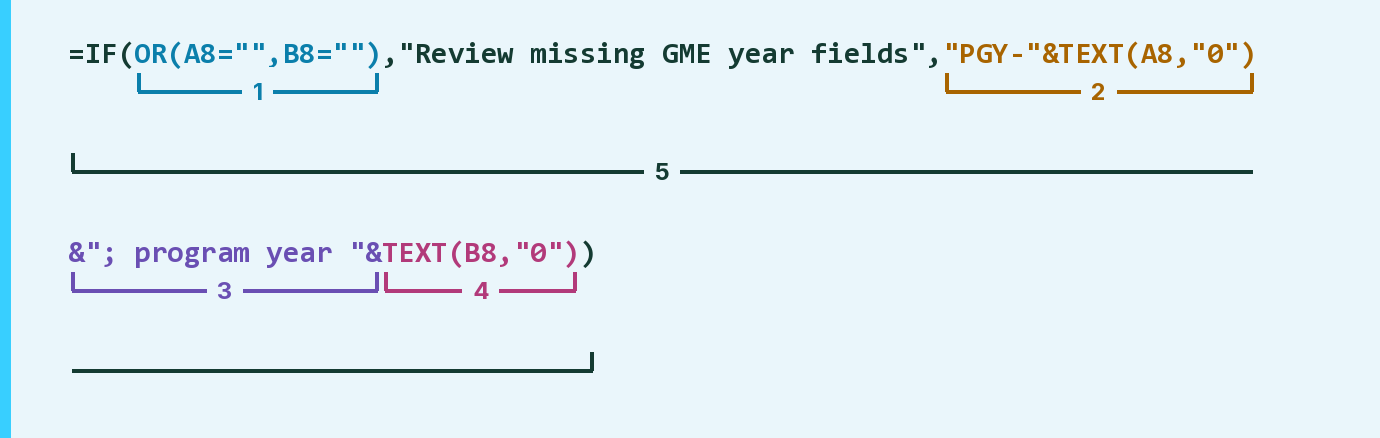
| Number | Part | What it does | Result so far |
|---|---|---|---|
| 1 | OR(A8="",B8="") | Checks if either year is empty. | No |
| 2 | "PGY-"&TEXT(A8,"0") | Writes PGY- and the training year. | "PGY-5" |
| 3 | &"; program year "& | Adds the words between the two years. | "PGY-5; program …" |
| 4 | TEXT(B8,"0") | Adds the year in this program. | "PGY-5; … year 2" |
| 5 | IF( … ) | Flags a missing year, else uses parts 2 to 4. | "PGY-5; … year 2" |
Review missing GME year fields shows when part 1 says yes.
=IF(OR(A8="",B8=""),"Review missing GME year fields","PGY-"&TEXT(A8,"0")&"; program year "&TEXT(B8,"0"))How to use it
Yellow bar at the top? Click Enable Editing.
- See it work. The Example tab shows 20 made-up examples with the formula already in.
- Use your own list. Paste each person's PGY and year in program into the green columns of the Template tab. The roster lines fill in by themselves.
- Move them into your letter. Copy the results. Then use Paste Special and choose Values.
Before you send
Use the years from your roster. Don't work them out from a start date or graduation year.
Microsoft's help: TEXT function