Use a revised date only when approved

Keep the original completion date unless the extension is marked TRUE.
What you'll make
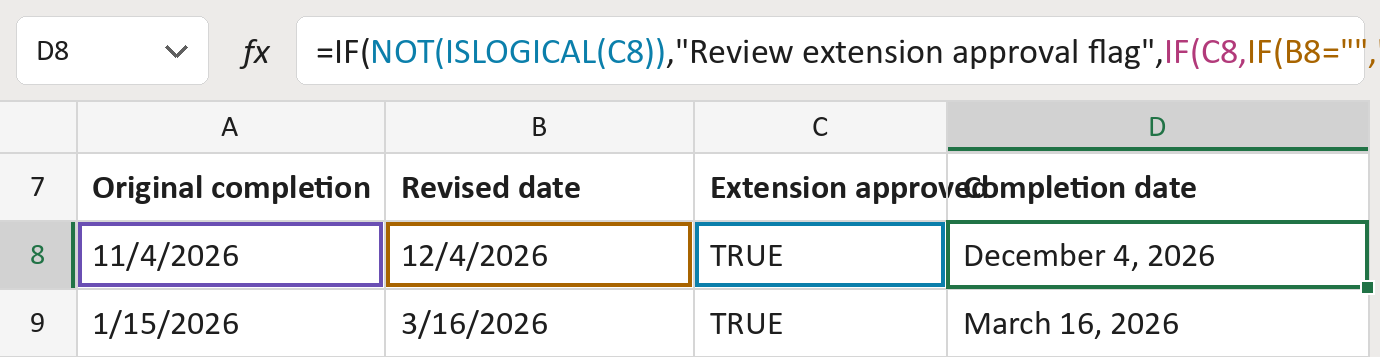
The formula
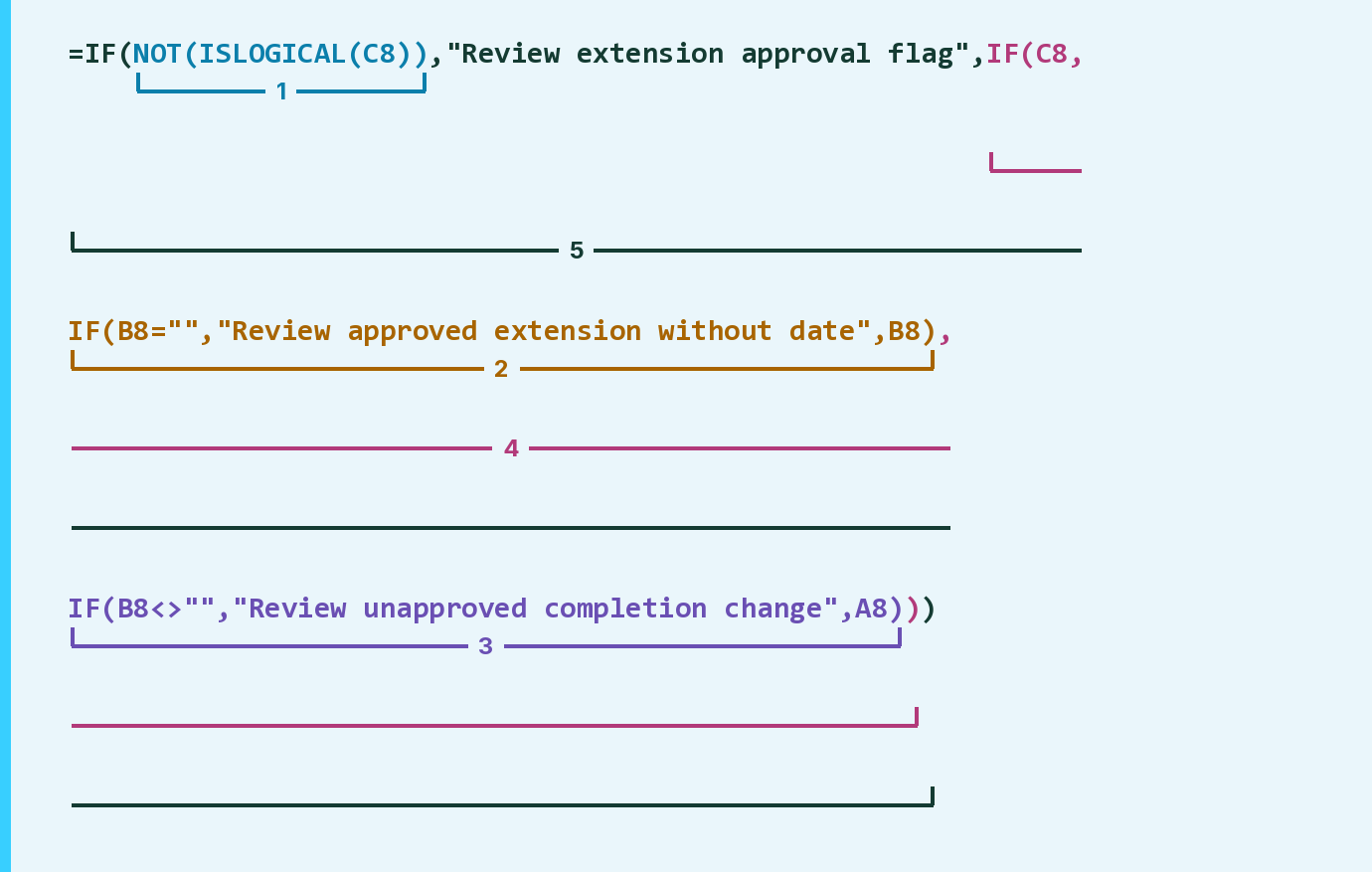
| Number | Part | What it does | Result so far |
|---|---|---|---|
| 1 | NOT(ISLOGICAL(C8)) | Checks that column C isn't TRUE or FALSE. | FALSE |
| 2 | IF(B8="", … ,B8) | Approved: uses the revised date, or asks for one. | December 4, 2026 |
| 3 | IF(B8<>"", … ,A8) | Not approved: keeps the original, or flags a change. | Not used for row 8 |
| 4 | IF(C8, … ) | Uses part 2 when approved, part 3 when not. | December 4, 2026 |
| 5 | IF( … ) | Shows the flag message when part 1 is TRUE. | December 4, 2026 |
Works from the inside out. Column C must hold TRUE or FALSE, not yes or no.
=IF(NOT(ISLOGICAL(C8)),"Review extension approval flag",IF(C8,IF(B8="","Review approved extension without date",B8),IF(B8<>"","Review unapproved completion change",A8)))How to use it
Yellow bar at the top? Click Enable Editing.
- See it work. The Example tab shows 20 made-up examples with the formula already in.
- Use your own dates. Paste the original completion date, any revised date, and TRUE or FALSE into the green columns of the Template tab. The completion dates fill in by themselves.
- Move them into your letter. Copy the results. Then use Paste Special and choose Values.
Before you send
Mark TRUE only for an approved extension. The formula doesn't decide whether one is allowed.
Microsoft's help: IS functions