Check Word's duplicate list before removing anyone

Make5 minutes
The problem
Word flags two rows as duplicates, but they may be two different people.

Why it happens
Find duplicates flags rows that look alike, like the same first and last name. It doesn't check your ID column. Two different people named Sam Lee look like a copy.
Fix it
-
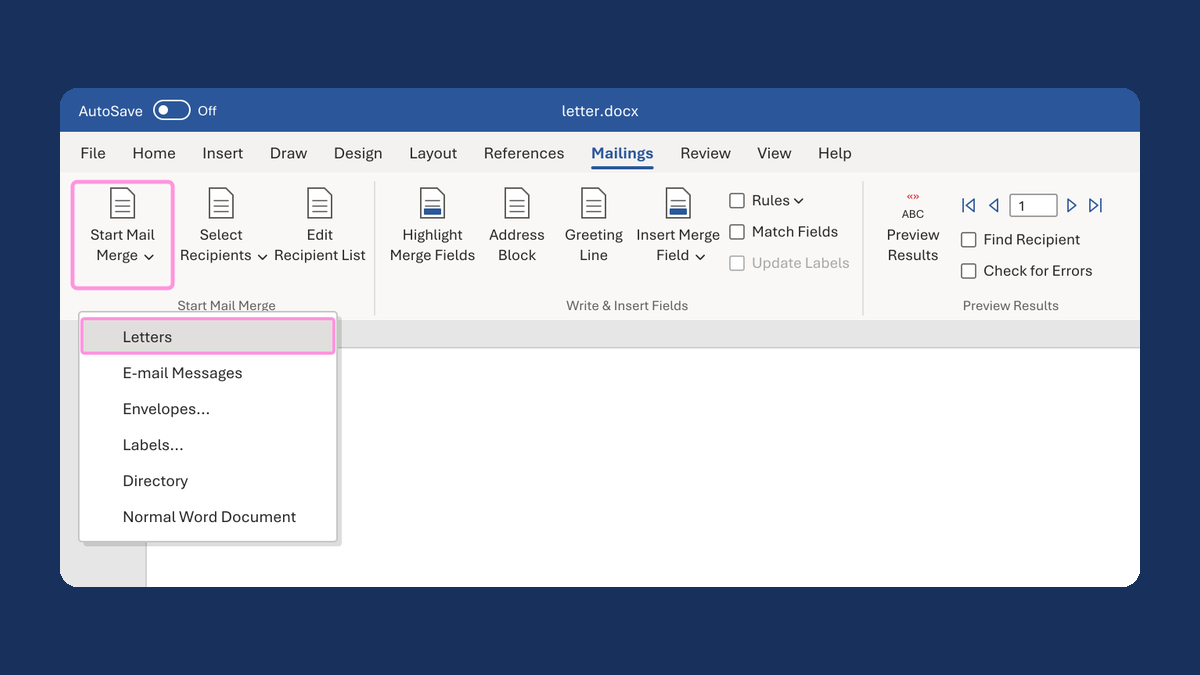
On the Mailings tab, click Edit Recipient List.
-
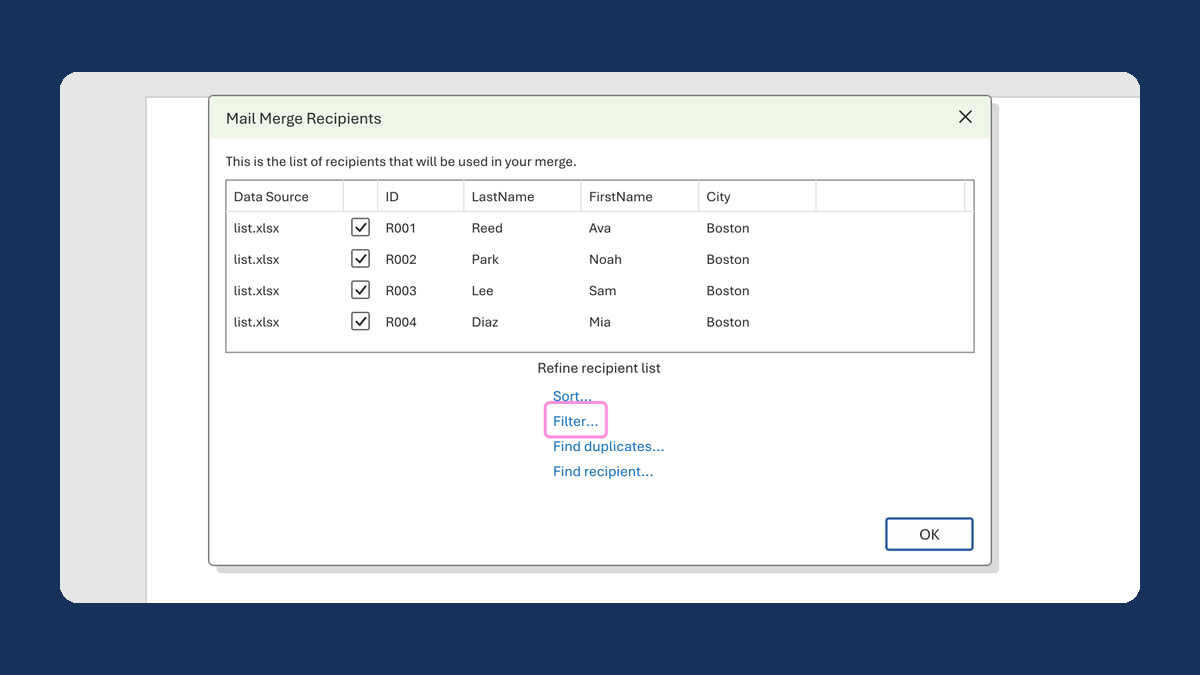
Under Refine recipient list, click Find duplicates....
-
Scroll right to your ID column. Compare the IDs in each group.
-
Different IDs mean different people. Leave their boxes checked, or click Cancel.
In our test, Word flagged Sam Lee R005 and Sam Lee R006. Both stayed in the merge.
Watch for
One person with several rows, like one row per item, is flagged too. A box you uncheck here leaves that row out of the merge. Two rows with the same ID are a list problem, so fix those in your list.