Reconnect a letter after its list was renamed

Make5 minutes
The problem
Word can't find your list when you open the letter.

Why it happens
A merge letter remembers the exact name and folder of its list. Rename the list, and Word can't find it when the letter opens.
Fix it
-
Open the letter. Word may ask about an SQL command first. Click Yes, then OK on any error, and Cancel if Data Link Properties opens.
-
When Word says it cannot find its data source, click Options..., then Remove Data/Header Source.
-
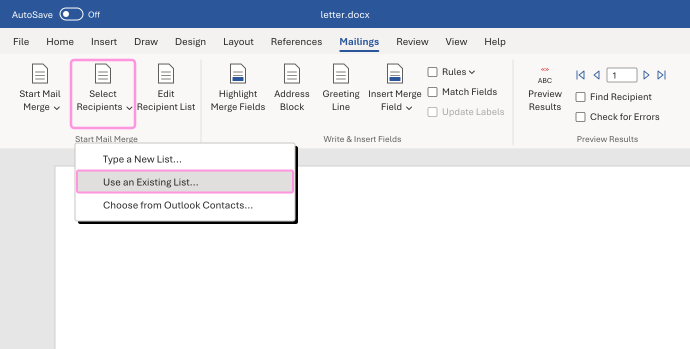
On the Mailings tab, click Select Recipients, then Use an Existing List.... Choose the renamed list and its sheet, then click OK.
-
Click Edit Recipient List. Check the file name at the bottom and the rows, then click OK.
The merge fields stay in the letter, and the recipient list now shows the renamed file with all its rows.
Watch for
Pick the list by its new name, not an older copy with a similar name. Edit Recipient List shows which file you really connected.