Replace typed «FirstName» with a real merge field

Make5 minutes
The problem
Your letters print «FirstName» instead of the person's name.

Why it happens
The brackets look like a merge field, but typed text is just text. Word prints «FirstName» in every letter, word for word.
Fix it
-
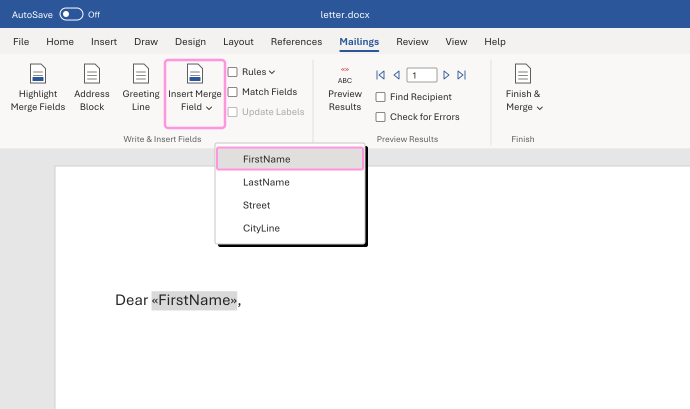
In your letter, select the typed «FirstName», brackets and all, and delete it.
-
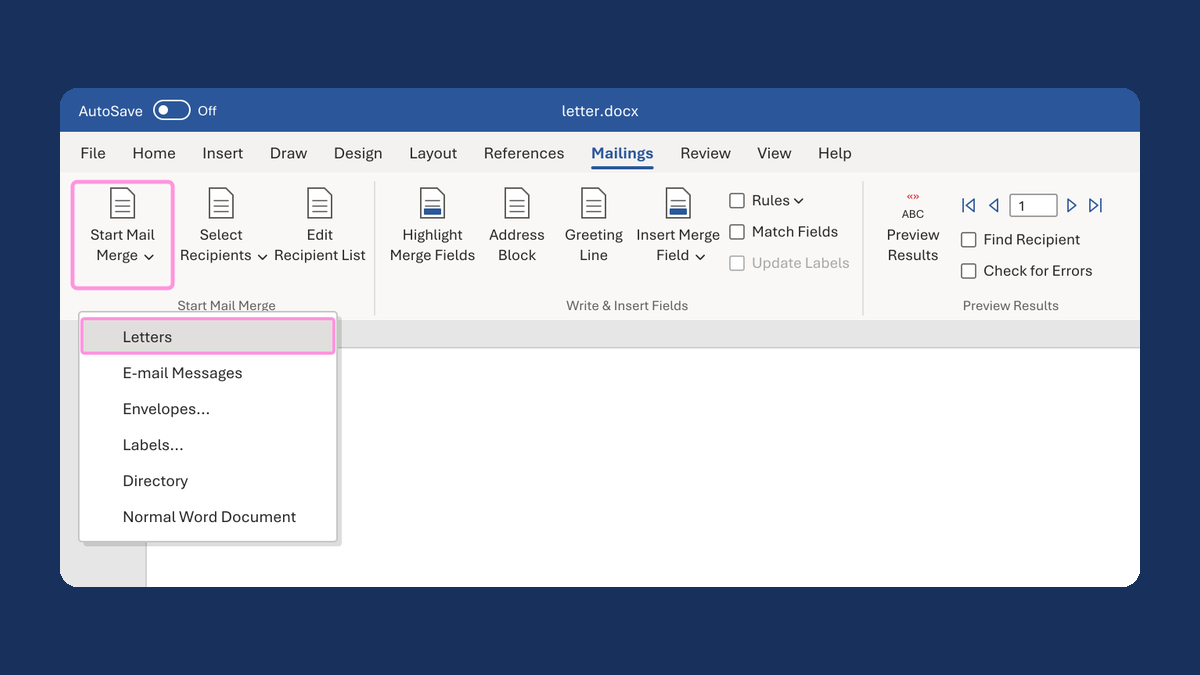
On the Mailings tab, click Insert Merge Field, then your first name column.
-
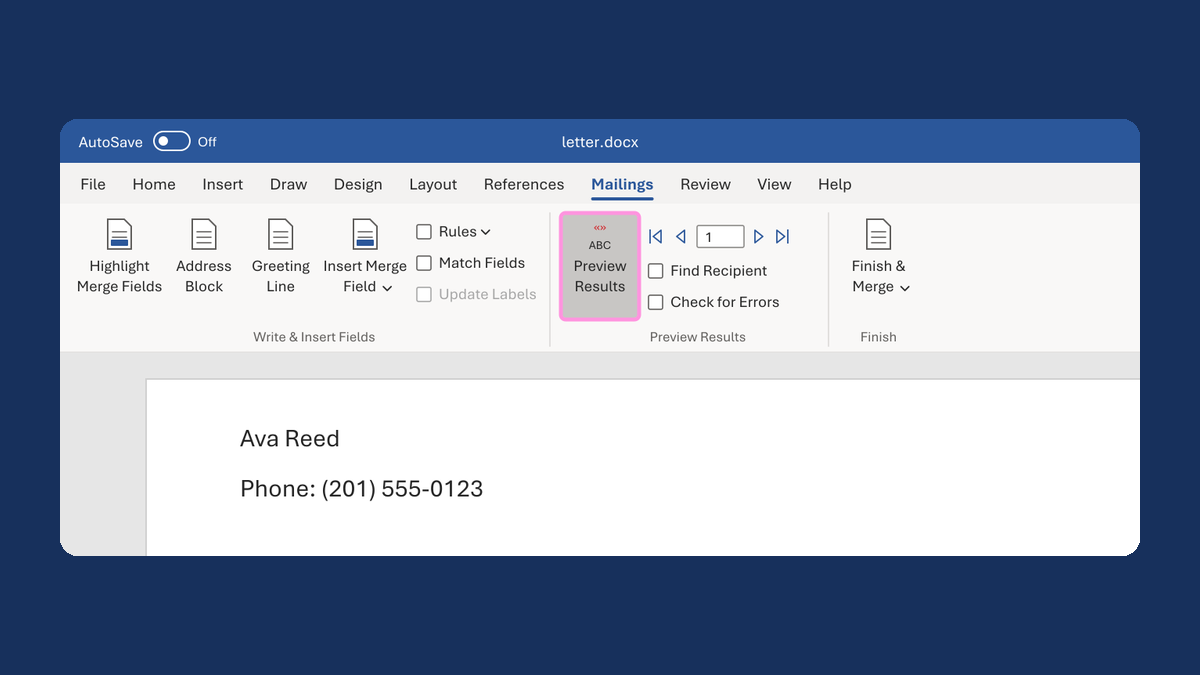
Click Preview Results and check a few rows.
Every letter now shows that person's name. When you click a real field, Word usually shades it gray.
Watch for
The list under Insert Merge Field comes from your list's header row. If your column isn't there, check that Word is connected to the right list.