Remove the blank page between merged letters

Make5 minutes
The problem
Your 32 letters came out as 64 pages, with blank pages between them.

Why it happens
Word already starts each merged letter on a new page. A page break left at the end of your letter adds pages of its own.
Fix it
-
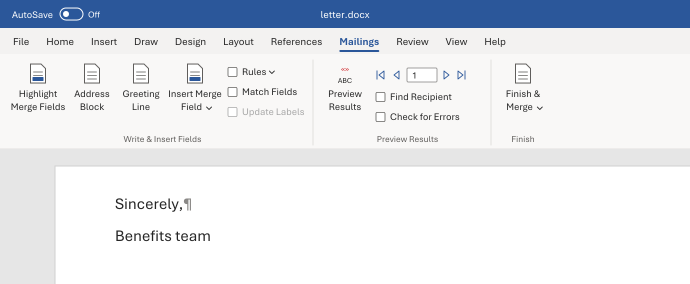
On the Home tab, click ¶ to show the marks.
-
Press Ctrl+End to go to the end of the letter.
-
Look for a Page Break line or empty ¶ marks after your last line. Delete them.
-
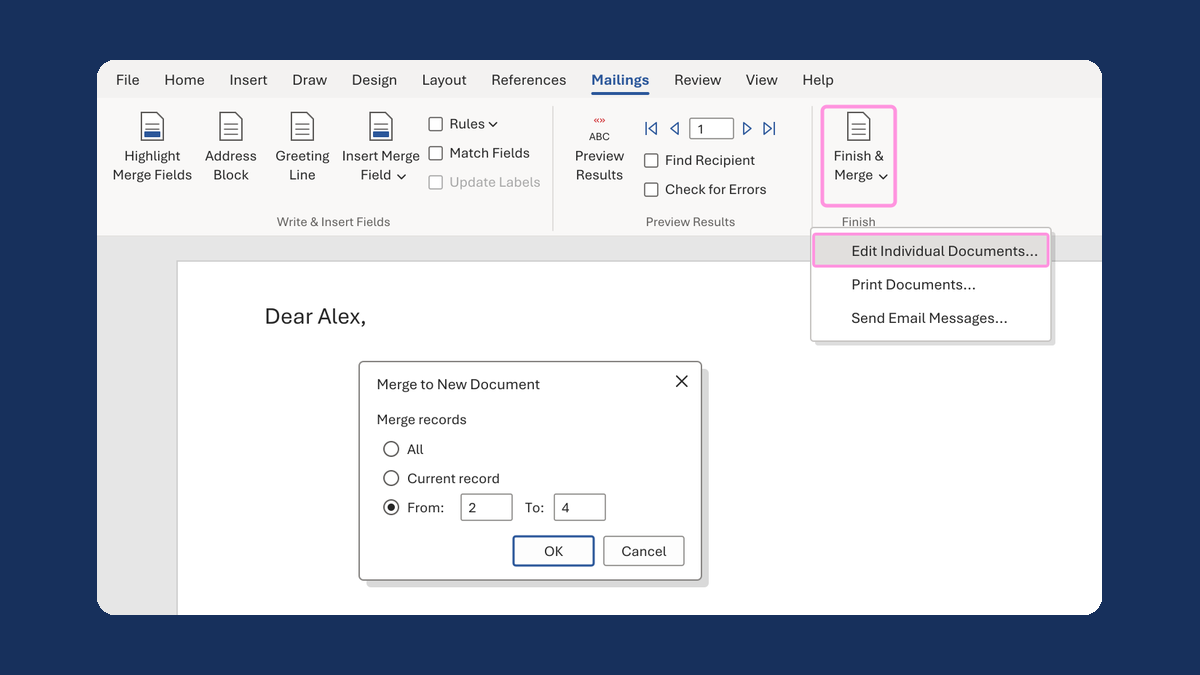
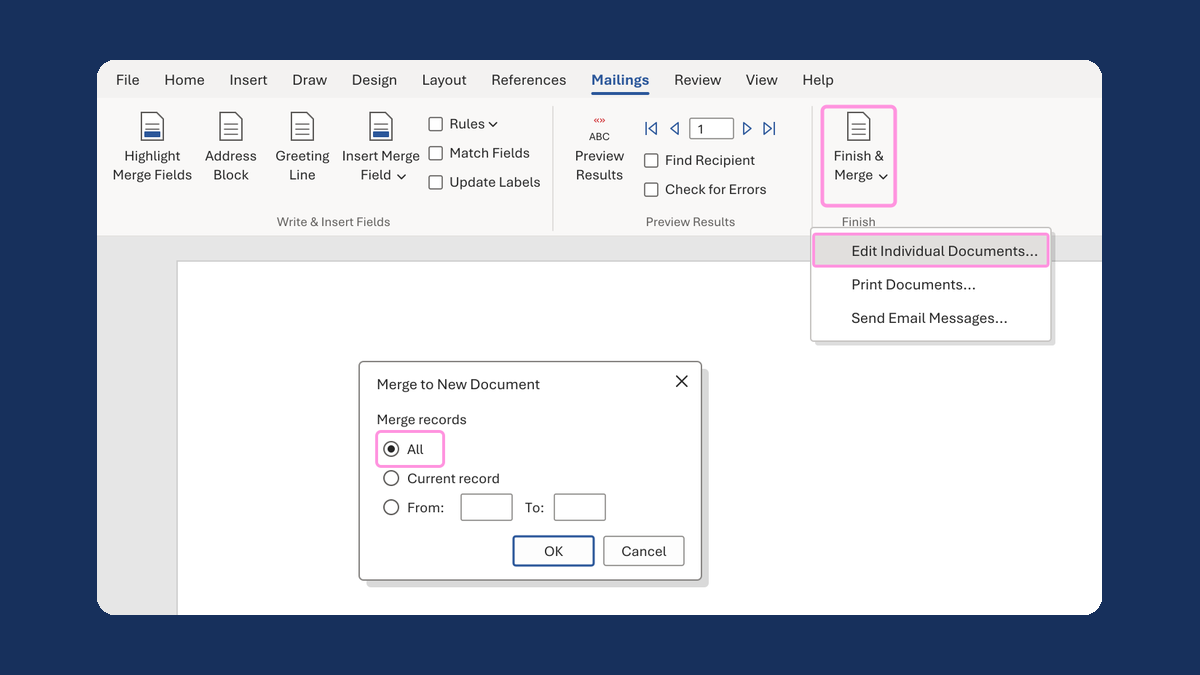
Click Finish & Merge, then Edit Individual Documents..., then All and OK. Wait a moment, then check the page count.
In our test, a page break plus one empty line gave 64 pages for 32 letters. Removing both gave 32. A page break alone gave 33 pages, with one blank page at the end.
Watch for
Delete only the marks after your last line. Section breaks inside a letter can hold its headers and page numbers.