Save a reply email as a PDF in OneDrive

Send5 minutes
The problem
Someone checking your work later needs to see a reply that only sits in your email.
Why it helps
A PDF keeps the reply easy to read for anyone who checks your work later. It shows who sent it, when, and the whole message. You can link it next to that person's answer.
Do it
-
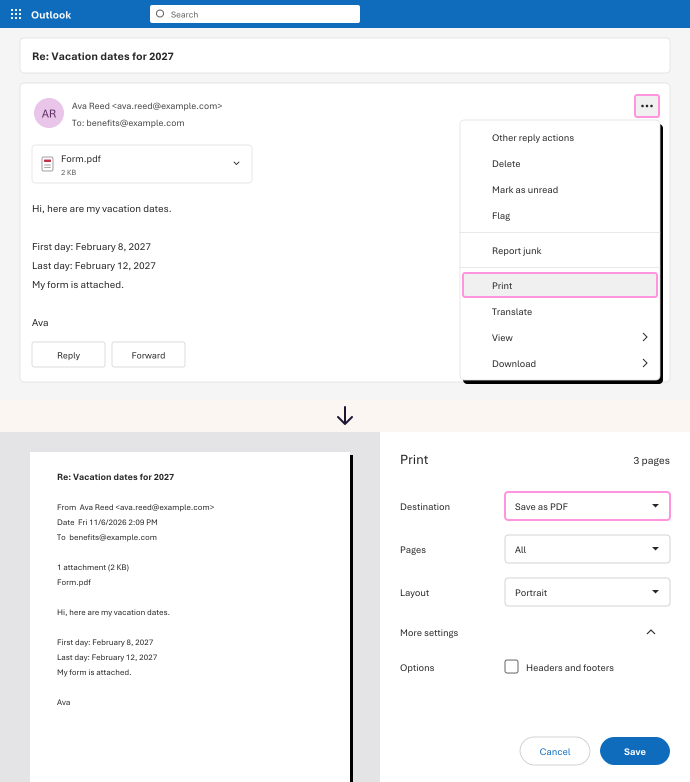
Open the reply. Click the ... button at the top right of the message, then Print.
-
In the print window, set Destination to Save as PDF. This was tested in Chrome. Other browsers may name it differently, like Microsoft Print to PDF.
-
Open More settings and turn off Headers and footers. That keeps the web address off the page.
-
Click Save. Name the file for the person and the mailing, like Ava Reed vacation dates.pdf.
-
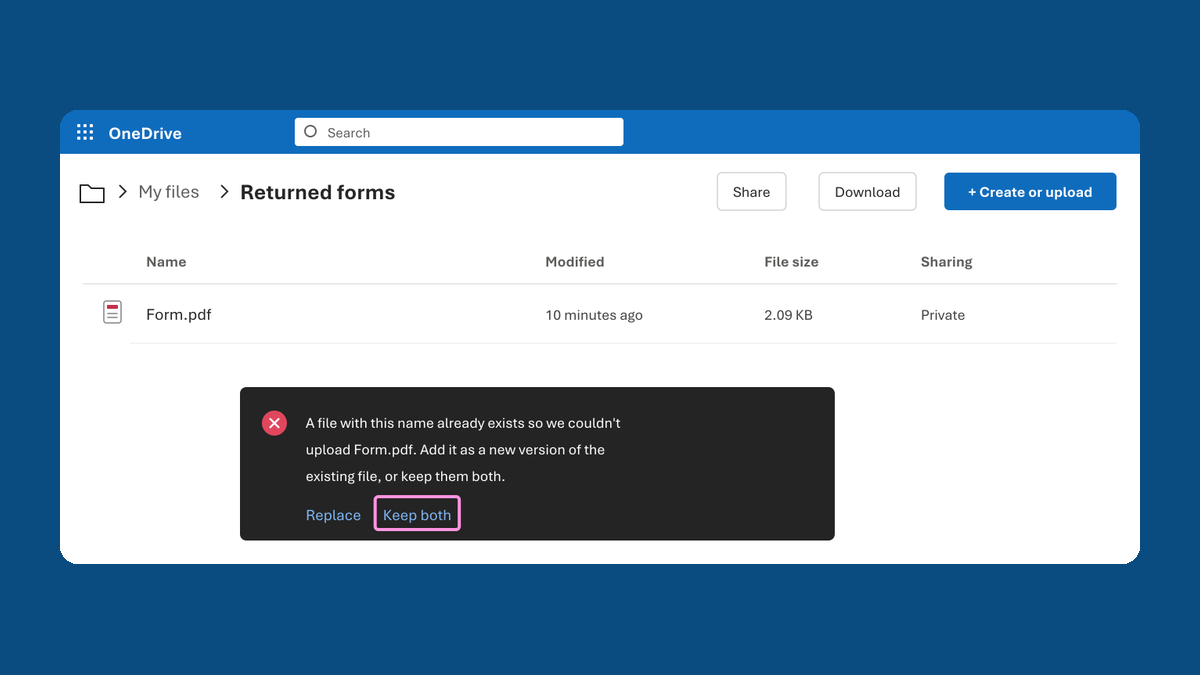
In OneDrive, open the folder for this mailing. Click Create or upload, then Files upload, and choose the PDF.
-
Open the PDF in OneDrive and check the last page. Then paste its link next to that person in your tracker.
The PDF keeps the From, To and date lines, every paragraph, and letters like é and £.
Watch for
The PDF shows the attachment's name, but not what's inside it. Save the form itself as its own file.