Set up a Size 10 envelope and place the addresses

Make5 minutes
The problem
You need a size 10 envelope, with each address in its own spot.
Why it helps
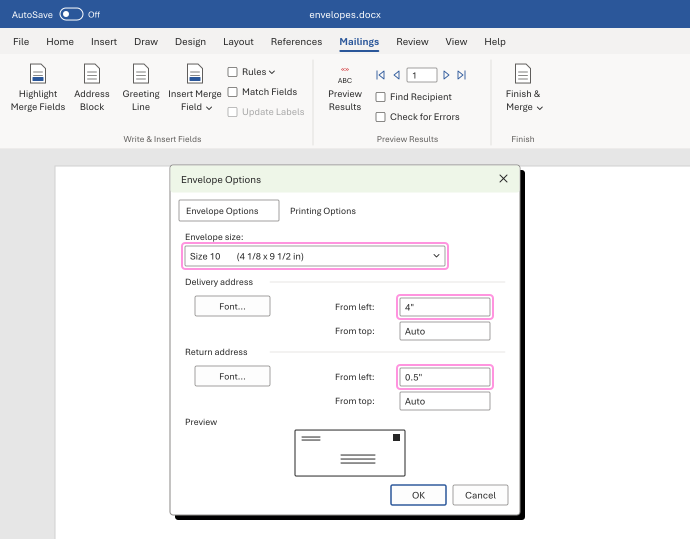
The envelope size and both address positions live in one box. Each address has its own position boxes, so you can move one without touching the other.
Fix it
-
On the Mailings tab, click Start Mail Merge, then Envelopes....
-
In Envelope size, choose Size 10 (4 1/8 x 9 1/2 in).
-
Under Delivery address, set From left, like 4". Under Return address, set its own From left, like 0.5".
-
Click Printing Options and check that the feed picture matches how your printer takes envelopes. Click OK.
-
Add your fields, then click Preview Results. Check a person with a long address.
In our test, a long street wrapped onto two lines. The suite line and the state and ZIP Code still showed.
Watch for
When you open Envelope Options again, the position boxes can say Auto. Trust the preview, not the boxes. Print one test envelope before the whole run.