Join semicolon choices with commas

Turn Email; Phone; Text message; into Email, Phone, Text message.
Download Excel templateMicrosoft 365
What you'll make
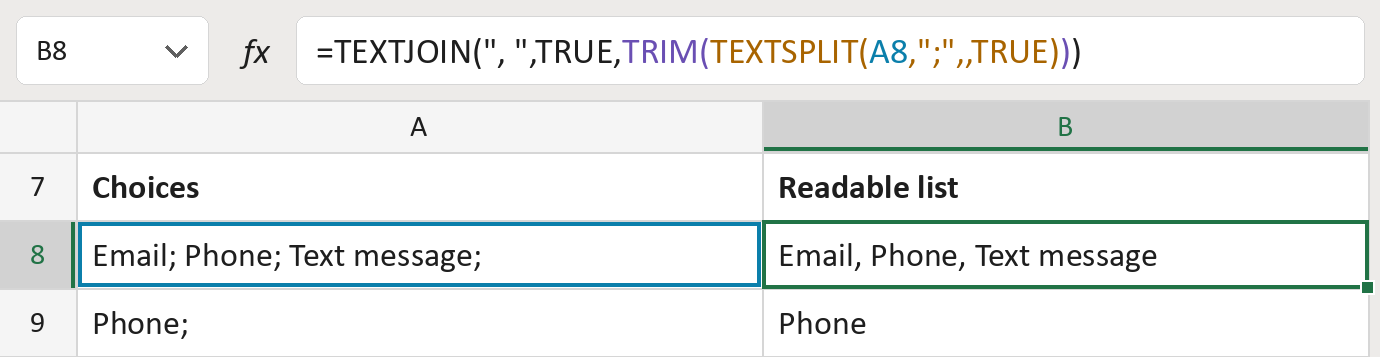
The formula
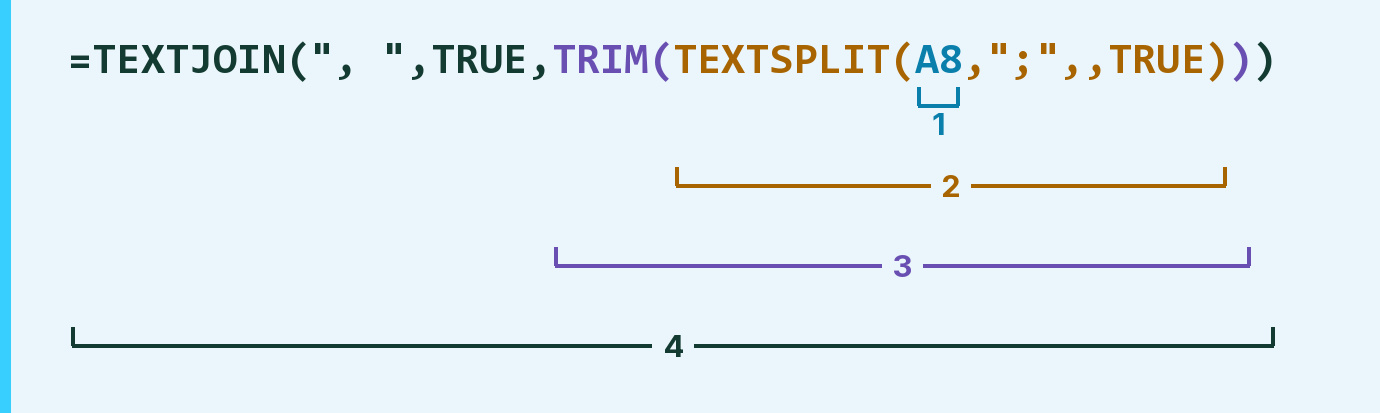
| Number | Part | What it does | Result so far |
|---|---|---|---|
| 1 | A8 | The choices, split by semicolons. | "Email; Phone; Text message;" |
| 2 | TEXTSPLIT( … ,";",,TRUE) | Splits at semicolons and drops empty pieces. | "Email" " Phone" … |
| 3 | TRIM( … ) | Removes the spaces around each choice. | "Email" "Phone" … |
| 4 | TEXTJOIN(", ",TRUE, … ) | Joins the choices with commas. | "Email, Phone, Text message" |
Each bracket wraps the one before it, so Excel works from the inside out. Choices stay in their order, repeats too.
=TEXTJOIN(", ",TRUE,TRIM(TEXTSPLIT(A8,";",,TRUE)))How to use it
Yellow bar at the top? Click Enable Editing.
- See it work. The Example tab shows 20 made-up examples with the formula already in.
- Use your own choices. Paste choice cells into the green column of the Template tab. The readable lists fill in by themselves.
- Move them into your letter. Copy the results. Then use Paste Special and choose Values.
Before you send
Use this only when no choice has a semicolon inside it. A choice listed twice stays twice.
Microsoft's help: TEXTJOIN function
OTHER ROUTES YOU MIGHT LIKE
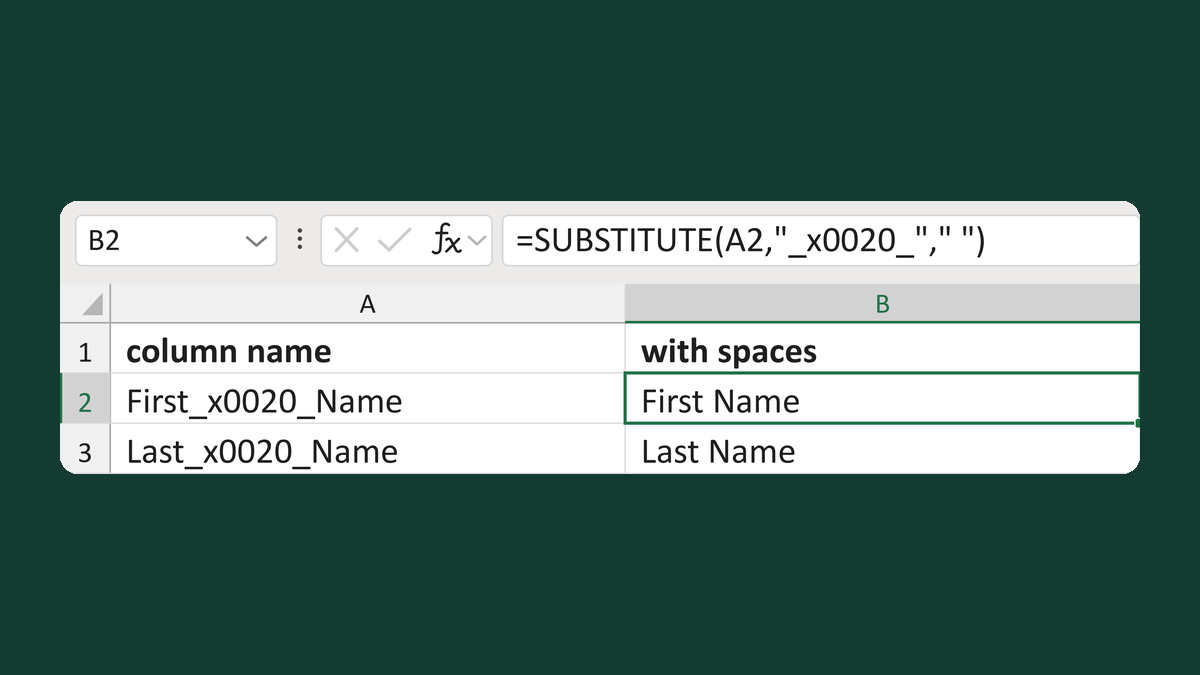
Turn _x0020_ into spaces in headers
First_x0020_Name → First Name
Get the template →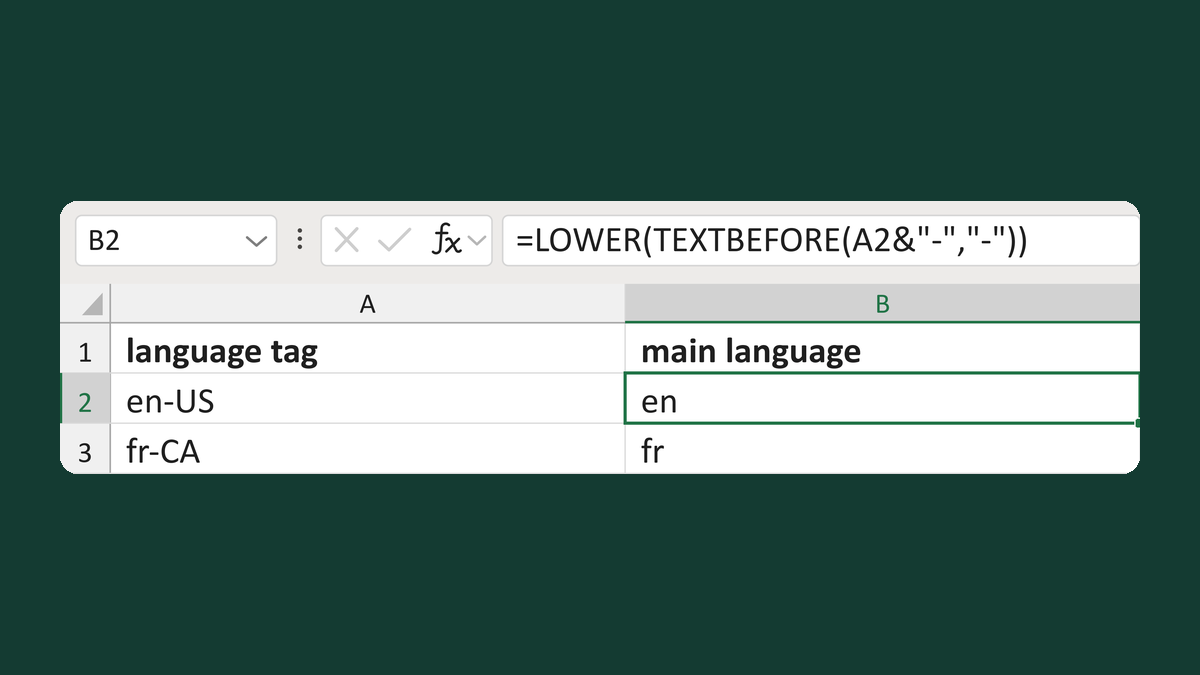
Get the language from a tag like en-US
en-US → en
Get the template →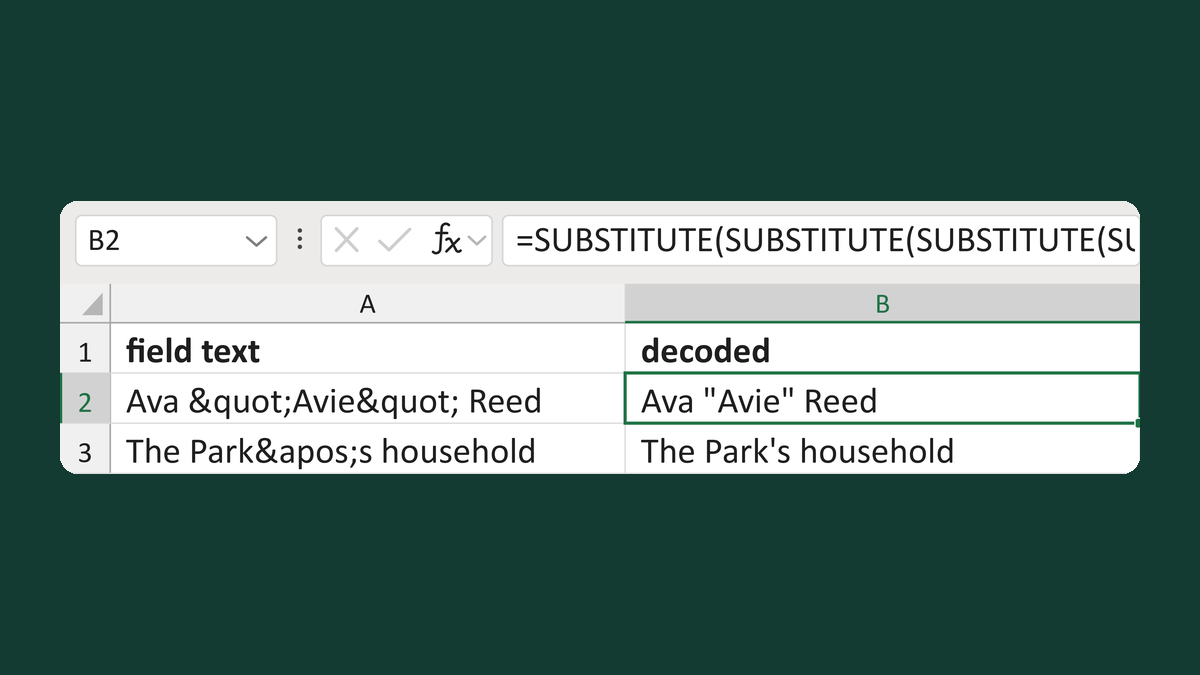
Turn codes like < back into symbols
Ava "Avie" Reed → Ava "Avie" Reed
Get the template →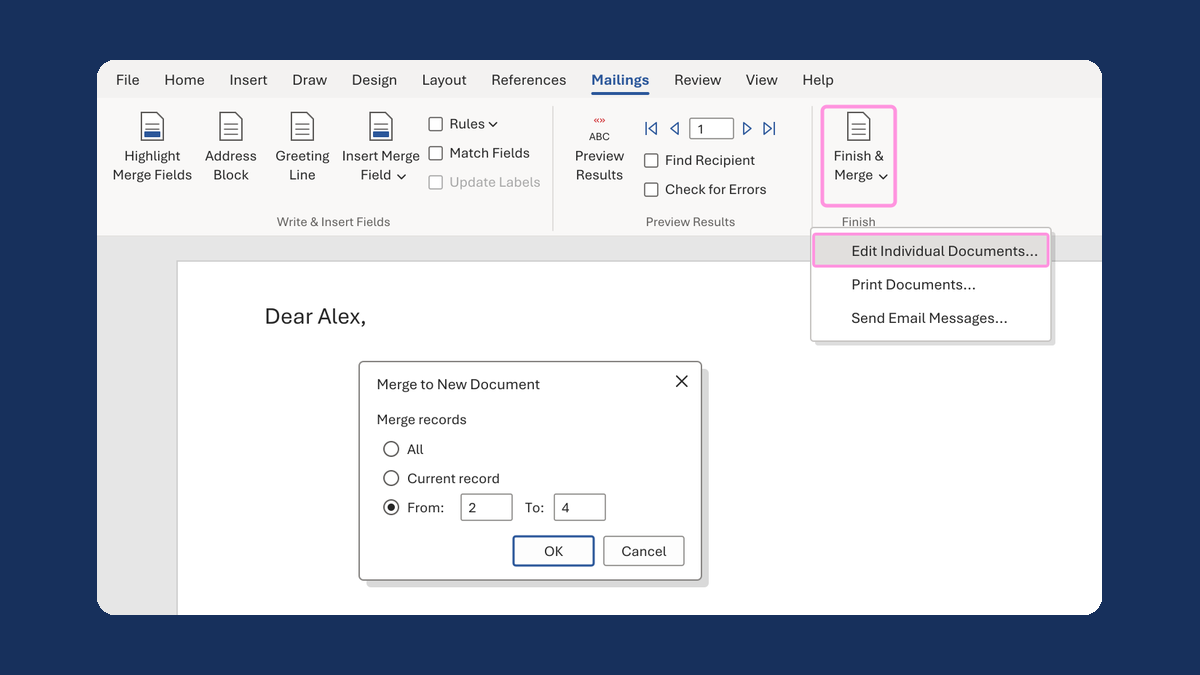
Merge a few test letters before the whole mailing
Whole mailing → records 2 to 4 only
Take this route →