Label placer and filler order numbers

The same order number can come from two systems. Show which system gave each.
What you'll make
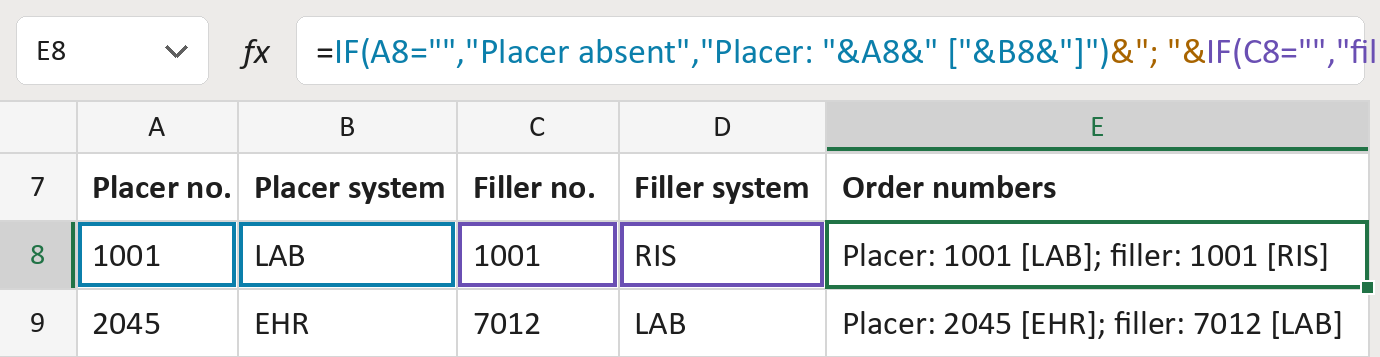
The formula
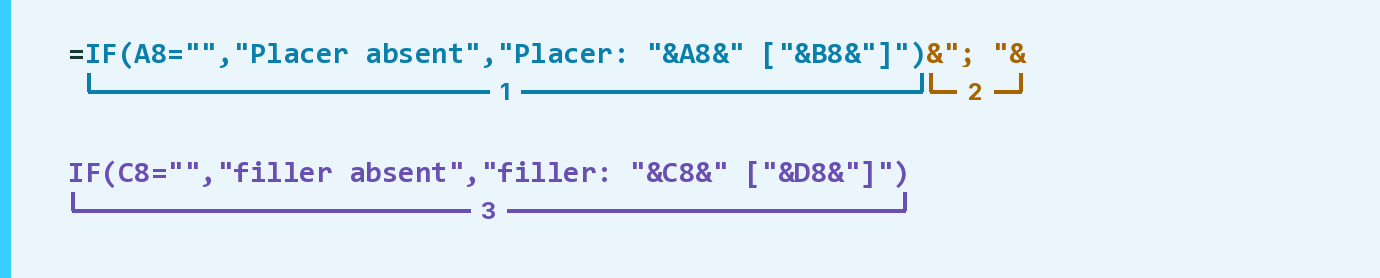
| Number | Part | What it does | Result so far |
|---|---|---|---|
| 1 | IF(A8="","Placer absent", … ) | Writes the placer number and its system. | "Placer: 1001 [LAB]" |
| 2 | &"; "& | Adds a semicolon and a space. | "… [LAB]; " |
| 3 | IF(C8="","filler absent", … ) | Adds the filler number and its system. | "… filler: 1001 [RIS]" |
Read it left to right. Each & joins the next piece on. Neither number fills in for the other.
=IF(A8="","Placer absent","Placer: "&A8&" ["&B8&"]")&"; "&IF(C8="","filler absent","filler: "&C8&" ["&D8&"]")How to use it
Yellow bar at the top? Click Enable Editing.
- See it work. The Example tab shows 20 made-up examples with the formula already in.
- Use your own list. Paste each placer number, its system, the filler number and its system into the green columns of the Template tab.
- Move them into your letter. Copy the results. Then use Paste Special and choose Values.
Before you send
Two matching numbers aren't the same order unless the systems match too. Check both.
Microsoft's help: IF function