Read timestamps wrapped in {ts}

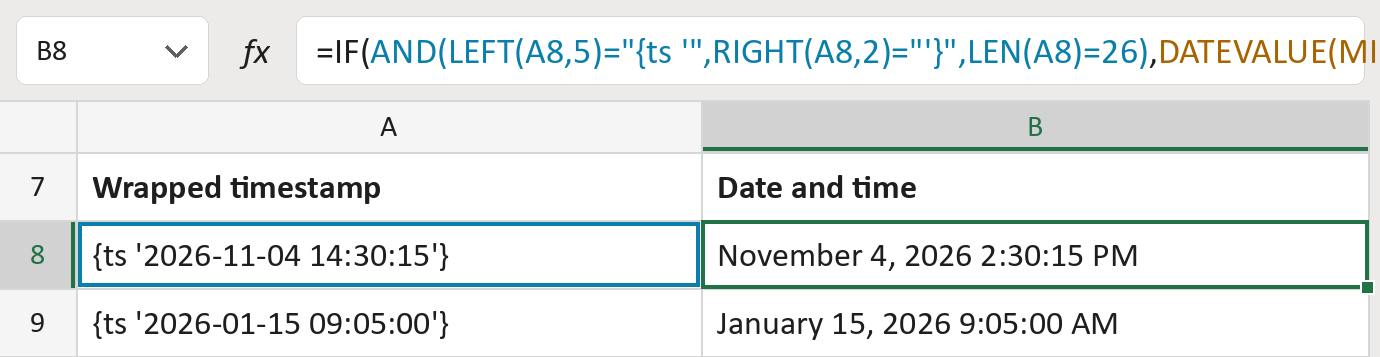
Turn {ts '2026-11-04 14:30:15'} into a real date and time.
What you'll make
The formula
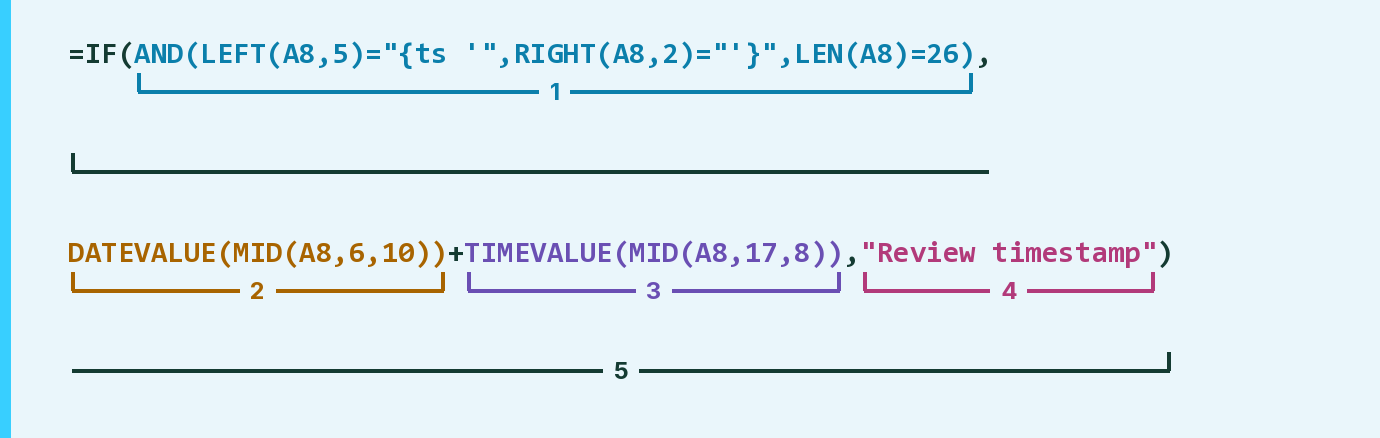
| Number | Part | What it does | Result so far |
|---|---|---|---|
| 1 | AND( … ) | Checks the {ts ' start, the '} end and 26 characters. | TRUE |
| 2 | DATEVALUE(MID( … )) | Reads 10 characters from the 6th as a date. | November 4, 2026 |
| 3 | TIMEVALUE(MID( … )) | Adds the clock time from the 17th character. | November 4, 2026 2:30:15 PM |
| 4 | "Review timestamp" | The message when the wrapper or length is wrong. | Not used for row 8 |
| 5 | IF( … ) | Shows the date and time, or else the message. | November 4, 2026 2:30:15 PM |
It only unwraps the text. It doesn't run anything, and the time has no time zone.
=IF(AND(LEFT(A8,5)="{ts '",RIGHT(A8,2)="'}",LEN(A8)=26),DATEVALUE(MID(A8,6,10))+TIMEVALUE(MID(A8,17,8)),"Review timestamp")How to use it
Yellow bar at the top? Click Enable Editing.
- See it work. The Example tab shows 20 made-up examples with the formula already in.
- Use your own timestamps. Paste timestamps like {ts '2026-11-04 14:30:15'} into the green column of the Template tab. The dates and times fill in by themselves.
- Move them into your letter. Copy the results. Then use Paste Special and choose Values.
Before you send
Check every Review row by hand. Times with fractions of a second are flagged, not rounded.
Microsoft's help: DATEVALUE function
OTHER ROUTES YOU MIGHT LIKE
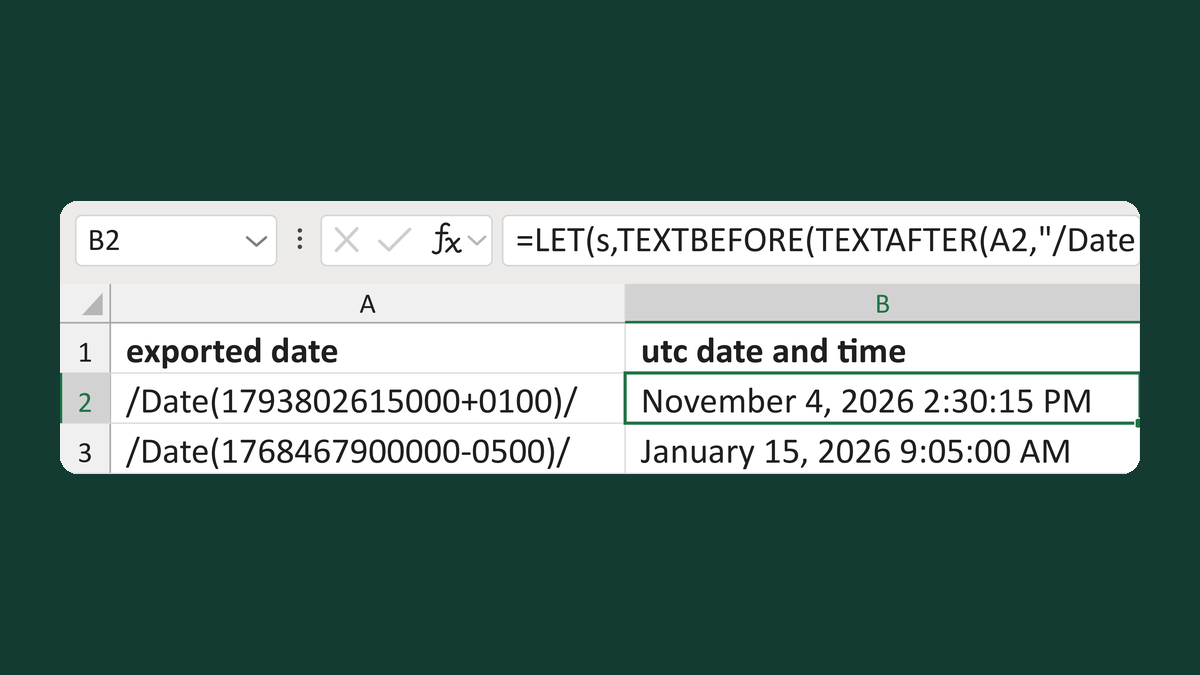
Read /Date(…)/ values with a time zone
/Date(1793802615000+0100)/ → November 4, 2026 2:30:15 PM
Get the template →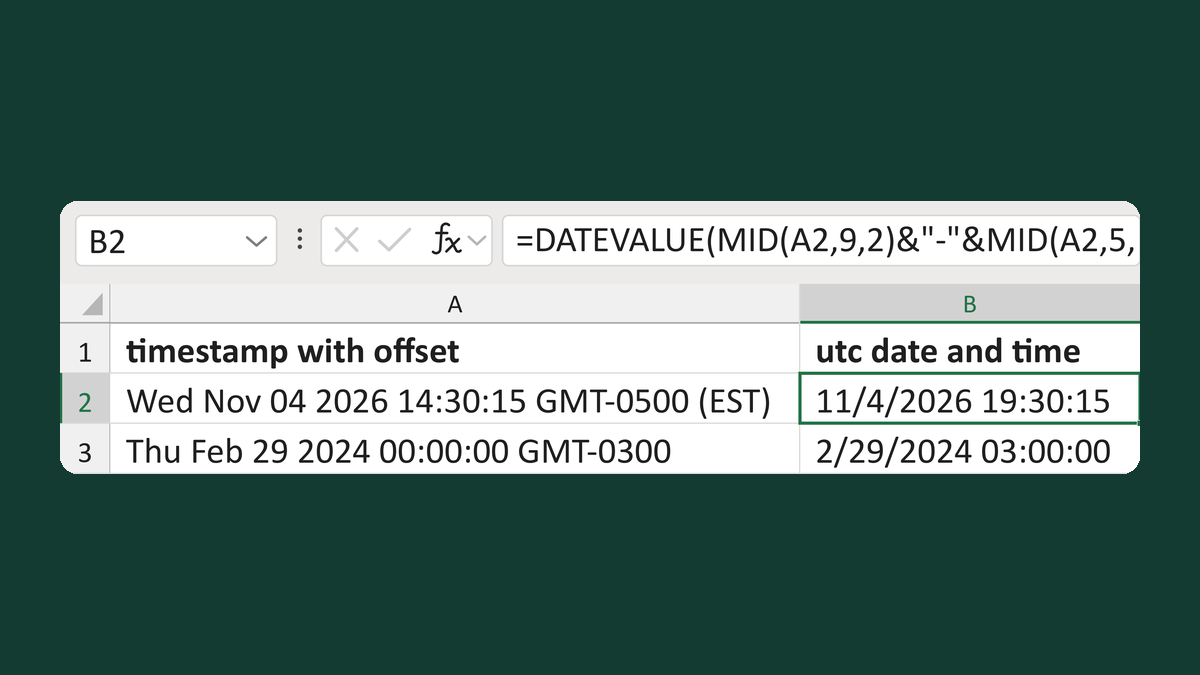
Read GMT-0500 timestamps as UTC
Wed Nov 04 2026 14:30:15 GMT-0500 (EST) → 11/4/2026 19:30:15
Get the template →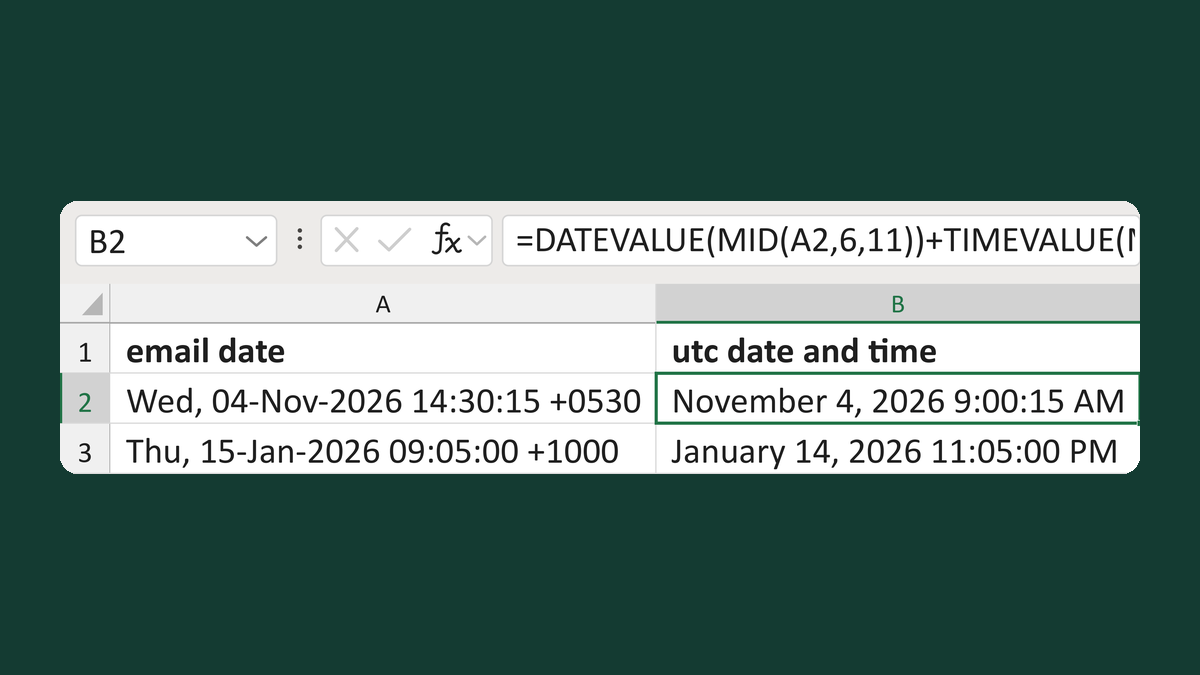
Convert an email date to UTC
Wed, 04-Nov-2026 14:30:15 +0530 → November 4, 2026 9:00:15 AM
Get the template →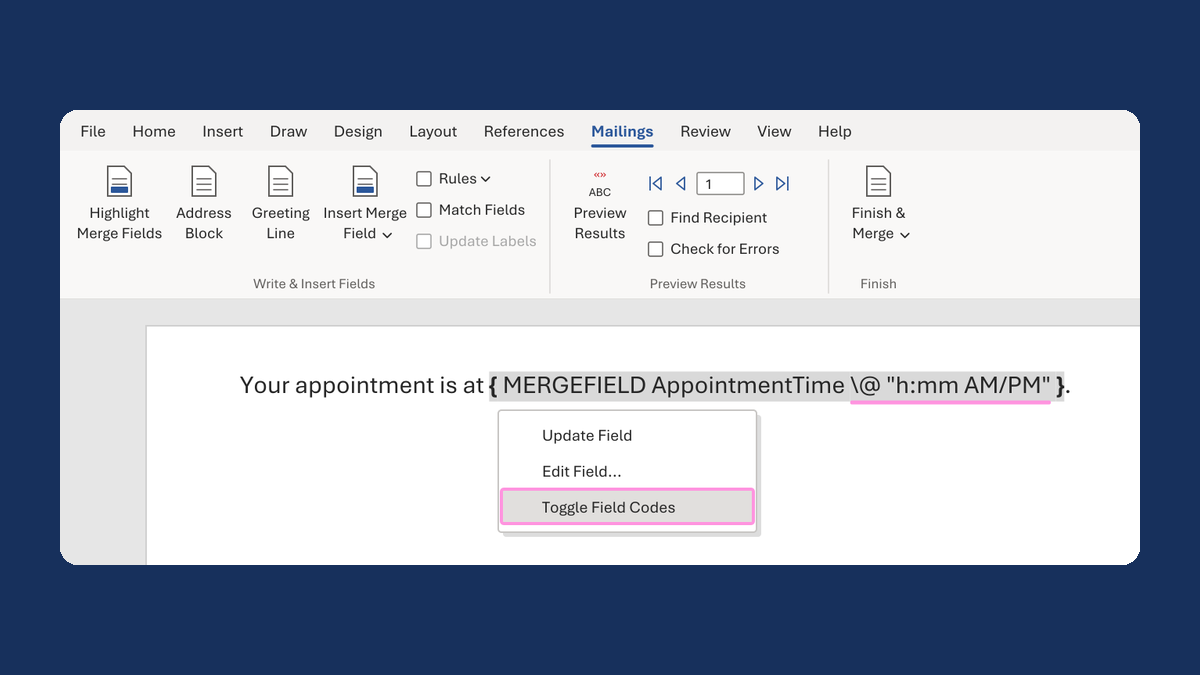
Show an appointment time as 1:05 PM
13:05:00 → 1:05 PM
Take this route →