Add an enclosure line only to letters that get it

Make5 minutes
The problem
One fixed enclosure line is wrong for people who don't get the guide.

Why it happens
One mailing, different envelopes. Some people get the guide and some don't, so one fixed enclosure line is wrong for part of the mailing.
Fix it
-
In your list, add a column that says Yes or No for each row, like IncludeGuide.
-
In your letter, click at the end of an existing paragraph, like the one before your closing. Type a space so the sentences don't touch. Don't put the rule on a line by itself, or No letters get an empty line there.
-
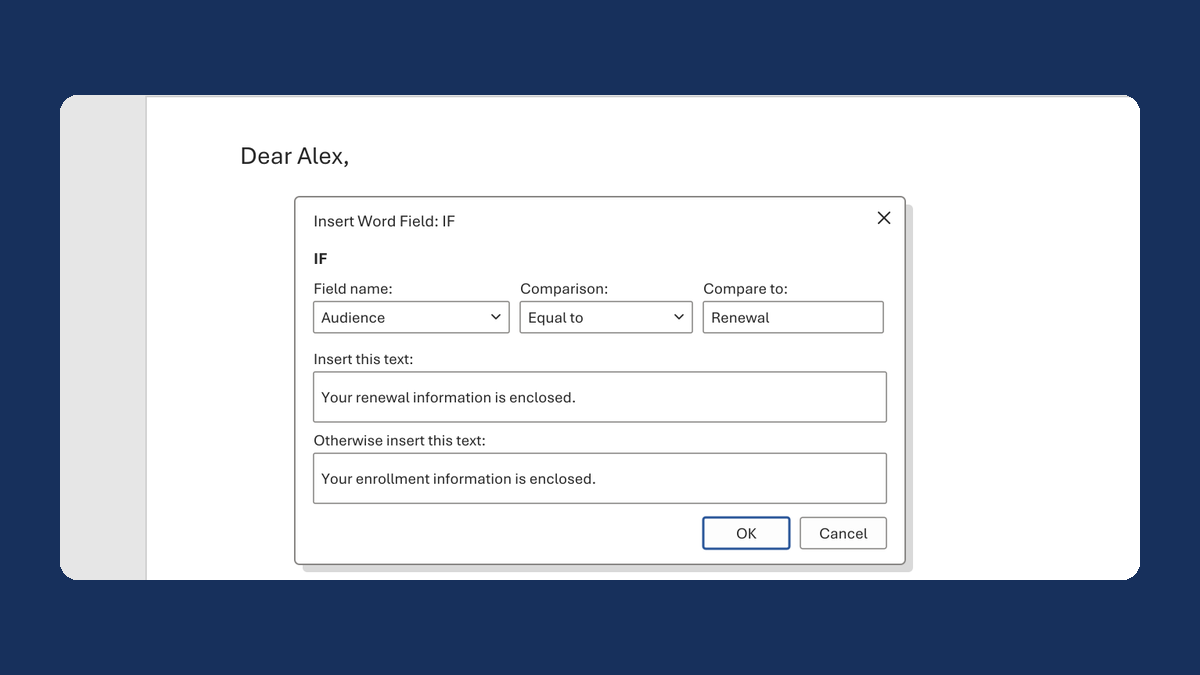
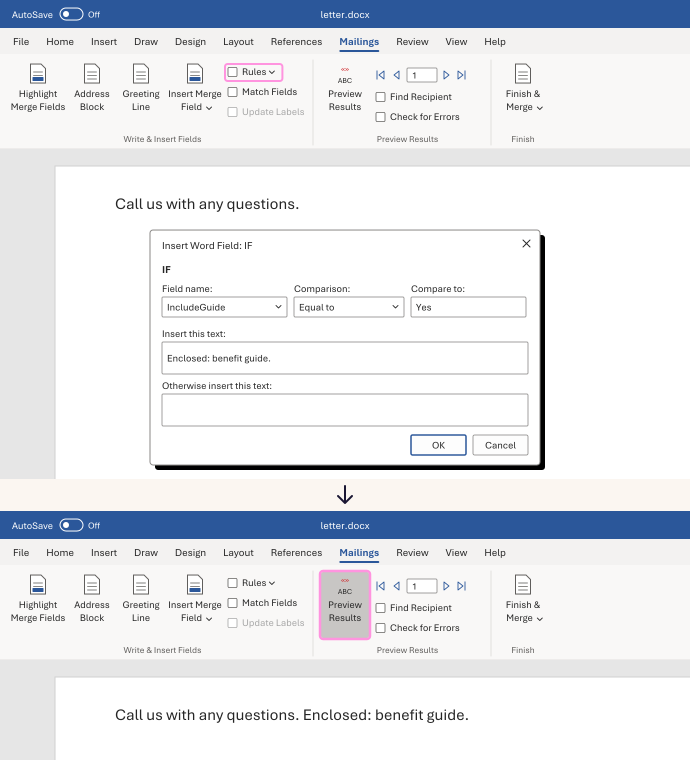
On the Mailings tab, click Rules, then If...Then...Else.
-
Set Field name to IncludeGuide, Comparison to Equal to, and Compare to to Yes.
-
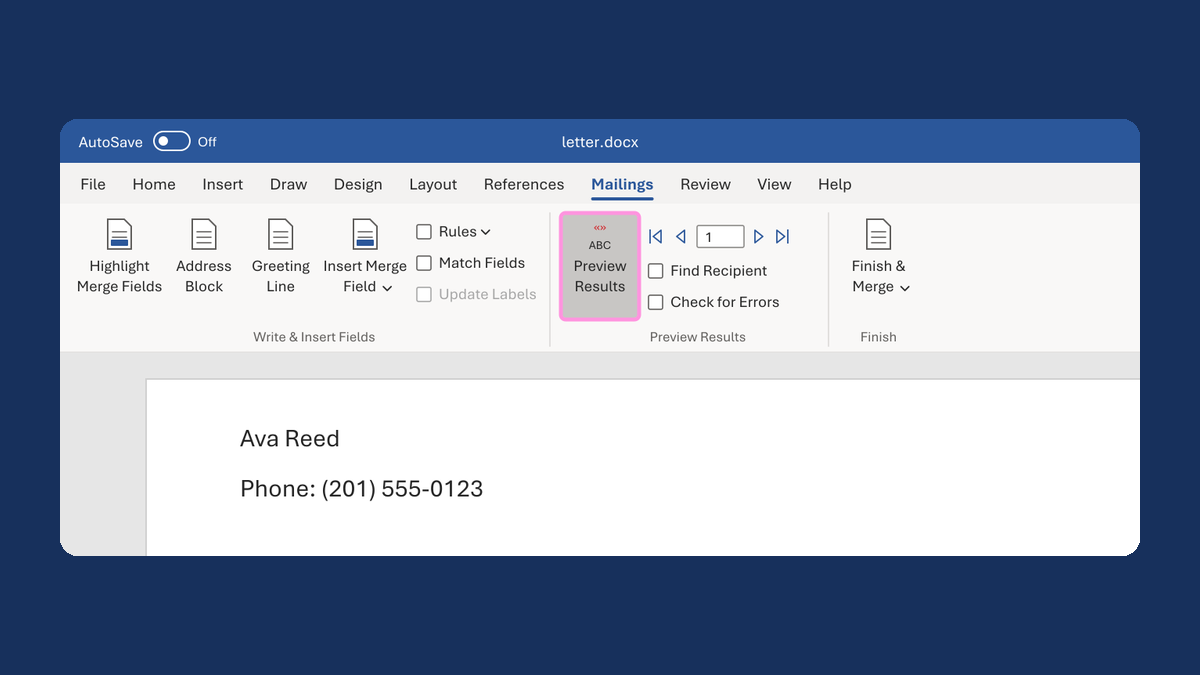
In Insert this text, type "Enclosed: benefit guide." with the period. Leave Otherwise insert this text empty. Click OK, then Preview Results.
Yes rows say "Enclosed: benefit guide." No rows leave it out.
Watch for
This only changes the sentence. It doesn't put anything in the envelope. Make sure the Yes or No column matches who actually gets the guide.