Fill a whole sheet of Avery 5160 labels

Make10 minutes
The problem
Only the first label has a name. The rest of the sheet is empty.

Why it happens
You set up the first label only. The other labels stay empty until Word copies that layout to them.
Fix it
-
On the Mailings tab, click Start Mail Merge, then Labels....
-
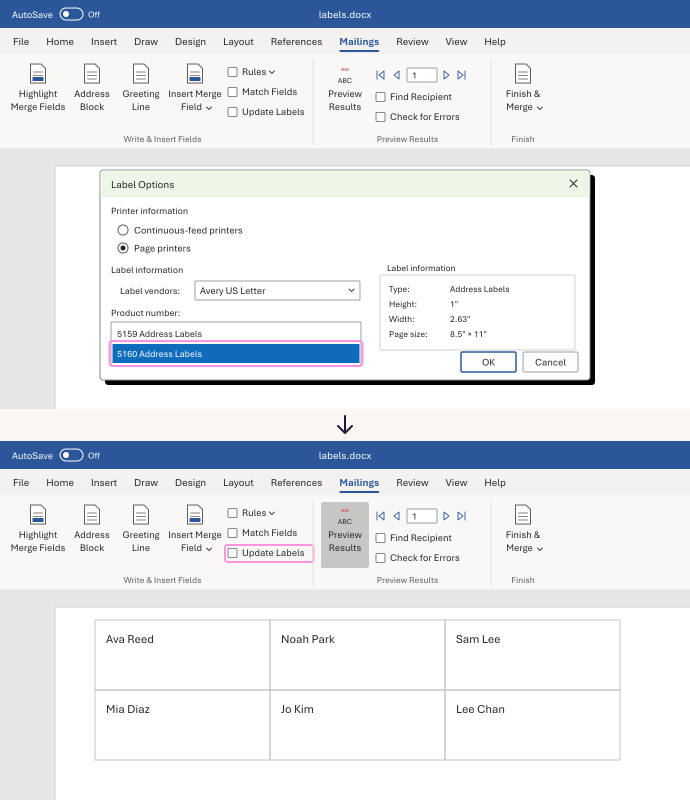
Set Label vendors to Avery US Letter. In Product number, pick 5160 Address Labels, then click OK.
-
Click Select Recipients, then Use an Existing List..., and choose your list.
-
Click in the first label. Add your fields with Insert Merge Field.
-
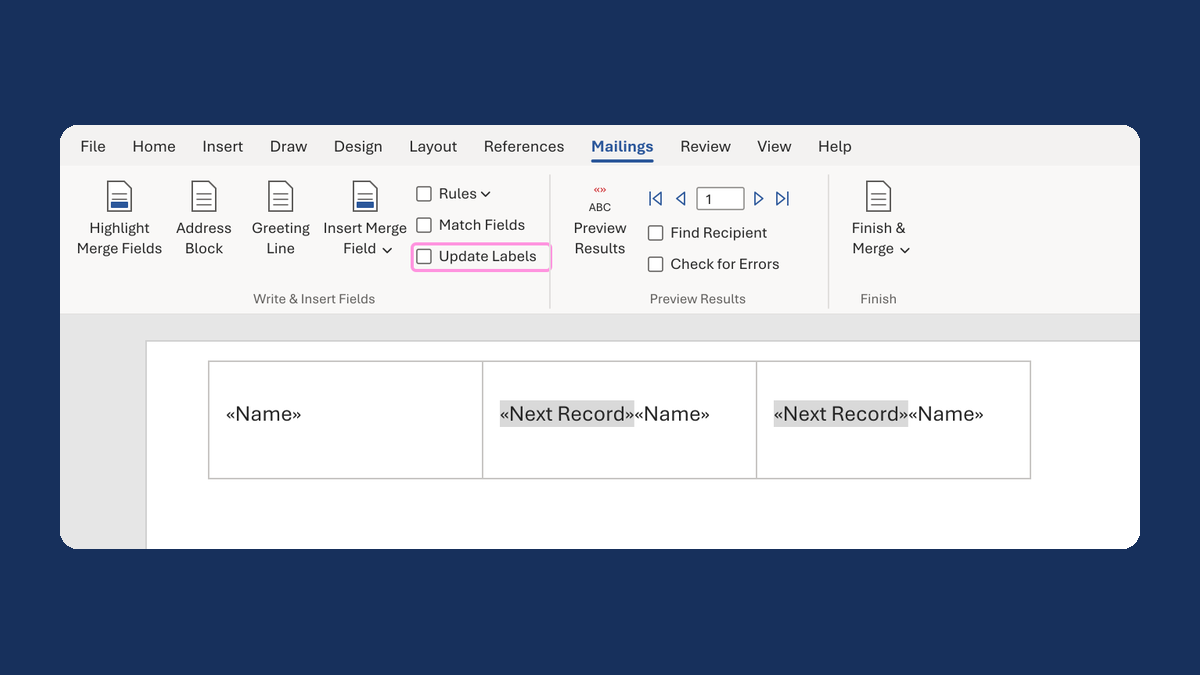
Click Update Labels, then Preview Results.
Update Labels filled all 30 labels on the sheet. Each label after the first got a «Next Record» field, so it shows the next person.
Watch for
Don't copy the first label and paste it over the whole sheet. Pasting over the whole table also puts text in the thin gaps between labels, and Update Labels won't clear it. Undo the paste, then use Update Labels.
Is 8160 different? In Word's Label Options, 8160 Address Labels has the same size as 5160: 1" by 2.63", 30 per sheet.