When reviewers don't use the shared file

Edits in the file, in Word copies and in email → one draft the owner signs off
You sent one link and asked everyone to edit there. Some did. Others sent their own Word copy or typed changes into an email. Here's how to get back to one draft, and how to ask so it happens less next time. Already have edits back? Start at step 2.
1. Ask well
- Use the Review request email (text file). It gives one link, one job per reviewer, a due date with the time zone, and asks for Track Changes on.
- Get feedback without five drafts going around has more on setting up the round.
- To force tracking on in desktop Word, click Review, Protect, then Restrict Editing. Check Allow only this type of editing in the document, choose Tracked changes, then click Yes, Start Enforcing Protection.
- In our test, Word for the web then wouldn't let even the owner edit. We didn't test it with a separate reviewer. Use it only when everyone reviews in desktop Word.
2. Round up what came back
- Keep everything as it came: the shared file, each returned copy and each email.
- Open the Change log (Excel) in Excel and add one row per change. It has eight columns, including Type, Decision and Who decided. Replace the example row with your first change.
3. Sort it
- Mark each change as a correction, a required change or a preference.
- When two changes disagree, the owner decides under your policy or process. Write the decision and who made it in the log.
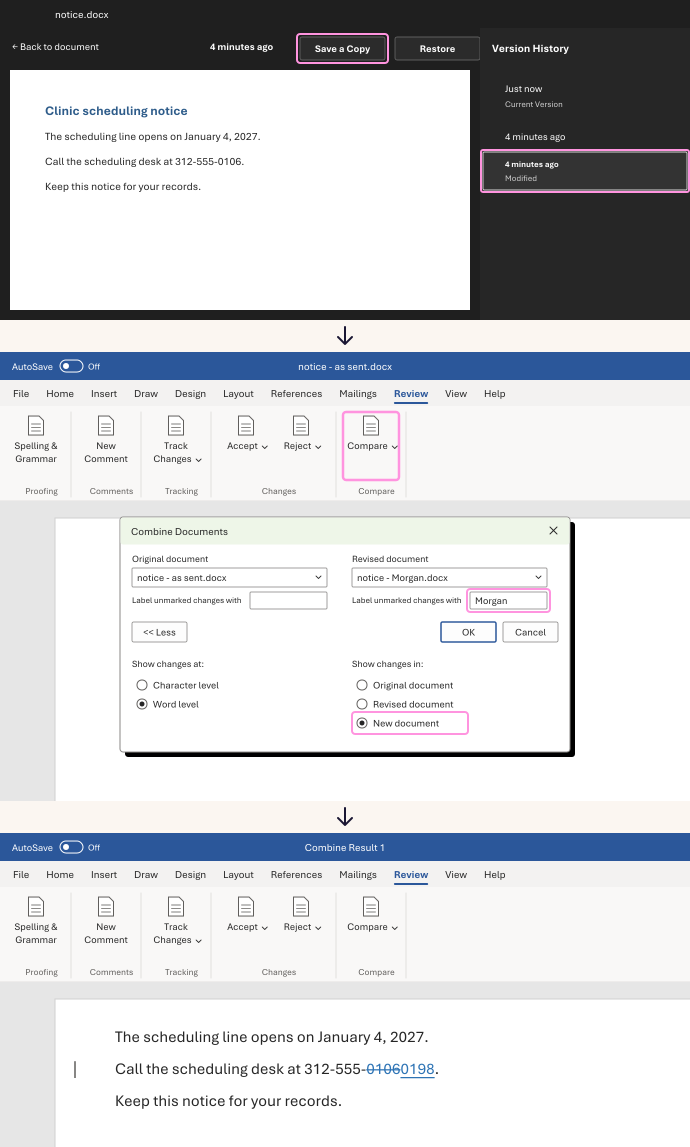
4. Bring the edits in
- Find the version you sent. If you didn't keep a copy, open the shared file in Word for the web. Click File, then Version History.
- Pick the last version from before you sent the request. Use the time on your request email. Click Save a Copy, because Restore would replace the shared file. Check that copy's wording and time.
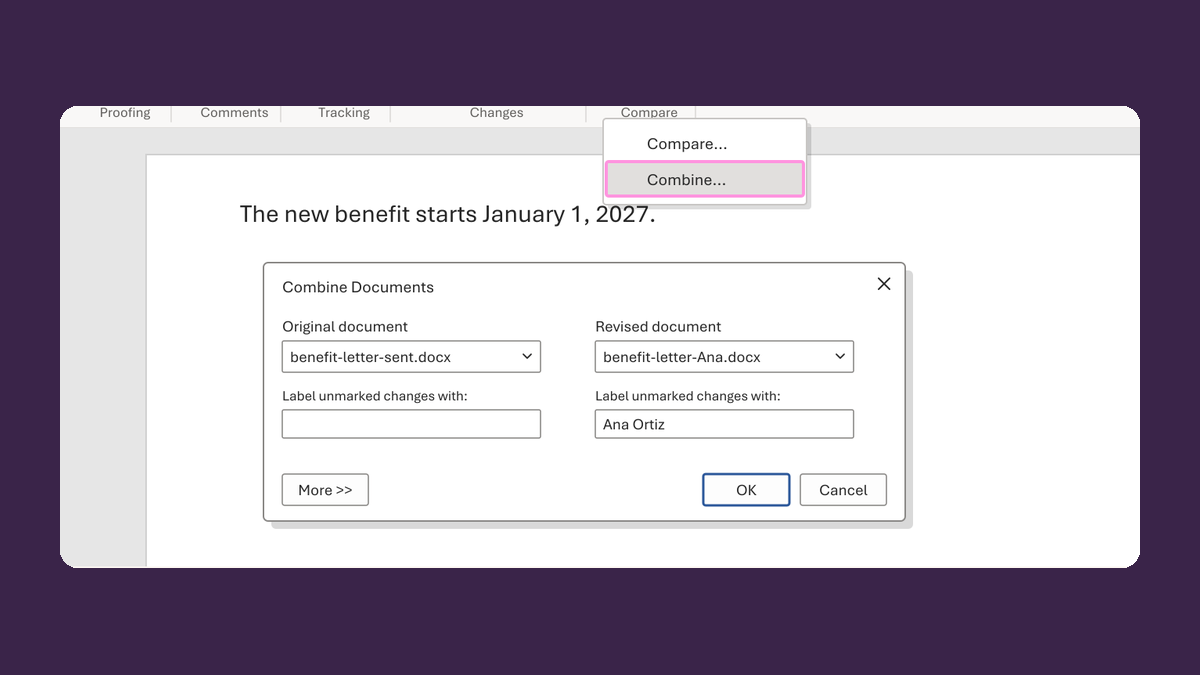
- For each returned Word copy, open desktop Word. On the Review tab, click Compare, then Combine... in the list.
- Choose the version you sent under Original document, and the returned copy under Revised document. Type the reviewer's name in Label unmarked changes with.
- Click More >>, set Show changes in to New document, and click OK. Run Combine once for each copy, always against the version you sent. You get one result per reviewer.
- Not sure if they had Track Changes on? Combine showed untracked changes in our test, so use it.
- Edits typed in an email don't merge. Add them by hand, as Merge emailed edits back into one draft explains.
- Make the decided changes in a copy of the current shared file, not the old version. Type or accept each one yourself, because Combine doesn't apply decisions for you.
Across our two tests, Combine showed a tracked date change and an untracked phone change. The final kept the office hours added in the shared file, and used the owner's April 5, 2027 date.
5. Close it out
- Send the draft to the owner with the Sign-off request email (text file). Give a reply-by date.
- After the owner approves, mark that copy final. Click File, Info, Protect Document, then Mark as Final.
- Keep the change log and the Combine results as your record.
- Send Please use the shared file next time (text file) to anyone who sent their own copy.
Watch for
Mark as Final only asks people not to edit. Anyone who can edit the file can click Edit Anyway. The owner's approval is their reply, so keep it with your record. We tested Version History on a file without Restrict Editing.
Downloads
- Review request email (text file)
- Change log (Excel)
- Sign-off request email (text file)
- Please use the shared file next time (text file)
Related
For: Word for Windows, Word for the web and Excel